Pur/Sales Analysis
On this page
The Pur/Sales Analysis report lists what each customer bought, or what you bought from each supplier, company by company and product by product. Each line shows the units, the net price and the amount, and, where you have agreed an actual price, the difference. Returns are listed under the product and taken off. Use it to see what price each party really paid for each product.
Open the report
Press Alt+7 for Special Reports, then F. The report opens for the financial year from its first day to today, with the cursor on Type and the choice Sales.
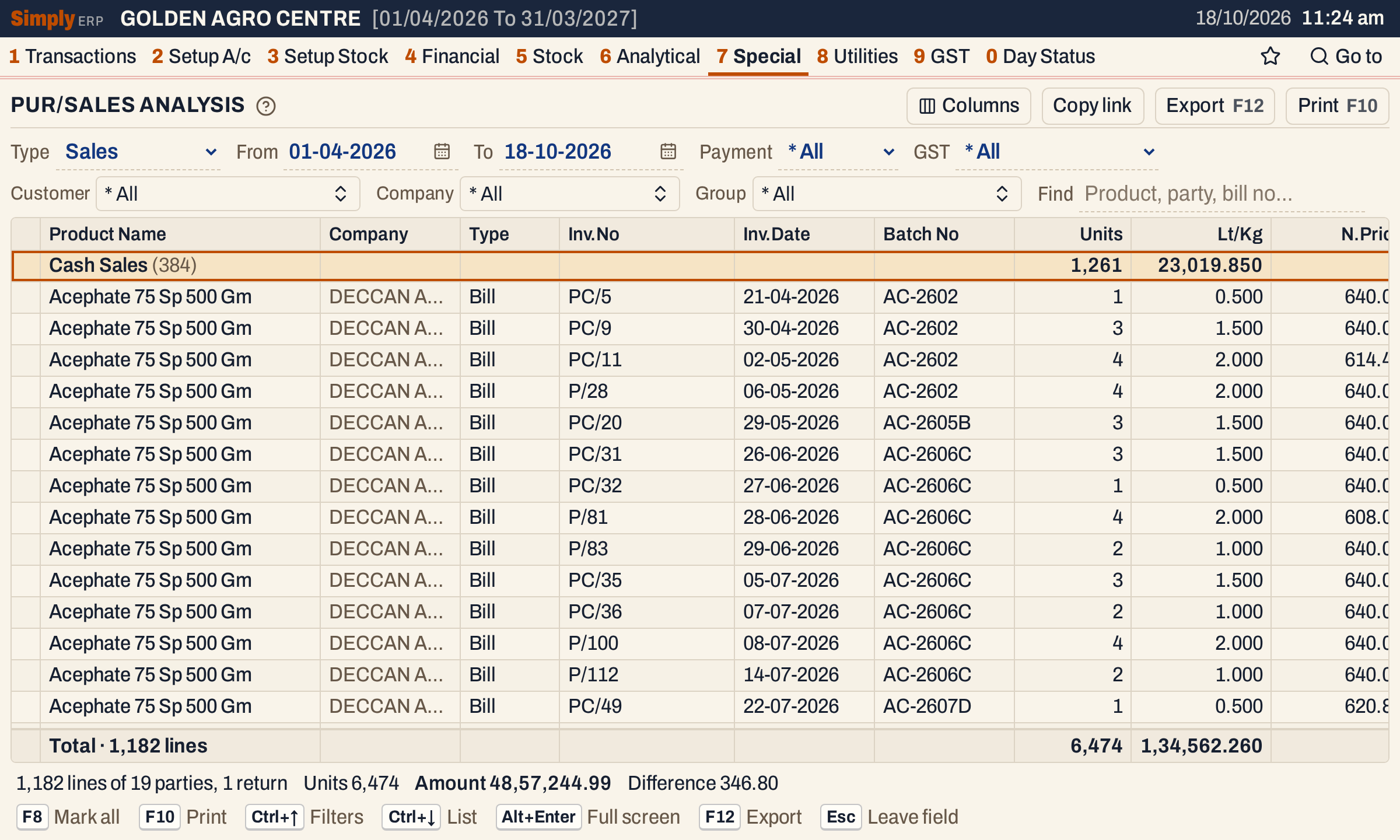 Each party is a bold line with the number of its lines in brackets; its lines are under it, company by company and product by product.
The report is large: every party of the year is in it. Choose a customer and a company to read one party’s lines. Here the customer is Tungabhadra Agri Inputs, the company is Sitara Crop Sciences, and Payment is Credit.
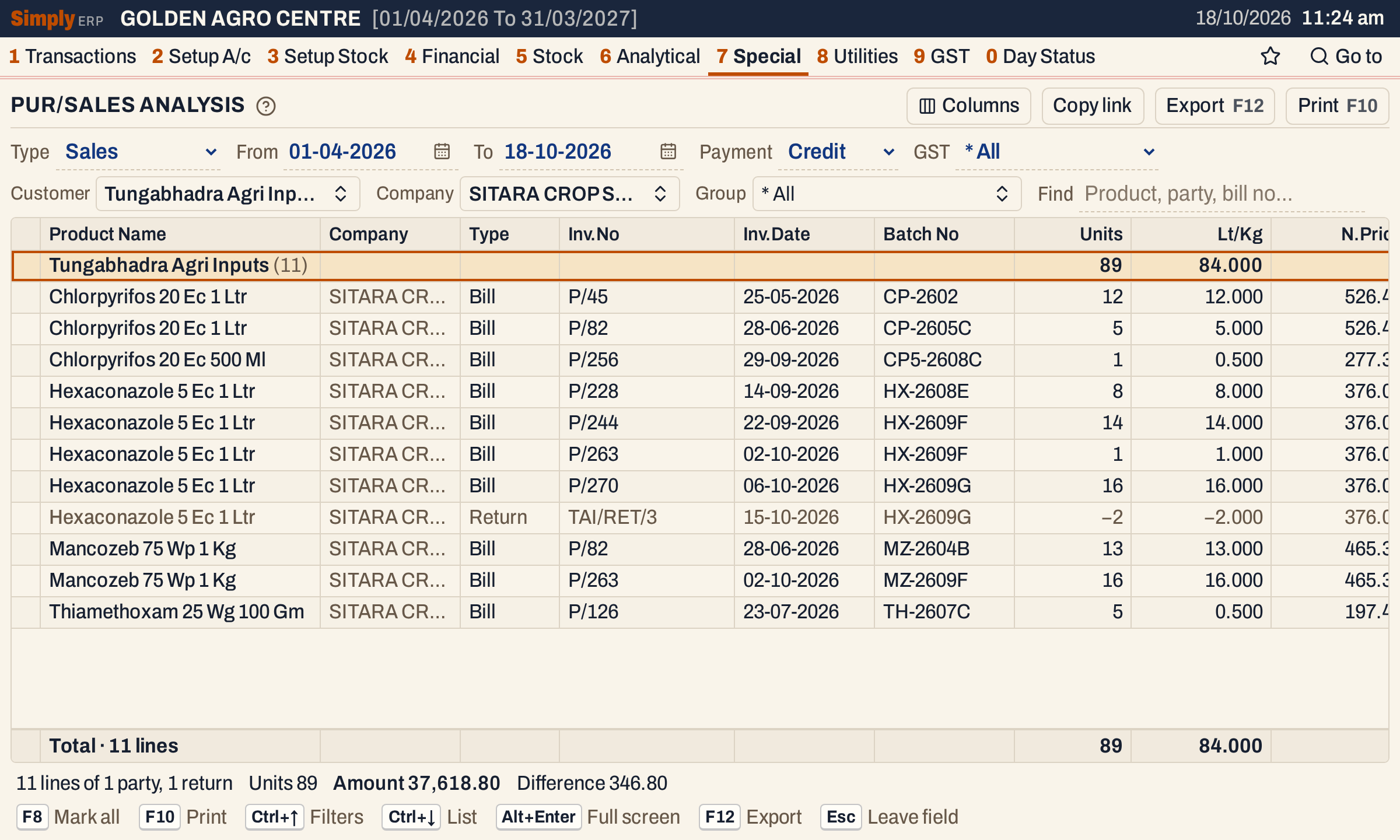 The return, TAI/RET/3, is in grey with its units below zero; its amount is below zero too, as the columns on the right show.
What it lists
One line for each item line of the party’s bills posted in the period, both days included:
- Sales: sales bills, and sales returns as the return lines;
- Purchases: purchase bills, and purchase returns as the return lines.
Only items that have a company are read. Charges on a bill are not listed.
Credit bills are listed under the customer or supplier. Cash bills are not tied to an account here: they are listed together under Cash Sales (or Cash Purchases), whatever name was on the bill, and a customer or supplier you choose does not narrow them. To leave them out, set Payment to Credit for sales, or untick Cash bills for purchases. A bill paid by card or wallet is not a cash bill: it is listed only when it names a customer (or supplier) account. Returns are listed only for customers (or suppliers) with an account; a return with no account does not appear. Customers are accounts of the type Customer, Customer - Supplier and Farmer; suppliers are Supplier and Customer - Supplier.
Goods received on a delivery challan and not yet billed are not read.
Columns
| Column | What it shows |
|---|---|
| Product Name | The item. On a party’s line, the party’s name with its number of lines in brackets. |
| Company | The item’s company. Hide it with Columns. |
| Type | Bill, or Return (grey). It shows only when the list has a return. |
| D.C.No, D.C.Date | The delivery challan the bill took the goods from, and its date. They show only when some line has one. Hide them with Columns. |
| Inv.No | The bill’s number. |
| Inv.Date | The bill’s date. |
| Batch No | The batch on the line. It shows only when some line has one. Hide it with Columns. |
| Units | The quantity. A return is below zero. |
| Lt/Kg | The units converted with the item’s pack size to litres or kilograms. It shows only when some line has a pack size. |
| N.Price | The net price: the amount divided by the units, to two decimals. |
| Amount | The line’s amount, in bold. A return is below zero. |
| Ac.Price | The actual price agreed for the line. It shows only when some line has one. |
| Diff.Amt | The difference between the amount and the actual price. It shows only when some line has an actual price. |
The totals line counts the lines and adds up Units, Lt/Kg, Amount and Diff.Amt. N.Price and Ac.Price are not added up. The status line gives the lines and parties, the returns, and the totals of Units, Amount and Difference.
On a 1200-pixel window the right-hand columns are off to the right; scroll the grid sideways to see them.
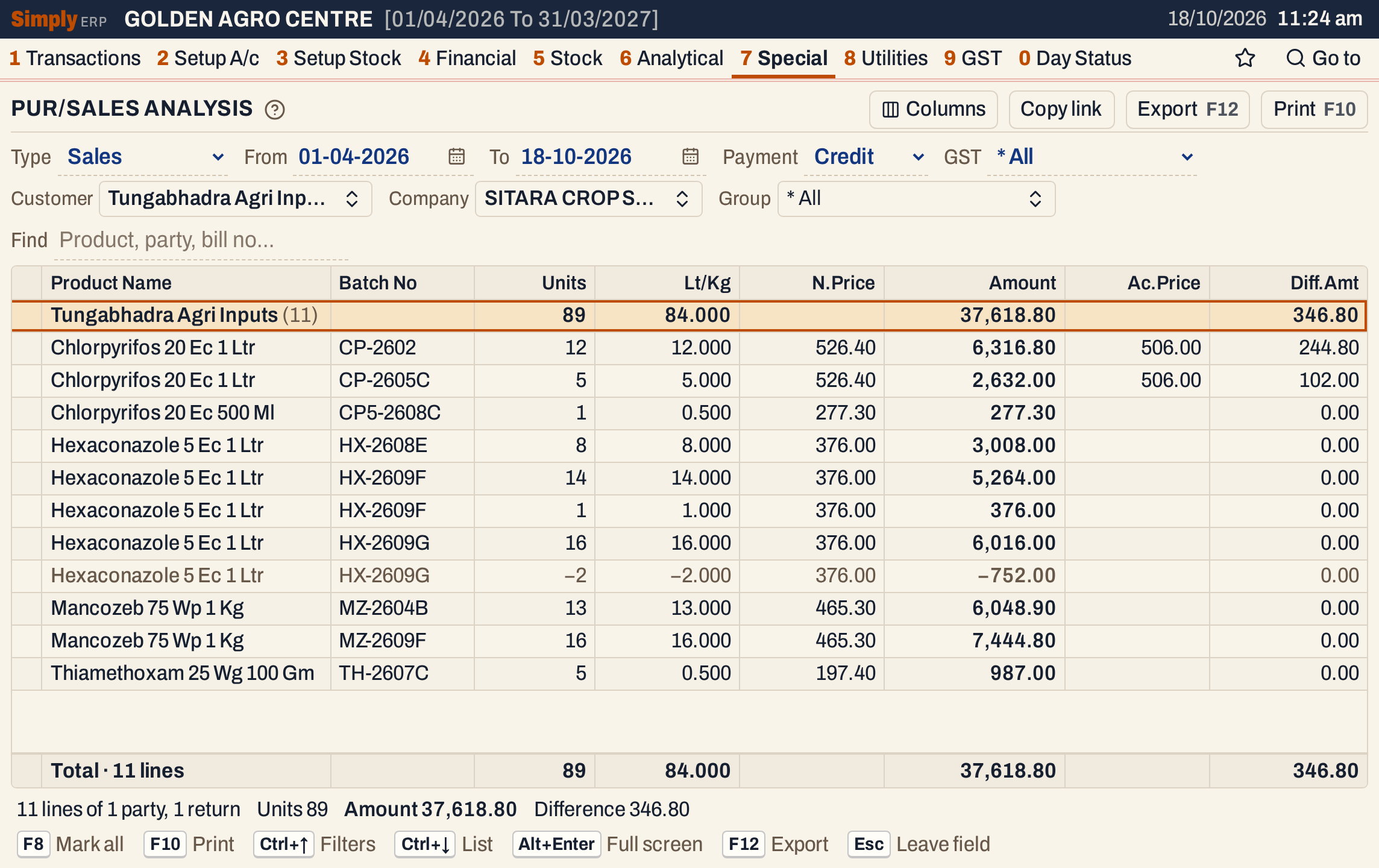 Scrolled to the right. The two lines with an actual price of 506.00 have differences of 244.80 and 102.00.
Choices
| Choice | What it does |
|---|---|
| Type | Sales (the default) or Purchases. Changing it clears the party choice. |
| From, To | The period, both days included. Both dates must fall in the financial year. |
| Payment | Sales only: * All, Cash or Credit. |
| GST | Sales only: * All, Registered or Unregistered, for customers with or without a GSTIN. |
| Cash bills | Purchases only: untick to leave the cash purchases out. Ticked by default. |
| Customer / Supplier | Shows only the parties you tick. The default is * All. |
| Company | Shows only the companies you tick. The default is * All. |
| Group | Shows only the product groups you tick, from the companies chosen. The default is * All. |
| Find | Shows only the lines that match what you type in the product, party, company, product group, bill number, batch number, D.C. number or date. Every word you type must match; a word of three letters or more also matches when its letters appear in that order, close together. |
Each of the last three opens a list: type to find a name, press Enter to tick it, and click Done. Click a column title to sort by it, and again to reverse. Sorting by Units, Lt/Kg, Amount or Diff.Amt also puts the parties in the order of their totals; the other columns sort the lines within each party. Every choice is kept in the page address, so Copy link gives a link that opens the same report.
 The choices of the report as it opens.
How the figures are worked out
- Order: the parties in name order; within each party, by company, product group and product; for each product the bills come before the returns, then by date and bill number.
- Amount of a bill line = the units × the line’s unit cost, rounded to the paisa. The unit cost is first rounded to two decimals; it is the line’s amount with GST divided by its units, after the line’s discounts, with the bill’s cost charges shared in. A return’s Amount is taken off.
- N.Price = Amount ÷ Units, to two decimals.
- Ac.Price = the actual price recorded on the bill line, set on the bill or in the Rate Difference Statement.
- Diff.Amt = Amount − Ac.Price × Units, when the line has an actual price. A return’s difference is taken off with its amount.
- Units on a return line = the units returned, below zero. Lt/Kg follows the same sign.
- Totals are the sums of the lines on the screen, so Find, Customer and Company change them.
The Amount here is the amount with GST. Here two Chlorpyrifos lines have an actual price of 506.00 against a net price of 526.40: 6,316.80 − 12 × 506.00 = 244.80, and 2,632.00 − 5 × 506.00 = 102.00. With no other differences the party’s difference is 346.80.
 The totals line and the status line.
Purchases
Choose Purchases to read the bills of the suppliers. The Cash bills box replaces Payment and GST. Here the company is Sitara Crop Sciences, and its supplier account has 26 purchase lines with a total of 3,67,668.56.
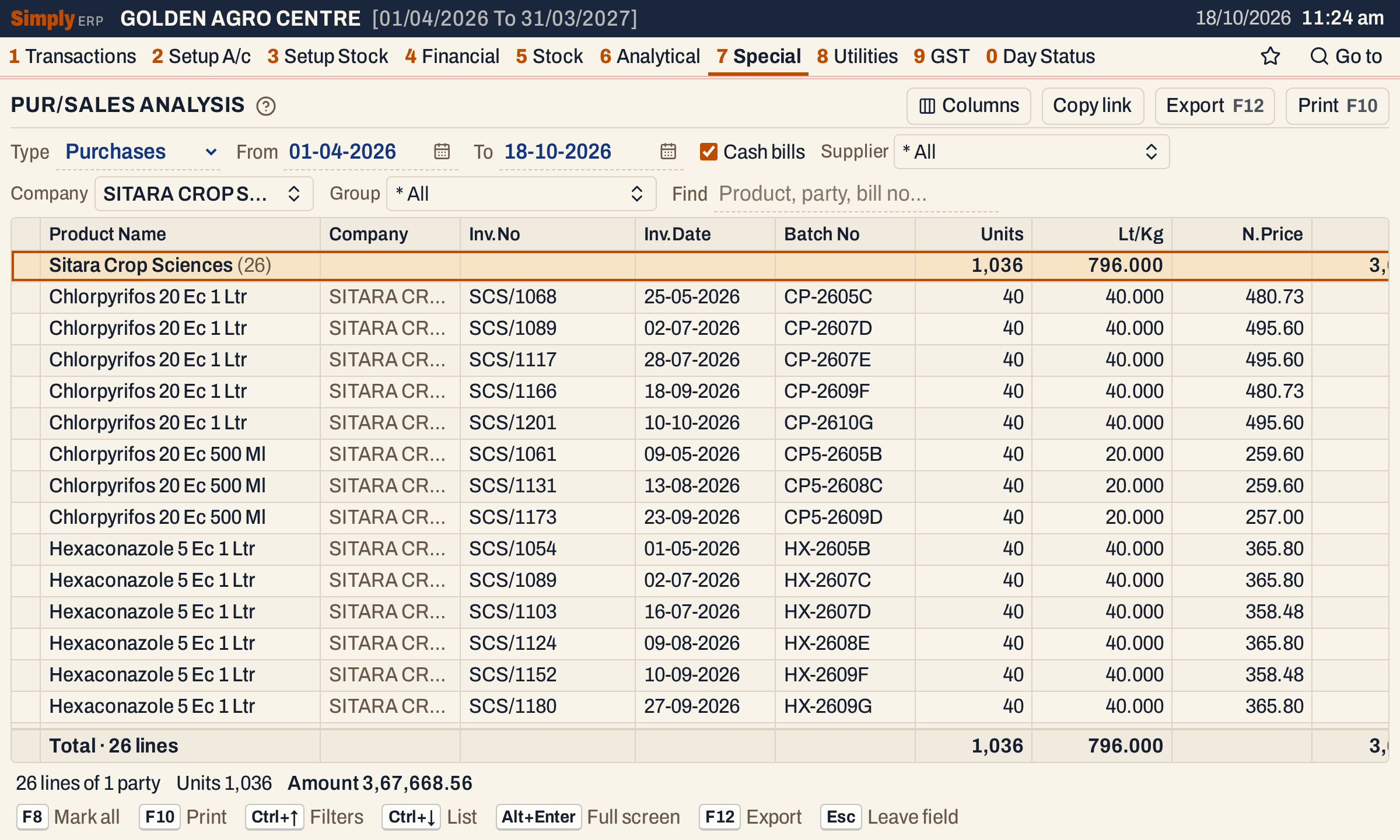 Purchases of one company. The total agrees with the Purchase figure of Sitara Crop Sciences in the Company wise Analysis.
Open, mark, print and export
- Enter on a line opens the bill. Back returns to the list.
- F2 marks a line and F8 marks every line on the screen. When any are marked, F10 prints only those, and the print says Marked lines only.
- F10 prints the report under the title PARTY WISE COMPANY VS PRODUCT ANALYSIS STATEMENT, followed by SALES or PURCHASES in brackets. Each party is a heading, then each company, then each product with its lines and returns. The print closes each product with its total (called Net Total when the product has returns), each group with its litres and kilograms, each company with its total value, and each party with its total value.
- F12 saves it as an Excel workbook.
- Alt+Enter gives the whole window to the list.
Updated 4 November 2026.