Make a sale bill
On this page
A sale bill records what you sold, to whom and at what price. Saving it takes the units out of stock, batch by batch, and posts the sale, its GST and the amount due to your books. The whole bill can be made without the mouse: Enter moves from field to field, and F3 saves.
Open a new sale
Press Alt+1 for the Transactions menu, F for G S T Outward (Direct), then N for New Entries. You can also click the menu with the mouse; every key in the menu is a letter you can press or click.
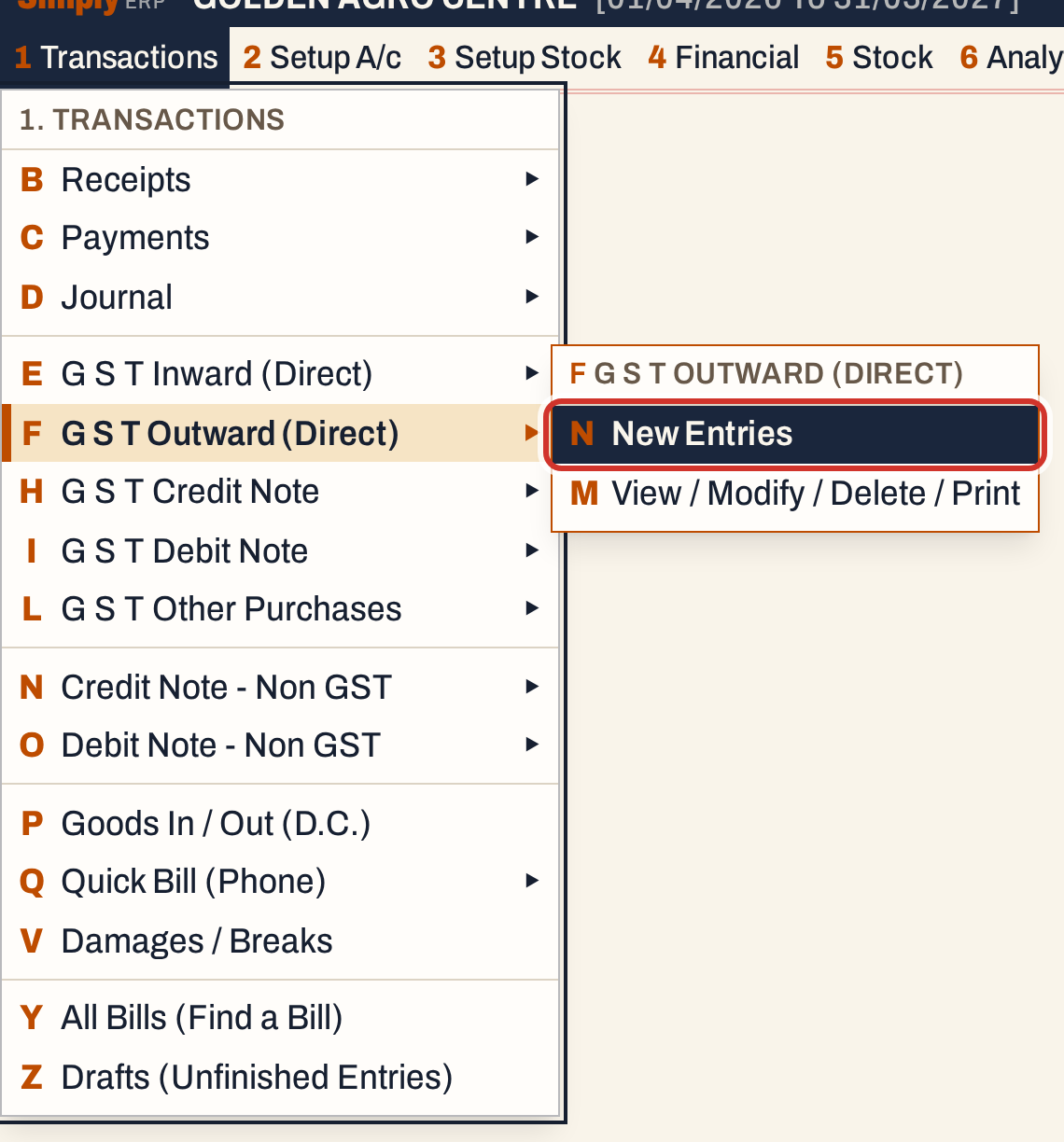 1 F N: Transactions, G S T Outward (Direct), New Entries.
The bill opens with the cursor in its first field, the bill type. The date starts on today’s working date, and the payment on Cash.
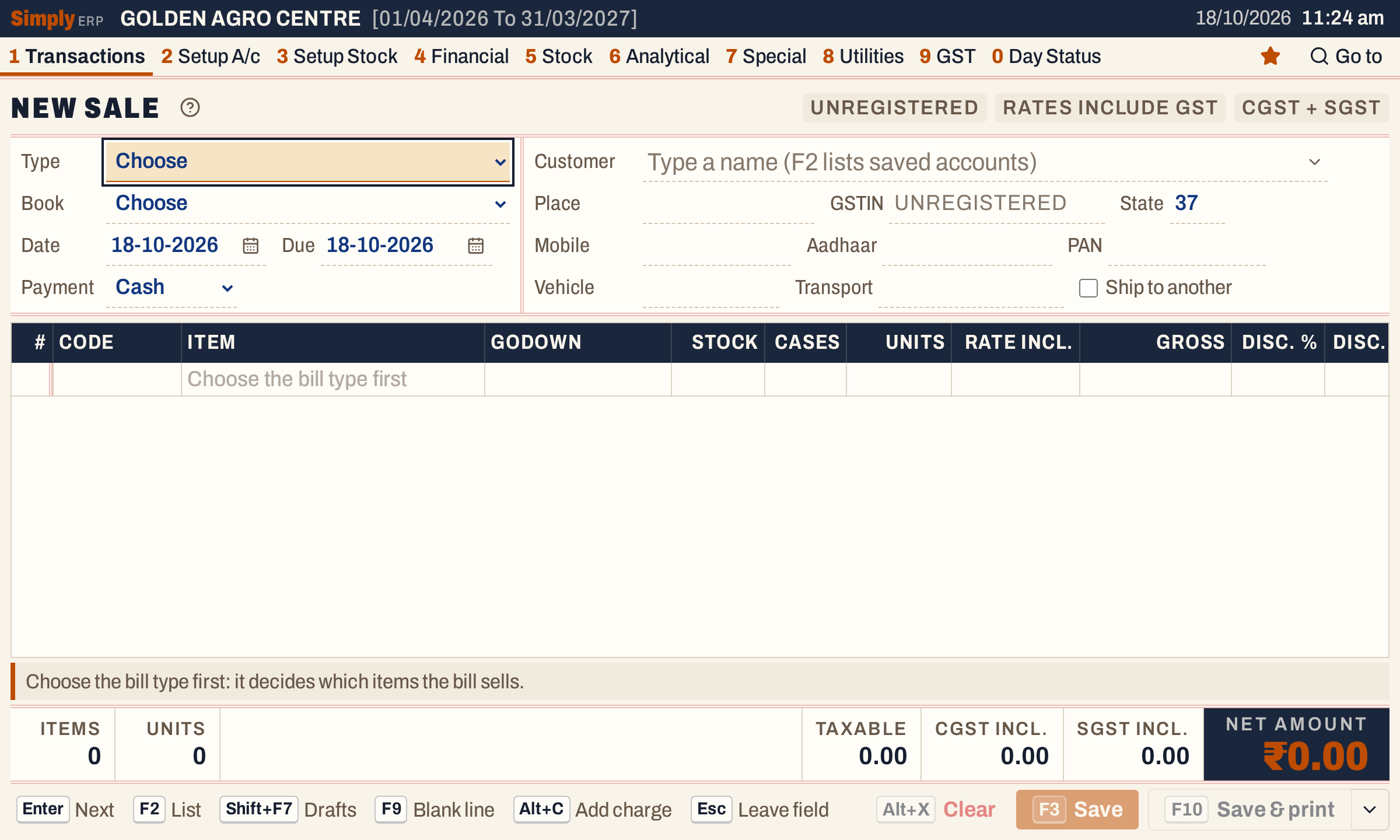 A new sale. The lines cannot take items until the bill type is chosen.
Choose the bill type, book and payment
The Type decides which items the bill can sell: a Pesticide Sales bill lists only pesticide items. Each bill book in Bill Books & Series (8 C) belongs to one type, and Purchase Returns are made on this screen too. When a type has one book, the Book is chosen for you; when it has several, choose one. The book is the bill number series. The next number shows beside the heading (No. P/296 here).
Payment is Cash or Credit:
- A cash bill is paid at the counter. The customer is just the name you type for the bill, so a walk-in customer needs no account. Leave it empty and the bill is made to Cash. To bill a saved customer for cash, press F2 in the Customer field to list the saved accounts.
- A credit bill goes on the customer’s account. Type part of the name and the list shows every matching account with its place, GSTIN and balance.
 Typing finds the account by any part of its name. Enter takes the highlighted account.
Once the customer is chosen, their place and state fill in, and their balance shows beside the name. The Due date starts on the bill date; change it for a customer who pays later. Vehicle and Transport are optional, and the Ship to another box lets you name a different party for the goods to go to.
 The customer’s balance before this bill: ₹823 to receive.
The words above the grid say how the bill is taxed. A customer with a GSTIN is billed at rates before GST, and the grid gets an Incl. rate column that works the rate out from a price including GST. A customer without one, like this farmer, is billed at rates that include GST. A customer in another state is charged IGST instead of CGST and SGST.
Add the items
Type an item’s name or code in the Item column. The list shows every item that matches, with its code, company, MRP, rate, GST and stock; F2 lists them all.
 The item list shows the stock on hand, so you see a shortage before you bill it.
Enter takes the item and moves along the line. Type the units (or the cases, for items packed in cases), and the rate comes from the item’s sale price; change it if this customer pays a different rate. You can type a discount as a percentage or as an amount, and the other is worked out for you.
The batch list then opens by itself. It shows each batch’s expiry and what it has left after the bill’s other lines. Batches with stock come first, the nearest expiry first; batches that have expired come next, and batches with nothing left come last. Press ↓ and Enter to take a batch. An item with only one batch in stock takes it without asking.
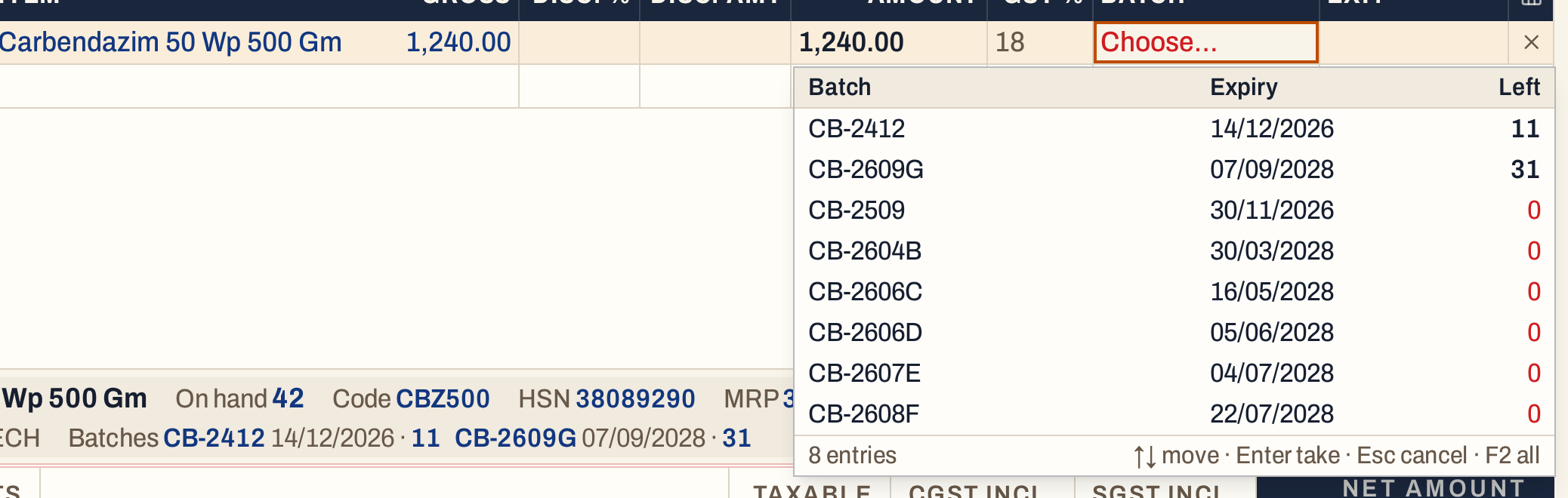 Batches with stock come first, the nearest expiry first, so old stock goes out first.
If the batch you choose has fewer units left than the line needs, the line takes what it has and a new line below carries the rest, with its own batch list open. Ten units from batches of 4, 4 and 2 take three choices.
Repeat for each item. The band under the grid shows the item on the current line: stock on hand, code, HSN, MRP, the GST on the line, the line total and up to five batches that have stock, with their expiry.
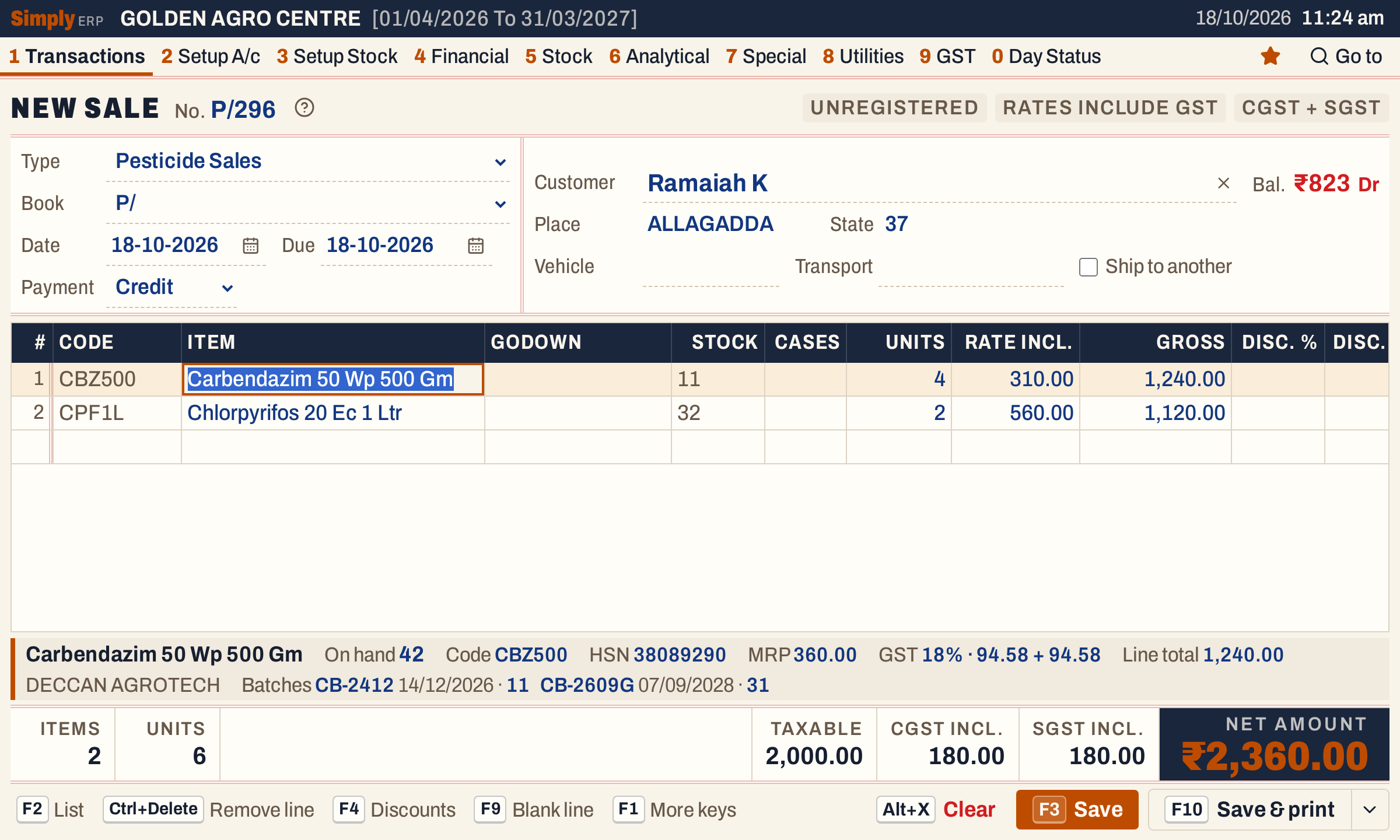 Two lines, ₹2,360 in all.
Check the totals
The totals under the grid add up as the bill will print: the number of items and units, the taxable value, the CGST and SGST (or IGST), any charges (shown as Others and Less), and the net amount in the dark box. A bill with a discount also shows its gross and discount.
 For rates that include 18% GST, ₹2,360 is ₹2,000 taxable and ₹180 each of CGST and SGST.
To add freight, a cash discount or round-off, press Alt+C; see Add discounts and charges to a bill.
Save or print
- F3 saves the bill.
- F10 saves and prints it. In the desktop app it prints on this computer’s printer without asking.
- Shift+F10, or the arrow beside Save & print, chooses the layout, half-page paper and the number of copies, or prints once on another printer or as a PDF.
After saving, a fresh bill opens for the next customer, and a notice names the bill just saved. Click its number to open it.
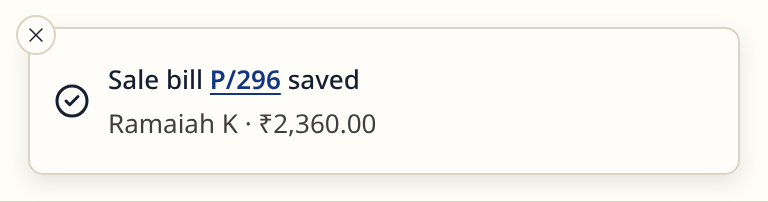 The saved bill’s number opens it.
Every bill you save is in All Bills (1 Y), which starts in its Find box: type a bill number, party, place, phone number or GSTIN.
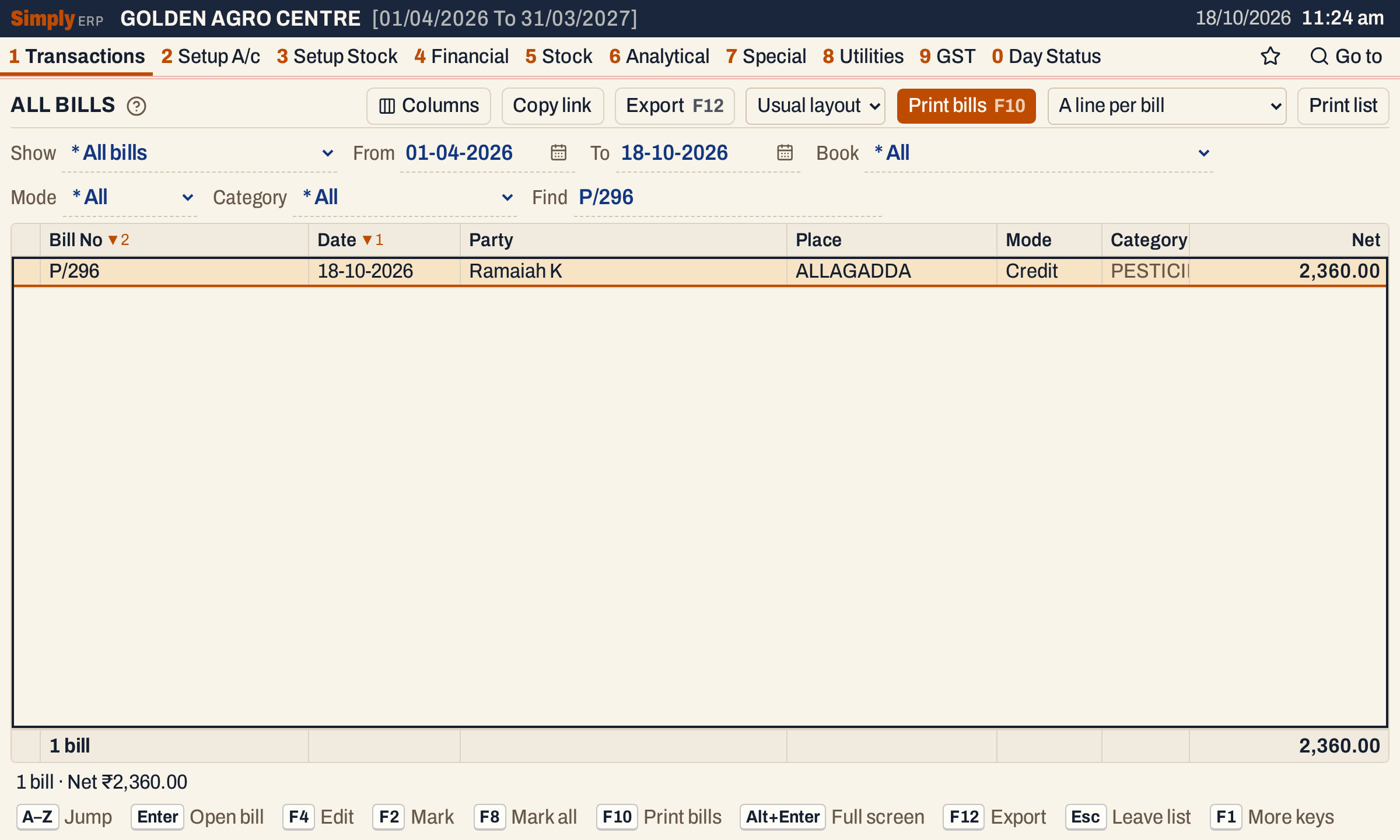 Enter opens the bill; F4 edits it.
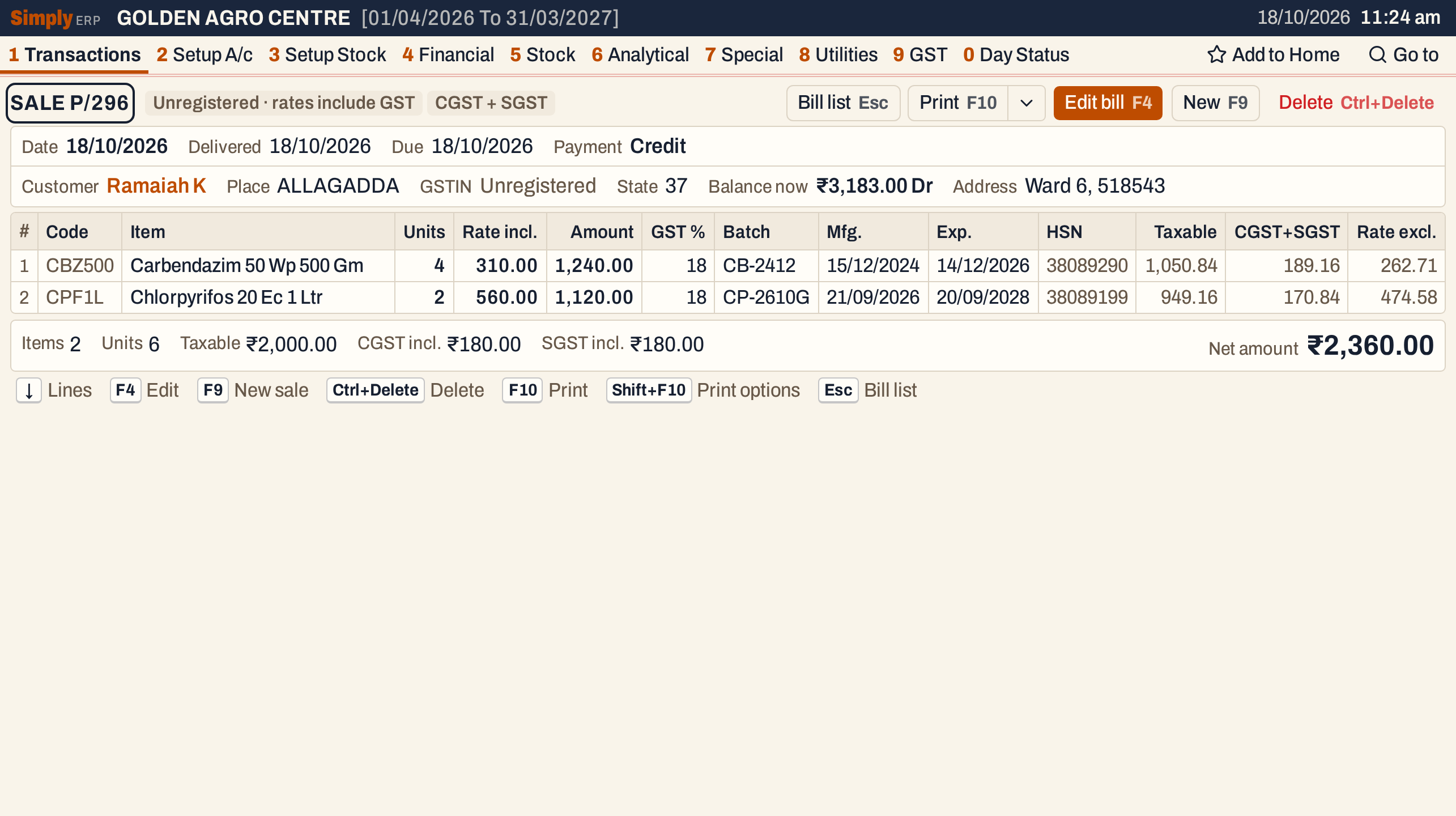 A saved bill shows every recorded detail: batches and their dates, HSN, the tax on each line and the rate before GST.
What saving does to your books
Saving the bill makes these postings, dated on the bill date:
| Account | Debit | Credit |
|---|---|---|
| The customer (a credit bill), or the bill book’s cash account (a cash bill) | Net amount | |
| The bill book’s sales account | The rest: the net amount less the tax and the charges posted to their own accounts (on a bill of items alone, the taxable value) | |
| CGST and SGST output accounts, or IGST output | The tax on the lines | |
| A charge’s own account, such as freight | An Add charge | |
| A discount’s own account, such as cash discount | A Less charge |
For this bill: Ramaiah K is debited ₹2,360.00, the pesticide sales account is credited ₹2,000.00, and the CGST and SGST output accounts ₹180.00 each. The units leave stock from the batches chosen on each line.
The bill then shows in the customer’s ledger, the sales register, day to day sales, GSTR-1 and the stock statement.
Keys on the bill screen
| Key | What it does |
|---|---|
| Enter | Next field, and along each line |
| F2 | List the items, accounts or batches |
| F3 | Save |
| F10 | Save and print |
| F4 | The line’s three discounts |
| F9 | Go to the next blank line |
| Alt+C | Add a charge or discount |
| Alt+B | Copy the line for another batch |
| Alt+H | What the item was billed at before, this customer’s bills first |
| Alt+A | Items that can stand in for this one |
| Alt+N | Add a new customer or item from the bill |
| F7 | Hold the bill in Drafts and start another |
| Ctrl+Delete | Remove the line |
| F1 | Every key on the screen |
On a Mac, ⌥ stands for Alt and ⌘ for Ctrl.
Common questions
What if the customer is not in the books yet? On a credit bill, press Alt+N in the Customer field. The bill waits in Drafts while you add the account, and comes back with the new customer chosen. See Add a party or item from a bill.
Can I keep a bill open and serve the next customer? Yes. F7 holds the bill in Drafts and starts a fresh one. Shift+F7 switches back to it.
Why can’t I pick an item? Choose the bill type first. Each bill type sells only the items of its categories.
How do I correct a saved bill? Open it from All Bills and press F4. See Edit a bill.
Updated 4 November 2026.