Make a multi-book sale
On this page
A shop that sells pesticides, fertilizers and seeds may keep a bill book for each, with its own numbers and its own sales account. A customer who buys from all three would need three bills. A multi-book sale takes the whole purchase in one entry and saves one bill in each book, with the customer paying one amount.
The example here is a sale to Ramaiah K of 10 units of Carbendazim 50 Wp 500 Gm, 5 units of Dap 18-46-0 50 Kg and 3 units of Chilli Hybrid Nch 341 10 Gm, with freight.
Set the multi-bill key on the books
The books that are billed together share a multi-bill key, a short word you choose. Open Bill Books & Series with Alt+8, C, choose Bill series in Show and Sales in Kind. Move to the Multi-bill key cell of a series, press Enter, type the key, and press Enter. Do this for each series that should be in the sale, with the same key, and press F3 to save. See Bill books and series.
 AGRO is the multi-bill key of F/, P/ and S/, the series of the Fertilizer Sales, Pesticide Sales and Seed Sales books. PC/ has none.
Keep two rules in mind:
- Only the series of Sales books take a key.
- A book gives the key to one of its series only. Here the Pesticide Sales book has two series, P/ and PC/, and only P/ has the key; SimplyERP refuses the key on a second series of the same book.
- Each category of items must be sold by exactly one book with the key. If two books with the key both sold pesticides, a pesticide line would belong to two books, and the save would be refused.
Open the multi-book sale
When at least one sales series has a key, the Transactions menu shows G S T Outward - Multiple. Press Alt+1 and then G.
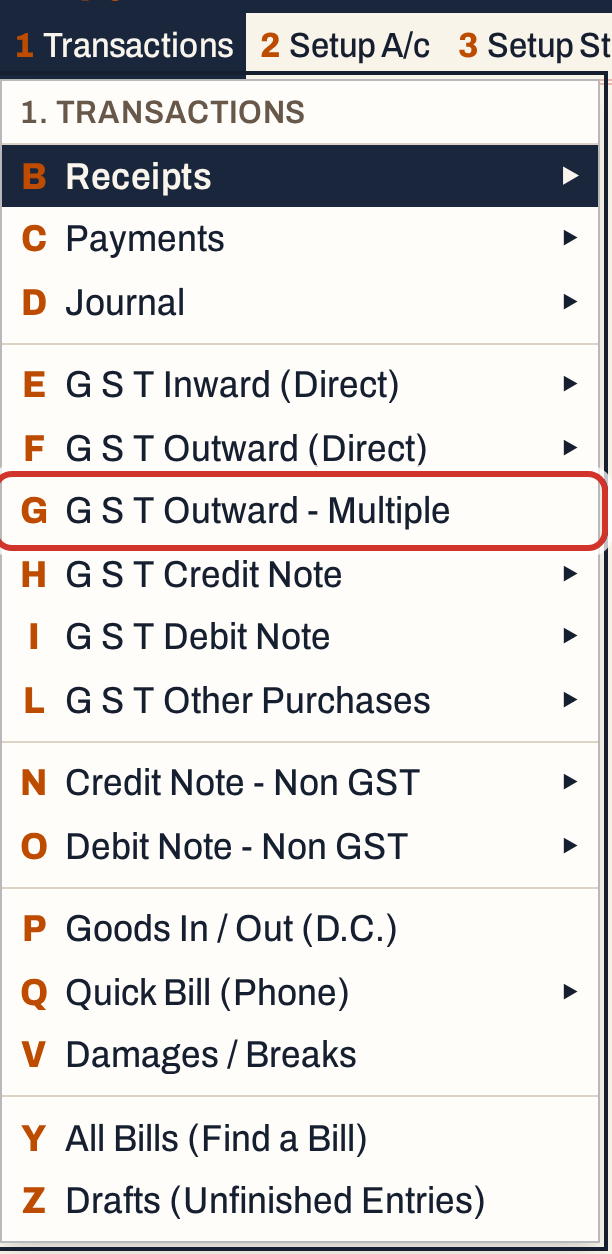 1 G: Transactions, G S T Outward - Multiple.
With one key the sale opens at once. With several keys the menu lists New Entries and the key, one entry for each key, and a digit chooses it.
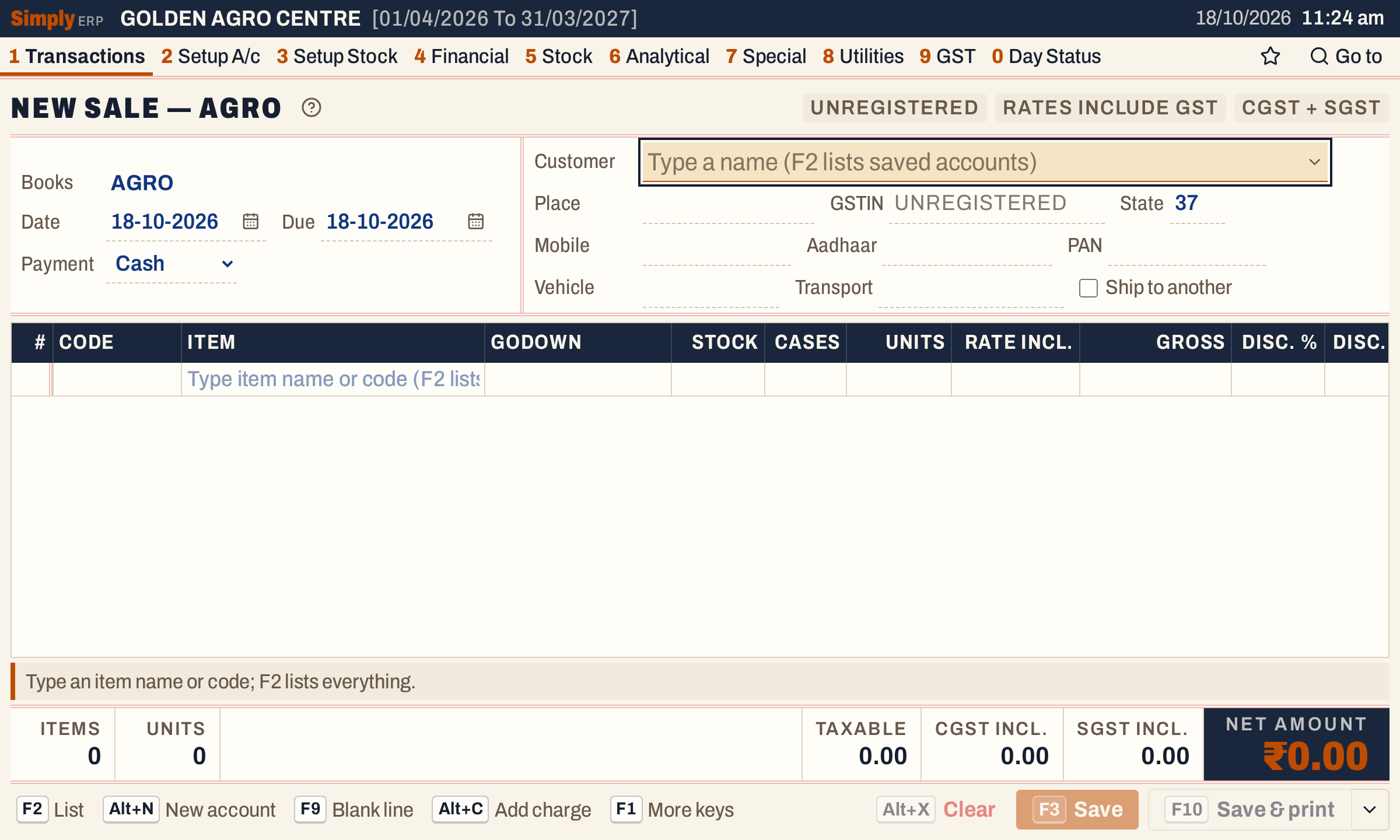 The heading and the Books field show the key. There is no Bill type or Book to choose: the books come from the key.
The cursor starts in the Customer field. The date and the due date start on today’s working date, and the payment on Cash.
Fill in the bill
Fill it in as for any sale; see Make a sale bill. Set Payment to Credit and choose the customer. For each line, type the item, the units and, where asked, the batch. The item list holds the items of every category the books of the key sell, so one bill can take a pesticide, a fertilizer and a seed. The rates follow the customer: Ramaiah K has no GSTIN, so rates include GST.
A discount on a line, and F4, work as on any bill; see Add discounts and charges to a bill.
To add a charge, press Alt+C, choose it and type its amount, here Freight of 150.00. On a multi-book sale a charge must also say which book it belongs to, because it is saved on the bill of that book. Without a category, F3 does not save.
 The charge is line 4.
On a charge line, the Batch cell holds a Bill category list. It lists the categories the books of the key sell: PESTICIDES, FERTILIZERS and SEEDS. Choose the one whose book should carry the charge. Here it is PESTICIDES, so the freight goes on the Pesticide Sales bill.
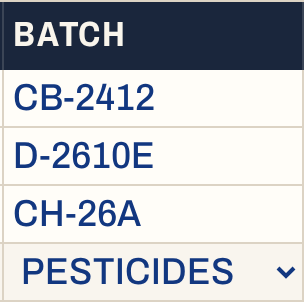 A charge line has a category where an item line has a batch.
Check the lines and the totals
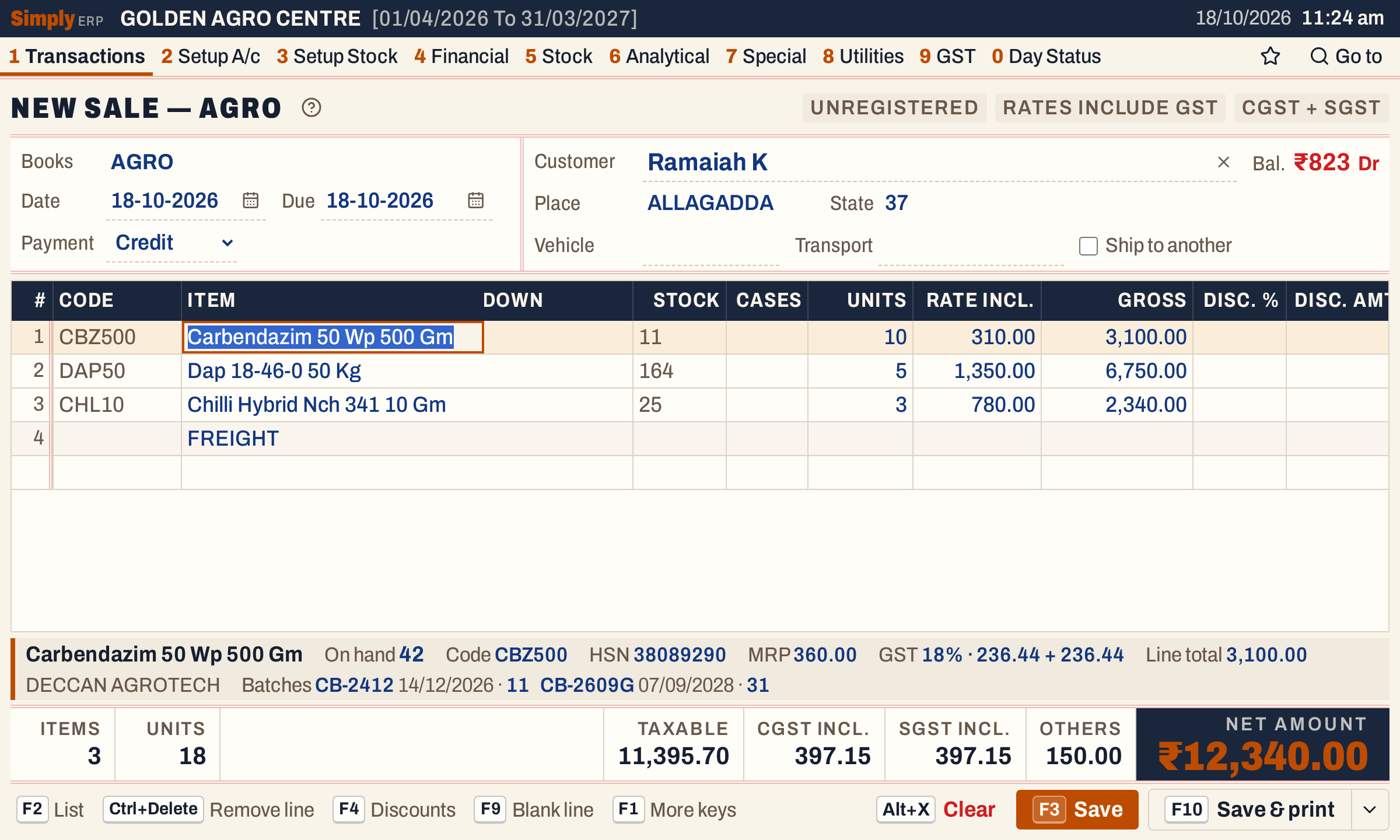 One entry, three categories. The status band shows the item under the cursor.
The right-hand columns show each line’s amount, GST rate and batch.
 Each line is taxed at its own item’s rate. The freight line has no GST.
The totals tape adds up every line of every book, as it would on one bill.
 One amount for the customer to pay. Saving splits it into the books’ bills.
Save the bills
Press F3. SimplyERP makes one bill in each book that has a line, all together: if one cannot be saved, none is. A notice names every bill.
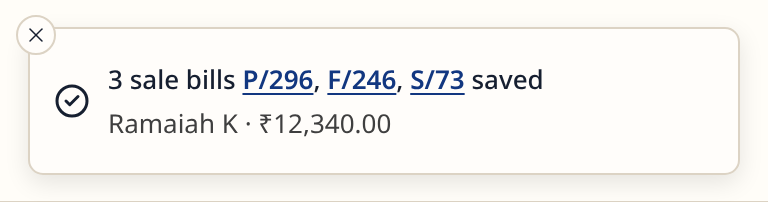 Click a bill number to open that bill.
Each bill takes its own number from its book, and holds the lines of the categories that book sells. The charge goes on the bill of its category. The customer, the dates, the payment, the vehicle and transport, and the ship-to details are the same on every bill. The fertilizer bill holds the Dap line only:
 The balance shown is the customer’s balance after all three bills.
The other two bills are P/296 for the pesticide line and the freight, ₹3,250.00, and S/73 for the seed line, ₹2,340.00. The three come to ₹12,340.00.
Each bill is an ordinary sale. Open it from All Bills to print, change or delete it, one at a time; see Edit a bill. F10, Save & print, prints all the bills the entry made.
What saving does to your books
Each bill posts as a sale in its own book, on the bill date. The customer is debited on each, and the book’s own accounts are credited:
| Bill | Account | Debit | Credit |
|---|---|---|---|
| F/246 | Ramaiah K, the customer | 6,750.00 | |
| Fertilizer Sales | 6,428.58 | ||
| CGST Output 5% | 160.71 | ||
| SGST Output 5% | 160.71 | ||
| P/296 | Ramaiah K, the customer | 3,250.00 | |
| Pesticide Sales | 2,627.12 | ||
| Freight Inward, the freight’s account | 150.00 | ||
| CGST Output 18% | 236.44 | ||
| SGST Output 18% | 236.44 | ||
| S/73 | Ramaiah K, the customer | 2,340.00 | |
| Seed Sales | 2,340.00 |
The seed line has no GST, so there is no tax posting on S/73. Stock goes out of the batch of each line, as on any sale; see Make a sale bill.
The customer’s ledger shows one line for each bill.
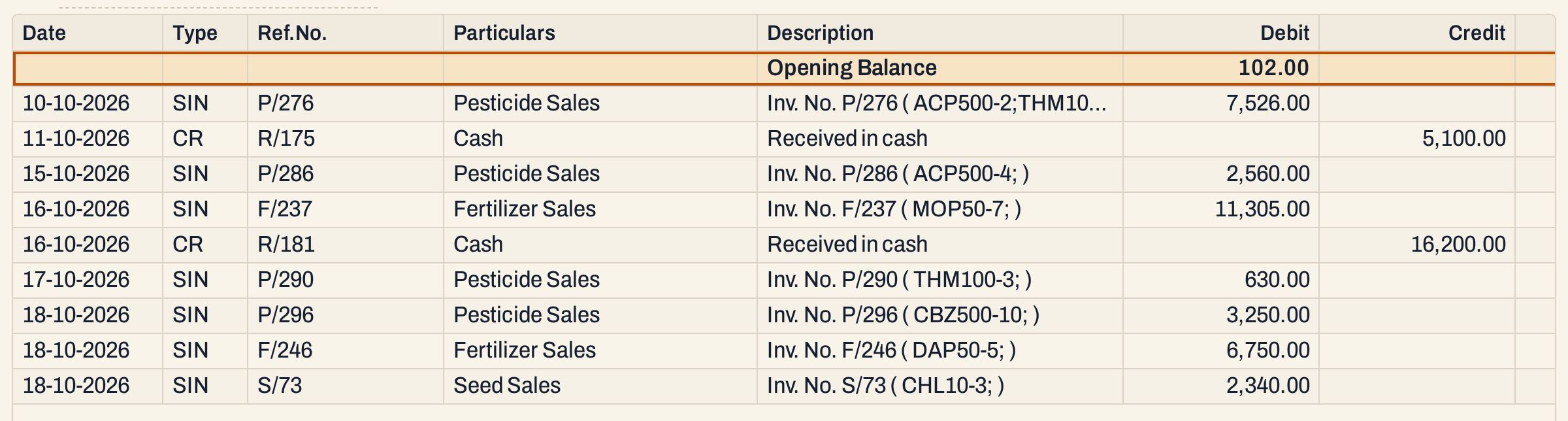 Three bills, three debits.
 The balance went from ₹823 Dr to ₹13,163.00 Dr, which is the three bills.
Every book’s numbering moved on by one. Invoice Series Status shows the numbers used, and the bills are in the sales register. The accounts they post to show in the trial balance.
Keys on the multi-book sale
| Key | What it does |
|---|---|
| Enter | Next field, and along each line |
| F2 | List the customers, items, charges or batches |
| Alt+C | Add a charge, which then needs its bill category |
| F4 | The line’s three discounts |
| F9 | Go to the next blank line |
| Alt+N | Add a new customer or item from the bill |
| F7 | Hold the sale in Drafts and start another |
| F3 | Save: one bill in each book |
| F10 | Save and print every bill |
| Alt+X | Clear the sale, after asking |
On a Mac, ⌥ stands for Alt.
Common questions
Why not make three ordinary sales? You can. A multi-book sale does it in one entry, with one customer, one set of dates and one save, and all three bills are saved together or not at all.
What if I leave the sale unfinished? It is kept in Drafts as “New multi-book sale”, with its key, and opens on the same screen.
Can I change the three bills together later? No. Each is its own bill with its own number. Change or delete each one from All Bills.
Updated 4 November 2026.