Add and change the charges on bills
On this page
A charge is an amount a bill adds or takes off below its items: hamali, freight, transport, round off, a cash discount. You set each one up once, with the account it posts to, and every bill can then use it from the keyboard. The charge never lands in the sales or purchase account, so your books show freight, hamali and round off on their own.
Charges are set up here. They are used on a bill with Alt+C, see Add discounts and charges to a bill.
Open Add / Less Charges
Press Alt+3 for the Setup Stock menu, then N for Add / Less Charges.
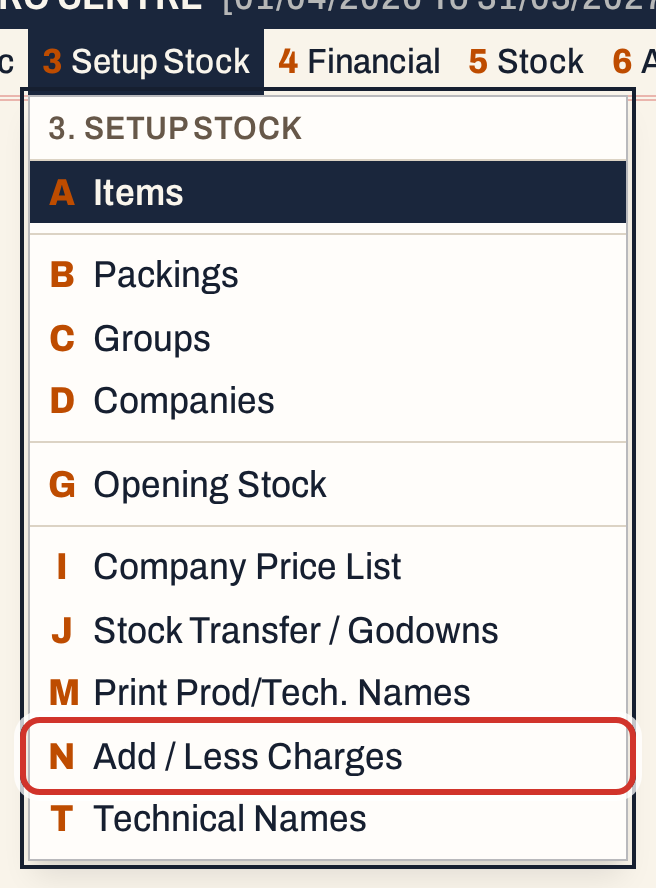 3 N: Setup Stock, Add / Less Charges.
The screen lists every charge in order of name.
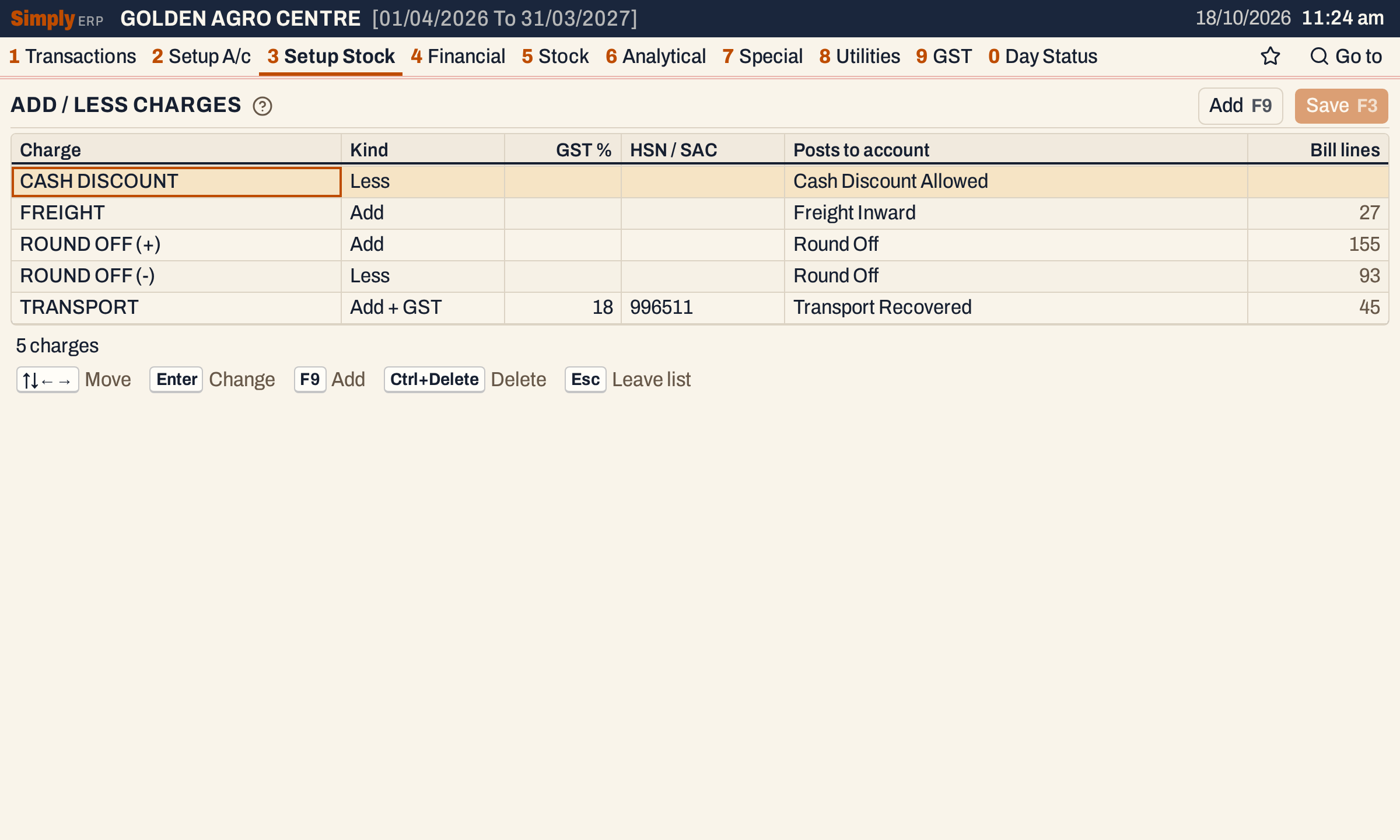 The showcase shop has five charges. Each line shows what it does and where it posts.
The columns are:
| Column | What it shows |
|---|---|
| Charge | The name a bill’s charge list shows. |
| Kind | Add, Add + GST or Less. |
| GST % | The charge’s GST rate. Only an Add + GST charge has one. |
| HSN / SAC | The charge’s HSN or SAC code, up to 8 digits. Optional. |
| Posts to account | The account the charge’s amount is posted to. |
| Bill lines | How many bill lines use the charge. Blank if none. |
The three kinds work like this:
- Add adds an amount to the bill and carries no GST. Freight and hamali are usually Add.
- Add + GST adds an amount that carries GST at the charge’s own rate. The amount is part of the bill’s taxable value, and its GST is posted to the same tax accounts as an item’s GST at that rate. Transport billed with 18% GST is Add + GST.
- Less takes an amount off the bill and carries no GST. A cash discount or a round off downwards is Less.
Add a charge
Press F9 (or click Add) for a new line. Type its name and press Enter. The name can be up to 60 characters. A name cannot be the same as another charge or an item (capital letters do not matter). The new charge starts as Add.
 A new charge, not yet saved. The account is still to be chosen.
Move to a cell with the arrow keys, press Enter to change it and Enter again to keep what you chose. Changed cells stay highlighted until you save.
- Kind: choose Add, Add + GST or Less. Changing a charge to Add or Less clears its GST rate.
- GST %: only an Add + GST charge can be changed here. Type the rate, for example 18. It must be a rate your books have tax accounts for; a rate they do not have is refused with a message saying so.
- HSN / SAC: digits only.
- Posts to account: choose the account from the list. It lists every account that is not a customer, supplier or other party account. Add the account first if it does not exist, see Add an account.
Every charge needs an account. Press F3 to save without one and the screen refuses.
 Saving is refused until the charge names its account.
Choose the account and the red words go.
 Hamali Recovered is an income account made for this charge.
Press F3 to save. The line under the list says “Charges saved.”
 Six charges. HAMALI is not on any bill yet, so its Bill lines is blank.
To change a charge later, change its cells and save. A charge you change affects the bills you make afterwards. A saved bill keeps the account its charge was billed with.
Delete a charge
Press Ctrl+Delete on a charge to mark it for deletion. It is struck through, and Ctrl+Delete again keeps it. F3 deletes the marked charges.
A charge that is on any bill line cannot be deleted. The screen says how many lines use it.
 FREIGHT is on 27 bill lines, so it stays.
Use a charge on a bill
On a bill, press Alt+C to add a charge line. Type part of the charge’s name, or press F2 for all of them, and press Enter. The list shows each charge with its kind, GST rate and the account it posts to. Only the charges set up here can be chosen.
 The charge list on a bill, narrowed by what you type.
Type the amount and press Enter. On a bill to a customer with a GSTIN the amount of an Add + GST charge is before GST; otherwise it includes GST. An Add or Less charge has no GST, so its amount is the amount added or taken off.
 HAMALI, 100, on a bill of 1,240.00.
While the cursor is on the charge’s line, the band under the grid says what the charge is and where it will post.
 The line total of an Add charge is the amount you typed.
The totals show an Add charge under Others and a Less charge as a deduction. An Add + GST charge is counted in Taxable.
 1,240.00 for the carbendazim, which includes 189.16 of GST, plus 100.00 of hamali, makes 1,340.00.
Press F3 to save the bill.
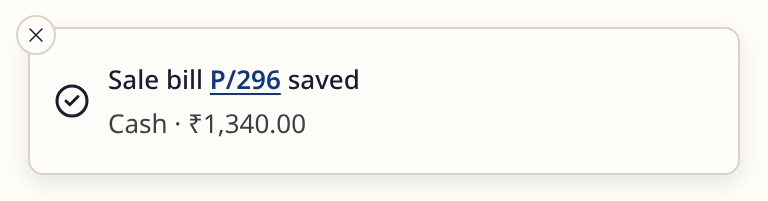 The bill is saved.
What saving does to your books
A charge posts to its own account, with these postings on the bill date:
| Charge | On a sale bill | On a purchase bill |
|---|---|---|
| Add | The charge’s account is credited the amount | The charge’s account is debited the amount |
| Add + GST | The charge’s account is credited the amount before GST, and the GST goes to the tax accounts for its rate | The same, on the other side |
| Less | The charge’s account is debited the amount | The charge’s account is credited the amount |
The party’s account, or the bill book’s cash account on a cash bill, carries the whole net amount, and the sales or purchase account carries only the value of the items. A line that has no account of its own posts to the bill book’s account.
For the bill above: the bill book’s cash account is debited ₹1,340.00, the sales account is credited ₹1,050.84, CGST and SGST output ₹94.58 each, and Hamali Recovered ₹100.00. The credits add up to ₹1,340.00.
The charge shows in its account’s Ledger, with the bill’s number, and in the Trial Balance.
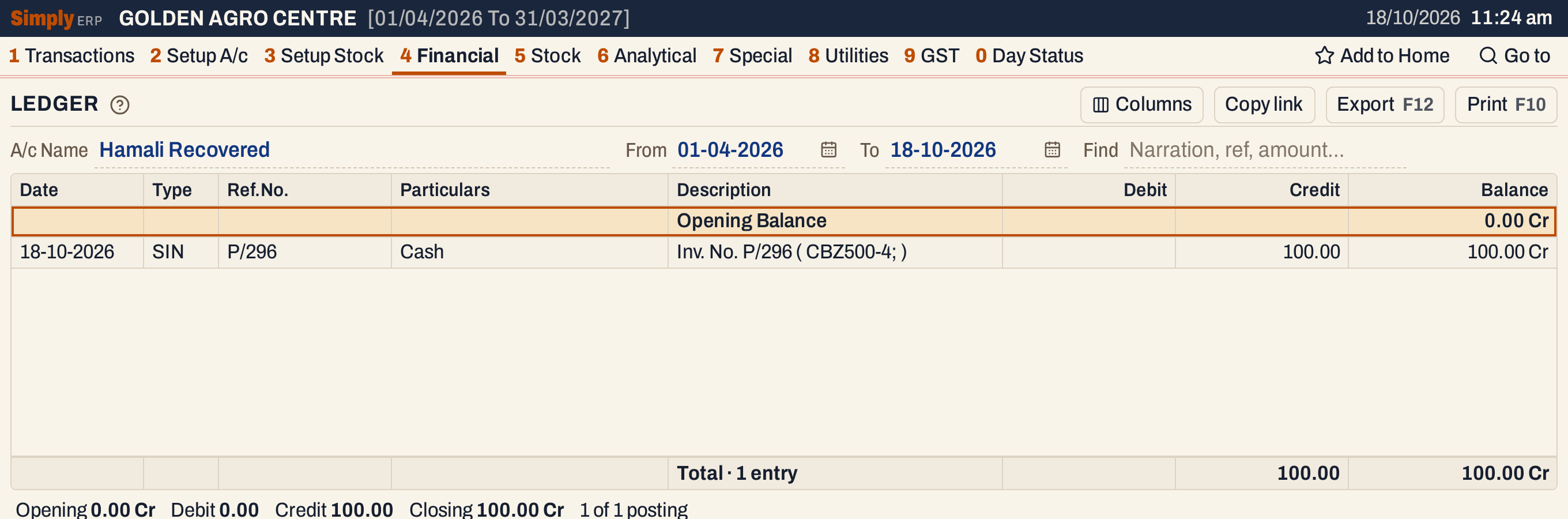 The hamali is a credit of 100.00 in its own account.
The charge does not change any item’s stock.
Keys on this screen
| Key | What it does |
|---|---|
| ↑ ↓ ← → | Move between cells |
| Enter | Change the cell, and keep the change |
| F9 | Add a charge |
| Ctrl+Delete | Mark an unused charge for deletion, or keep it again |
| F3 | Save |
| Esc | Leave the list |
| F1 | Help for the screen |
On a Mac, ⌘ stands for Ctrl.
Common questions
Can a bill use a charge that is not in this list? No. The charge line of a bill takes one of these charges, so each charge on a bill posts to its own account.
Can I change the account a charge posts to? Yes. Change the cell and press F3. Bills you saved earlier keep the account they were billed with.
Where do I add the account for a new charge? In Setup A/c, as for any account, see Add an account. The account can be of any type except a customer, supplier or other party account.
Why can an Add charge not have GST? Only Add + GST carries a GST rate. Choose that kind for a charge such as transport that you bill with GST.
Updated 4 November 2026.