Set up packings
On this page
Packings are the sizes your products come in: 100 ML, 500 ML, 1 LTR, 50 KG. Every item takes one packing from this list, and the list also says how much one pack holds. Reports that count litres or kilograms multiply an item’s packs by that size, so a packing’s size must agree with its label. A new packing is added here before a group can use it.
Open the packing list
Press Alt+3 for the Setup Stock menu, then B for Packings.
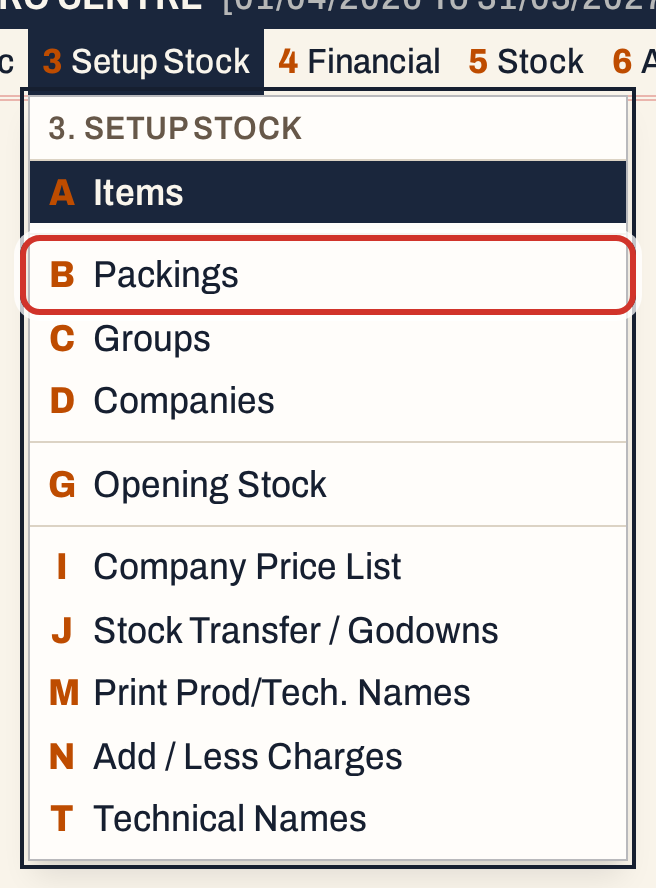 3 B: Setup Stock, Packings.
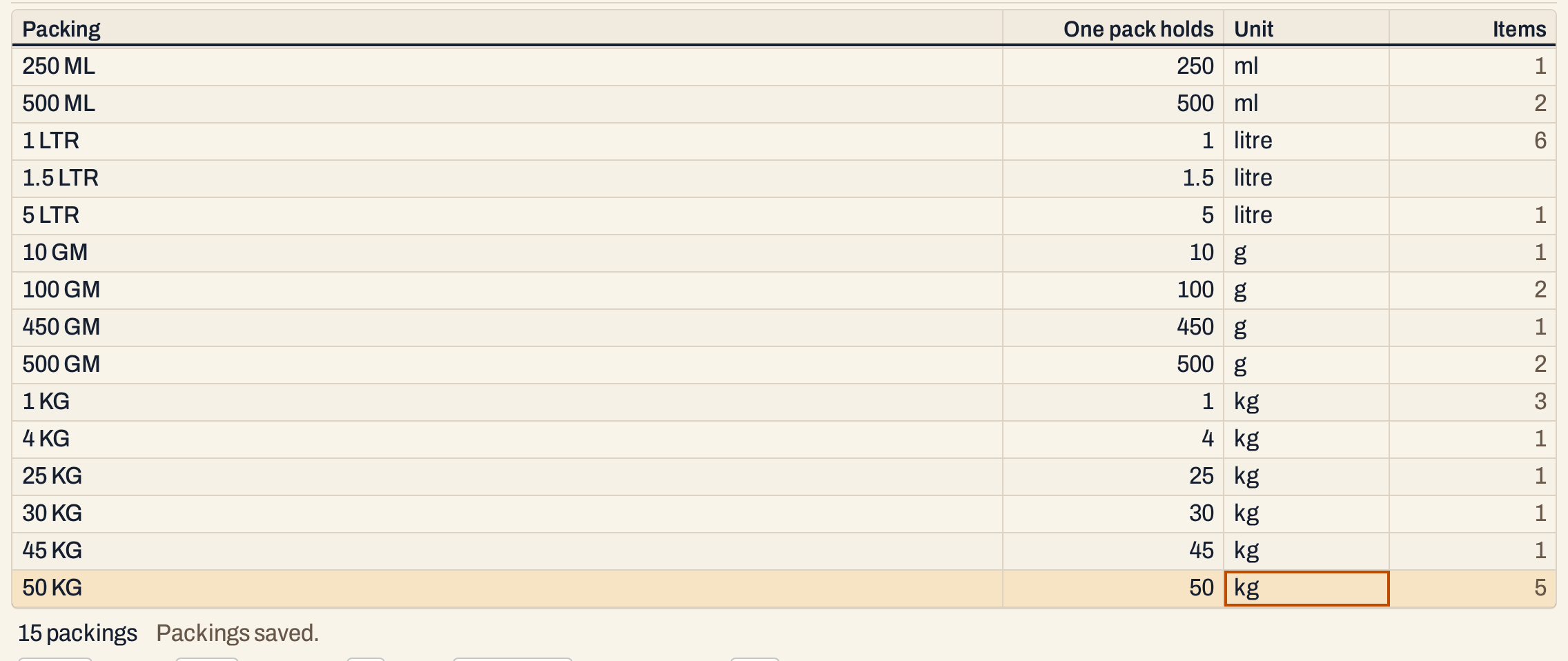
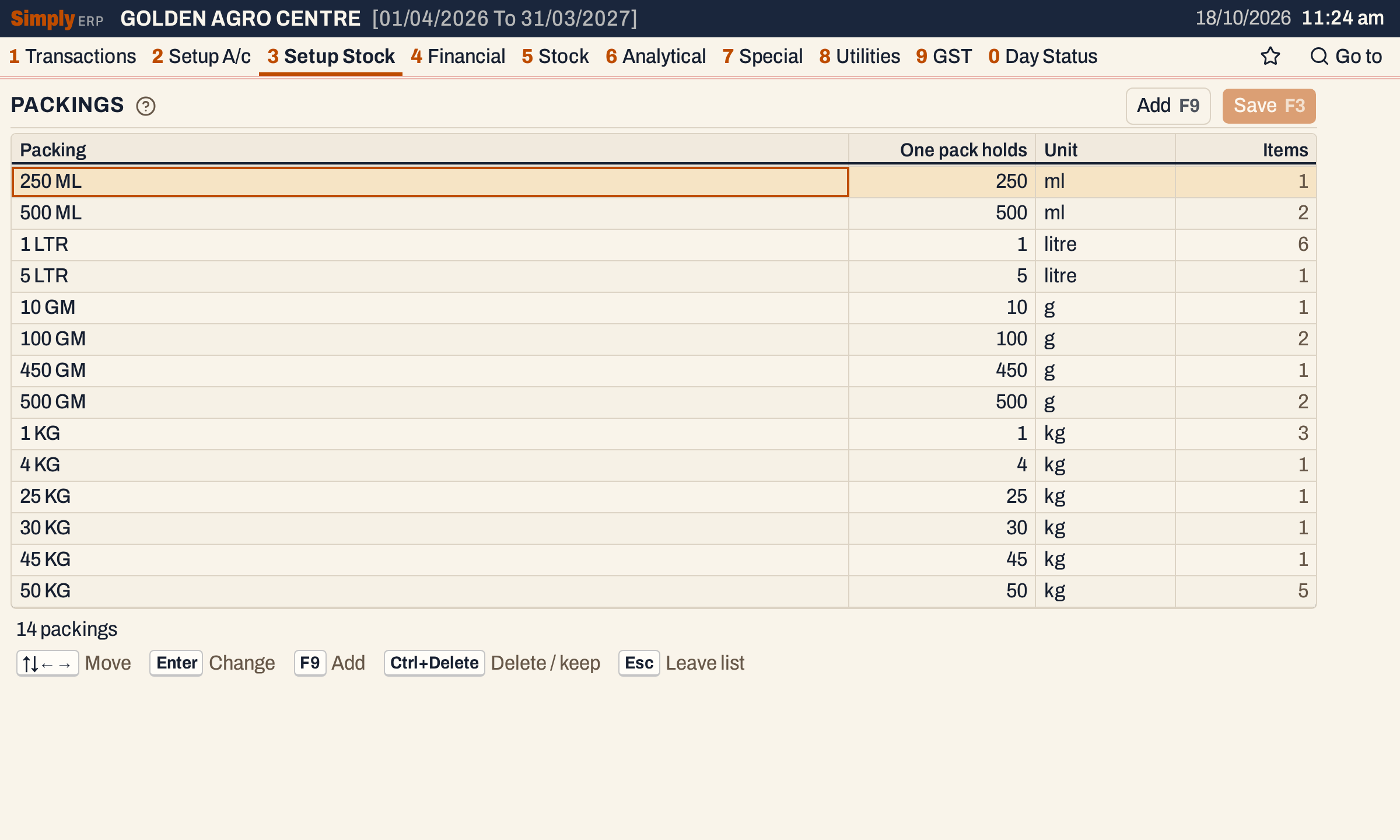 Volumes first, then weights, then anything else, each from the smallest size.
| Column | What it shows |
|---|---|
| Packing | The packing as bills and item names print it. |
| One pack holds | How much one pack holds, in the unit beside it. |
| Unit | ml, litre, g, kg or nos. |
| Items | How many items use the packing. Read-only. |
Add a packing
Press F9 and type the packing. It is kept in capitals with single spaces, up to 30 characters. Two labels that differ only in spaces or capitals, such as “1 LT” and “1lt”, are the same packing, and a packing is listed once.
When the label states its size, the size and unit fill in by themselves. Typing 1.5 LTR gives 1.5 litre. SimplyERP reads sizes in these forms:
- an amount and a unit: 100ML, 1.5LTS, 25KG, 450GM;
- two amounts of the same kind added: 450GM+120G is 570 g;
- a count of sachets or units: 100X8GM is a case of 100 sachets of 8 g, which can be taken as 800 g or as 8 g. The size fills in as the whole case, 800 g;
- two units with a slash, such as 5KG/LT, which can be taken in either;
- a case count in brackets, such as 250GM(24), which is not part of the size.
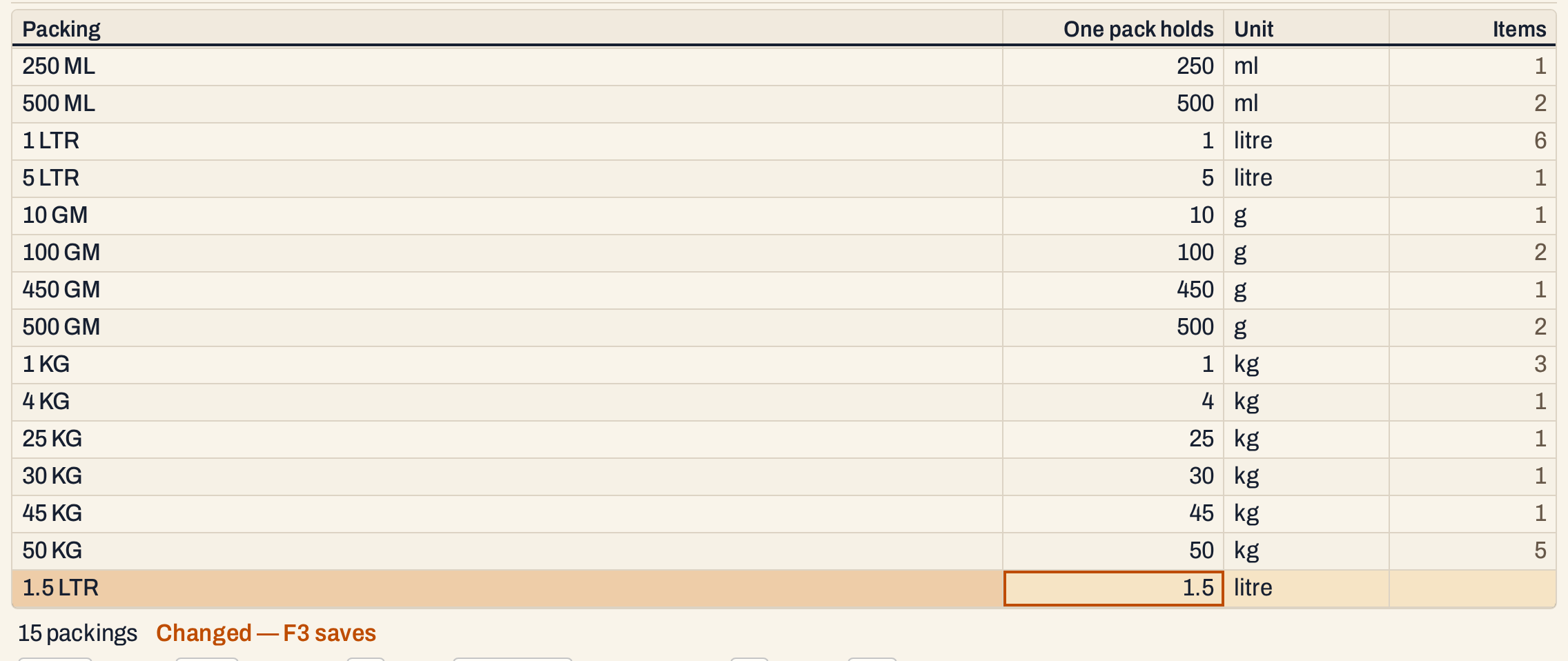 The packing is added to the list when you save.
A label that states no size, such as BAG, TIN or BOX, takes its size by hand: type how much one pack holds and choose the unit. The units are ml, litre, g, kg and nos.
The size must agree with the label
If the size you set disagrees with what the label says, the line below the list names the packing and the figures, and F3 does not save. A 1.5 LTR packing typed as 1.5 ml would count a thousandth of its litres.
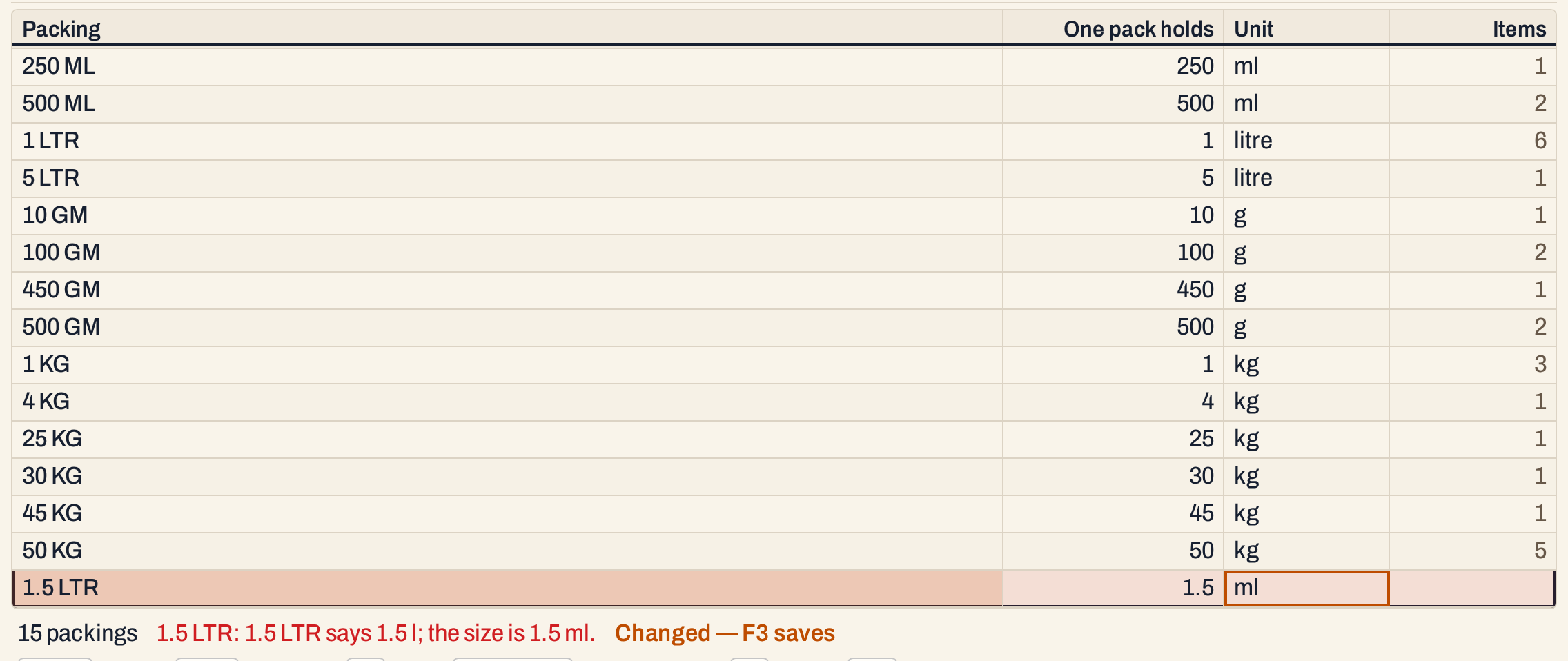 Correct the size or the unit, then save.
Choose litre again and press F3. The list says “Packings saved.” and the new packing is placed with the other litre sizes. Its Items count is blank until an item uses it.
 Add the packing to a product in its group, see Add a stock group.
Change or delete a packing
Move with the arrow keys and press Enter to change a cell, Enter again to keep it. In the Unit cell, press the first letter of the unit (m, l, g, k, n) to choose it.
- Renaming a packing renames every item in it. The item’s name is its group and its packing, so the item Chlorpyrifos 20 Ec 500 Ml takes whatever label its packing is renamed to, everywhere items are listed.
- The size must keep agreeing with the label. A packing such as 500 ML can be given another unit for the same amount (0.5 litre), but not another amount.
- Deleting: Ctrl+Delete marks a packing for deletion (press it again to keep it). A packing that items use stays; the message says how many items use it, and you rename it instead.
Nothing is saved until you press F3. All the changes save together or not at all. Discard drops them.
What saving does to your books
Nothing is posted to the accounts. The packing list is updated and, for a renamed packing, its items are renamed in the same save.
Keys on the packing list
| Key | What it does |
|---|---|
| F9 | Add a packing |
| Enter | Change a cell; again, keep it and go on |
| Esc | Drop the change in the cell |
| Ctrl+Delete | Mark an unused packing for deletion, or keep it again |
| F3 | Save all the changes |
| F1 | Help for the screen |
Common questions
Why won’t a group accept my packing? A group’s packing is chosen from this list, so add it here first.
Which reports use the pack size? The ones that count litres or kilograms, such as the stock statements when Qty in is Litres / kg, and the fertiliser stock reports, multiply an item’s packs by it.
Updated 4 November 2026.