Manage item companies
On this page
The company list holds the makers of your products: Deccan Agrotech, Pennar Fertilisers. A stock group takes its company from this list, so a company’s name is typed once and every item, report and price list shows it. Use the list to add a company, to correct a spelling everywhere at once, and to merge two spellings of the same company into one.
Open the company list
Press Alt+3 for the Setup Stock menu, then D for Companies.
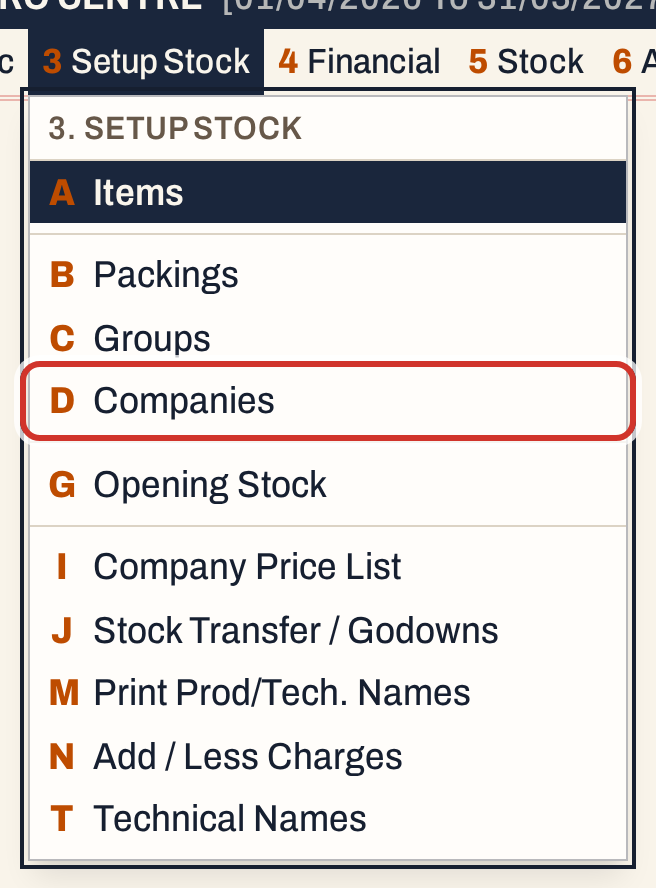 3 D: Setup Stock, Companies.
The list shows each company with the number of groups that name it.
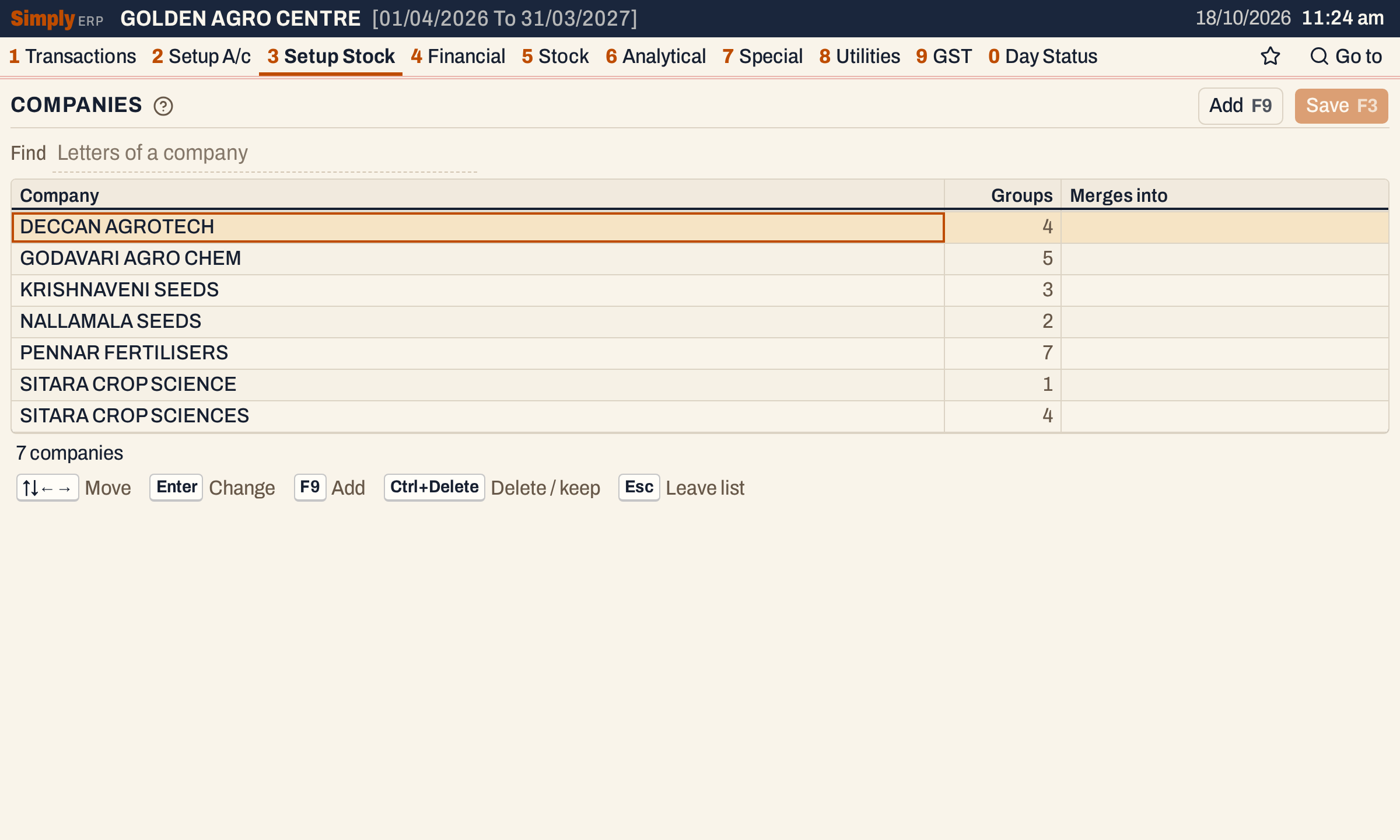 Two spellings of one company. The list shows how many groups use each.
| Column | What it shows |
|---|---|
| Company | The company’s name, in capitals with single spaces, up to 60 characters. |
| Groups | How many stock groups name the company. Read-only. |
| Merges into | The company this one is being merged into, while a merge waits to be saved. |
Type in Find to narrow a long list by the letters of a name. A row you have changed stays in view while you search.
Add a company
Press F9 and type the name, then F3 to save. A company that is already listed cannot be added again.
You do not have to come here first. A company typed in the Company field of a group that the list does not have is added to the list when the group is saved. That is how a misspelling usually gets in: see Add a stock group.
Rename a company
Move to the name, press Enter, type the new name and press Enter again, then F3. The company is one record that its groups point to, so the new name shows on every group, item and report at once.
Merge a misspelt company into the right one
Here a group was saved with SITARA CROP SCIENCE, a letter short, and the list now has the misspelling beside the real company. Move to the misspelt row, press Enter and type the name of the company that is right: SITARA CROP SCIENCES. Typing the name of another listed company does not rename the row. It marks it to merge: the row greys out, and Merges into shows an arrow and the company it will join.
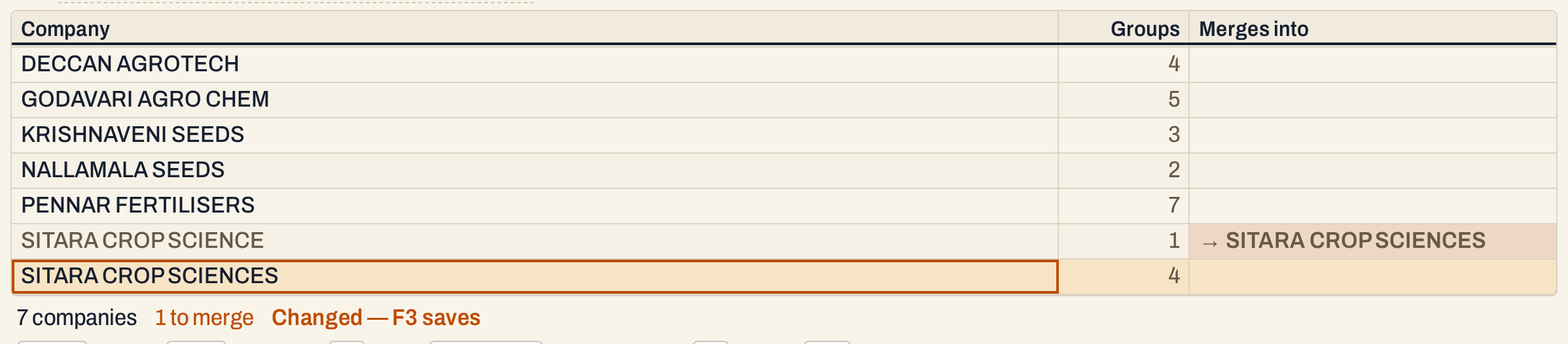 Nothing has moved yet. Discard drops the merge.
Press F3. A merge moves groups for good, so SimplyERP asks first and names both companies and how many groups move.
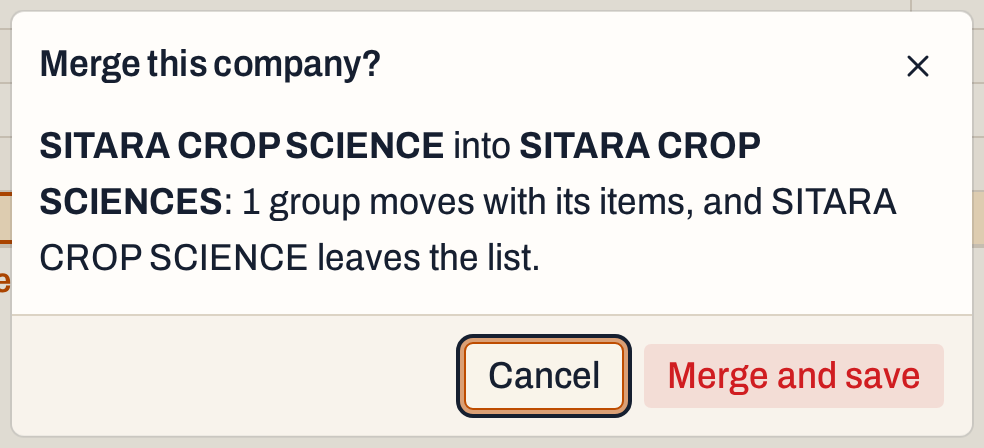 The question opens on Cancel. Choose Merge and save to go on.
After the merge the misspelt company is gone, its group is the other company’s, and the group count shows it: 4 groups and 1 group became 5.
 The merged groups and their items now name the right company.
See a company’s groups
Move to the Groups cell of a company and press Enter. The group list opens with that company chosen, so you can check what it holds.
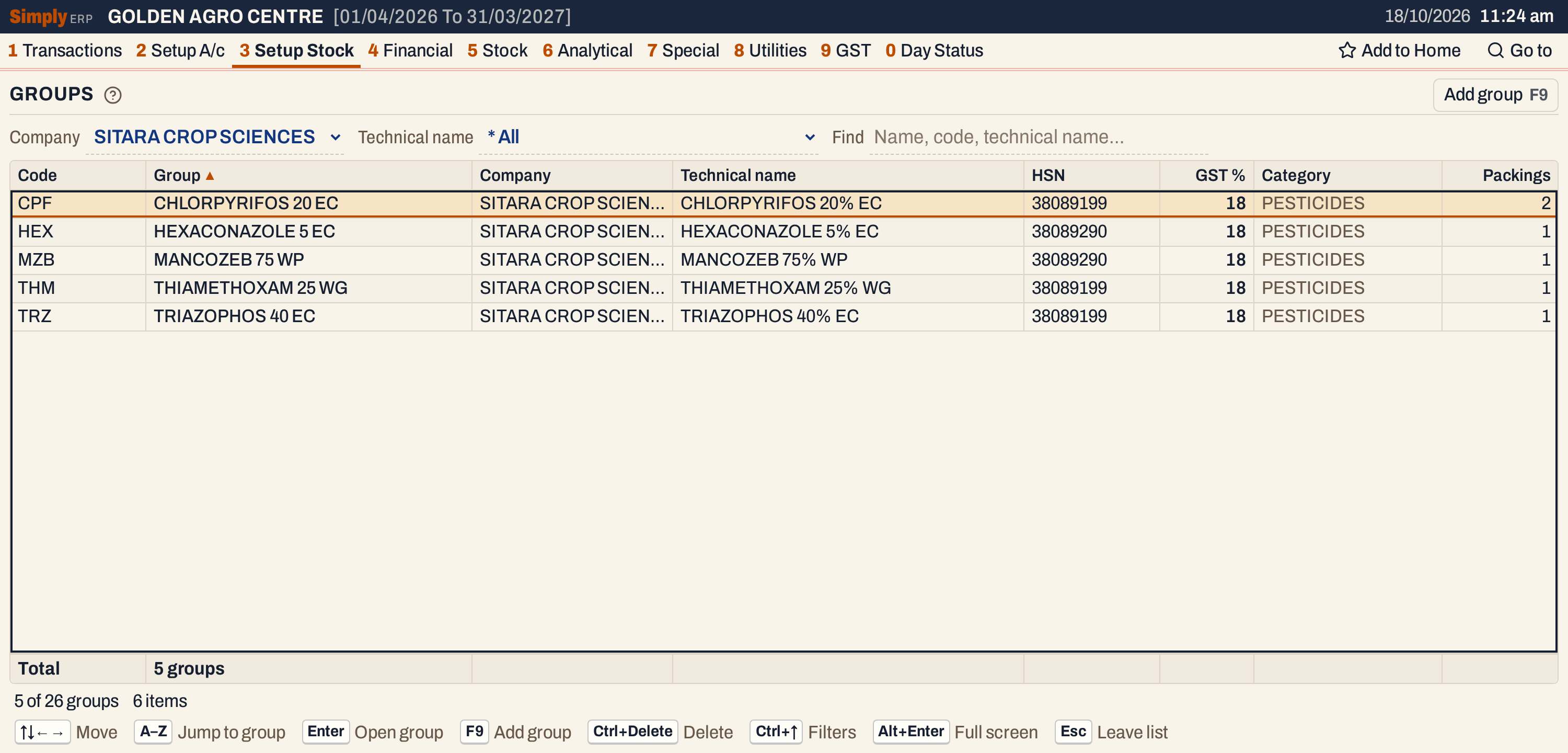 The list is narrowed to this company. Set Company back to All to see every group.
Delete a company
Ctrl+Delete marks a company to delete (press it again to keep it), and F3 saves. Only a company that no group names can be deleted. For one that groups use, the message says how many groups and tells you to type another company’s name on it, which merges it.
What saving does to your books
Nothing is posted to the accounts. The list is updated in one save: merges and deletions first, then renames and additions. If one change cannot be made, none of them is saved, and the message says which.
Keys on the company list
| Key | What it does |
|---|---|
| F9 | Add a company |
| Enter | Change the name; again, keep it. On Groups, list the company’s groups |
| Esc | Drop the change in the cell |
| Ctrl+Delete | Mark an unused company for deletion, or keep it again |
| F3 | Save (a merge asks first) |
| F1 | Help for the screen |
Common questions
Can I merge two companies that both have groups? Yes. The groups of the one you type over move to the other, with their items.
Where do the company names show? On the groups and items, and in the company-wise reports and price lists, which group items by these names.
Updated 4 November 2026.