Company Price List
On this page
The Company Price List shows the sale prices of your items under the company that makes each one. Each line has the item’s price including GST, its price before GST if you have recorded one, and its M.R.P. The prices are the ones set in the item grid.
Open the report
Press Alt+3 for Setup Stock, then I for Company Price List. The list opens with every item, under its company.
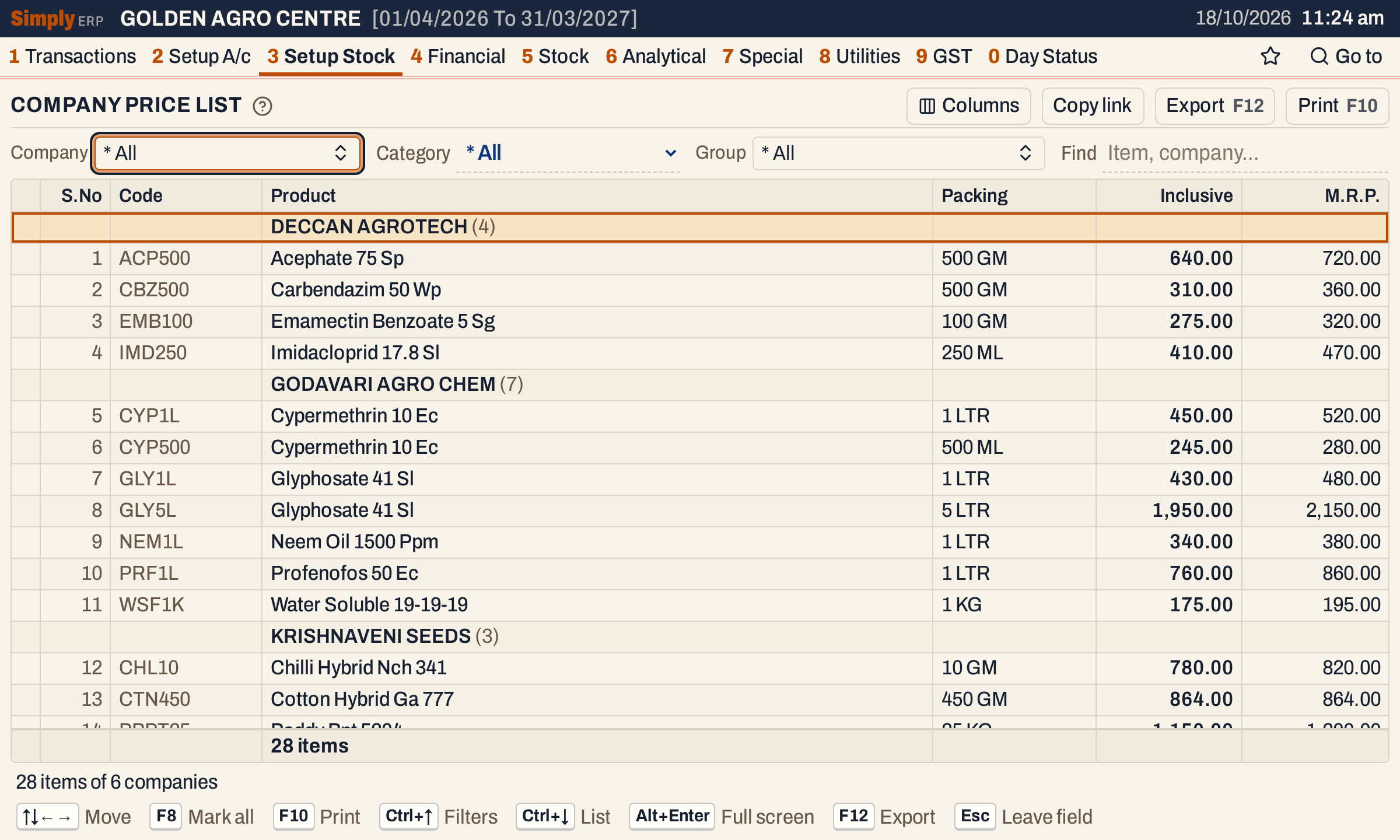 Each company is a heading with its number of items in brackets. The status line gives the number of items and of companies.
What it lists
One line for each item in your books, with its code, product name, packing and prices. Stock groups, which are not items, are left out.
Columns
| Column | What it shows |
|---|---|
| S.No | The number of the item in the order shown. Group headings are not numbered. |
| Code | The item’s code. |
| Product | The product name, or the group’s name when the product has none. |
| Packing | The item’s packing, such as 500 GM or 1 LTR. |
| Inclusive | The sale price including GST. |
| Exclusive | The sale price before GST. Shown only when at least one listed item has one recorded. |
| M.R.P. | The maximum retail price. Shown only when at least one listed item has one recorded. |
A price of zero counts as not recorded. The Columns button hides Code, Exclusive or M.R.P. The books in the screenshots record no price before GST, so their list has no Exclusive column.
Choices
 The choices above the list.
| Choice | What it does |
|---|---|
| Company | Opens a dialog where you pick one or more companies; the box then shows the name, or how many are picked. * All is the default: every company, and the items that have none. Picking a company leaves out the items with no company. |
| Category | One category: PESTICIDES, FERTILIZERS or SEEDS, or * All (the default). Choosing one clears the Group choice. |
| Group | The product groups to list, from the groups of the chosen category. * All is the default. |
| Find | Narrows the list to the items that match what you type. |
Choosing a company, a category or a group clears the marks you made with F2.
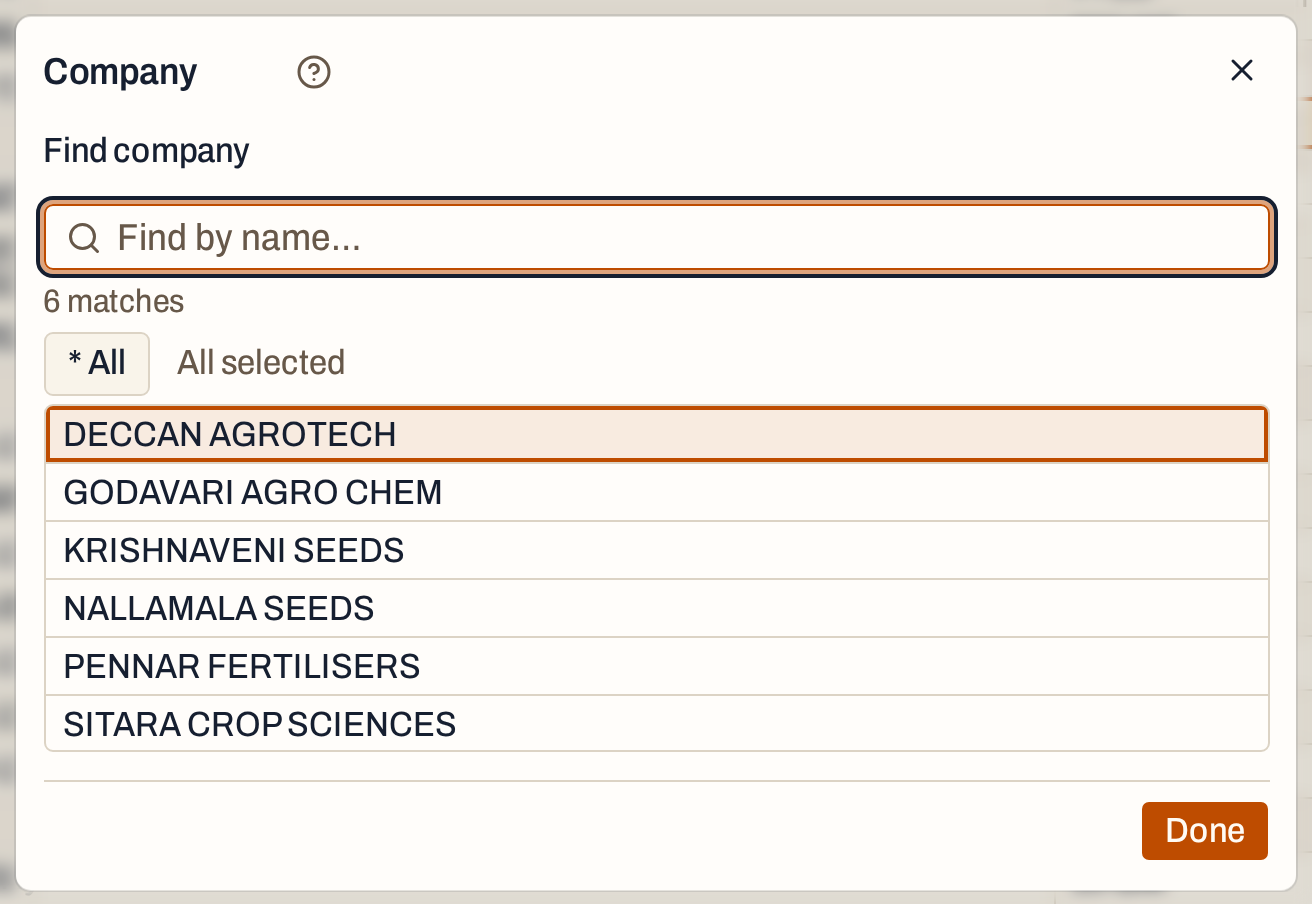 No company is picked, so All is selected. Pick companies to list only theirs; the list updates at once, and * All clears the choice. The Find box narrows the companies by name.
Find checks each word you type against the product name, the code, the packing and the company. Every word must be found in one of them, or, for a word of three or more letters, its letters must appear in one of them in order and close together (“bsmti” finds Basmati). Capitals and punctuation do not count. Find leaves your marks as they are.
Company headings
Each company’s items come under a heading, and the companies are in alphabetical order. Items with no company come last, under * Unknown. Within a company, the items are in product name order, then packing order. Click a column title to sort the items within their companies by it instead; the companies keep their order.
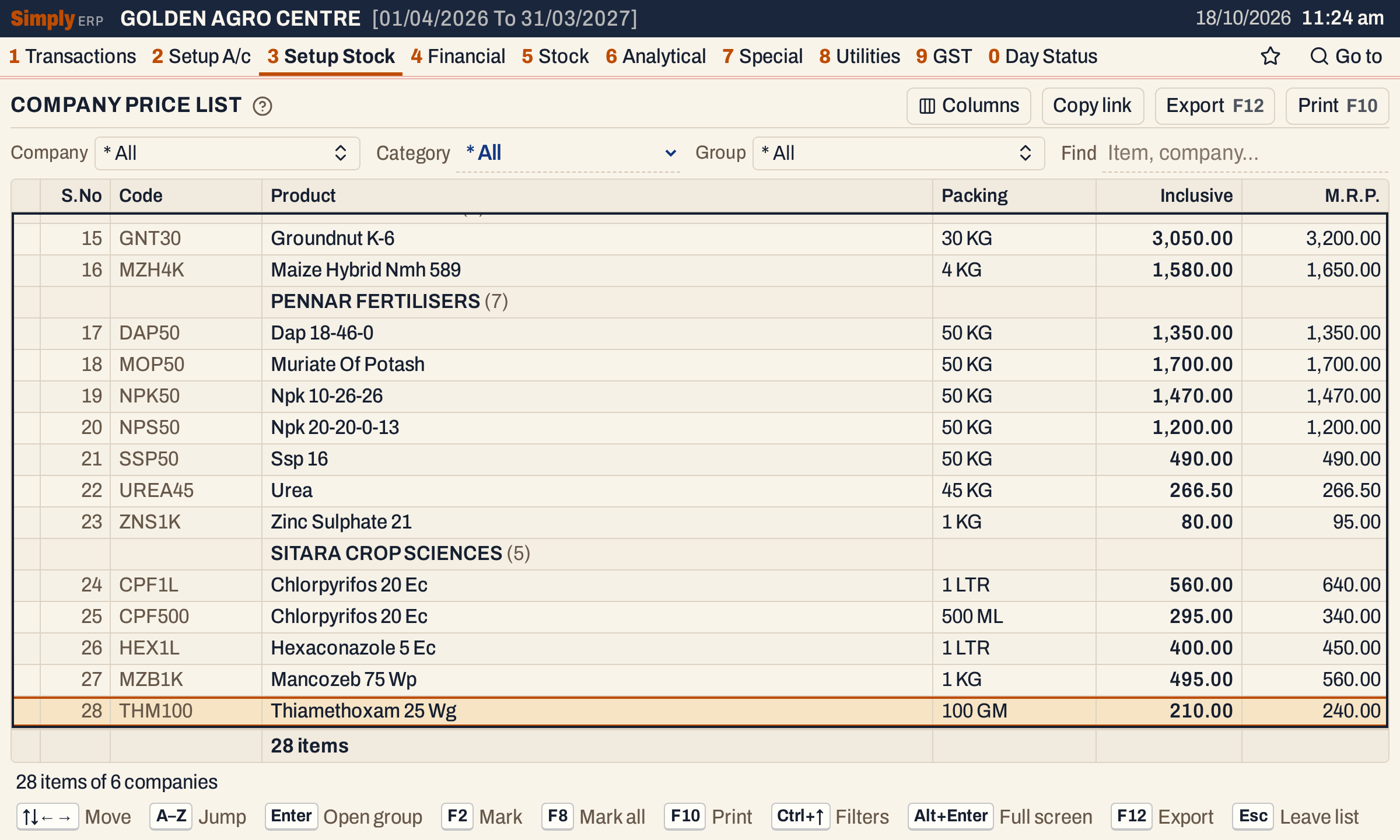 SITARA CROP SCIENCES, the last company, has five items. The last one is Thiamethoxam 25 Wg, 100 GM at 210.00.
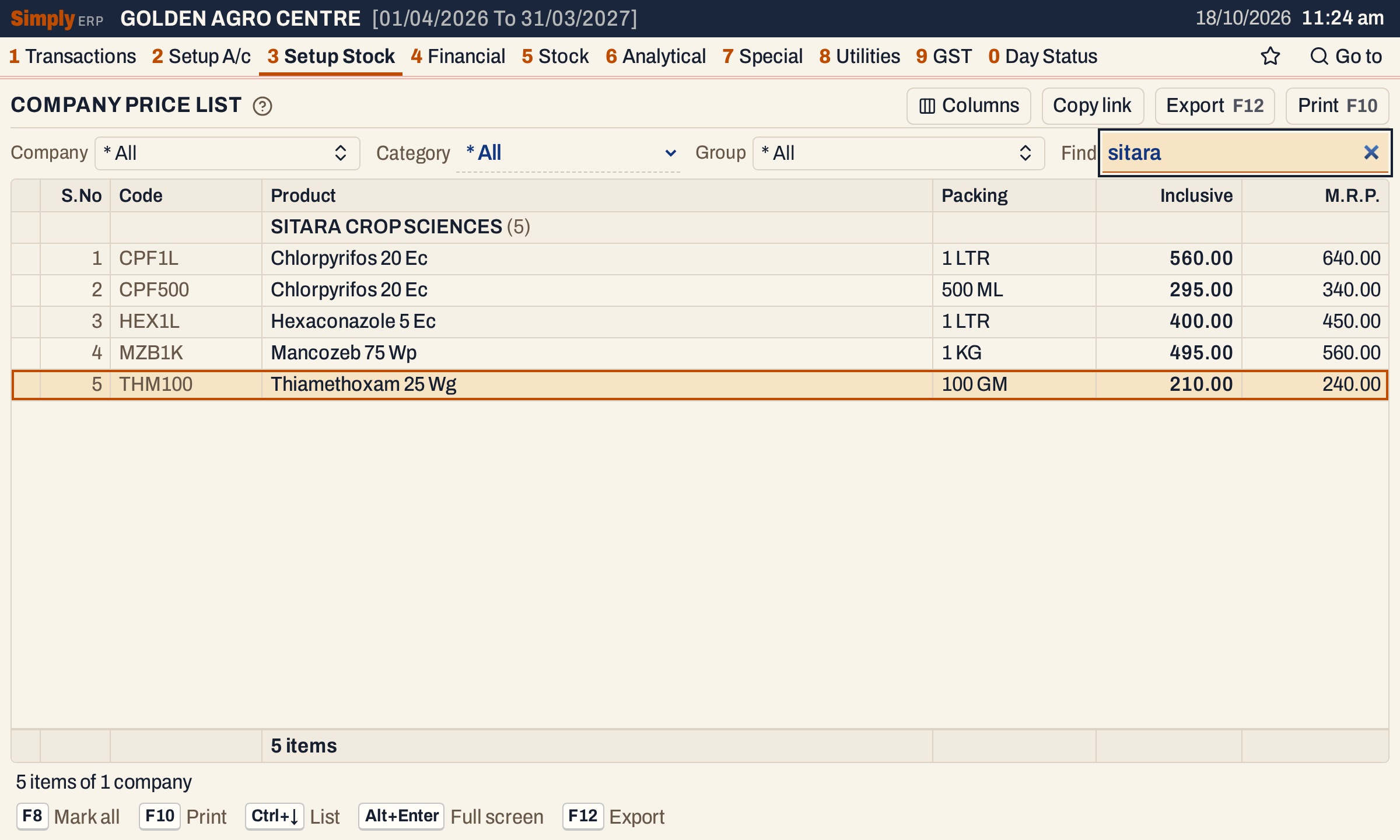 Find matches the company name too, so “sitara” lists the five items of SITARA CROP SCIENCES.
How the figures are worked out
- Inclusive is the item’s sale price with GST, Exclusive its sale price before GST and M.R.P. its maximum retail price, as saved on the item. Each figure is shown to the paisa, with Indian grouping (1,950.00). A figure of zero is left blank.
- The list is every item (not a stock group) that matches the chosen company, category and group, and the Find text.
- Headings are the companies, each with the number of items listed under it.
- Totals. The totals line counts the items. Prices are not added up.
- The status line gives the number of items listed and of company headings.
Open, mark, print and export
- Enter opens the group of the highlighted item, at that item.
- F2 marks the item under the cursor and moves down one line. F8 marks every item in the list, or clears their marks when they are all marked.
- F10 prints the list, with the company headings. It prints only the marked items when any are marked, and every item when none is. The print is headed COMPANY PRICE LIST and gives Company Name : ALL, or the companies you picked, with Marked items only when it holds only marked items, and the Category, Group and Find you set.
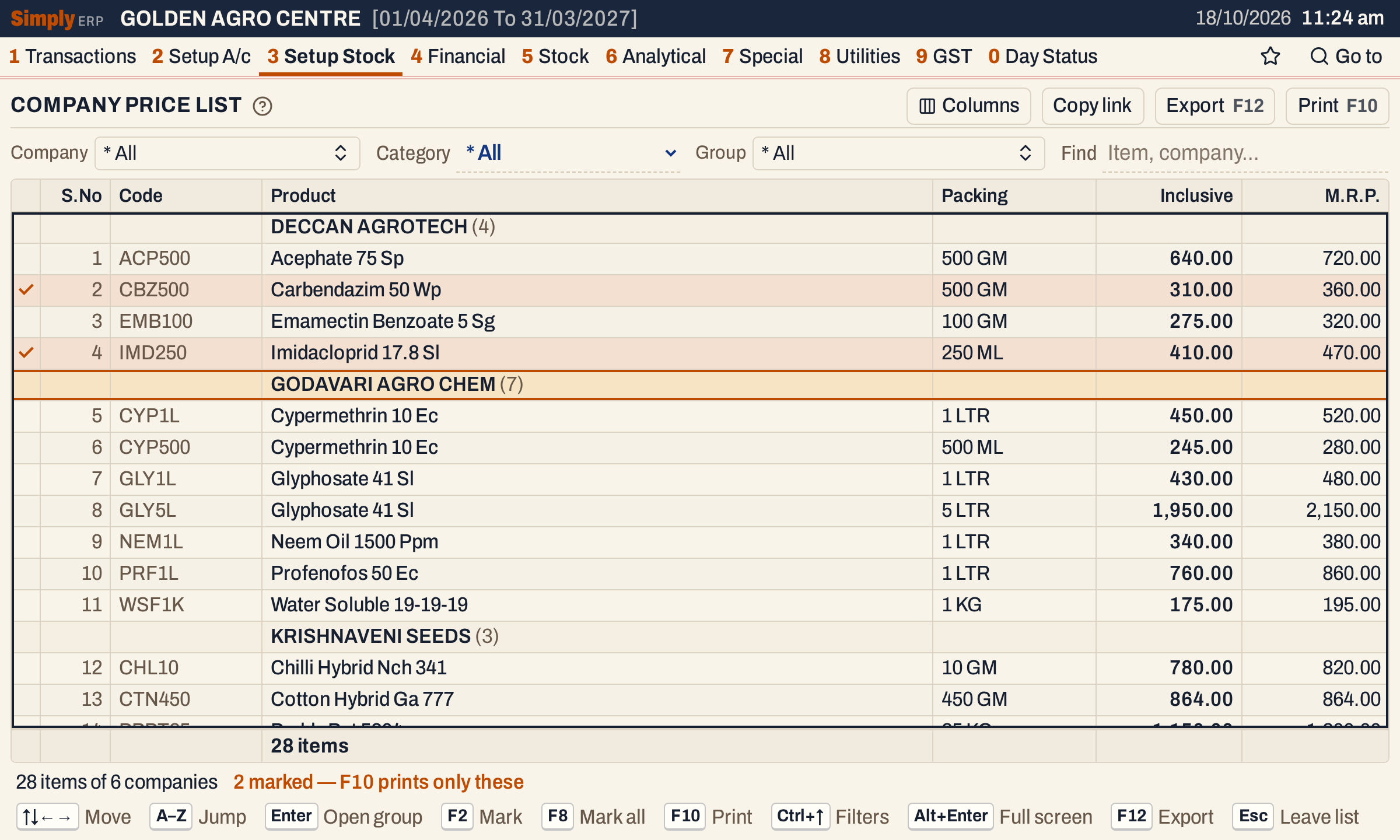 Two items marked with F2. F10 prints just these two.
- F12 saves the list as an Excel workbook. Copy link gives a link that opens the list with the same choices.
- Alt+Enter gives the whole window to the list.
Updated 4 November 2026.