Closing Stock Valuation
On this page
The Closing Stock Valuation shows how the closing stock figure of your accounts is made up. It lists each item you hold on a date with the units, the average rate, the value and the purchases the value comes from. The Trading Account and the Balance Sheet open it from their Closing Stock line, and its total is the figure they carry, unless you type a closing stock figure of your own on those reports.
Open the report
Press Alt+5 for Stock Reports, then Z for More Stock Reports and C. You can also reach it from the Trading Account: click its Closing Stock line and press Enter. The valuation opens as on today, for all categories, with GST included in the rates.
 The Closing Stock line of the Trading Account. Enter on it opens the valuation behind the figure.
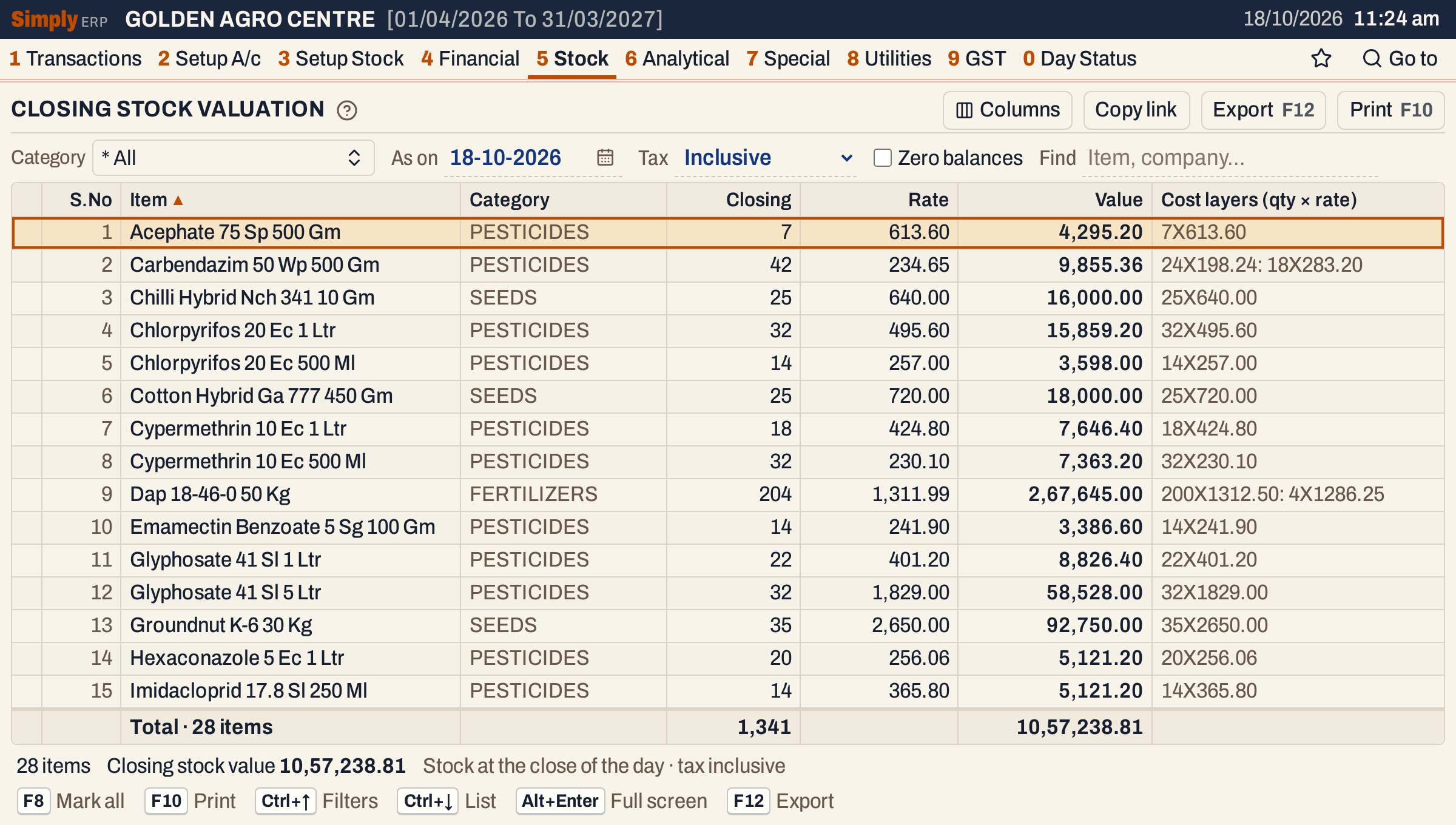 One line for each item in stock. Acephate 75 Sp 500 Gm has 7 units at 613.60, which is 4,295.20.
What it lists
One line for each item that has stock at the close of the As on date, including that day’s bills. An item with no stock, or with a negative stock, is not listed and has no value.
The quantity is the item’s opening stock + purchases + sales returns − sales − purchase returns − damage and breakage, for everything posted up to and including the As on date. Goods received and delivered (1 P) count as purchases and sales.
Columns
| Column | What it shows |
|---|---|
| S.No | The line’s number. |
| Item | The item’s name. |
| Category | The item’s category. Not shown when you choose exactly one category. |
| Closing | The units in stock on the date. |
| Rate | The value divided by the closing stock, to the paisa. |
| Value | The value of the item’s stock, to the paisa. |
| Cost layers (qty × rate) | The layers the value is made of: units, an X and the rate, one layer after another with a colon between, such as 200X1312.50: 4X1286.25. |
The line under the grid counts the items and adds up the closing stock and the value. The status line gives the number of items and the Closing stock value, which is the total.
Choices
| Choice | What it does |
|---|---|
| Category | One or more categories, or * All. |
| As on | The date. It must fall in the financial year. |
| Tax | Inclusive (the usual): purchase rates include the GST charged on the bill. Exclusive: the rates are the prices before GST. |
| Zero balances | Items with no stock are never listed, so this box makes no difference. |
| Find | Shows only the items whose name or category matches what you type. |
| Columns | Hides S.No, Category, Rate or Cost layers. The print leaves them out too. |
Click a column title to sort by it (Item, Closing, Rate or Value), and click again to reverse. Every choice is kept in the page address, so Copy link gives a link that opens the same valuation.
 The choices above the grid.
How the figures are worked out
For each item with stock, the closing quantity is valued by taking its purchases from the newest backwards:
- Purchase layers. Every purchase bill line posted on or before the As on date is a layer: its units at its rate. A purchase is posted on its Recd. date. Lines are taken newest posting date first (lines of one day in the order they were entered) until the closing quantity is covered. A line with no rate is skipped.
- Anything left. If the purchases do not cover the quantity, the rest, opening stock included, is valued at the item’s Op. price, which you set on the item’s packing line in its stock group (3 C).
The rate of a purchase layer is the line’s net amount including GST, after its discounts, divided by its units with Tax Inclusive, or the line’s price before GST with Exclusive. Sales returns and goods received are not layers: a returned unit is valued like any other unit.
Value is the sum of quantity × rate over the layers, to the paisa, and Rate is Value ÷ Closing, to the paisa. The total is the sum of the values.
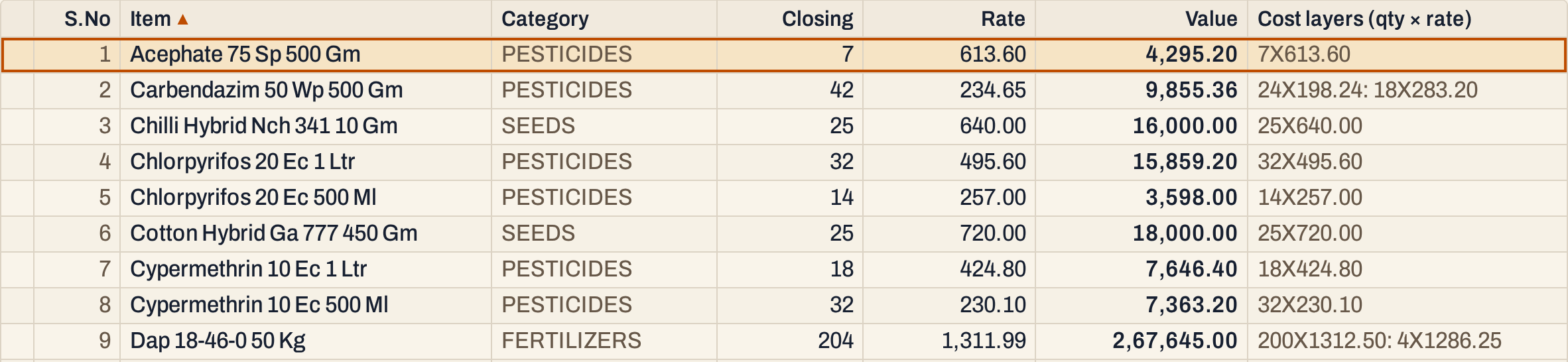 Carbendazim’s 42 units are 24 at 198.24 and 18 at 283.20: 4,757.76 + 5,097.60 = 9,855.36, a rate of 234.65. Dap’s 204 bags are 200 at 1,312.50 and 4 at 1,286.25.
 The total of the Value column is the Closing stock value, the same as the Trading Account’s.
The same figure as the Trading Account
The Trading Account and the Balance Sheet value closing stock with the same layers, so with the same date and Tax choice the total here is their closing stock. If you type a closing stock figure on one of them, it uses that figure and says Closing stock as typed. The Closing Stock Statement’s Normal report lists the same values with the manufacturer and GST rate beside each item, and adds the GST rate wise and Cost reports: see Closing Stock Statement.
One category
Choose a category to value only its items. The Category column then goes, and the total is the value of that category’s stock.
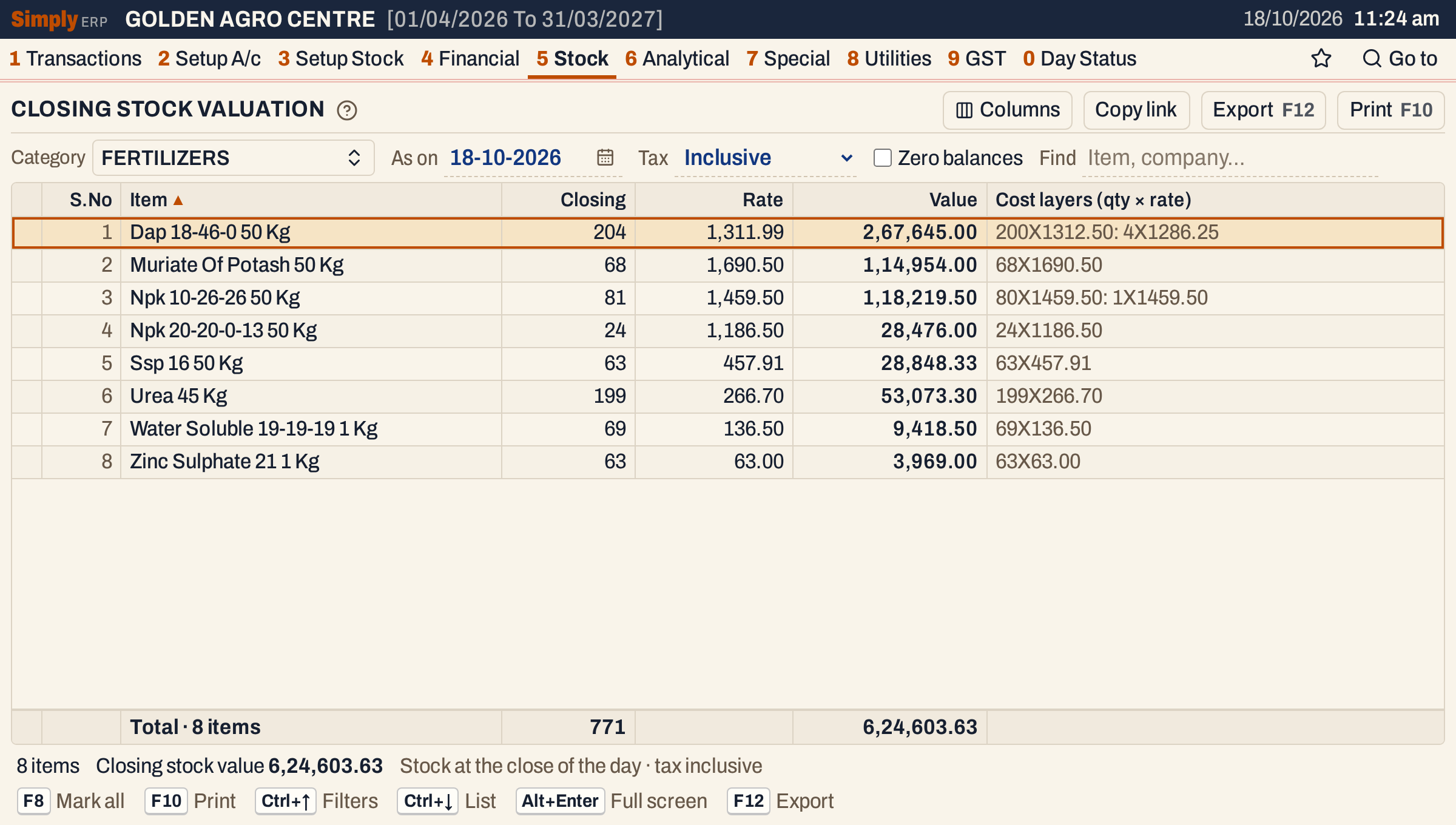 The eight fertilizers hold 6,24,603.63 of the stock value, in 771 units.
Open, mark, print and export
- Enter on an item opens its Stock Ledger from the start of the financial year to the As on date.
- F2 marks an item and F8 marks them all. F10 then prints only the marked items, and the totals count only those.
- F10 prints the valuation as it is on the screen, headed CLOSING STOCK STATEMENT (with the category’s name in front when you choose one category). Under it come the category with your licence numbers from Company Details, the As On date and the Tax Calculation choice. The last line is the Closing Stock Value.
- F12 saves it as an Excel workbook.
- Alt+Enter gives the whole window to the list.
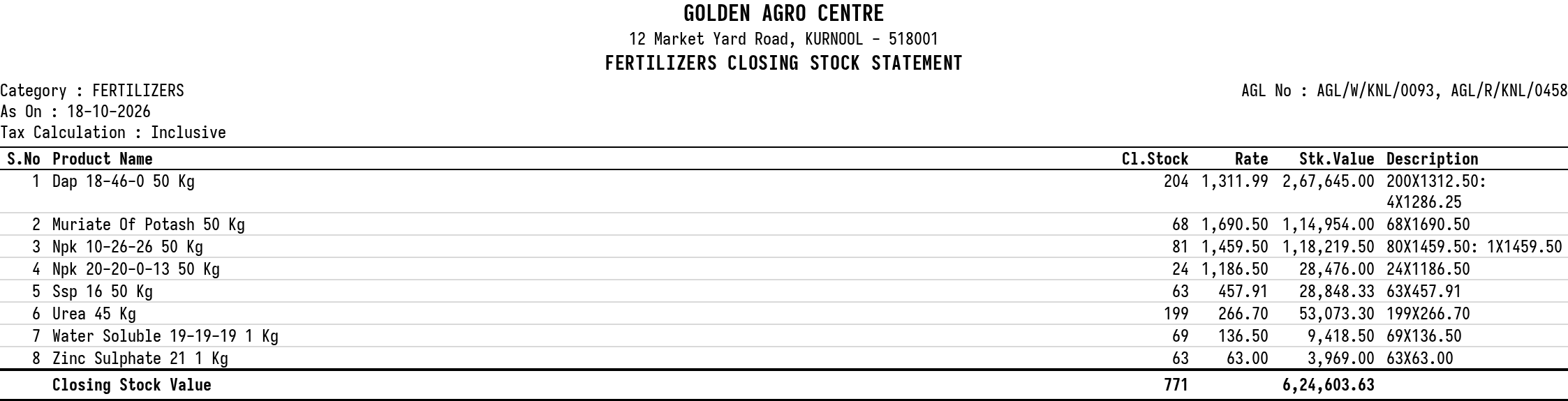 The print for one category.
Updated 4 November 2026.