Bank Stock Statement
On this page
The Bank Stock Statement lists the stock you hold on a date, with its value, in the form a bank asks for when it lends against stock. You give the bank’s name and the amount the bank has asked for, mark the items that make up that amount, and print them with the borrower’s declaration.
Open the report
Press Alt+5 for Stock Reports, then D. The report opens as on today, as By value: every item with stock, largest value first.
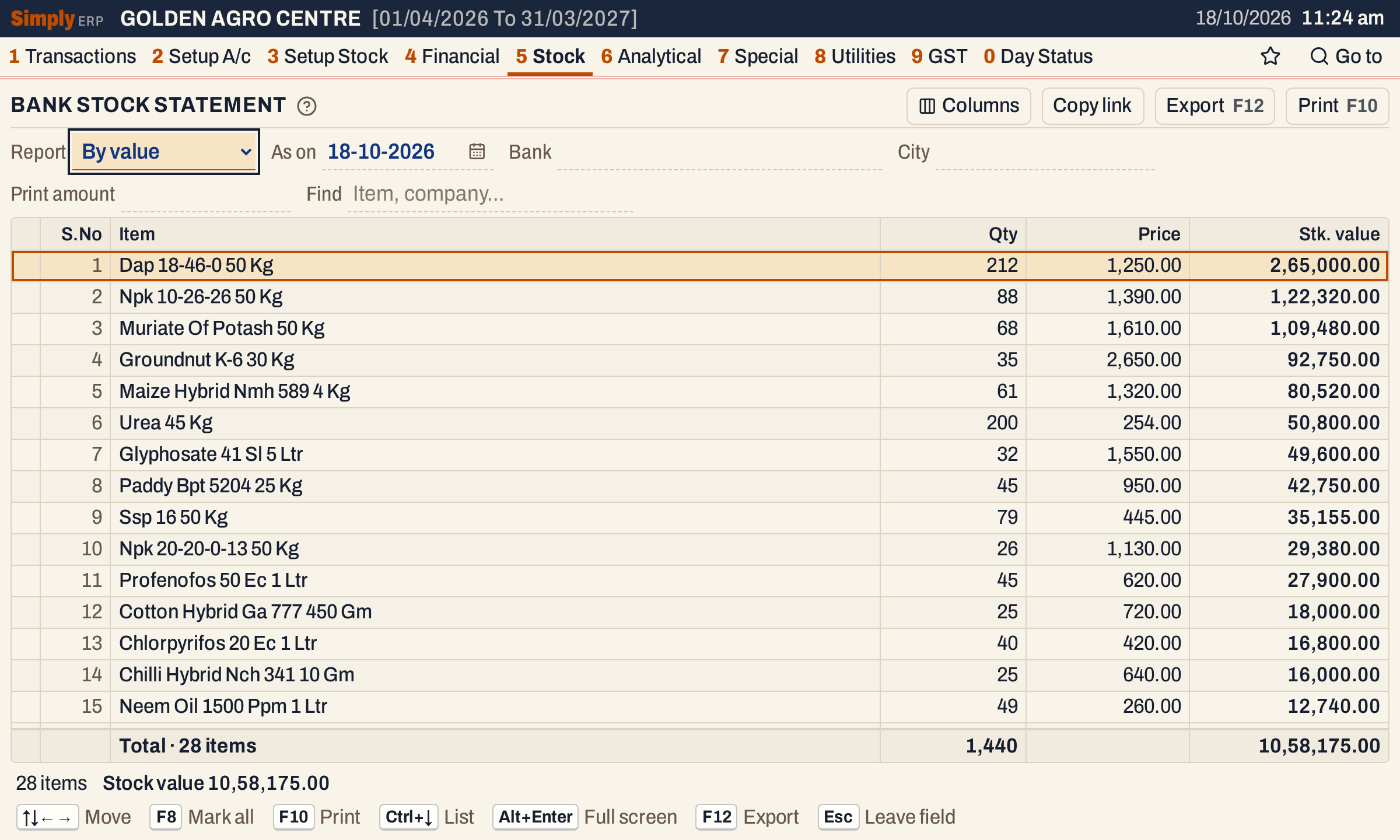 Items by value. The totals line adds up the quantity and the stock value of every item listed.
What it lists
One line for each item (not each batch).
- By value lists every item whose stock, as on the date, is not zero. An item with negative stock is listed too, with its quantity in red and a negative value.
- By category lists only the items with stock above zero.
- Items with no stock are left out of both.
- Opening stock (3 G), purchases, sales and returns all count, as do goods received before billing. Damage written off counts in By value only. Stock Statement shows how an item’s stock moves, and Stock Ledger lists its movements.
- The stock is the stock at the start of the As on date. Bills dated the As on date itself are not counted; they are counted when you choose the next day. On the showcase books, as on 18-10-2026 the stock is 1,440 units, and as on 19-10-2026 it is 1,341 because the sales dated 18-10-2026 are taken off.
The Report choice picks one of two layouts, described below: By value and By category.
Columns
| Column | What it shows |
|---|---|
| S.No | The line’s number in the list. |
| Item | The item’s name. In By category, a heading for each category with the number of items in brackets. |
| Qty | The stock in units, as on the date. |
| Price | The price the stock is valued at. Blank on category headings and the totals line. |
| Stk. value | Qty times Price. |
The status line gives the number of items and the total stock value. When items are marked, it also shows the marked value.
Choices
| Choice | What it does |
|---|---|
| Report | By value (the default) or By category. |
| As on | The date of the stock. It must fall in the financial year. It opens with today. |
| Bank | The bank’s name, printed at the top of the statement. In By value it is printed in the declaration too. |
| City | By value only: the bank’s city, printed under its name. |
| Print amount | By value only: the amount the bank asked for. Marking with F2 or F8 stops at this amount. It does not hide any items on the screen. |
| Rate, % | By category only: Actual, Increase or Decrease, and the percentage to change every price by. |
| Find | Shows only the items whose name matches what you type. In By category it matches the category name too. |
| Columns | Hides the S.No column, on the screen and in the print. |
Click a column title to sort by it; click again to reverse. Every choice is kept in the page address, so Copy link gives a link that opens the same report.
 The bank’s details and the print amount are typed in the choices.
How the figures are worked out
Stock quantity
For each item: its opening stock, plus the units bought and the units returned by customers before the As on date, minus the units sold, the units returned to suppliers and, in By value, the units written off as damage before that date. By category does not take damage off. Bills count by their posting date.
By value
- Price is the item’s Pur. price from the item list (3 A).
- Stk. value is Qty times Price.
- Items are listed largest stock value first. Items of equal value follow in name order. Sorting a column changes this order.
By category
- Price is the price on the item’s latest purchase bill, posted before the As on date, that has a price. When no purchase bill has a price, it is the item’s opening price, and when that is nil too, its Pur. price.
- With Increase or Decrease, every price is raised or lowered by the percentage you type: Price + Price × % ÷ 100 for Increase, and Price − Price × % ÷ 100 for Decrease. Stk. value is Qty times the changed price.
- Only items with stock above zero are listed, under their category. Categories are in name order, items within a category in name order, and an item without a category goes under (No category). A category heading adds up its Qty and Stk. value.
On the showcase books, the same 28 items are worth 10,58,175.00 By value and 10,48,860.00 By category, because the two layouts use different prices.
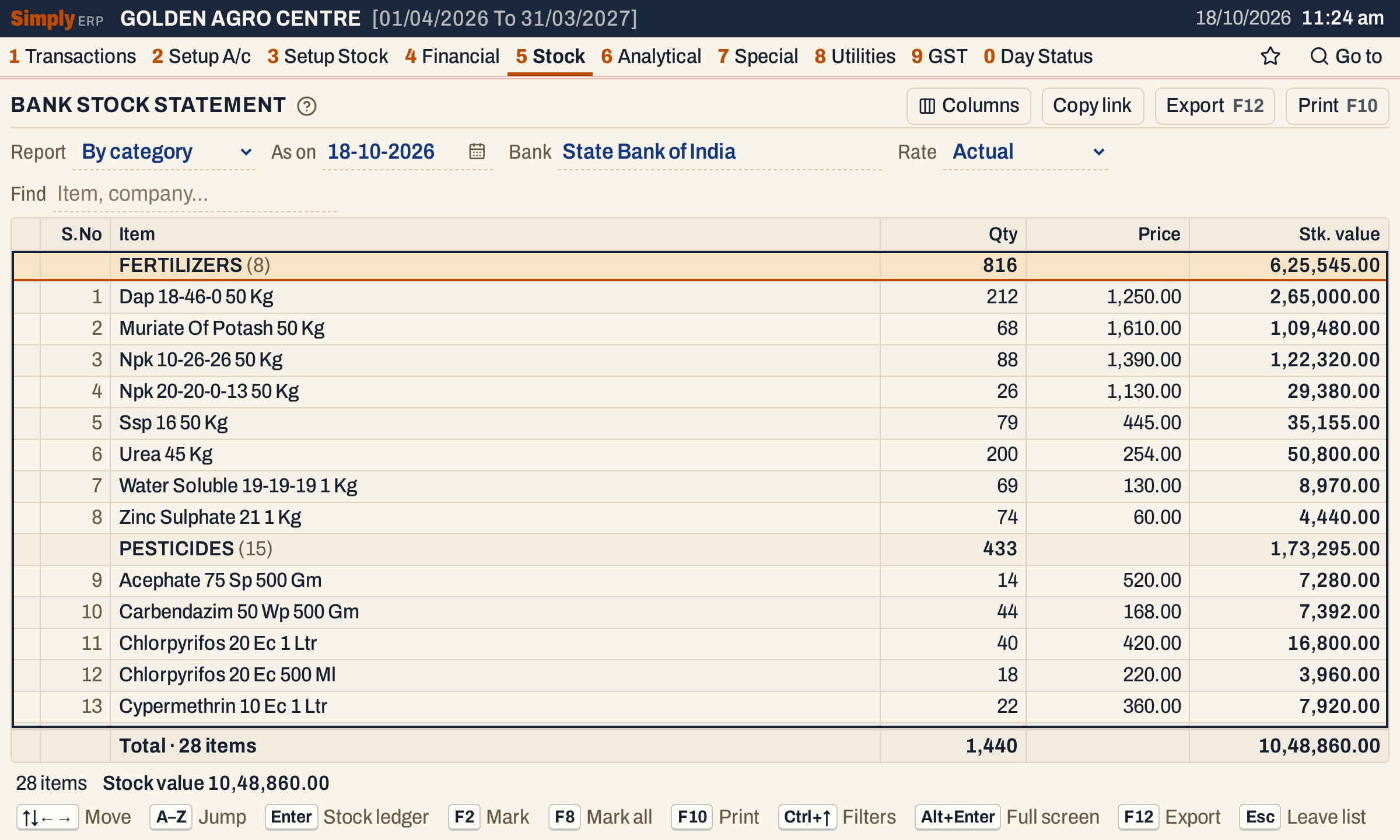 Each category is a heading with its item count, quantity and value.
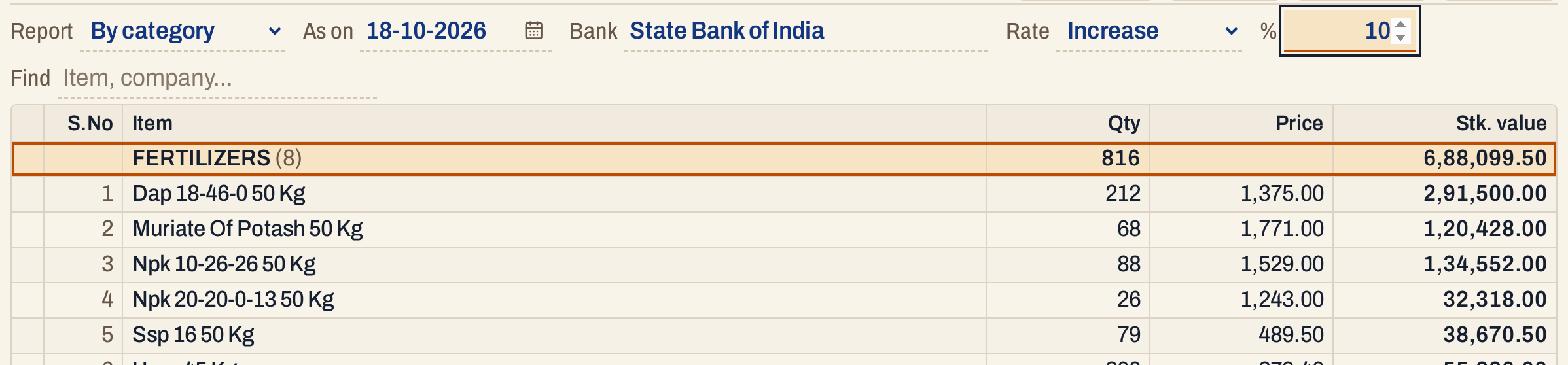 Increase by 10 percent. Dap’s price 1,250.00 becomes 1,375.00, and its value 2,91,500.00.
Mark items up to the bank’s amount
In By value, type the Print amount and press F8. SimplyERP marks items from the top of the list, the largest first unless you have sorted another column, adding each item’s value for as long as the total stays within the amount. It skips an item with no value, and it stops at the first item that would take the total past the amount. Press F8 again to clear the marks.
F2 marks or unmarks one item. It refuses an item that has no stock, and an item that would take the marked value past the Print amount. Unmarking always works. Without a Print amount, F2 and F8 mark freely.
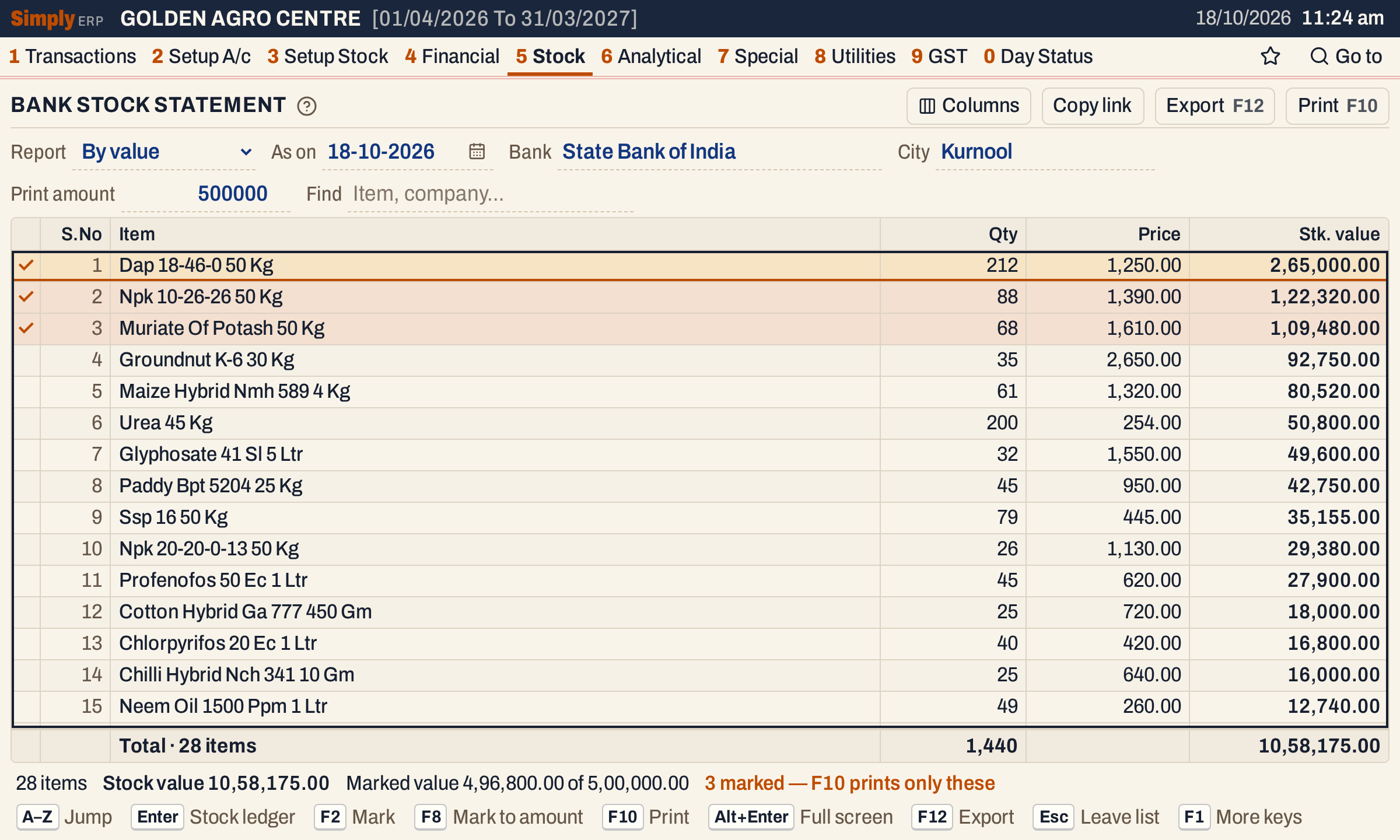 Three items are marked. The next item, Groundnut K-6 30 Kg at 92,750.00, would take the total past 5,00,000.00.
 The marked value against the Print amount: 2,65,000.00 + 1,22,320.00 + 1,09,480.00 = 4,96,800.00.
In By category, F2 and F8 mark without an amount.
Open, mark, print and export
- Enter on an item opens its Stock Ledger, from the first day of the financial year to the As on date.
- F10 prints the statement. When items are marked, it prints only those and totals only those. It is headed “To.,” with the bank’s name, the As on date and the city, then a line saying the details of the stock held are given, then the items with their quantity, price and amount, and Total Stock Value. By value ends with the borrower’s declaration: the stock is insured, is held under lien to the bank for advances outstanding and is the borrower’s own property, and the bank may weigh and value the goods at the borrower’s expense. A line for the borrower’s signature follows. By category prints the category headings, and when there is more than one category, a Summary of the value of each. With Increase or Decrease it says by what percent the prices were changed.
- F12 saves the report as an Excel workbook.
- Alt+Enter gives the whole window to the list.
Updated 4 November 2026.