Stock Statement with Source
On this page
The Stock Statement with Source is a stock statement you can hand to a bank, an inspector or an officer who asks where your stock came from. For one category it shows each item’s opening stock, receipts, outward and closing stock, addressed to the person you name, and it lists the receipts behind the stock: the supplier or customer, the bill number, the batch and the units.
Open the report
Press Alt+5 for Stock Reports, then R. The report opens for the financial year from its first day to today, for one category, in the Statement view. The pictures here use 1 October to 18 October 2026 so that the list of receipts is short.
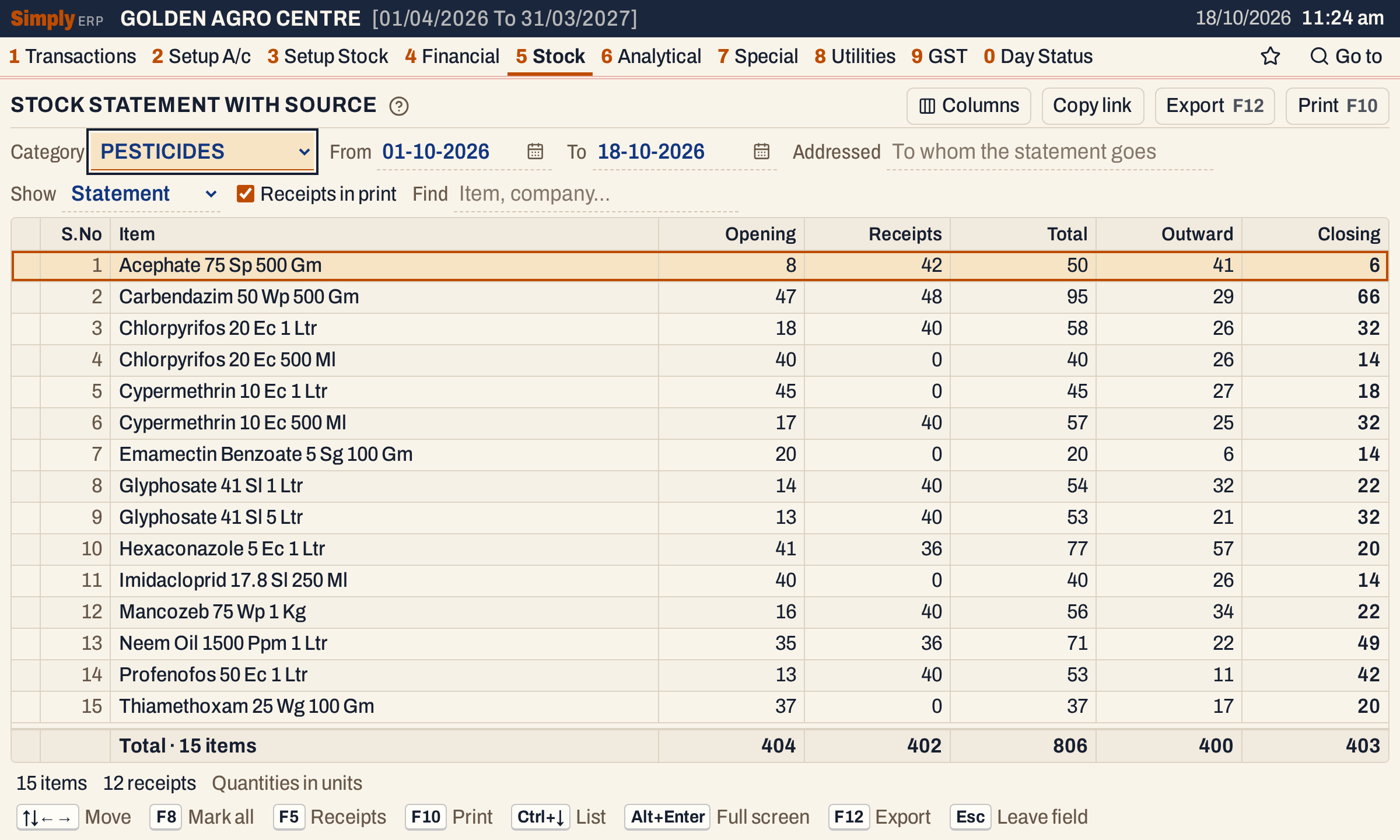 One line for each item. The status line says 15 items and 12 receipts.
What it lists
Statement view: one line for each item of the chosen category that had stock or movement in the period. An item is left out when its opening stock, purchases, sales returns, sales, purchase returns, damage and closing stock are all zero. Items are in name order.
Receipts view: one line for each receipt of the items on the screen, under a heading for the item. A receipt is:
- a purchase bill’s item line;
- a sales return’s item line;
- goods received before their bill (Goods In / Out (D.C.)), shown with the delivery challan number, on the day they arrived and in full.
A receipt is counted once: when a bill takes over goods already received, the bill lists only the units beyond them.
Columns
Statement view:
| Column | What it shows |
|---|---|
| S.No | The line’s number. |
| Item | The item’s name. |
| Opening | The stock before the From date. |
| Receipts | Purchases plus sales returns in the period. |
| Total | Opening plus Receipts. |
| Outward | Sales plus purchase returns in the period. |
| Closing | The stock at the end of the To date. In red when it is negative. |
Receipts view:
| Column | What it shows |
|---|---|
| Supplier / customer | The supplier of a purchase or a received delivery, or the customer of a sales return. A heading line shows the item, the number of its receipts and their units. |
| Date | The date of the receipt. |
| Inv. no | The bill number, the return number or the delivery challan number. |
| Batch no | The batch. |
| Qty | The units received. |
The totals line adds up each column: in the Statement view the items’ figures, in the Receipts view the units of the receipts and their number.
 The totals of the 15 items.
Choices
| Choice | What it does |
|---|---|
| Category | The category to report. A category is always chosen; it opens with the first in the list. |
| From, To | The period. Both dates must fall in the financial year. It opens with the first day of the year and today. |
| Addressed | The name of the person or bank the statement goes to. Printed at the top of the print. |
| Show | Statement or Receipts. F5 switches between them. |
| Receipts in print | When ticked (the default), the print adds the Details of Stock Receipts after the statement. |
| Find | Shows only items whose name or company matches what you type. |
| Columns | Statement view: hides S.No or any figure column, on the screen and in the print. |
Click a column title in the Statement view to sort by it, and click again to reverse. A figure column starts with the largest. Every choice is kept in the page address, so Copy link gives a link that opens the same report.
 The choices above the grid.
How the figures are worked out
All quantities are in units. For each item:
- Opening = the item’s opening stock + purchases and sales returns dated before From − sales, purchase returns and damage dated before From.
- Receipts = purchases + sales returns, dated From to To, both days included.
- Total = Opening + Receipts.
- Outward = sales + purchase returns, dated From to To.
- Closing = Total − Outward − damage written off in the period.
Goods received before billing count as purchases, and goods delivered before billing count as sales. Damage means the stock taken out in Damages / Breaks. It is not in Outward, but it still lowers Closing. For example, Acephate 75 Sp 500 Gm opens with 8 units and receives 42 (40 bought and 2 returned by a customer), so its Total is 50. It sells or returns 41, and 3 units were written off as damaged. Its Closing is 50 − 41 − 3 = 6, not 9. In the totals line, 806 − 400 = 406 and the closing stock is 403: the difference of 3 is the damage.
A bill counts on the day it is posted: a purchase bill or a sales return on the day it was received (its Recd. date), any other bill on its own date. Goods received or delivered before billing count on the day of the delivery.
Receipts
Choose Show Receipts (or press F5) to see the receipts. Only the items on the screen are listed, so Category and Find narrow them. When items are marked, only the marked items’ receipts are listed. Under each item they are in date order.
In the example, Acephate has two receipts, 40 units from Deccan Agrotech Distributors on bill DAD/26-27/1166 and 2 units returned by Ramaiah K on SR-1. Carbendazim 50 Wp 500 Gm has 24 units on bill DAD/26-27/1173 and 24 units that arrived on delivery challan DC-5521 and have no bill yet.
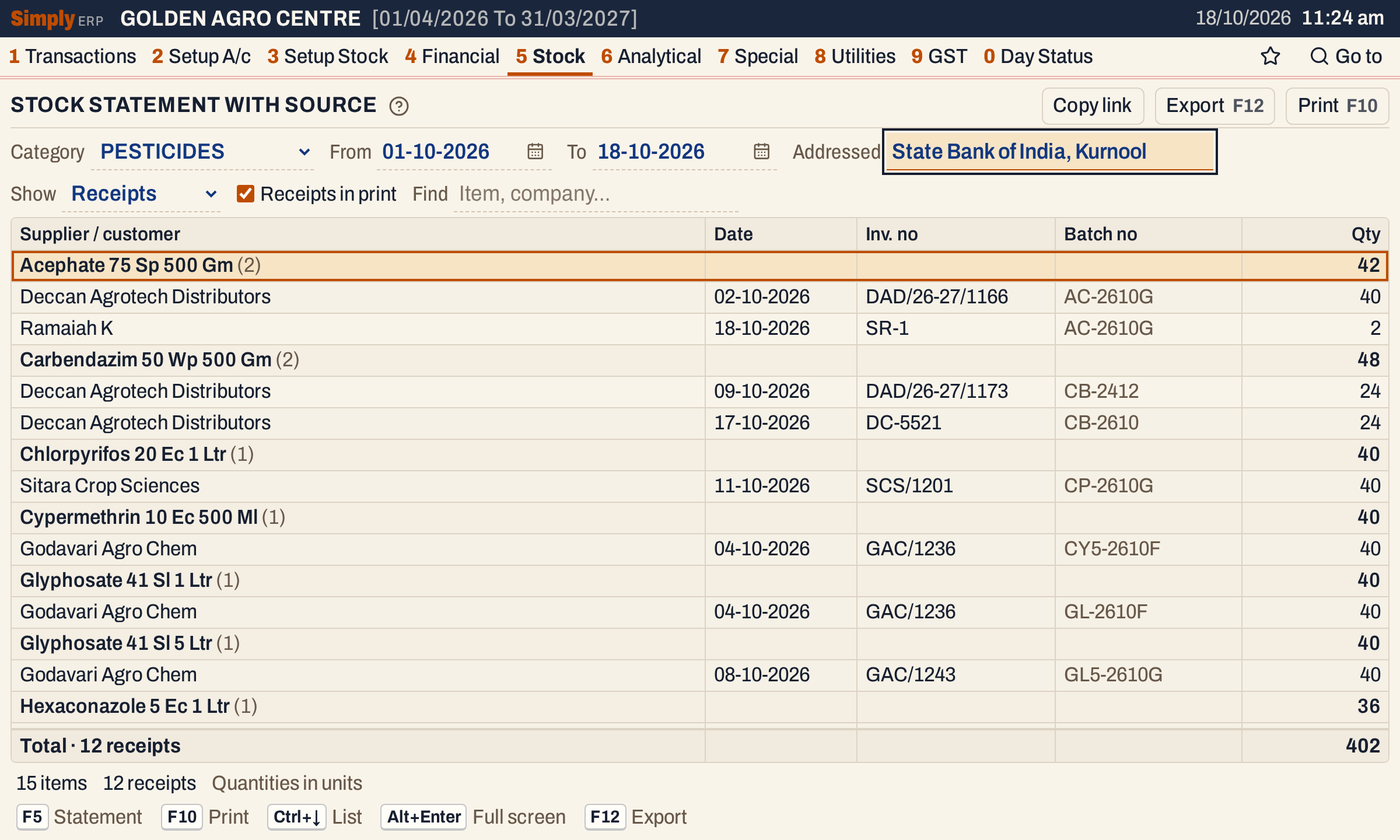 Each item is a heading, with its receipts under it: who, when, the bill number, the batch and the units.
Open, mark, print and export
- Enter on an item in the Statement view opens its Stock Ledger. In the Receipts view, Enter on a receipt opens its bill. A delivery with no bill opens nothing.
- F2 marks an item and F8 marks them all, in the Statement view. F10 then prints only the marked items and their receipts.
- F10 prints the statement, titled Stock Statement with Source. If you typed an Addressed name, it is printed in capitals under “To”. The heading also has the category and the period. With Receipts in print ticked, the Details of Stock Receipts follow, with the product, the supplier, the bill number, the batch and the units. The date of a receipt is not printed.
- F12 saves the report as an Excel workbook.
- Alt+Enter gives the whole window to the list.
Updated 4 November 2026.