Purchase Statement
On this page
The Purchase Statement lists the item lines of your purchase bills for a period. It answers how many units of each item you bought, at what average cost per unit, and for how much, and which bills and suppliers they came from. Use it to compare suppliers’ prices and to check what a purchase really cost, with its GST and discounts.
Open the report
Press Alt+5 for Stock Reports, then F. The statement opens for the financial year from its first day to today, with one line for each item.
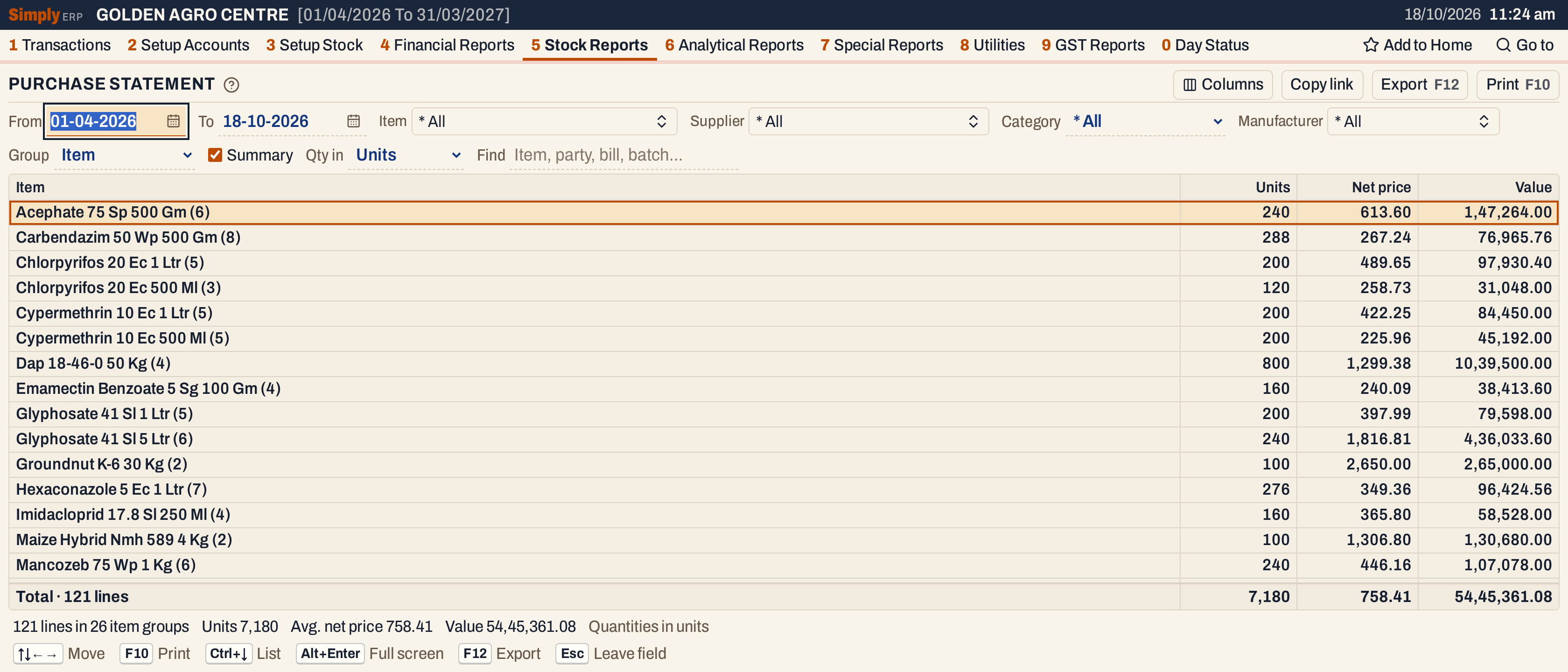 Each line is an item, with the number of bill lines behind it in brackets: Acephate 75 Sp 500 Gm was bought on 6 lines, 240 units in all, at an average net price of 613.60.
What it lists
- The item lines of purchase bills posted in the period, by the date each bill is posted. A bill with three items gives three lines. Charge lines are not item lines and are not listed, and lines with no quantity are left out.
- Goods received before their bill (Goods In / Out (D.C.), 1 P). Each receipt that has not been fully billed is listed on the date of the entry with the units not yet billed, under the delivery challan number. When the bill arrives, the billed units are taken off the receipt and the bill’s own line is listed instead, so a unit is never listed twice.
- Purchase returns are not taken off. They have their own report, Purchase Returns Statement.
Columns
| Column | What it shows |
|---|---|
| S.No | The line’s number. Not shown in Summary. |
| Date | The date the bill is posted, or the date of the goods entry. |
| Bill no | The bill number as entered. For goods not yet billed, the challan number, or the entry’s reference. |
| Book no | The bill’s series and number in your own purchase book. Shown only when some line has one. |
| Supplier | The supplier’s name on the bill. Hidden when Group is Party, where it is the heading. |
| Item | The item. Hidden when Group is Item, where it is the heading. |
| Batch | The batch received. Shown only when some line has one. |
| Units | The quantity bought, in the unit chosen in Qty in. |
| Net price | What one unit cost: the line’s value after discounts, with GST, divided by the units. |
| Pur. price | The agreed rate of the line, including GST, for one unit. Shown only when some line has one. |
| Value | Net price times units. |
| Pur. value | Pur. price times units. Shown only when some line has an agreed rate. |
A heading line (when Group is set) shows the name with the number of lines in brackets, and the same figures added up. Its Net price is an average. The totals line under the grid does the same for every line listed. The status line gives the number of lines and groups, the units, the average net price and the value.
In Summary the screen has one line for each group, with the name and the figures only.
Choices
| Choice | What it does |
|---|---|
| From, To | The period, both days included. Both dates must fall in the financial year. If you set From after To, the other date moves with it. |
| Item | One or more items. The list holds the items bought in the period. |
| Supplier | One or more suppliers. The list holds the suppliers you bought from in the period. |
| Category | One item category, or * All. Changing it clears the Item and Manufacturer choices. |
| Manufacturer | One or more manufacturers. |
| Group | None: every bill line in date order. Item (the usual): a heading for each item. Party: a heading for each supplier. Manufacturer: a heading for each manufacturer. |
| Summary | One line for each group and no bill lines. Ticked when the report opens, with Group set to Item. The box shows only when Group is set. |
| Qty in | Units (the usual), Litres / kg, Tonnes or Quintals. The prices are per the unit chosen; the values do not change. |
| Find | Shows only the lines matching what you type in the item, supplier, bill, book number, batch or manufacturer. |
| Columns | Hides the S.No, Date, Bill no, Book no, Supplier, Batch, Net price, Pur. price, Value or Pur. value column. The Item (or heading) and Units columns always show. The print leaves them out too. |
Click a column title to sort by it, and click again to reverse. Shift+click another title to sort within it. Every choice is kept in the page address, so Copy link gives a link that opens the same statement.
 Group, Summary and Qty in decide what a line stands for.
How the figures are worked out
For each bill line:
- Units = the quantity on the line, converted to the unit you chose. For litres or kilograms the units are multiplied by the item’s pack size; for tonnes, by the pack size divided by 1,000; for quintals, divided by 100. An item with no pack size recorded shows zero units and no prices, and the status line says how many lines are affected. Net price and Pur. price are divided by the same pack size, so they are per that unit.
- Net price = the cost of one unit, worked out once and rounded to two decimals. For a supplier with a GSTIN it is the line’s taxable value after discounts, plus its GST, divided by the units. For a supplier without a GSTIN it is the line’s net amount divided by the units. When the bill spreads charges over the cost of its items, each line’s share is included.
- Value = Net price × Units, rounded to two decimals. Because the net price is rounded first, the value can differ by paise from the line’s amount on the bill: bill DAD/26-27/1047 has a line of 10,988.16 for 40 units, which the report shows as 274.70 and 10,988.00.
- Pur. price = the agreed rate, including GST, recorded in the Agreed column of the bill line (an optional column on the bill), and Pur. value = Pur. price × Units. For goods not yet billed, the Pur. price is the price on the goods entry.
For goods not yet billed, the Net price is the unit cost entered with the goods. A receipt with no cost recorded shows no price or value, and is left out of the averages and totals of values; the status line says how many lines are.
For a heading line and the total line:
- Units and Value are sums of the lines under it.
- Net price = the sum of the values ÷ the sum of the units of the lines that have a cost. This is a weighted average, not an average of the prices.
For Carbendazim 50 Wp 500 Gm: 76,965.76 ÷ 288 units = 267.24.
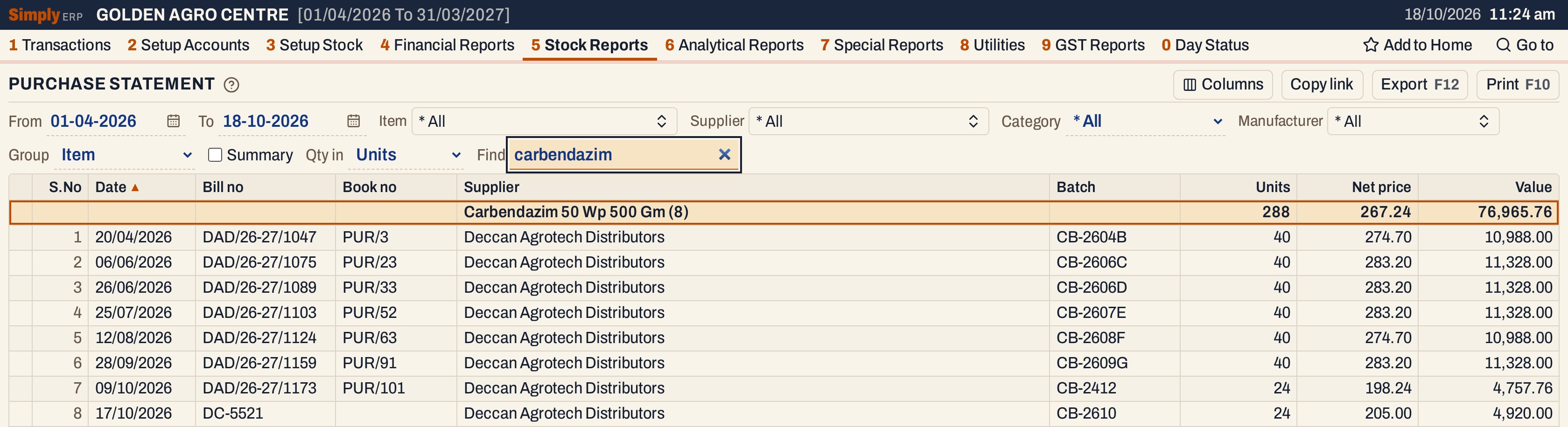 Type carbendazim in Find and clear Summary to see the lines. The last line is not a bill: 24 units received on 17-10-2026 on challan DC-5521, listed at the cost entered with them, 205.00.
Group by supplier
Set Group to Party and tick Summary for one line for each supplier.
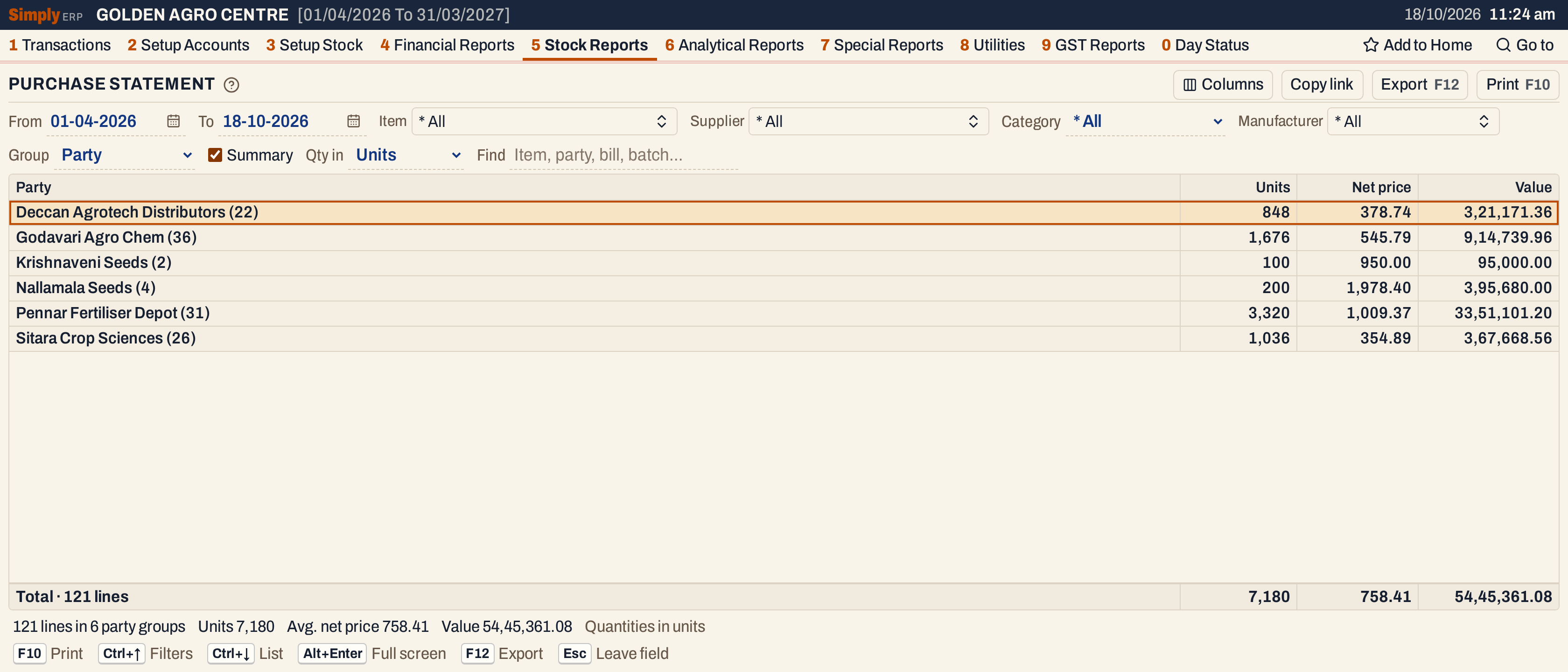 Six suppliers cover the 121 lines. The total is the same as the statement by item.
Open, mark, print and export
- Enter on a bill line opens the saved bill. On a line of goods not yet billed, it opens the item’s Stock Ledger for the period. On a heading, or on a line of the Summary, it sets the Item, Supplier or Manufacturer choice to that group and unticks Summary, so the group’s bill lines show. The browser’s Back button returns to the Summary.
- F2 marks a line and F8 marks them all. F10 then prints only the marked lines. Marking is not offered in the Summary.
- F10 prints the statement as it is on the screen, titled PRODUCT WISE PURCHASE STATEMENT, with the item chosen (or * All), the period, the unit and your choices. The print has the columns that show on the screen.
- F12 saves it as an Excel workbook.
- Type letters in the list to jump to the next line that begins with them.
- Alt+Enter gives the whole window to the list.
Updated 4 November 2026.