Group Wise Net Purchases
On this page
Group Wise Net Purchases tells you how much of each product you have bought, in litres or kilograms, whatever the pack. A product group is one product in all its packings, so 1 Ltr and 500 Ml bottles of the same pesticide are added into one line. Purchases are reduced by what you returned to suppliers. It is the report to read when you need the quantity of each product bought in a period.
Open the report
Press Alt+5 for Stock Reports, then X. The report opens for the financial year from its first day to today, for the first category in your list, with the opening stock included.
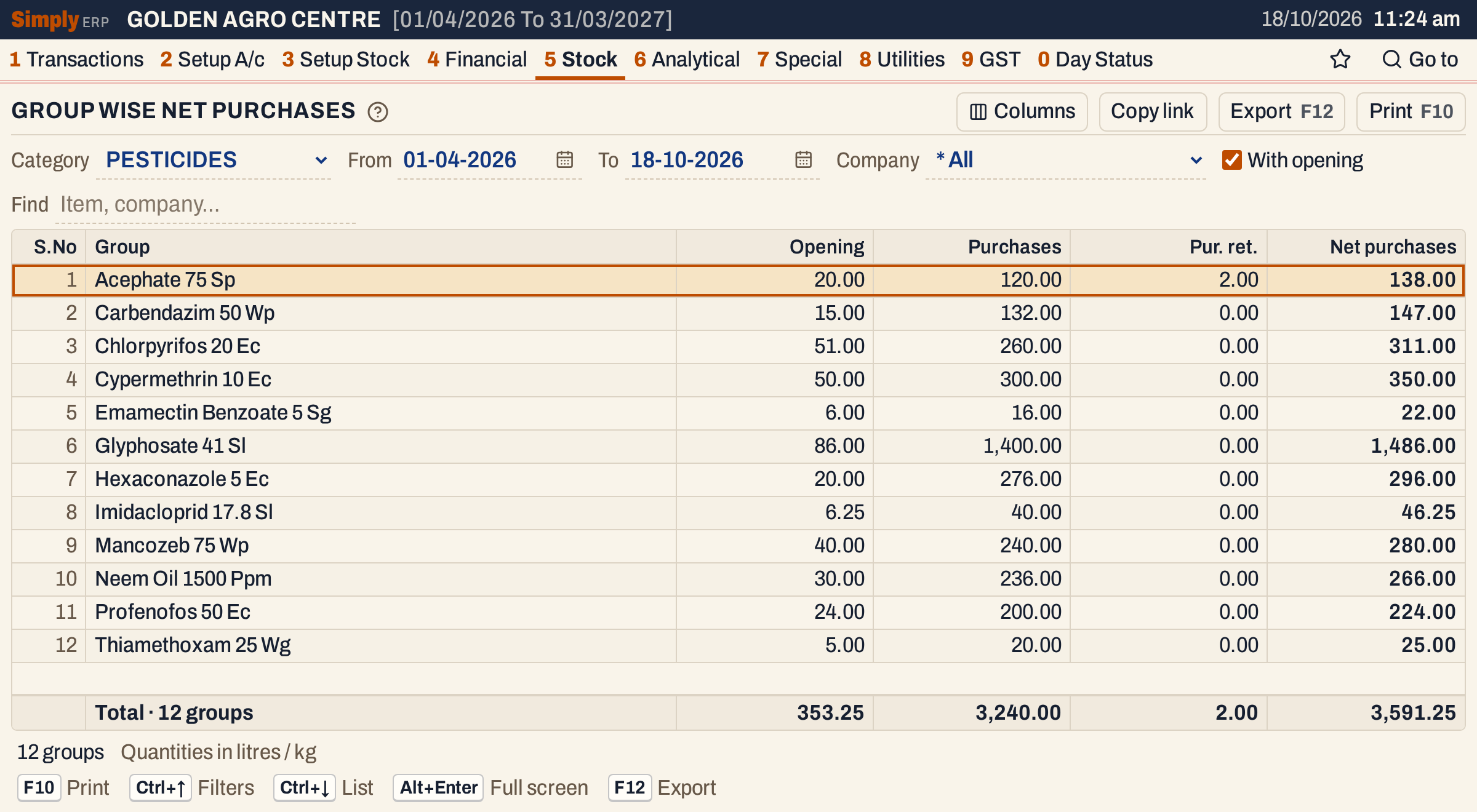 Twelve pesticide groups. Acephate 75 Sp has 2.00 kg returned, so its Net purchases is 20.00 + 120.00 − 2.00 = 138.00.
What it lists
One line for each product group of the chosen category that has an opening, a purchase, a return or a net figure other than nil. A group with none of these in the period is left out.
The report reads purchases only. Sales, sales returns and damage do not change any figure on it. It counts:
- purchase bills, on the date each bill is posted (for a purchase, the day it was received);
- purchase returns, on their posting date;
- goods received or sent back on a challan (1 P), on the date of the entry. When the bill for goods already received arrives, only the units not received before are counted.
Quantities are worked out in litres or kilograms: each item’s units are multiplied by the pack size recorded for it (a 500 Ml pack counts as 0.5, a 50 Kg bag as 50), and the items of the group are added up. An item whose pack size is not recorded counts as zero.
Columns
| Column | What it shows |
|---|---|
| S.No | The line’s number. You can hide it with Columns. |
| Group | The product group’s name, without the packing. |
| Opening | The group’s opening stock at the start of the financial year plus the purchases less the purchase returns posted before the From date, in litres or kg. Shown only when With opening is ticked. |
| Purchases | Litres or kg bought from the From date to the To date. |
| Pur. ret. | Litres or kg returned to suppliers from the From date to the To date. |
| Net purchases | Opening (when shown) plus Purchases less Pur. ret. |
The line under the grid counts the groups and adds up each column. The status line says how many groups are listed and that the quantities are in litres / kg.
Choices
| Choice | What it does |
|---|---|
| Category | The category to report. There is no * All: the report is made for one category at a time, and opens on the first one. |
| From, To | The period, both days included. Both dates must fall in the financial year. |
| Company | Counts only the items of one manufacturer, or * All. The list holds the companies of the chosen category. |
| With opening | Ticked (the usual), the Opening column is shown and is part of Net purchases. Unticked, it is hidden and Net purchases is only Purchases less Pur. ret. |
| Find | Shows only the groups whose name matches what you type. |
| Columns | Hides the S.No column. The print leaves it out too. |
Click a column title to sort by it, and click again to reverse. Every choice is kept in the page address, so Copy link gives a link that opens the same report.
 The choices above the grid.
How the figures are worked out
For each item of the group, units are changed to litres or kg with its pack size, and then the items are added up:
- Purchases = the units bought from the From date to the To date × pack size.
- Pur. ret. = the units returned to suppliers in the same period × pack size.
- Opening = (the item’s opening stock + the units bought before From − the units returned before From) × pack size.
- Net purchases = Opening + Purchases − Pur. ret.
Sales never reduce Opening, so Net purchases is not the stock on hand. For stock on hand use the Stock Statement.
Chlorpyrifos 20 Ec shows how packings are added. Its 1 Ltr pack has an opening stock of 36 and 200 bought, and its 500 Ml pack has 30 and 120. The Opening is 36 × 1 + 30 × 0.5 = 51.00, and the Purchases are 200 × 1 + 120 × 0.5 = 260.00. Fertilizers work the same way in kilograms: Dap 18-46-0 is bought in 50 Kg bags, so its 800 bags are 40,000.00 kg.
Groups come in name order, unless you sort by a column. Figures show two decimals with Indian digit grouping, and the total is the sum of the groups.
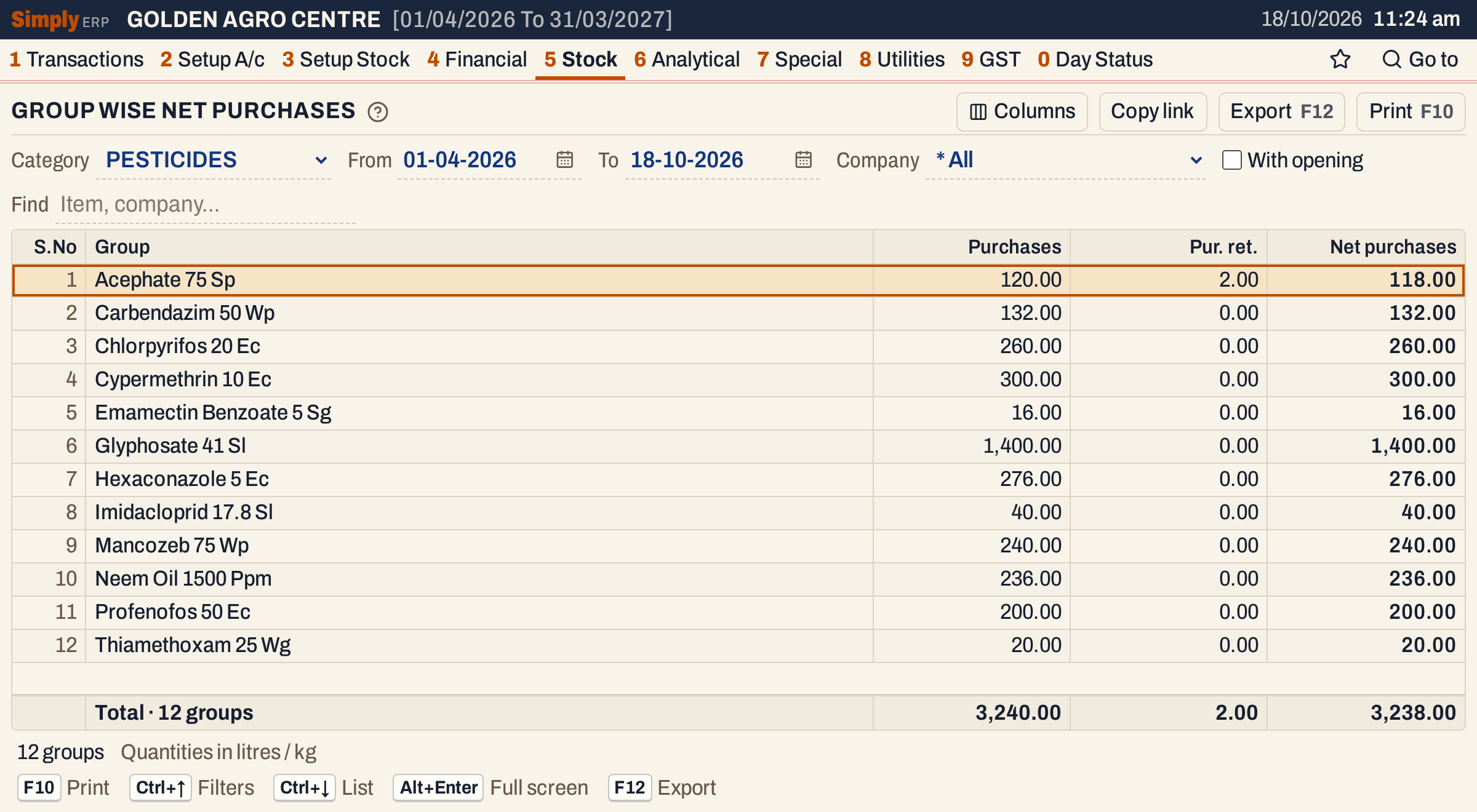 With opening unticked the Opening column goes, and the net is only what was bought less what was returned: 120.00 − 2.00 = 118.00 for Acephate 75 Sp.
One company
Choose a Company to see only the groups of that manufacturer.
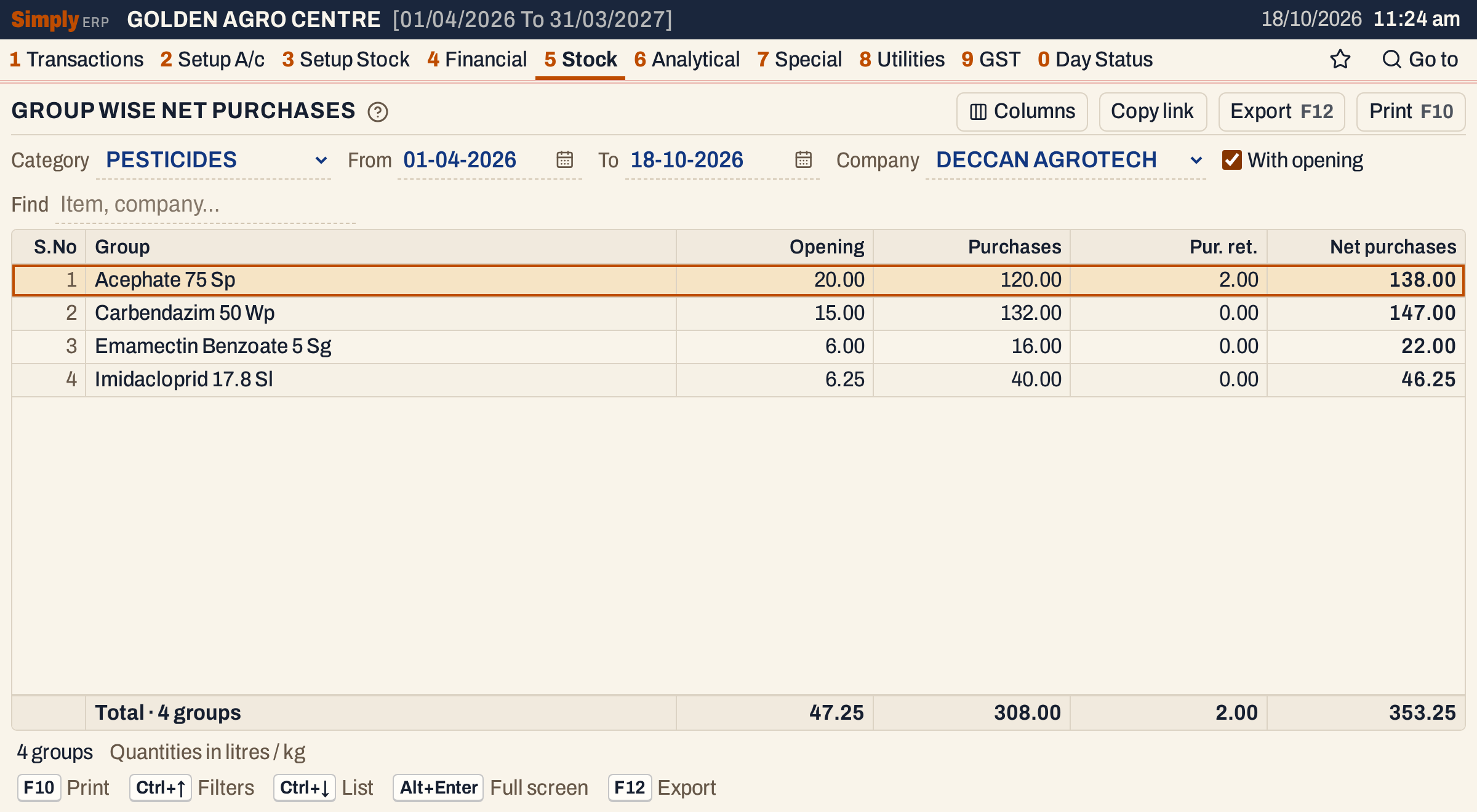 Four groups belong to Deccan Agrotech. Their total, 353.25, is the part of the whole category’s 3,591.25 that belongs to the items of Deccan Agrotech.
Another category
The category decides the groups and the figures. Fertilizers are counted in kilograms.
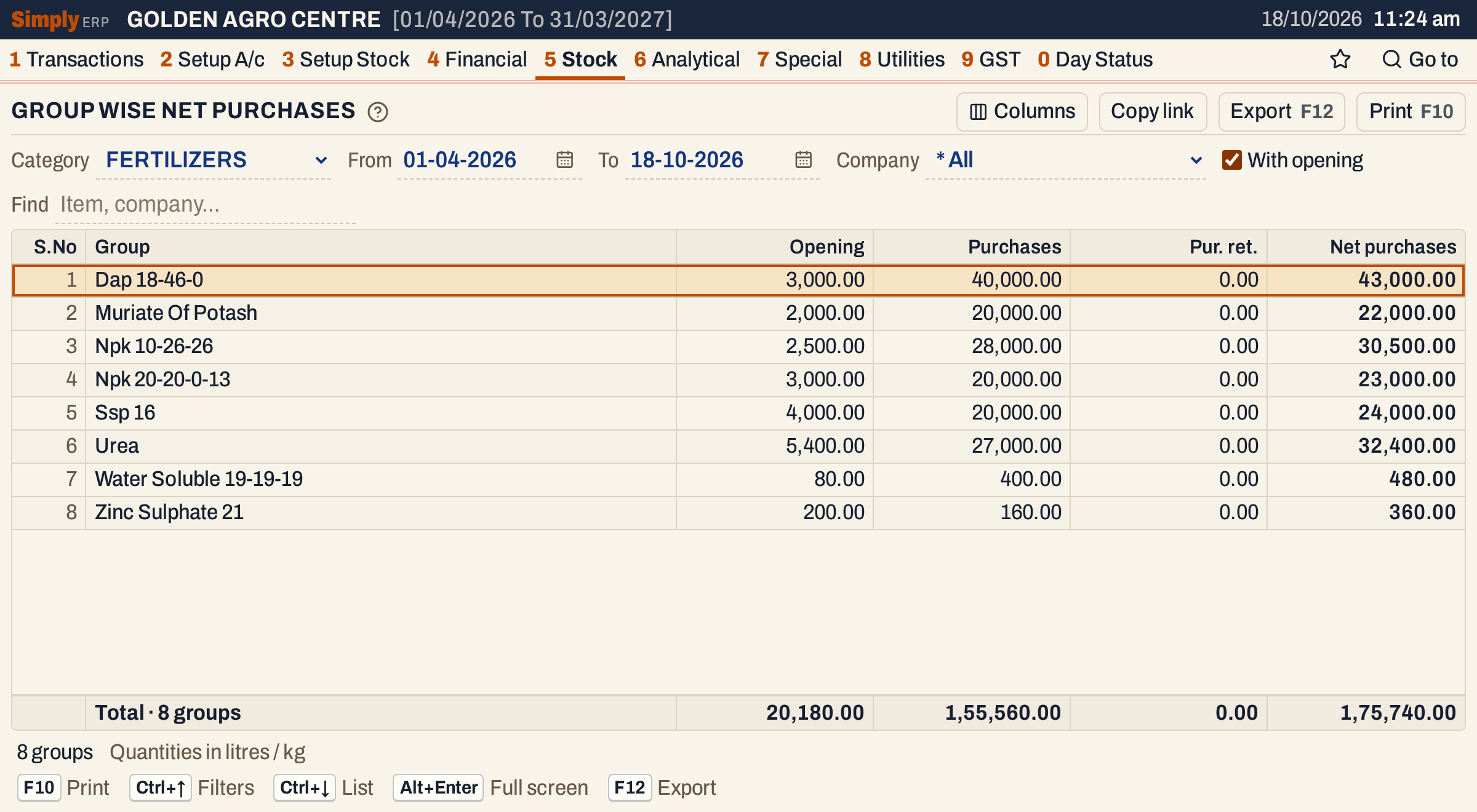 Eight fertilizer groups, with a total of 1,75,740.00 kg.
Open, print and export
- Enter on a group opens the Stock Statement for the same period, category and company, showing the group’s items.
- Groups cannot be marked: F10 always prints all the groups shown.
- F10 prints the report as it is on the screen, headed NET PURCHASES - GROUP WISE, with the category and company, the period and that the quantities are in litres / kg, then your Find choice.
- F12 saves it as an Excel workbook.
- Alt+Enter gives the whole window to the list.
Updated 4 November 2026.