Make a purchase bill
On this page
A purchase bill records goods you bought from a supplier, under the supplier’s own bill number. Saving it brings the units into stock as batches, and posts the purchase, the GST you can claim and the amount you owe to your books. You type what is on the supplier’s bill: its number, its date, the day the goods arrived, the rates, and each batch with its dates.
Open a new purchase
Press Alt+1 for the Transactions menu, E for G S T Inward (Direct), then N for New Entries. The same menu entry has M for the register of saved purchases, and P for a purchase made from photos (see Bill from photos).
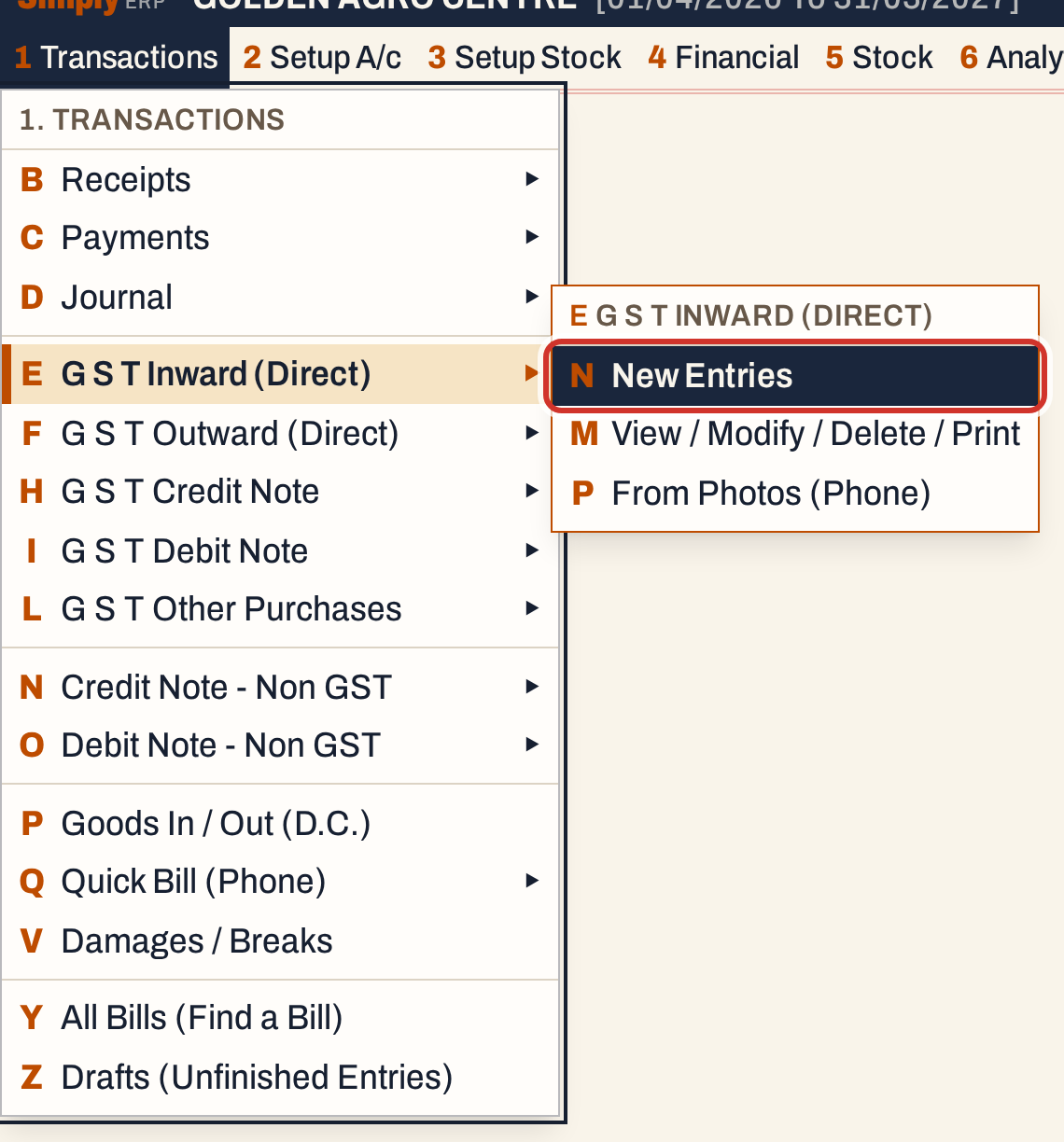 1 E N: Transactions, G S T Inward (Direct), New Entries.
The cursor starts in the Type field. The inward screen makes two kinds of bill: Purchases, and Sales Returns (see Sales return).
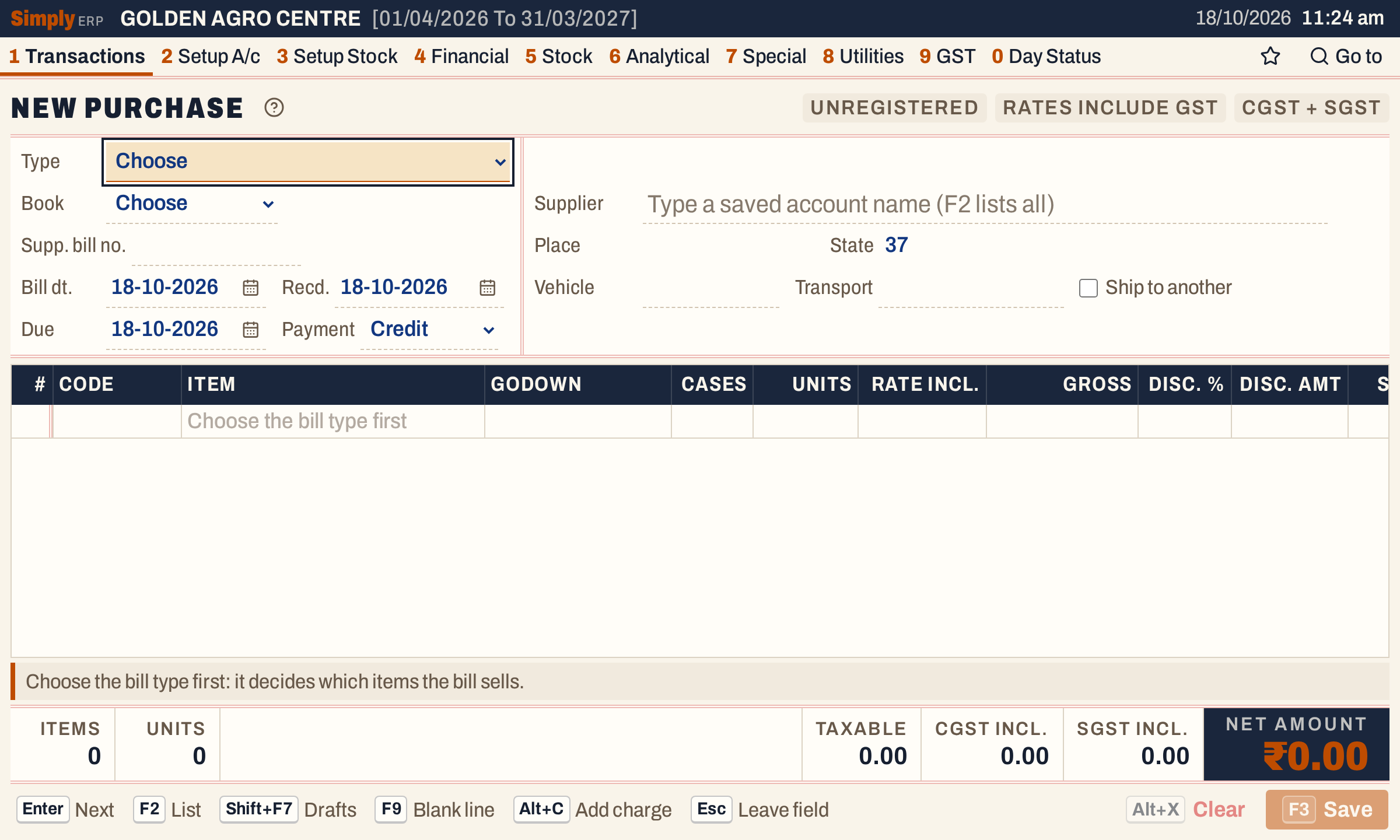 A new inward bill. The lines cannot take items until the type is chosen.
Enter the supplier’s bill number and dates
Choose Purchases. When the type has one bill book, the book is chosen for you (PUR/ here). Then fill in what the supplier’s bill says:
- Supp. bill no. is the number on the supplier’s bill. SimplyERP gives the bill its own number from the book when you save it. The same supplier’s bill number cannot be entered twice: SimplyERP refuses the second one and says it is already entered, with its date.
- Bill dt. is the date on the supplier’s bill.
- Recd. is the day the goods reached your shop. It starts on today’s working date. The books post the purchase on this day. The supplier’s bill cannot be dated after it.
- Due is when you must pay. It starts on the working date, and cannot be before Recd., because credit days run from the day you received the goods.
- Payment starts on Credit: the supplier is credited and shows as an amount you owe. On Cash, the bill book’s cash account is credited instead, and the supplier is just the name you type, with the place, GSTIN and state if you want them on the bill.
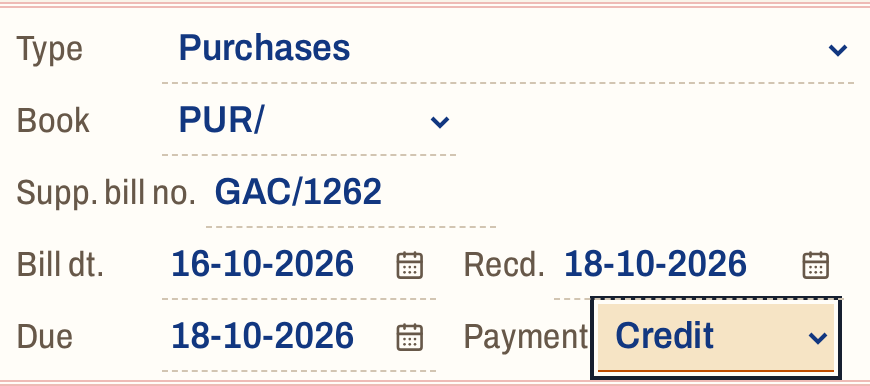 Supplier bill GAC/1262 dated 16 October, received on 18 October.
For a credit purchase, type part of the supplier’s name. The list shows each matching account with its place, GSTIN and balance. A balance marked Cr is what you owe them.
 Typing finds the account by any part of its name. Enter takes the highlighted account.
Once the supplier is chosen, their place, GSTIN and state fill in, and their balance shows beside the name.
 You owe this supplier ₹1,35,407 before the bill.
The words at the top right say how the bill is taxed. A supplier with a GSTIN is entered at rates before GST (the grid gets an Incl. rate column), a supplier without one at rates that include GST, and a supplier in another state is charged IGST in place of CGST and SGST.
Add the items
Type an item’s name or code in the Item column, or press F2 to list them all. On a purchase the list shows each item’s Buy rate and the stock you hold now. It lists the items of the bill type’s categories; Purchases here takes all three.
 The item list shows the buy rate and the stock you hold before this bill.
Enter takes the item and moves along the line. Type the units (or the cases, for an item packed in cases), then the rate from the supplier’s bill. Enter goes from Units to Incl. rate and then to Rate. Type in either: the supplier’s rate before GST in Rate, or a price that includes GST in Incl. rate, and SimplyERP works out the other. Gross is units times rate, and Taxable is what is left after any discount.
 20 units at ₹240 before GST. At 18%, the price including GST is ₹283.20.
The Disc. %, Disc. amt and Sp. disc columns take the supplier’s discounts; see Add discounts and charges to a bill. The GST % column is a list of the rates your books post. A purchase line takes the rate its bill charged, so a bill dated before a rate change can be entered at the old rate.
Type the batch and its dates
Goods come in as batches. For each line type the Batch number from the supplier’s bill, then Mfg. and Exp. as DD/MM/YYYY, for example 01/09/2026. SimplyERP refuses an expiry date before the manufacturing date.
 The batch and its dates are typed from the supplier’s bill. The expiry shows in the batch list of every sale.
If the item already has a batch with that number and those same dates, the units are added to it. Otherwise SimplyERP makes a new batch.
When one delivery has several batches of the same item, press Alt+B on the line. It copies the line below with everything but the batch: the rate, discounts and the dates are kept. The cursor is in the new line’s units. Type the units, press Enter and type the batch number.
 Alt+B copied the line. Only the units and the batch number were typed again.
Add the other items the same way. The D.C. column on each line links goods you already received on a delivery challan, so the same stock is not counted twice; see Goods in and out.
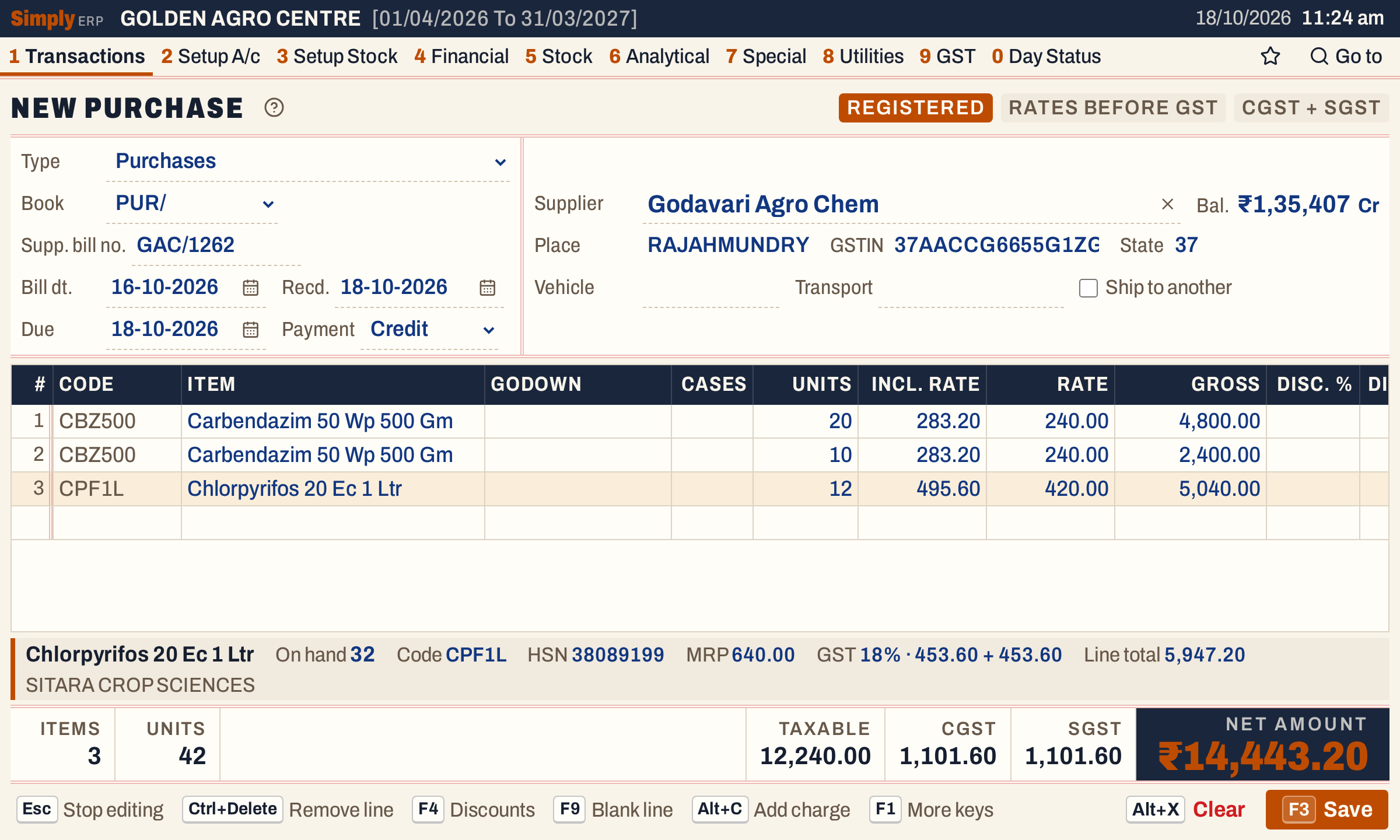 Three lines and 42 units, with the band under the grid showing the current line.
Check the totals
The totals under the grid add up as the bill will be recorded: the number of items and units, the taxable value, the CGST and SGST (or IGST), any charges, and the net amount you owe the supplier. Compare the net amount with the supplier’s bill. If the supplier rounded the bill, press Alt+C to add the round off; see Add discounts and charges to a bill.
 ₹12,240.00 before GST, ₹1,101.60 each of CGST and SGST, ₹14,443.20 in all.
Save
Press F3 to save. A purchase is not printed, so there is only Save. A fresh purchase opens for the next bill, and a notice gives the bill’s number in your book. Click the number to open the bill.
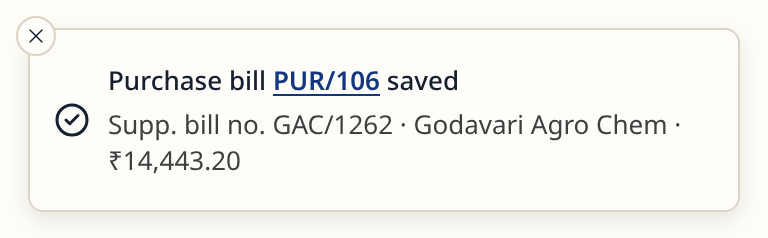 PUR/106 is your own number for the bill. GAC/1262 is the supplier’s.
The saved bill shows every recorded detail, with the supplier’s balance after this bill. You can open it again from All Bills (1 Y) by typing the supplier’s bill number.
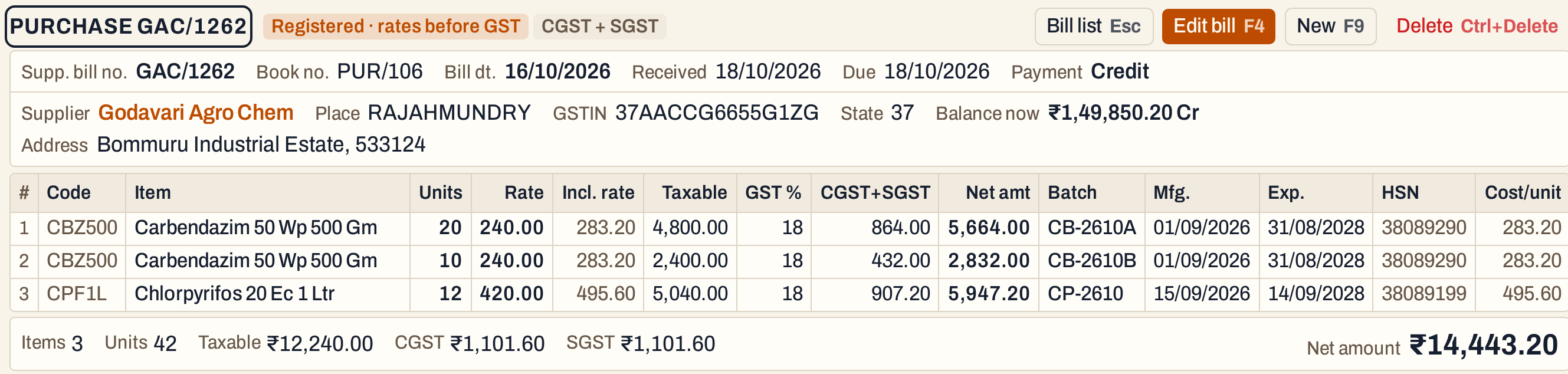 The supplier owed ₹1,35,407.00 before this bill and ₹1,49,850.20 after it.
What saving does to your books
The postings are dated on the Recd. date:
| Account | Debit | Credit |
|---|---|---|
| The bill book’s purchases account | The rest: the net amount less the tax and the charges posted to their own accounts (on a bill of items alone, the taxable value) | |
| CGST and SGST input accounts, or IGST input | The tax on the lines | |
| An Add charge’s own account, such as freight | An Add charge | |
| A Less charge’s own account, such as round off or cash discount | A Less charge | |
| The supplier (a credit bill), or the bill book’s cash account (a cash bill) | Net amount |
For this bill: Purchases is debited ₹12,240.00, CGST Input 18% and SGST Input 18% ₹1,101.60 each, and Godavari Agro Chem is credited ₹14,443.20. The debits and the credit are both ₹14,443.20.
In the supplier’s ledger the bill appears on 18-10-2026, the day it was received, not on the supplier’s bill date of 16 October.
The units go into stock, batch by batch: Carbendazim 20 in CB-2610A and 10 in CB-2610B, and Chlorpyrifos 12 in CP-2610. The next sale of Carbendazim lists the new batches with their expiry and what each has left.
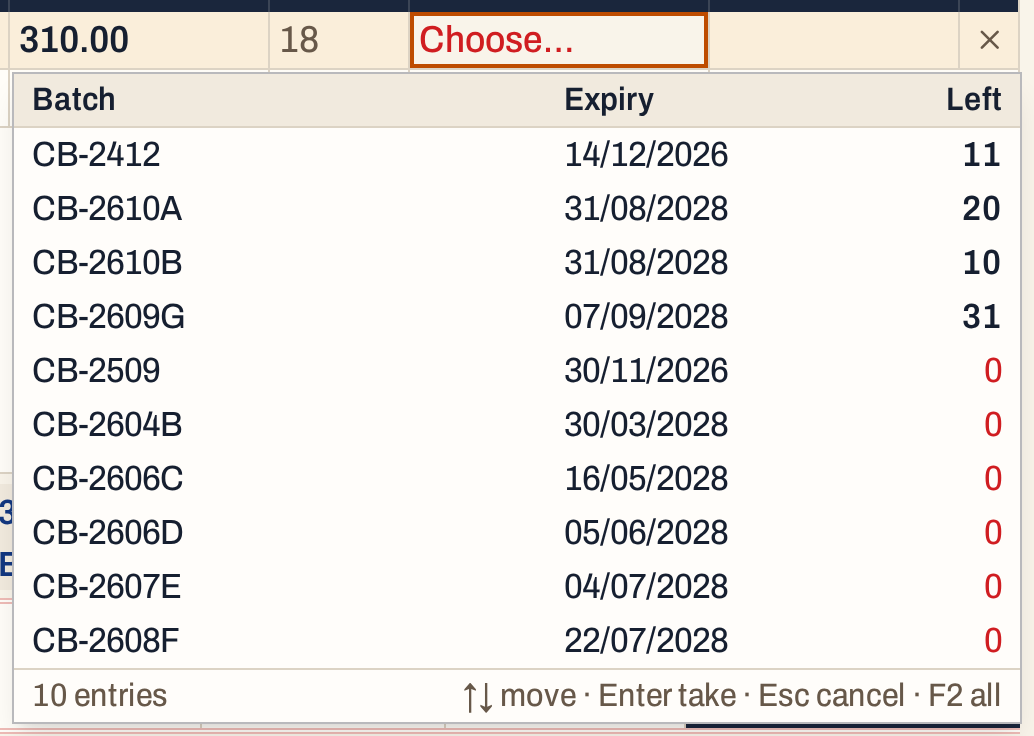 Carbendazim now has 11 + 20 + 10 + 31 = 72 in stock, 30 more than before the purchase.
The purchase then shows in the purchase register, day to day purchases, GSTR-2, the supplier’s ledger, supplier outstanding and the stock statement.
Keys on the purchase screen
| Key | What it does |
|---|---|
| Enter | Next field, and along each line |
| F2 | List the items or accounts |
| F3 | Save |
| Alt+B | Copy the line for another batch of the item |
| F4 | The line’s three discounts |
| Alt+C | Add a charge or discount, such as freight or round off |
| Alt+N | Add a new supplier or item from the bill |
| F9 | Go to the next blank line |
| Ctrl+Delete | Remove the line |
| F7 | Hold the bill in Drafts and start another |
| F1 | Every key on the screen |
On a Mac, ⌥ stands for Alt and ⌘ for Ctrl.
Common questions
What if the supplier is not in the books yet? Press Alt+N in the Supplier field. The bill waits in Drafts while you add the account, and comes back with the supplier chosen. See Add a party or item from a bill.
Can I enter a supplier’s bill twice? No. SimplyERP refuses a supplier bill number that is already entered for the same supplier, since a second entry would double the stock and the amount you owe.
Why is SimplyERP saying the bill is dated after it was received? The date on the supplier’s bill cannot be after the day the goods reached you. Correct Bill dt. or Recd.
How do I correct a saved purchase? Open it from All Bills and press F4. See Edit a bill.
How do I send goods back to a supplier? Make a purchase return; see Purchase return.
Updated 4 November 2026.