Enter a supplier's bill from photos
On this page
When a supplier’s goods arrive, you can enter their bill without typing it. Scan the bill’s e-invoice QR code, or photograph its heading, then photograph its table of items. SimplyERP reads the photos, finds each line among your items, and fills a purchase bill for you to check. Saving makes an ordinary purchase bill: the units come into stock, and the purchase, the GST and the amount you owe are posted to your books.
This screen makes new purchase bills only, and only from what it reads. A correction to a saved bill is made on the purchase bill screen, and so is anything the photos cannot give.
Before you start
- Photos are read with your SimplyERP account. The desktop and phone apps are already signed in. When you open the books in a browser, the screen asks you to sign in with your email and password before it will read photos.
- Reading the QR code costs nothing. Reading photos, of a heading or of items, is charged to the store owner’s wallet. The screen does not show a price. Account & Wallet (8 Z) shows the wallet, and the owner’s Wallet Usage (F4 there) lists every charge.
- You need the supplier in your books, with the GSTIN the bill shows. If it is not there, the screen opens Add account for you with what the bill gives (see Check the supplier).
Open the screen
On a phone, tap the menu button and open Transactions (1), then G S T Inward (Direct) (E), then From Photos (Phone) (P). On a computer, press Alt+1, E, then P.
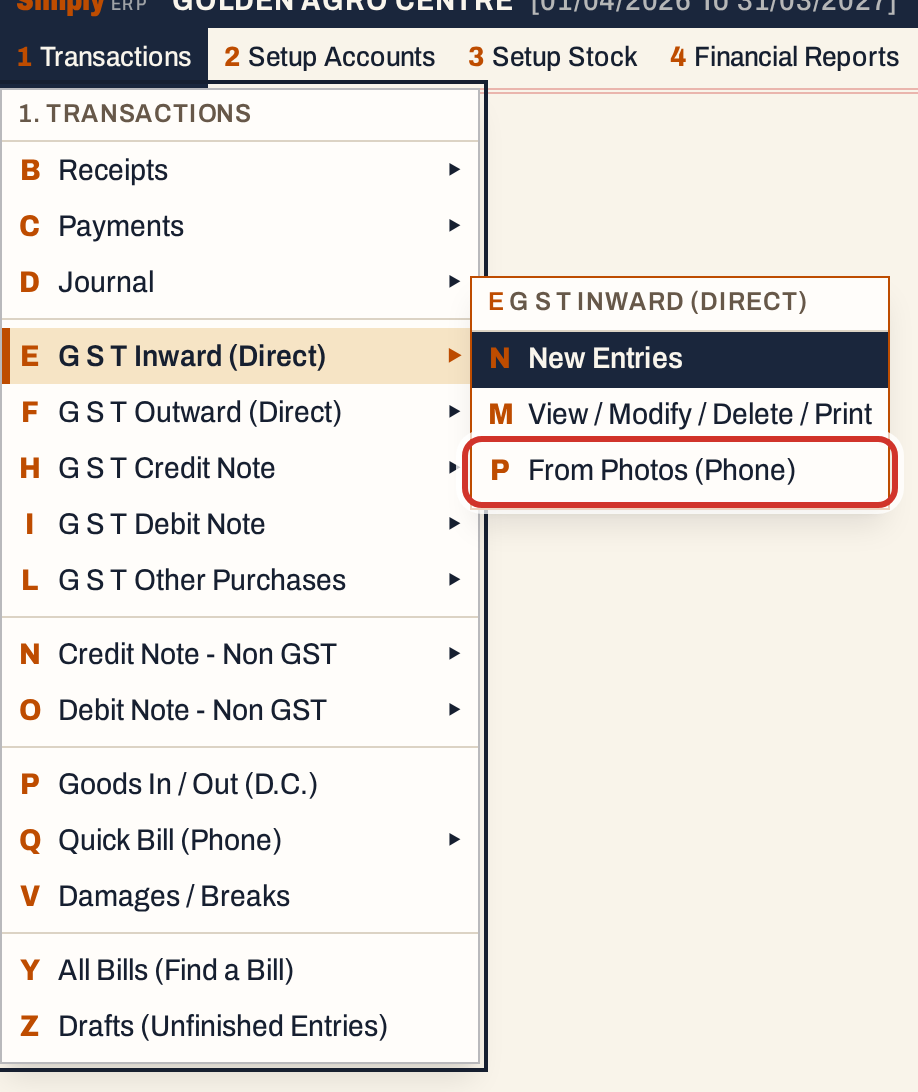 1 E P: Transactions, G S T Inward (Direct), From Photos (Phone).
The screen is made for a phone: the steps follow one another down the page and the buttons are finger-sized. On a computer the same screen keeps the photos at the left, beside what was read. The pictures here are from a computer.
Choose how to read the heading
The heading is the top of the bill: the supplier, its GSTIN, the bill number and the date. The screen offers two ways to read it.
 Use the QR code when the bill has one. It is free and gives the most exact heading.
An e-invoice has a square QR code near its IRN. Scan the e-invoice QR code reads the supplier’s GSTIN, the bill number, the date, the bill’s value and its item count from that code. Choose No QR code: photograph the heading for a bill without one.
Scan the QR code
Hold the phone over the code. The camera opens with a square in the middle: fill the square with the code and hold still.
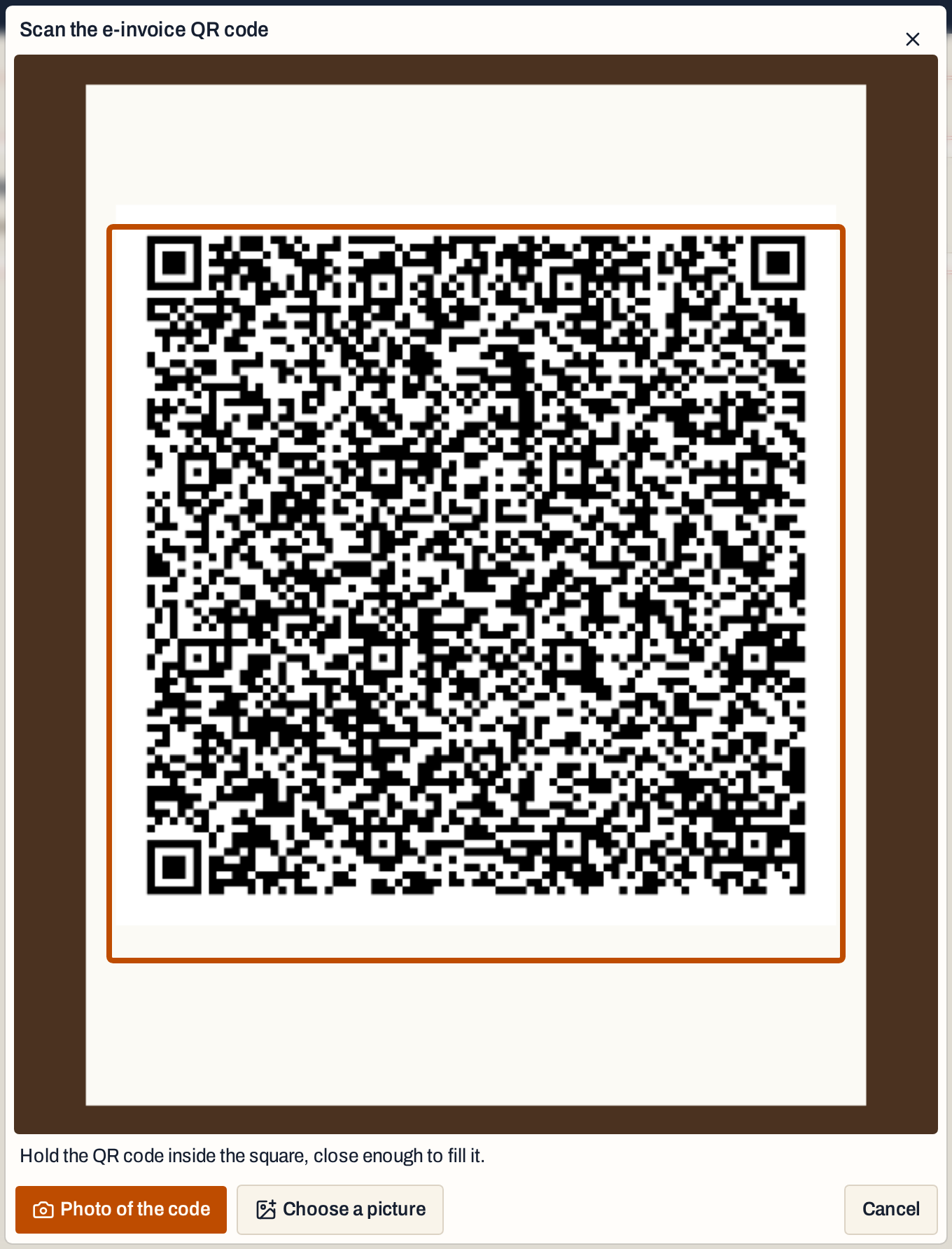 The scanner closes by itself as soon as it reads the code.
- Torch and a zoom button, which steps through 1×, 2× and 3× as far as the camera allows, show at the top of the view when the camera has them. The code is dense, so a closer picture in good light reads best.
- If the live view cannot read the code, tap Photo of the code to take a picture with the camera app, which focuses better, or Choose a picture to use one already on the device.
- A QR code that is not an e-invoice’s is not used. The scanner says so and asks for the one near the IRN.
- Cancel goes back to the two choices.
When the code is read, the screen shows the heading and finds the supplier.
Check the supplier
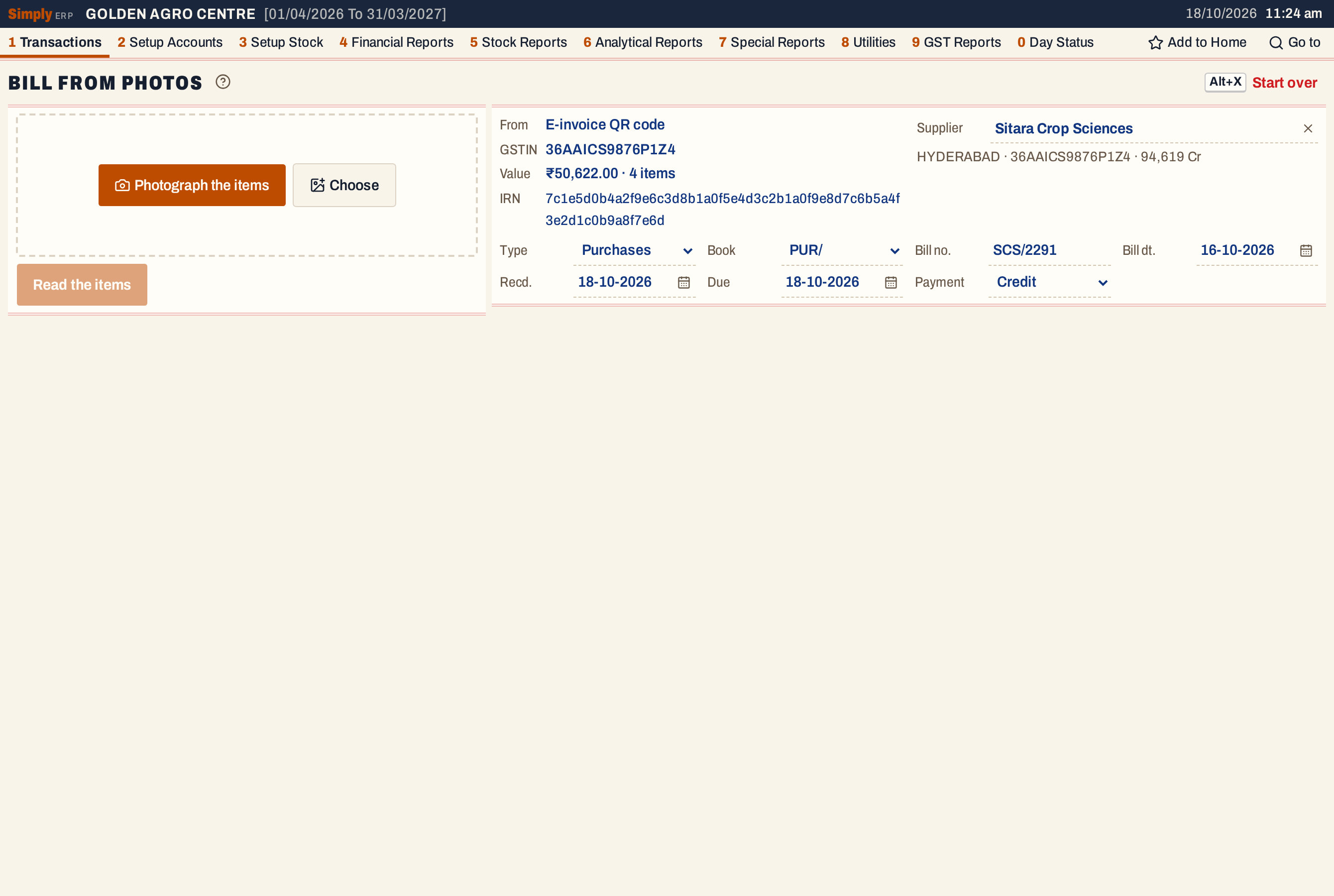 From, GSTIN, Value and the IRN come from the code. Sitara Crop Sciences was found by its GSTIN, and its balance, 94,619 Cr, shows under its name.
The Supplier is the saved account whose GSTIN is the one on the bill. Its place, GSTIN and balance show under its name. The Value is the amount the e-invoice carries, and the screen compares it with the lines later.
If no account has the GSTIN, a red notice says so. It offers, under Is it, up to three saved accounts whose GSTIN differs from it by one or two characters, or has the same PAN, to choose from. Then:
- When the GSTIN does not pass its own check (it is not 15 characters or not in the form of a GSTIN, its state code does not exist, or its last character fails the check), the code was misread. The notice gives the reason, and there is no New supplier button.
- When the GSTIN is valid, press New supplier. It opens Add account with the name, address, place, pincode, phone, GSTIN, state and PAN already filled from the bill. Save the account (F3) and you come back here with it chosen. See Add an account.
You can also click the Supplier field to choose another account.
Check the bill’s details
Under the heading, the bill’s own fields are filled in for you:
- Type and Book are the purchase type and the bill book. When there is only one of each, they are taken for you. Otherwise choose them.
- Bill no. and Bill dt. are the supplier’s number and date, as read. Correct them if they are wrong.
- Recd. is the day the goods came. It starts on today’s working date, and the purchase is posted on it.
- Due is the day payment is due. It cannot be earlier than the later of the bill date and the received date.
- Payment is Credit, which owes the supplier, or Cash.
A bill number already entered for this supplier in this year’s books stops the bill at this point, before you pay for a read of the items: a red check says the bill is already entered.
Photograph the items
Photograph the table of items close up, so its text is large and sharp. Tap Photograph the items to use the camera, or Choose to use pictures already on the device. On a computer you can also paste or drop a picture. A long table can be photographed in parts, up to six photos; the parts may overlap.
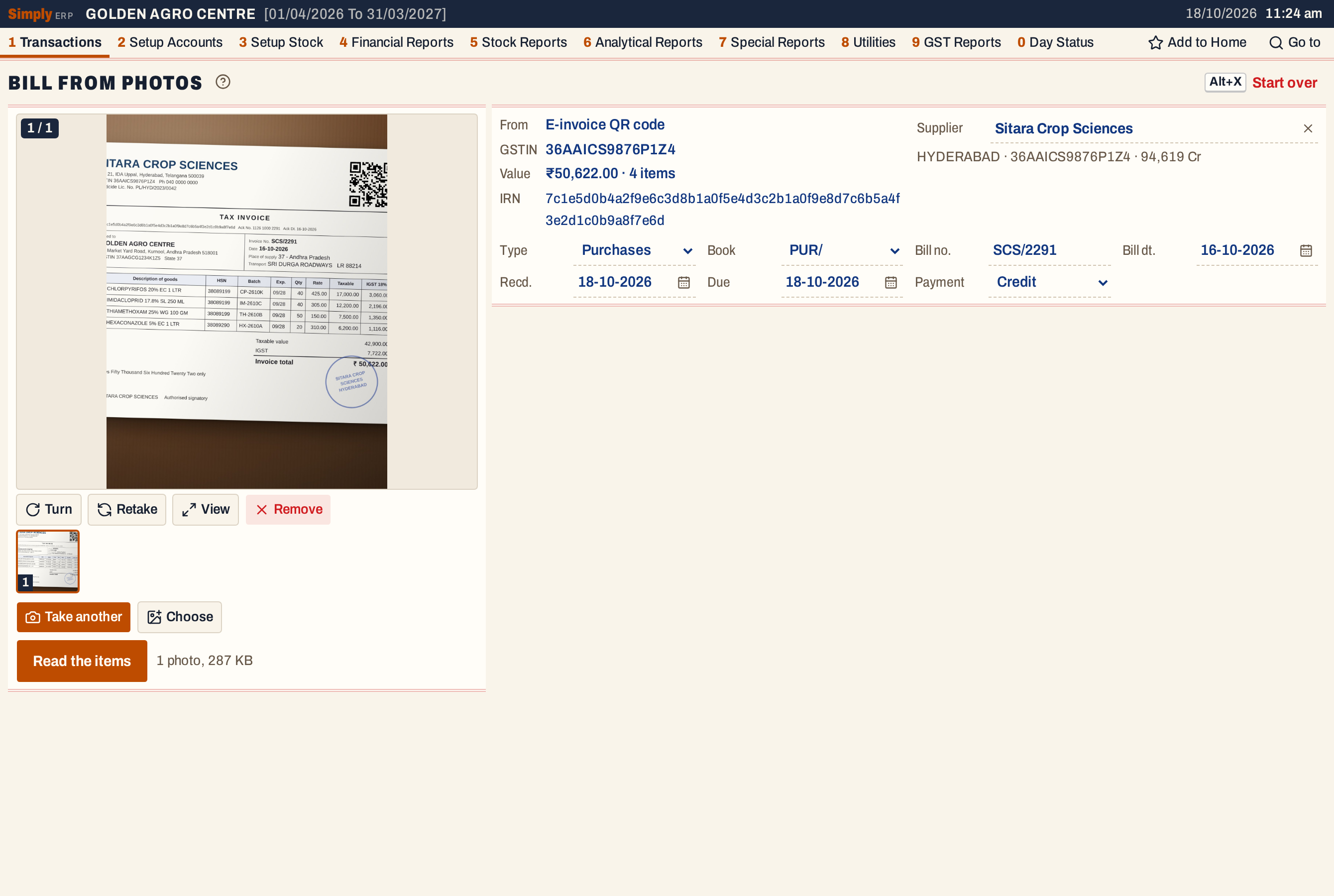 One photo of the items. The strip under it holds every photo taken.
The photo is made ready on the device: it is turned the way the camera held it, scaled down, and kept small enough that six fit in one read. These buttons act on the photo shown:
- Turn turns it a quarter turn, if it is sideways.
- Retake takes the photo again in its place.
- View shows it full size. Double-clicking it does too.
- Remove takes it away.
- With more than one photo, the arrows, a swipe, or ← and → move between them.
Tap Read the items when the photos are in. The screen says Reading the items… while the photos are read.
Check the lines
Each line on the bill becomes a card. What the bill printed is in grey at the top of the card (its name, HSN, units and rate). Below it is the item the line was taken as, and the purchase bill’s own fields for the line.
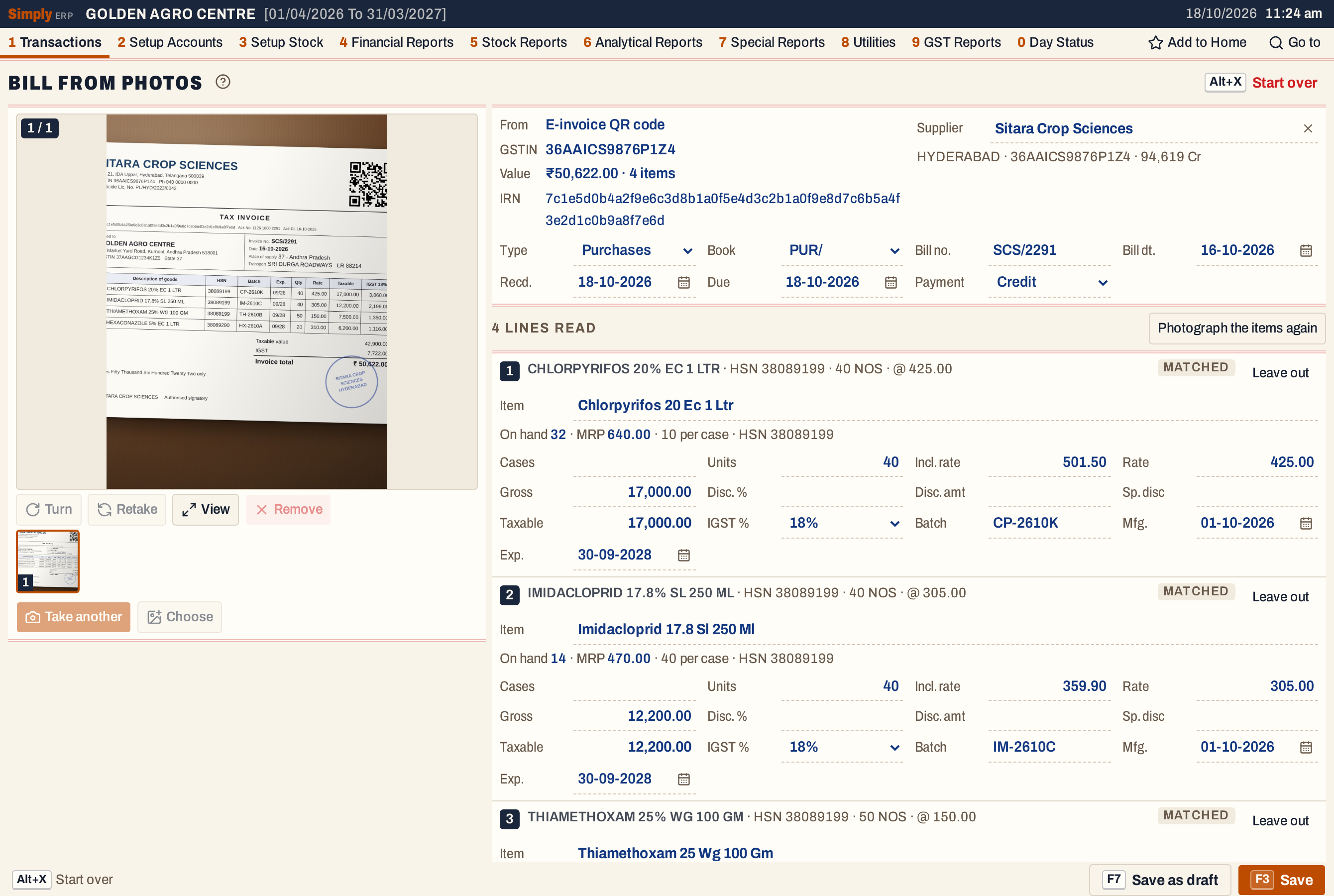 The photo stays beside the lines, so each line can be checked against the bill.
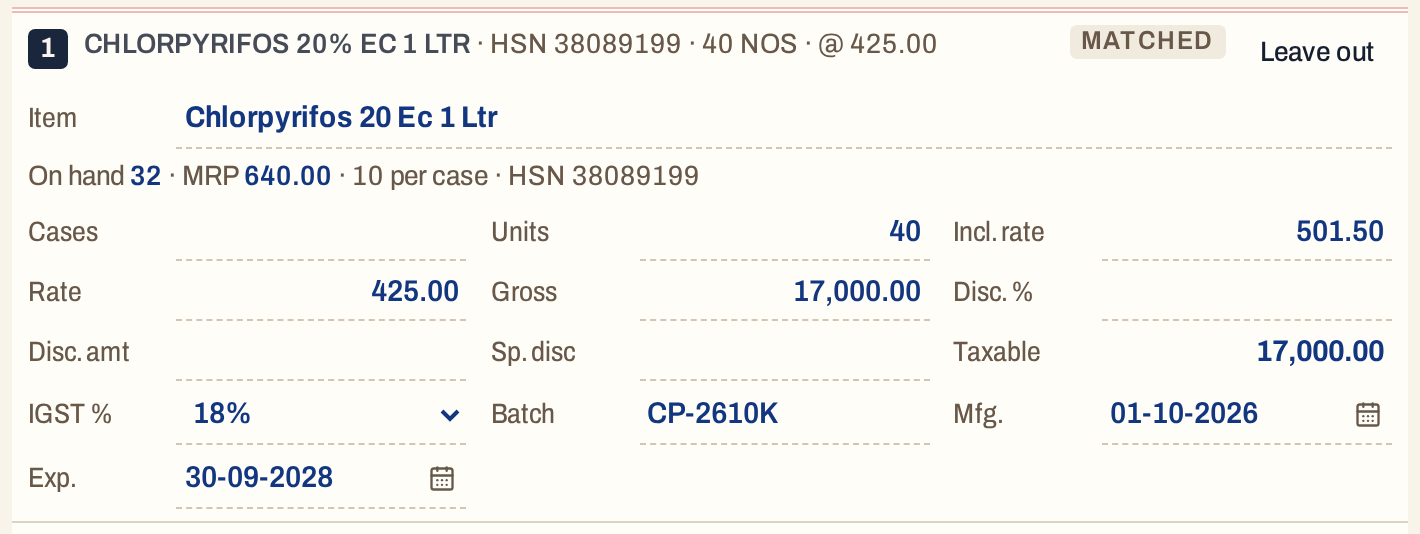 One line. The item’s stock on hand, MRP and packs per case show under its name, so you can see at once if it is the right one.
Which item a line is
SimplyERP looks for the line among your items by its name, its pack size, what you bought from this supplier before, and the supplier’s code against your item’s code. The tag at the top right of the card says how sure it is:
| Tag | What it means |
|---|---|
| Matched | SimplyERP is sure of the item and took it. |
| Bought before | The item is one you bought from this supplier before, and was taken on that. |
| By name | The item was taken because its name is a clear match. |
| Choose the item | No item is sure. The card has a red edge and lists up to three likely items, which you tap to choose. |
| Chosen | You chose the item yourself. |
To change the item, click Item and type the item’s name or code; the list works as it does on a bill. If the item is not in your books, New item in the list opens a new group, and you come back to the line with the item chosen. See Add a stock group.
The line’s fields
The fields are the purchase bill screen’s, in the same order, and you can correct any of them:
- Cases shows only for an item packed in cases. Units is in the item’s packs.
- Rate is before GST, with Incl. rate beside it, when the supplier has a GSTIN. A supplier without a GSTIN has Rate incl. and Amount instead.
- Gross, Disc. %, Disc. amt and Sp. disc are the line’s discounts.
- Taxable is worked out from them. If the taxable value the bill printed for the line differs from it by more than ₹1, the printed figure appears in red beside it, after the word bill.
- GST % is the line’s rate (named IGST % for a supplier in another state), chosen from the rates your books post.
- Batch, Mfg. and Exp. are the batch and its dates, as the bill printed them.
Leave out at the top right of a card drops a line that is not goods for your books. It becomes Put back if you change your mind. A line with no item or no units stops the save until it is fixed or left out. Photograph the items again above the lines clears the lines read, to read new photos.
Charges the bill prints, such as freight or a cash discount, follow the lines. Each is matched by name to one of your Add / Less charges, or you choose it from the list under Choose the charge. See Add / Less charges.
Check the totals
 The lines add up to the e-invoice’s value, ₹50,622.00. Here the supplier is in Telangana, so the tax is IGST.
The strip adds the bill up as it stands: Items, Units, Taxable (Amount for a supplier with no GSTIN), the GST (named IGST when the supplier is in another state), Charges if there are any, E-invoice (the value in the QR code, when the heading came from one) and the Net amount.
SimplyERP also checks what it read against the bill and lists anything that does not fit under Checks. A check in red stops the save; any other is for you to look at. They are:
- Stops: a bill number already entered for the supplier; a line with no item; a line with no units; a charge with no charge chosen.
- To look at: the GSTIN fails its check; the bill is made out to a different GSTIN than your company’s; a GST rate the books do not post, or one that differs from the item’s; a line’s taxable value that differs from the bill’s by more than ₹1; a charge the bill adds GST on when the charge chosen takes none, or the other way round; IGST charged by a supplier in your own state, or CGST and SGST by one in another state; and totals that differ from the e-invoice’s value or item count, or from the taxable value, GST or total the bill prints.
Save
- Press F3, or tap Save, to save the purchase bill.
- Press F7, or tap Save as draft, to keep it in Drafts and finish it on the purchase bill screen. A line that has no item yet shows there as its printed name.
- Press Alt+X, or tap Start over, to clear the screen. It asks first.
You do not lose a paid read by leaving: the bill is kept in Drafts the moment its items are read, and the draft goes when you save.
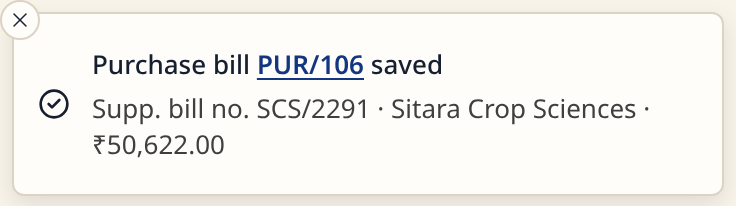 The notice names the bill. Its number, PUR/106, opens the saved bill.
The screen then clears, ready for the next bill.
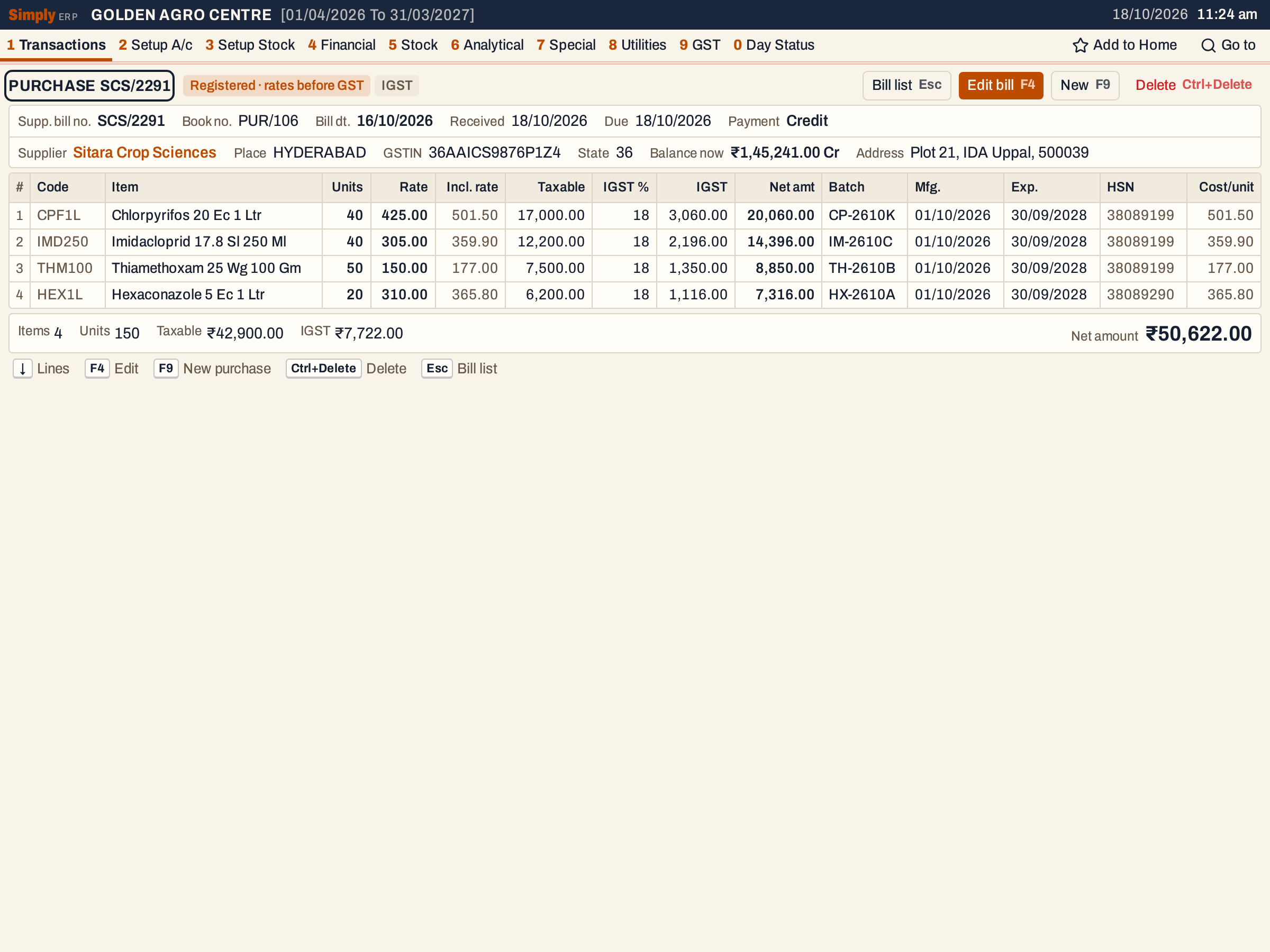 The saved bill is a normal purchase bill, and can be changed on the purchase bill screen. The supplier’s balance is now 1,45,241.00 Cr, which is 94,619 plus 50,622.
When the bill has no QR code
Choose No QR code: photograph the heading. Photograph the top of the bill, where the supplier’s name and GSTIN, the bill number and the date are, and press Read the heading. You can take up to three photos of it.
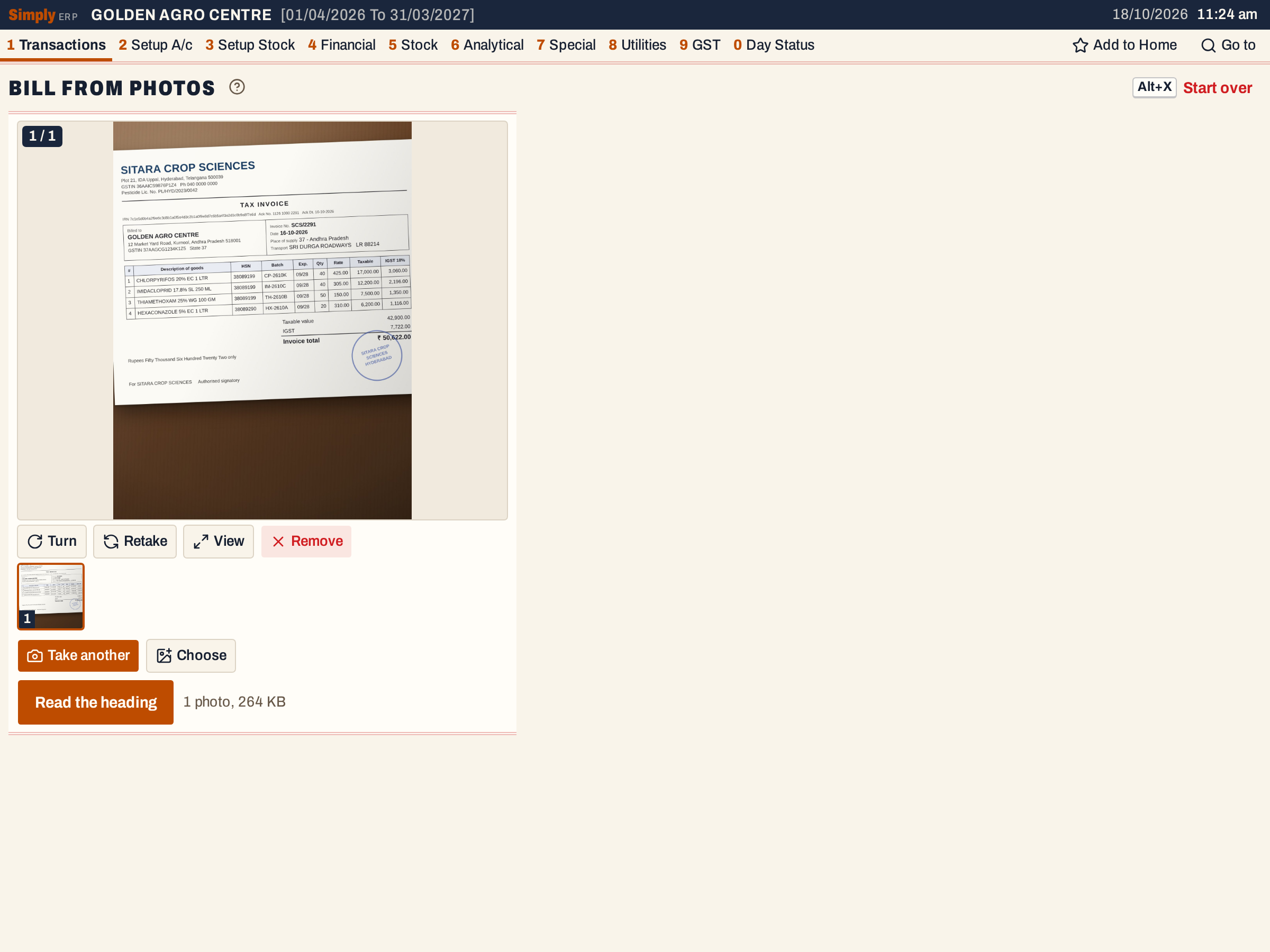 The photo of the heading. If it happens to show the e-invoice QR code, the screen offers Use the QR code (free) instead of a paid read.
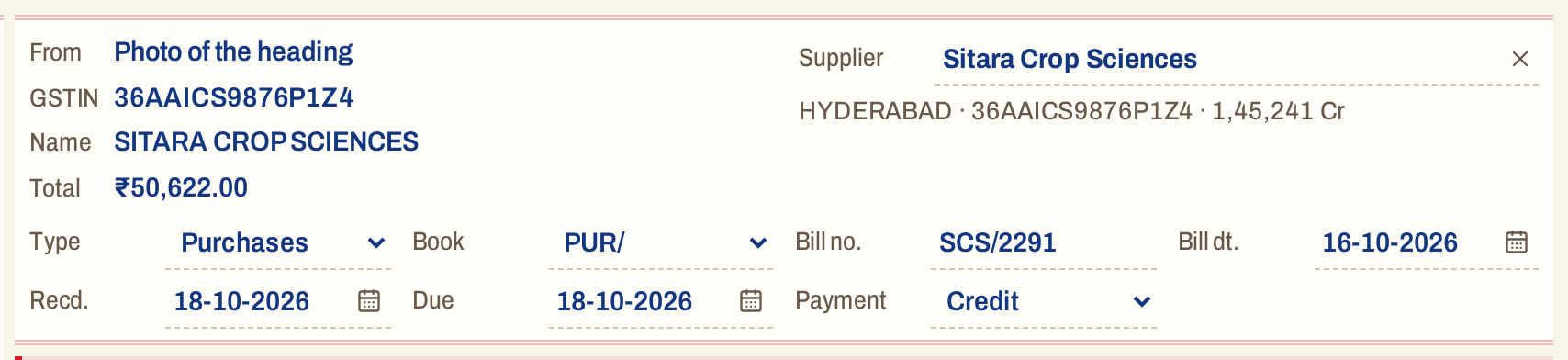 A heading read from a photo gives the name, GSTIN and total as the bill prints them. The supplier is found by the GSTIN, as before.
From here the steps are the same: check the supplier and the bill’s details, then photograph the items. Without a QR code there is no E-invoice figure to compare with, so the screen compares the lines with the total printed on the bill.
What saving does to your books
Saving makes the same postings as a purchase bill made on the purchase screen, dated on the Recd. date. For this bill:
| Account | Debit | Credit |
|---|---|---|
| Purchases | 42,900.00 | |
| IGST Input 18% | 7,722.00 | |
| Sitara Crop Sciences | 50,622.00 |
The debits and the credit are both ₹50,622.00. On a cash bill the bill book’s cash account is credited instead of the supplier.
The units go into stock, batch by batch: 40 Chlorpyrifos in CP-2610K, 40 Imidacloprid in IM-2610C, 50 Thiamethoxam in TH-2610B and 20 Hexaconazole in HX-2610A.
The bill then shows in the purchase register, the supplier’s ledger, supplier outstanding, GSTR-2, the stock statement and All Bills.
Keys on this screen
| Key | What it does |
|---|---|
| Enter | Next field |
| F2 | In the Supplier or Item field, list the choices |
| ← and → | With the photo selected, the previous or next photo |
| F3 | Save the purchase bill |
| F7 | Save as draft |
| Alt+X | Start over (asks first) |
| F1 | Every key on the screen |
On a phone, each of these is a button.
Common questions
Do I have to scan the QR code? No. A bill without one is entered from a photo of its heading. The QR code is free and exact, so use it when the bill has one.
A line was matched to the wrong item. Click Item on that line and choose the right one. The line is made again from the bill’s figures, in the new item’s packs. Changing it is normal: when you save, SimplyERP compares what it read with what you saved and reports the comparison, so that its reading can improve.
Can I use pictures from the gallery instead of the camera? Yes. Choose takes pictures on the device, for the heading, the items, and the QR code.
The supplier’s GSTIN is not in my books. Press New supplier, check the account that opens, and save it. You come back to the bill with the supplier chosen.
Can I change the purchase after saving? Yes, as any purchase bill: open it from the notice or from All Bills and press F4. See Edit a bill.
Updated 4 November 2026.