Print a bill
On this page
A bill is printed for the customer when it is saved, or later from the saved bill or from All Bills. Every print has an Original and, unless you choose one copy, a Duplicate. You choose the layout and the number of copies once, and SimplyERP keeps that choice on this computer.
Print while saving
On a new bill, F10 saves the bill and prints it. F3 saves without printing.
 Save & print, with its arrow for the print choices.
In the desktop app the bill prints on this computer’s printer at once, without a dialog. You choose the printer in Print Settings (8 W); it can be the computer’s default printer, one of its printers, or Ask each time. In a web browser, the bill opens in a new tab with a Print button, and the browser’s print dialog takes over from there. The phone apps show their own print sheet.
If the print fails, the bill is still saved. In the desktop app a notice says the bill was saved but did not print, with the reason and a Choose printer button that prints through a dialog. In a browser the notice says the print view could not open.
Bills you receive from suppliers (purchase bills) are not printed, so they have no Print button.
Choose the layout, paper and copies
Press Shift+F10, or click the arrow beside Save & print, to open the print choices.
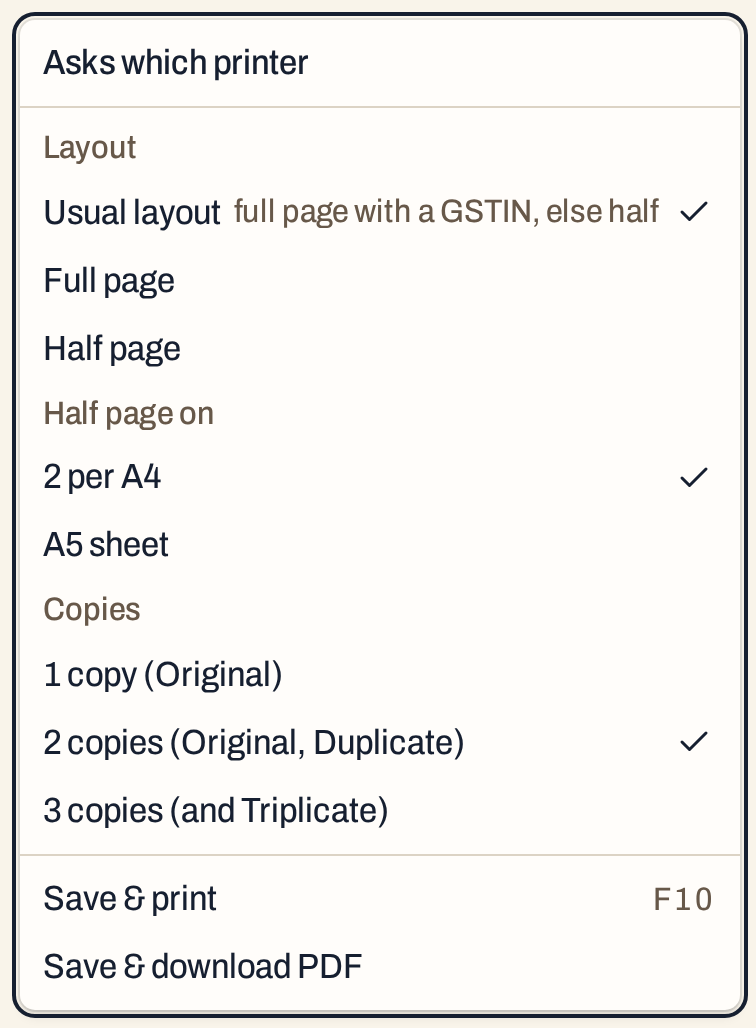 The first line says where it prints: “Prints on” a printer in the desktop app, or “Asks which printer” in a browser, where the dialog asks.
| Choice | What it does |
|---|---|
| Usual layout | Each bill takes the layout that suits it: a full page when the customer has a GSTIN, a half page otherwise. This is the starting choice. |
| Full page | Every bill prints on a full A4 page. |
| Half page | Every bill prints on half a page. |
| Half page on | The paper a half page goes on: 2 per A4 puts two half pages on one A4 sheet, and you cut along the dashed line; A5 sheet prints one half page on an A5 landscape cut sheet. It applies only to half pages. The starting choice is 2 per A4. |
| Copies | 1 copy (Original), 2 copies (Original, Duplicate) or 3 copies (and Triplicate). The starting choice is 2. |
The choices stay as you set them, for bills you save and bills you print later, until you change them. They are kept on this computer, not in the books, so each counter can print its own way.
Below the choices:
- Save & print (F10) prints as chosen.
- Save & download PDF saves the bill as a PDF file instead of printing it. In the desktop app, a Save dialog asks where to put the file. In a web browser it opens the same print tab as Save & print.
- In the desktop app, Save & print on another printer… prints this one bill through the printer dialog (it is not listed when Print Settings says Ask each time, since the dialog opens anyway). Choose this computer’s printer opens Print Settings.
What the printed bill shows
A half page for a customer without a GSTIN, here Ramaiah K, saved as P/296: the bill is printed twice on one A4 sheet, Original above and Duplicate below, with a dashed line between them.
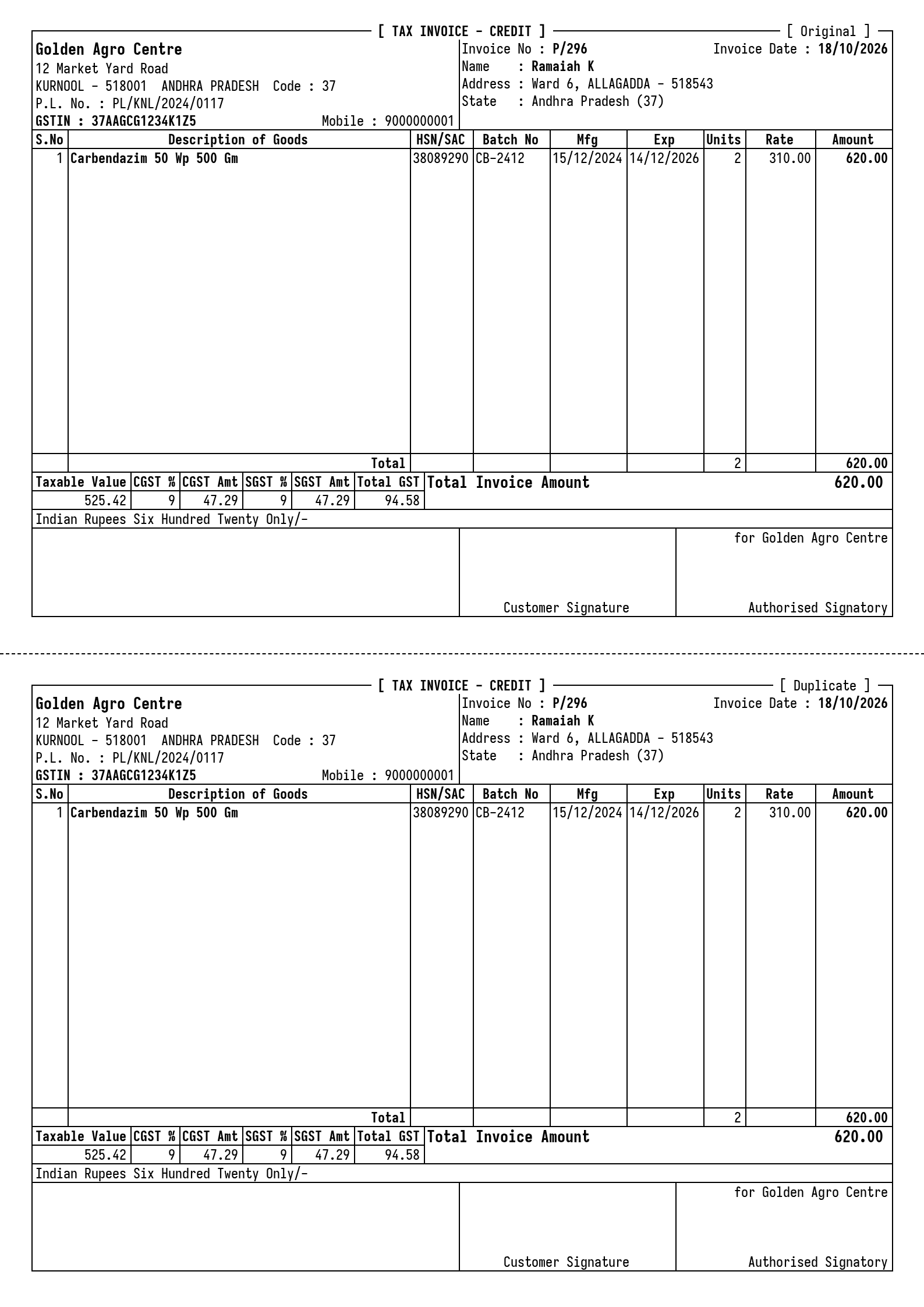 The heading, the customer, each line with its batch, mfg and exp dates, the GST summary, the amount in words and the signatures.
The heading carries the shop’s name, address and GSTIN, and its licence number for what the bill sells: P.L. No. on a pesticide bill, A.G.L. No. on a fertilizer bill, S.L. No. on a seed bill. The title names the kind of bill and whether it is a cash or credit bill. A customer without a GSTIN is billed at rates that include GST, so the lines show those rates, with the taxable value and the GST by rate under the lines.
A bill of a customer with a GSTIN prints on a full page by the usual layout. Its lines show the rate before GST, with the GST-inclusive quote in brackets, and the taxable value, CGST and SGST of each line.
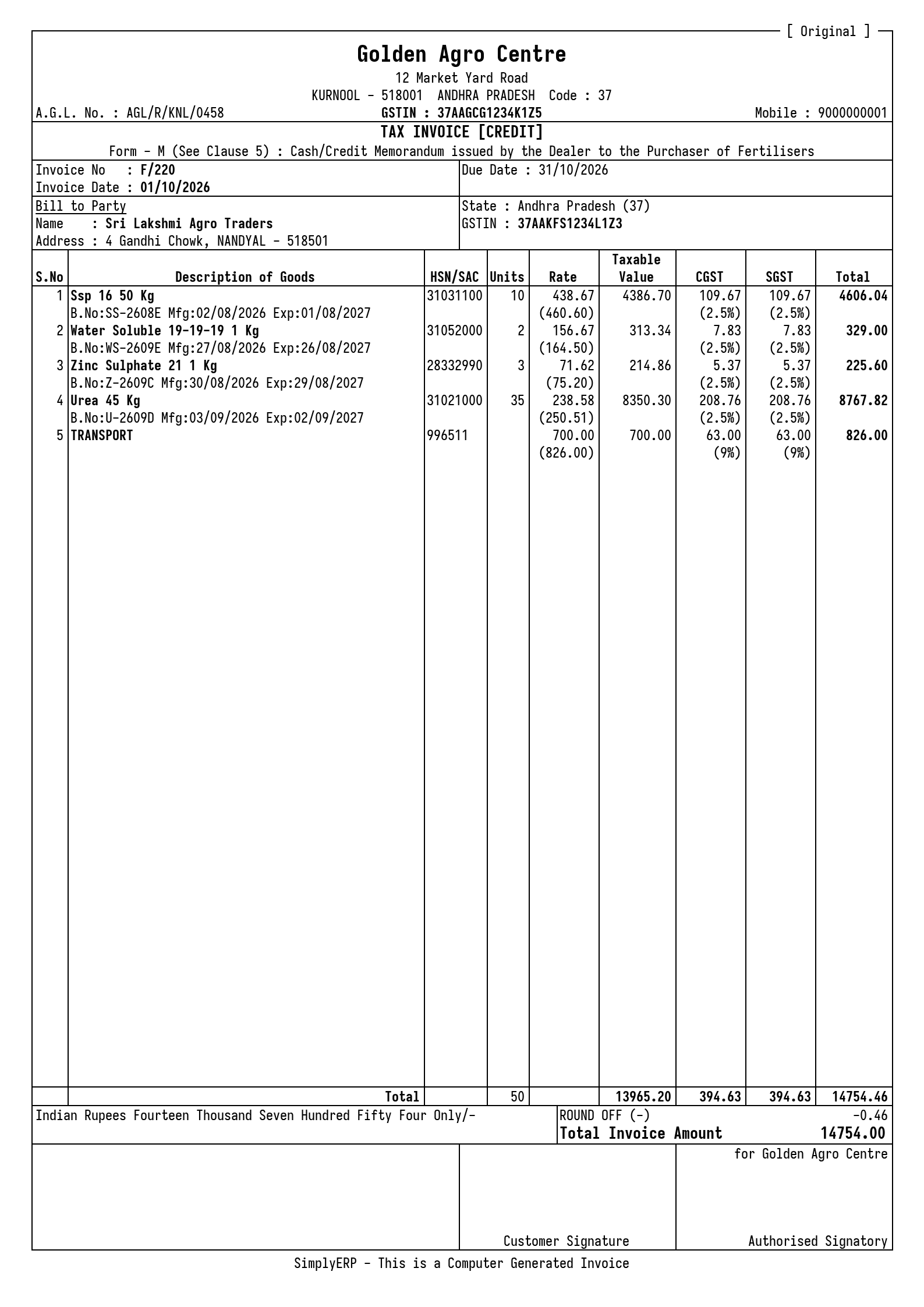 A full page for a customer with a GSTIN: tax on every line, a transport charge as its own line, round off, and the total in figures and in words.
Footer messages set for the bill’s book print as numbered Terms and Conditions beside the signatures (see Footer messages); the bills in these pictures have none.
Columns and fields that have nothing to show are left out. Lines that do not fit on one page continue on the next, with the column titles repeated; the totals and signatures print once, at the end of each copy.
Print a saved bill
Open the bill from All Bills (Alt+1, then Y). It has the same print button as the bill screen, named Print.
 F10 prints the bill as chosen. Shift+F10 or the arrow opens the choices.
The choices are the same; the two buttons read Print and Download PDF. Here a full page and one copy are chosen. Half page on is greyed out, since it applies only to half pages.
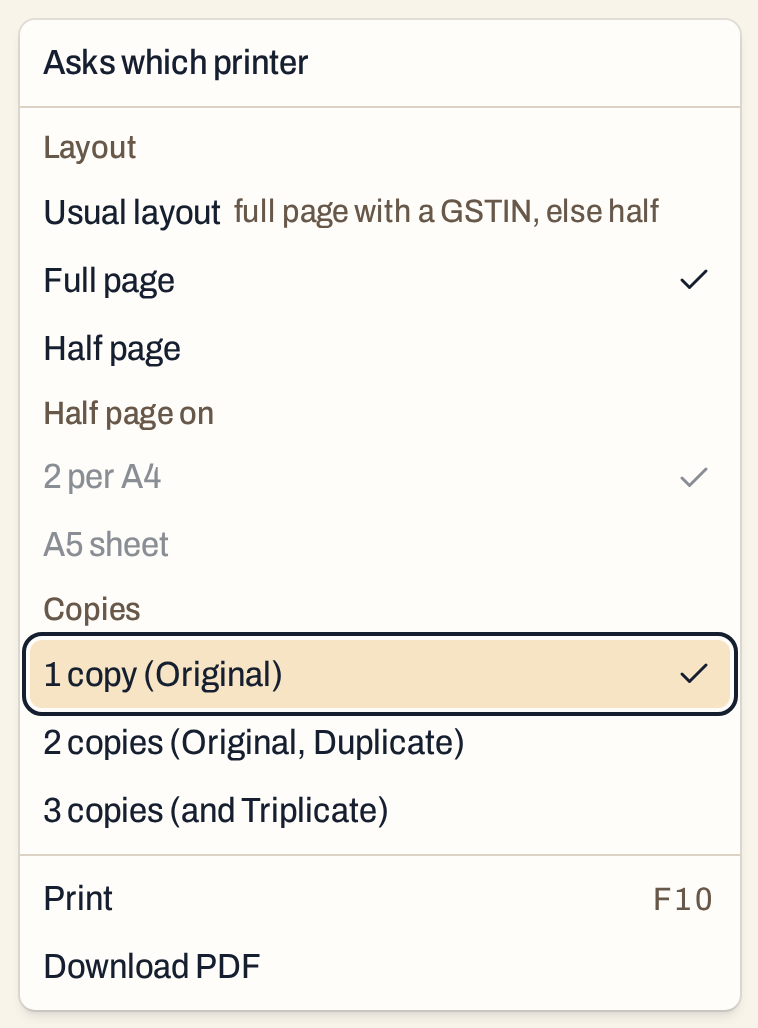 Full page, one copy.
F10 then prints P/296 on a full page, even though the customer has no GSTIN, with the Original only.
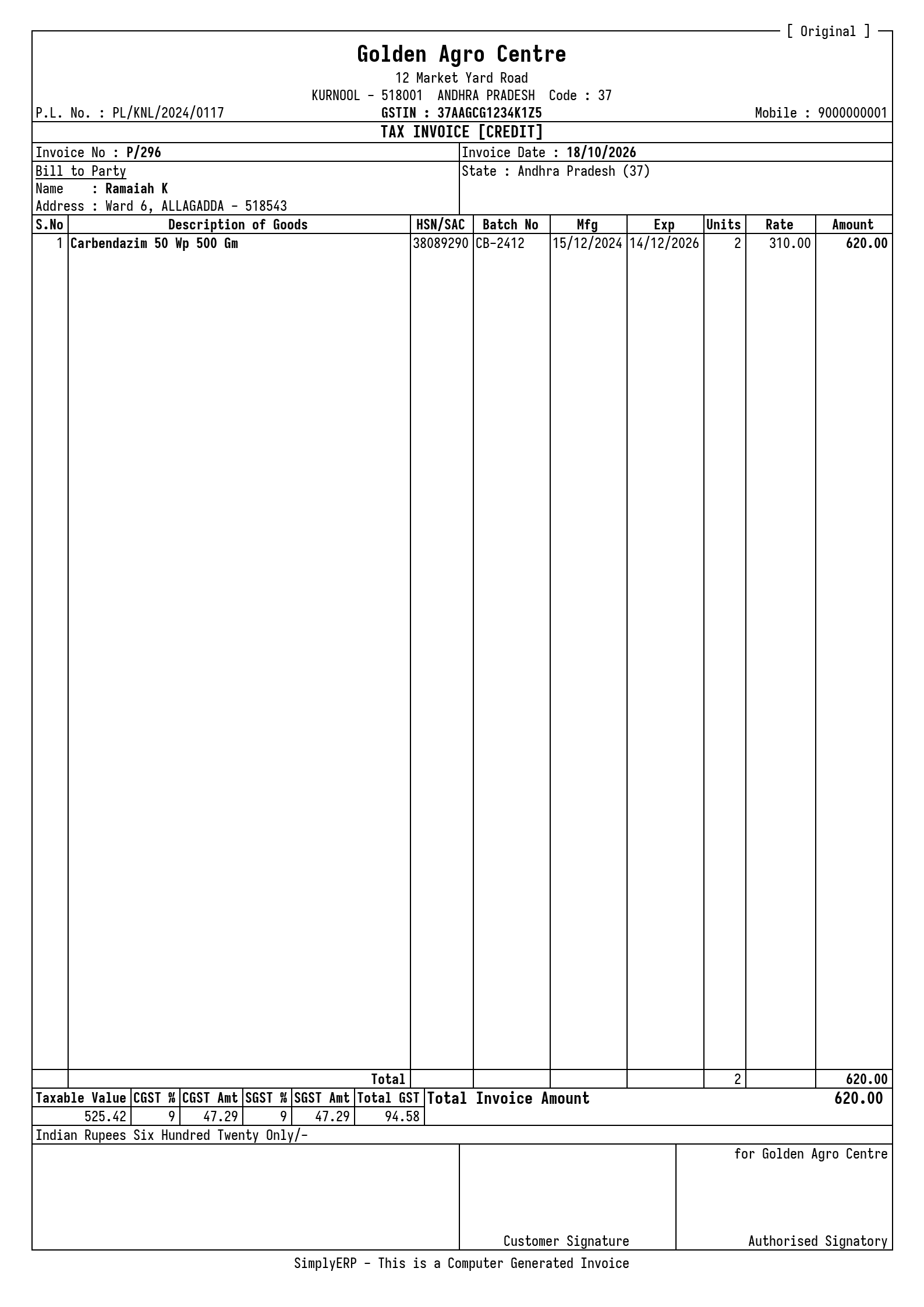 The same bill as a full page, one copy.
A half page can go on an A5 sheet instead of two to an A4 sheet. Choose Half page and A5 sheet and press F10:
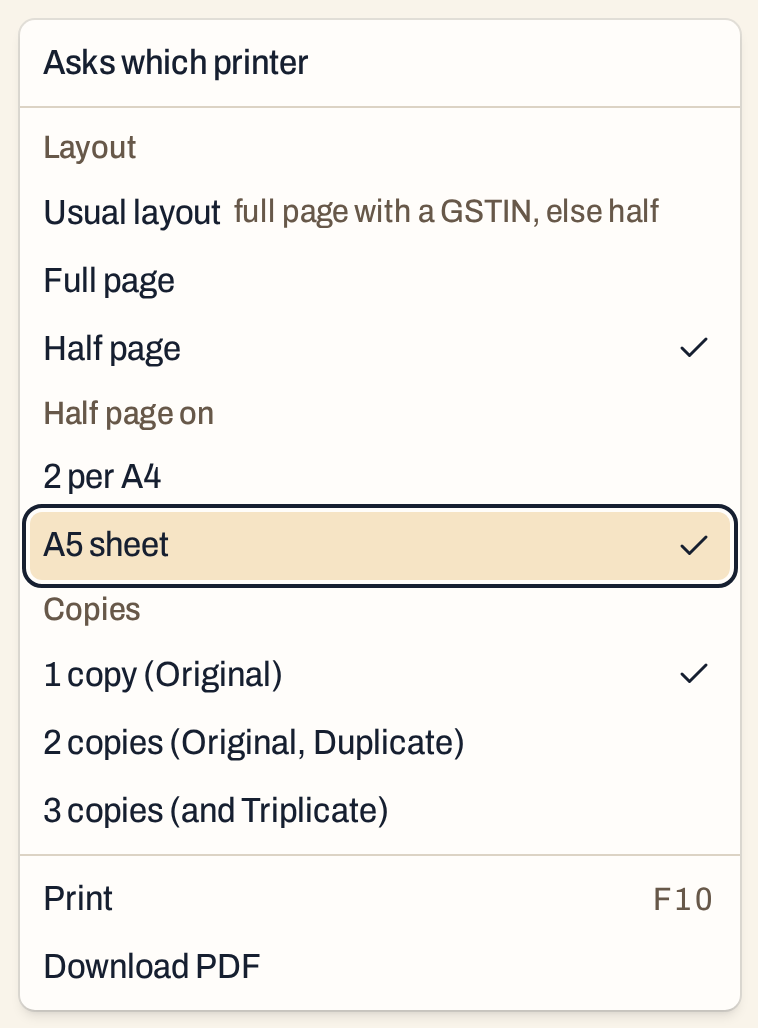 A half page on an A5 sheet.
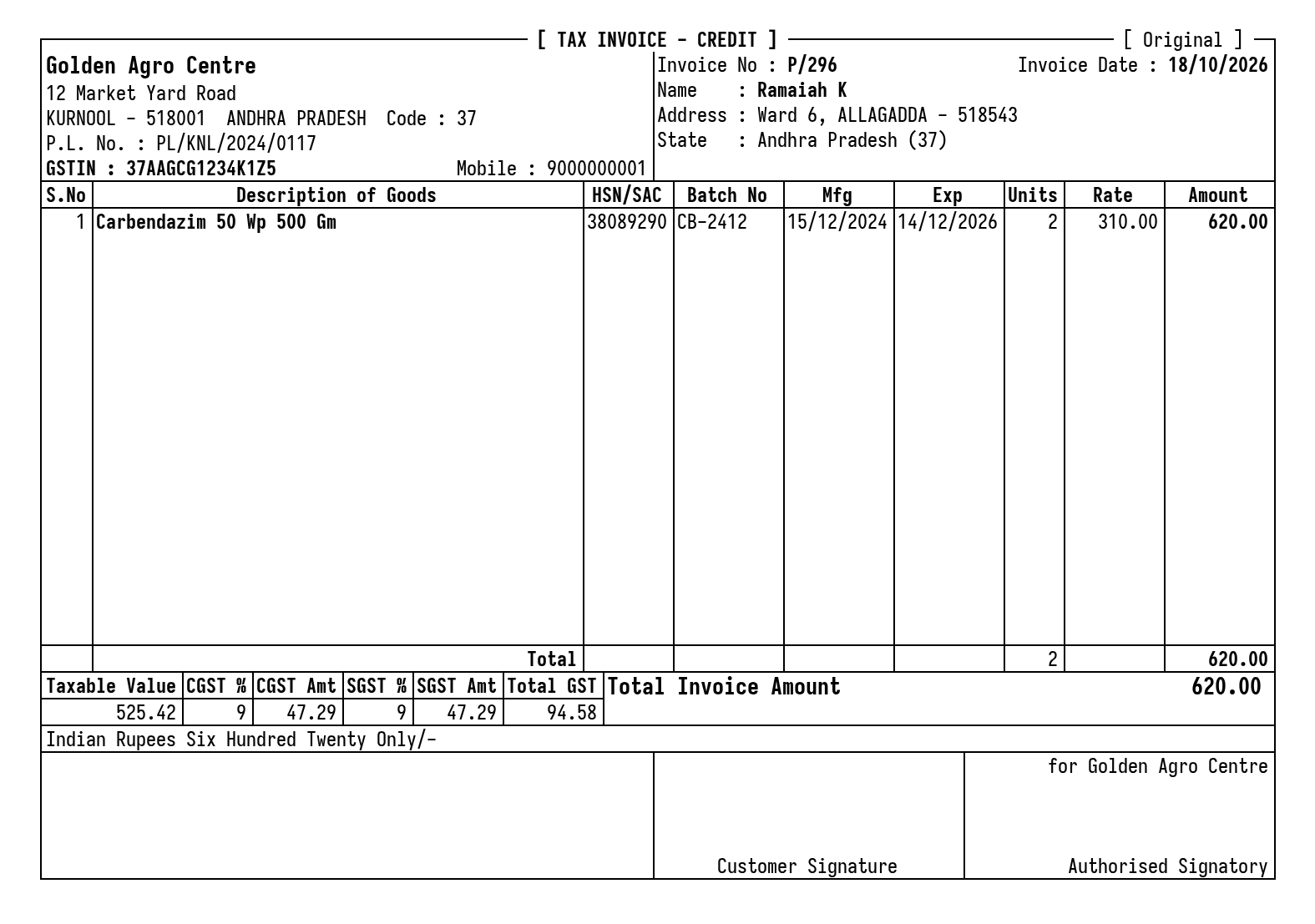 One Original on an A5 sheet.
If you change a saved bill and press F10 on the edit screen, the changes are saved first and the changed bill is printed. See Edit a bill.
Print from All Bills
All Bills prints one bill or many. Move to a bill and press F10, or mark bills with F2 (F8 marks them all) and press F10 to print the marked bills together, up to 200 at a time.
 Print bills prints the marked bills, or the bill under the cursor.
- The list prints in the layout chosen beside Print bills: Usual layout (the starting choice), Full page or Half page. A half page uses the A4 or A5 paper chosen under Half page on.
- All Bills prints two copies, Original and Duplicate. The one-to-three choice is on the bill screens.
- Print list is a different print: a check list of the marked bills (or all of them). The choice beside it is A line per bill, GST % wise (a line per bill and rate of GST) or Summary: day × GST % (each day’s totals by rate of GST).
Keys
| Key | What it does |
|---|---|
| F10 | New bill: save and print. Saved bill: print. All Bills: print the marked bills or the one under the cursor |
| F3 | Save without printing |
| Shift+F10 | Open the print choices (layout, half page paper, copies, PDF) |
| F2 | In All Bills, mark or unmark the bill |
| F8 | In All Bills, mark every bill |
Common questions
Why did one bill print on half a page and another on a full page? The usual layout prints a bill on a full page when its customer has a GSTIN, and on a half page when not. Choose Full page or Half page to print every bill the same way.
Can I print a bill again? Yes, from the saved bill or from All Bills, as often as you like. Printing changes nothing in the books.
Where do the shop’s name, address, licences and GSTIN on the print come from? From Company Details (8 A).
Updated 4 November 2026.