Merge a duplicate item into another
On this page
The same product sometimes gets two items: a name spelt another way, or a group made twice. Bills and stock then split between them. Merging moves everything the duplicate has, its bills, batches and stock entries, to the item you keep, and deletes the duplicate item. After that the stock of the product is in one place.
You merge from the group form. A packing that has stock or bills cannot simply be deleted, so merging is how you remove it.
Find the duplicate
Open the groups with Alt+3, then C.
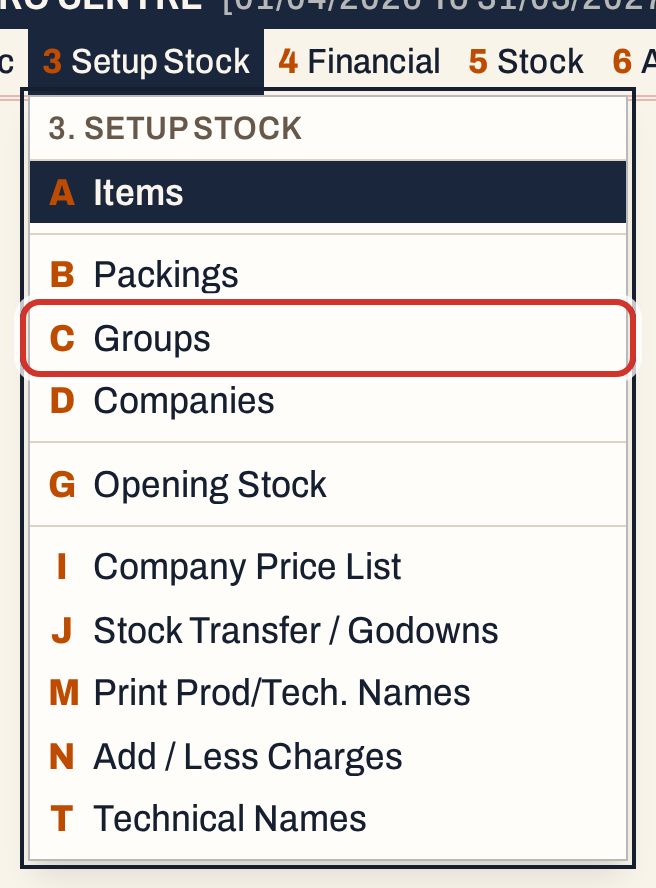 3 C: Setup Stock, Groups.
Type part of the name in Find to see both spellings together. In this example the shop has the product twice: the duplicate is CHLORPYRIPHOS 20 EC (code CPY), spelt with a PH, and the item to keep is CHLORPYRIFOS 20 EC (code CPF).
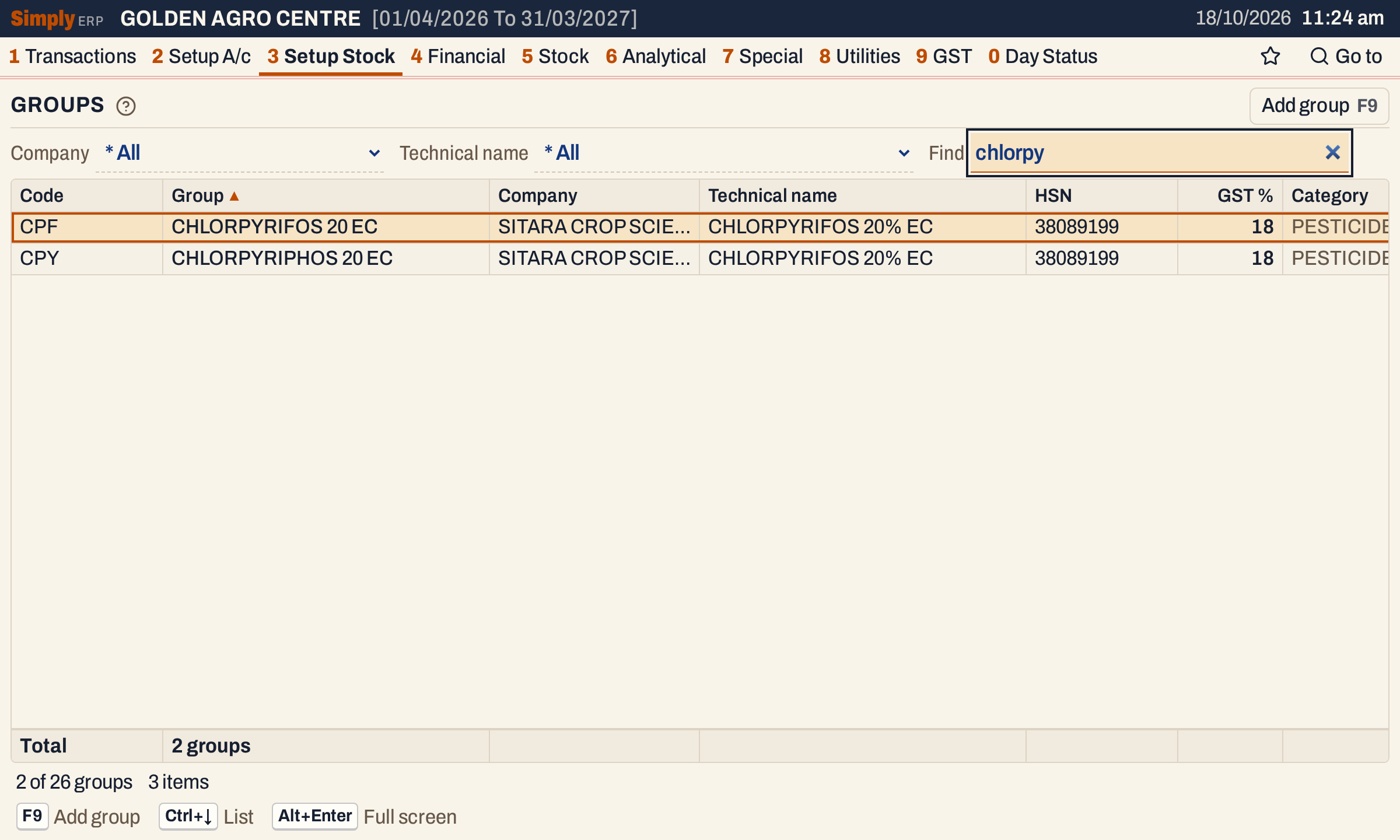 Two groups for one product.
Press Enter in Find to go into the list, move to the duplicate and press Enter to open it.
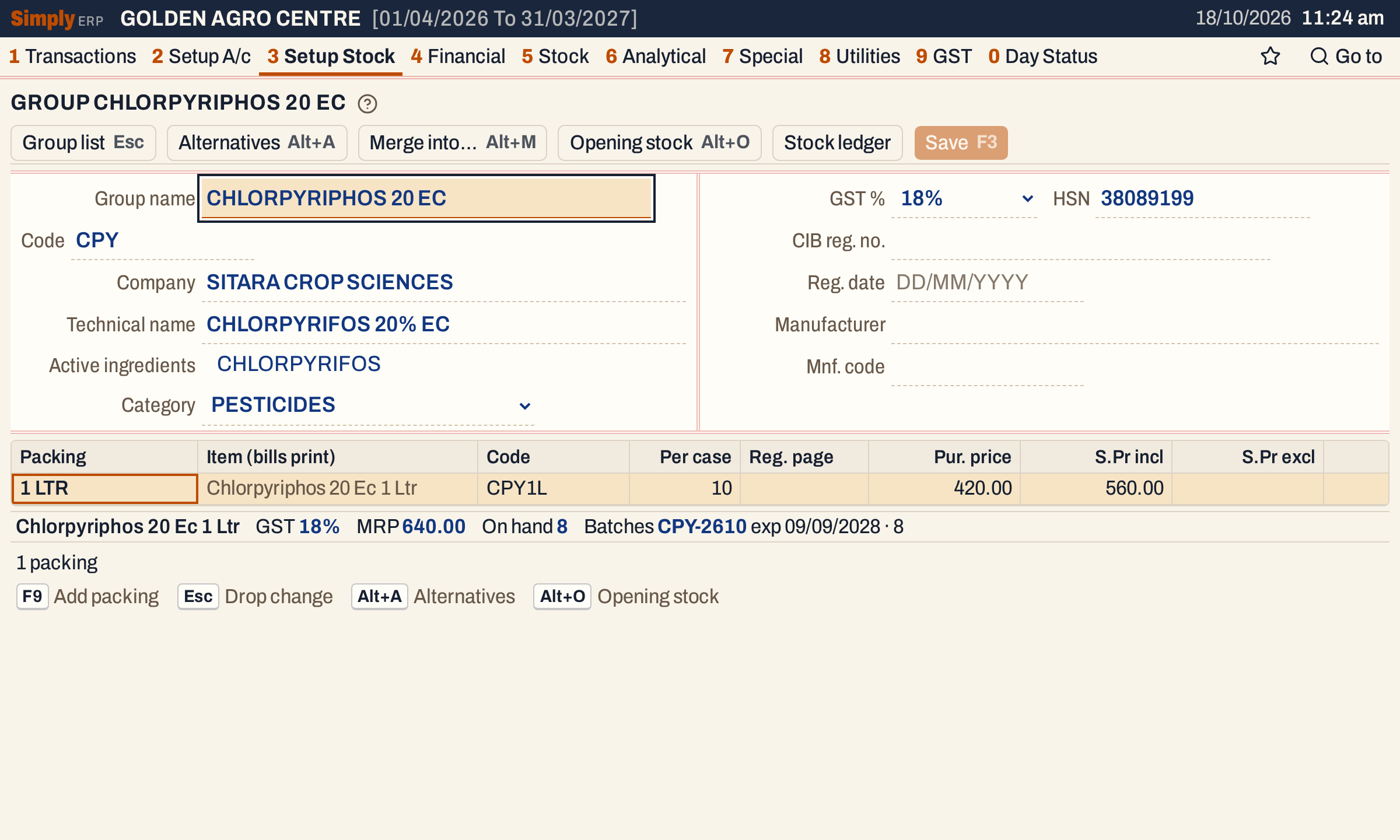 The duplicate has one packing, 1 LTR, with 8 units on hand in its own batch. It has been bought and sold.
Press Enter through the group’s fields until the cursor is in the packings, or click the packing. If you try to delete a packing that has stock or batches with Ctrl+Delete, the screen tells you to merge it instead.
 The packing has stock, so it cannot be deleted. Alt+M merges it.
Choose the item to keep
With the cursor in the packings, on the one to merge, press Alt+M, or click Merge into…. The form must have no unsaved changes: if it has, the screen asks you to save or discard them first.
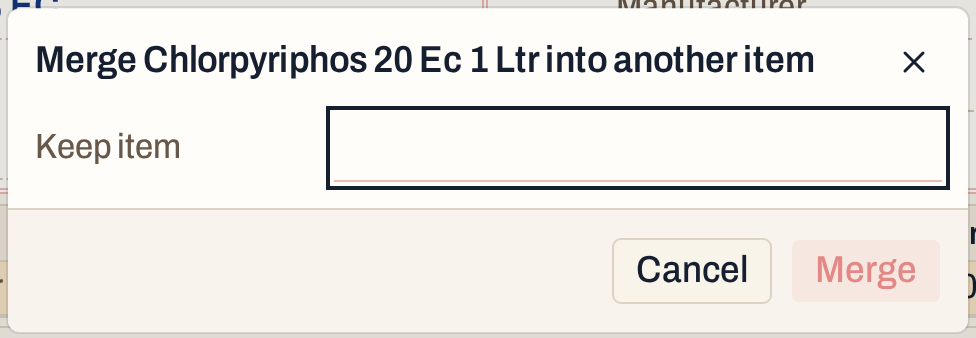 The dialog names the item that will go.
Type part of the name of the item to keep. The list shows only the other stock items that have the same packing as this one, with their code and stock on hand. Two packings are the same when their labels match without regard to spaces or capitals and one pack holds the same amount (the size set in Packings). Quantities move across unchanged, so an item of another packing is not offered.
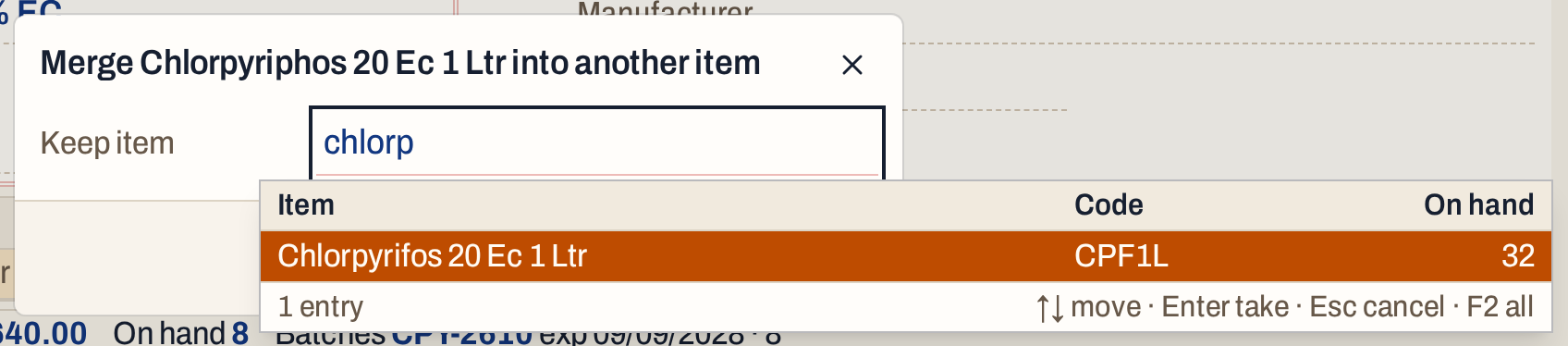 Press Enter to choose the highlighted item.
If no other item has the packing, the dialog says so.
Read what will move
As soon as you choose the item, the dialog counts what the merge will move. Nothing is changed yet.
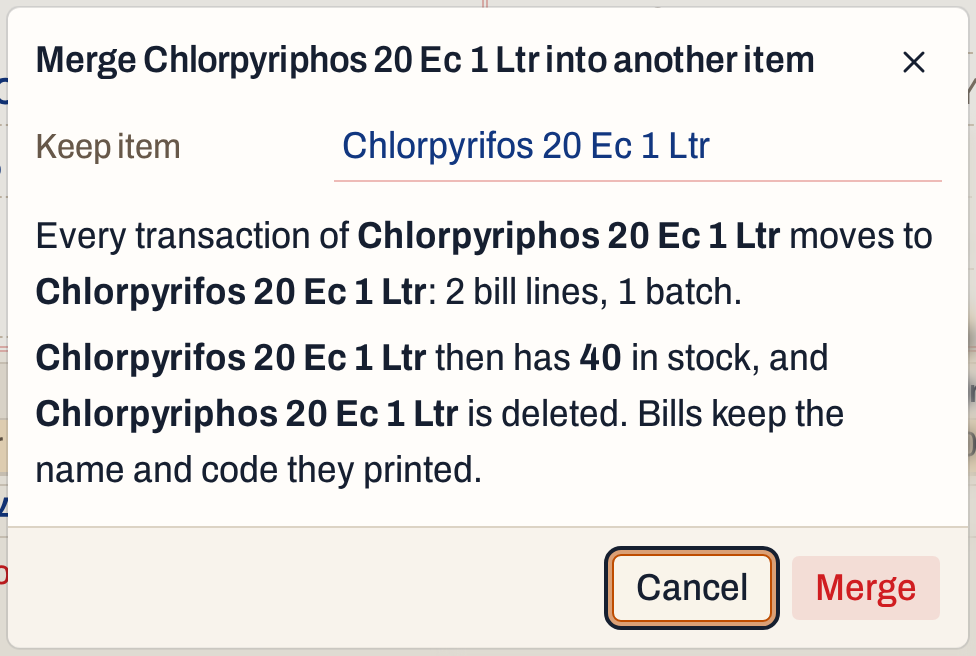 Two bill lines, a purchase and a sale, and one batch. The kept item then has 40: 32 of its own and the 8 of the duplicate.
The dialog lists only what there is. It can count:
- bill lines, on sales, purchases and returns;
- batches, and how many of them join a batch of the kept item with the same number and the same dates;
- opening lots, the batches entered in Opening stock;
- goods in and out entries, see Goods in and out;
- damages and breaks;
- godown entries and godown transfers, see Godowns and stock transfers;
- unfinished entries in Drafts that name the item.
The cursor starts on Cancel, so that Enter cannot merge by mistake. If the preview is what you expect, press Tab to reach Merge and press Enter, or click Merge.
What merging does
All of the duplicate’s records move to the item you keep:
- Its bill lines, batches, opening lots, goods in and out entries, damages and breaks, godown entries, transfers and unfinished entries now belong to the kept item. A batch of the duplicate with the same number and the same dates as a batch of the kept item is joined to it. Any other batch moves over as it is.
- The duplicate’s opening stock is added to the kept item’s opening stock.
- The kept item’s stock on hand, and the stock of each of its batches, are worked out again from all of its transactions.
- The duplicate item is deleted. Its code, prices and register page go with it; the kept item keeps its own.
- Bills that were already made keep the name and code they printed.
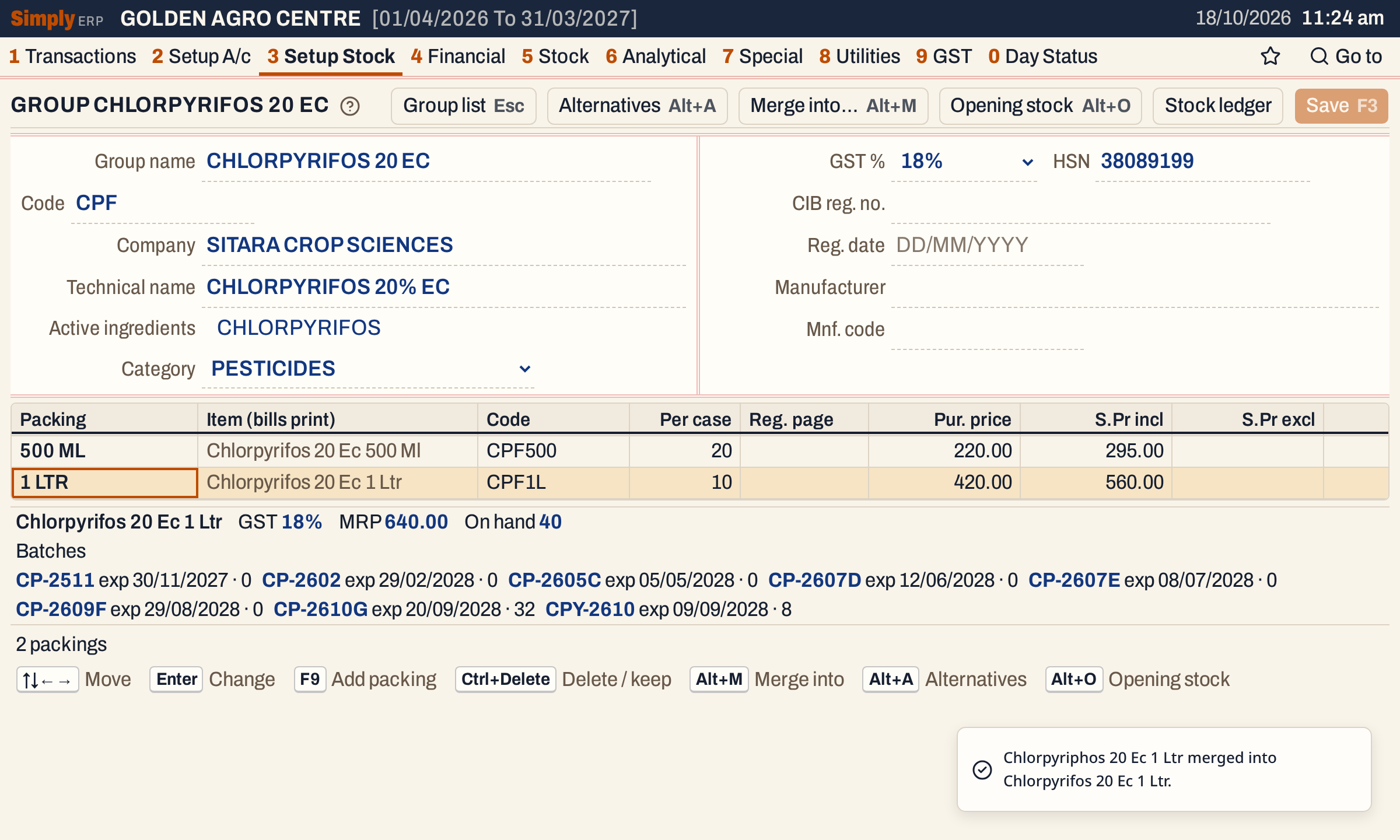 The kept group opens on the item. CPY-2610, the duplicate’s batch, is now one of its batches.
Merging does not post anything to your accounts. The bills keep their amounts, parties and dates, so the ledgers are unchanged. The stock reports, such as the Stock Ledger and the Stock Statement, now show the product as one item.
There is no undo for a merge in SimplyERP. Check the preview before you press Merge.
Delete the empty group
The duplicate’s packing is gone, but its group is still in the list with no packings.
 The group is left with no packings. The Packings column at the right of the list is blank for it.
Go back to the group list, move to the group and press Ctrl+Delete. The dialog asks you to confirm.
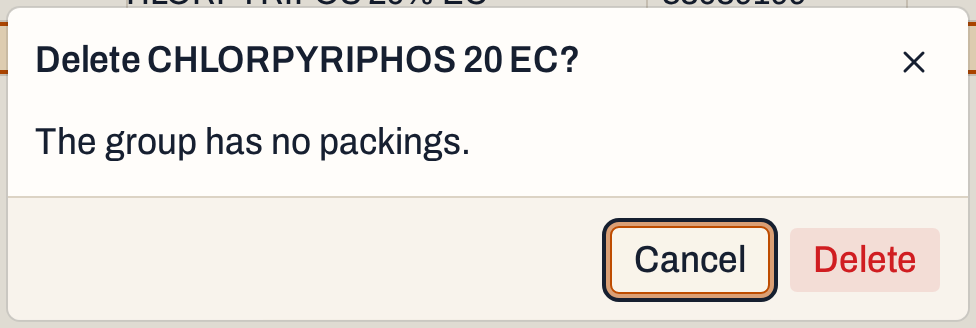 The dialog says what the delete takes with it, here nothing. Deleting a group that still has packings deletes them too, and a packing with bills, batches or stock stops the delete.
 Only the group you kept is left.
Keys on this screen
| Key | What it does |
|---|---|
| Alt+M | On a packing: merge it into another item |
| Enter | In the Keep item list: choose the highlighted item |
| Tab | In the dialog: from Cancel to Merge |
| Esc | Close the list, or the dialog |
| Ctrl+Delete | On the group list: delete a group |
On a Mac, ⌥ stands for Alt and ⌘ for Ctrl.
Common questions
Can I merge items of different packings, such as 500 ML into 1 LTR? No. The list only offers items with the same packing, because the quantities move across as they are.
Which item should I keep? The one you want bills and stock to show from now on, usually the one with the correct name and code. Its name, code and prices stay. The other item’s are lost, though bills already made keep the name and code they printed.
Is anything lost from the duplicate’s batches? No. Its batches move to the kept item, and a batch with the same number and dates as one of the kept item’s is joined to it, with their opening stock added together.
Can I merge two whole groups? You merge one item at a time. Merge each packing of the duplicate group into the same packing of the group you keep, then delete the empty group.
Updated 4 November 2026.