Manage technical names and active ingredients
On this page
A technical name says what a product is made of, as the label does: IMIDACLOPRID 17.8% SL, or AZOXYSTROBIN 18.2% + DIFENOCONAZOLE 11.4% SC. A stock group can name one. Each technical name also keeps its active ingredients, and SimplyERP uses them to list alternatives for an item: the same ingredient in another strength, form or make.
Open the technical name list
Press Alt+3 for the Setup Stock menu, then T for Technical Names.
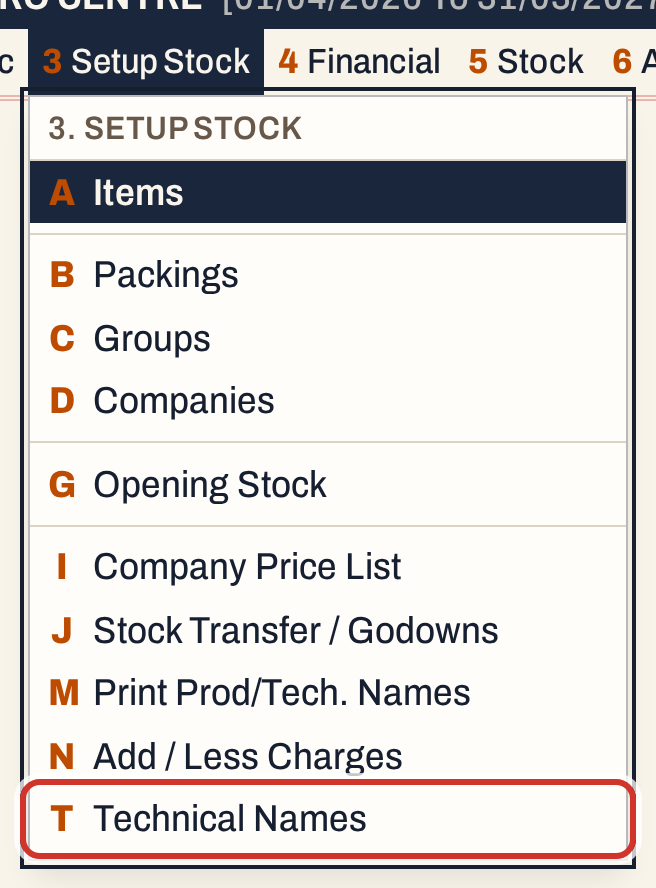 3 T: Setup Stock, Technical Names.
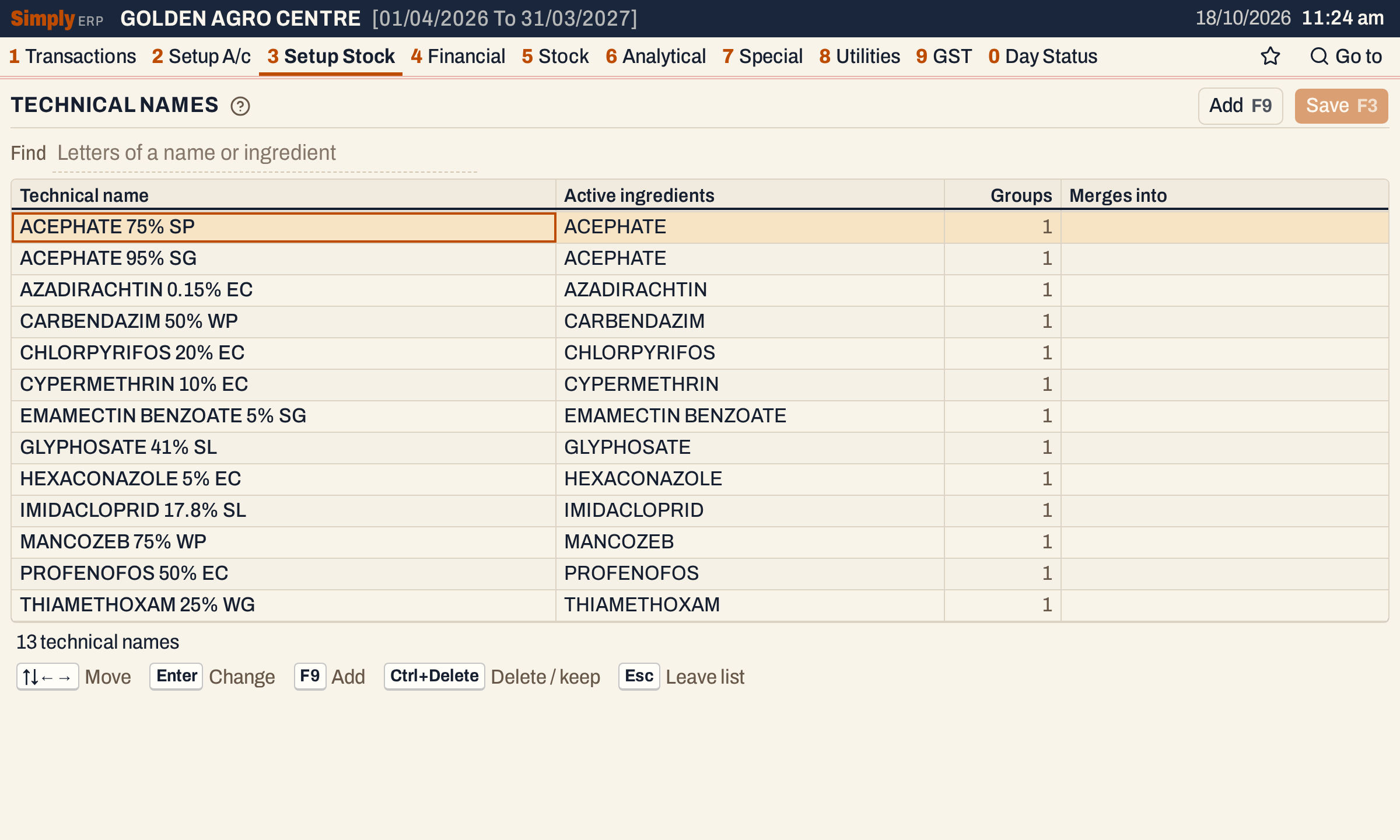 In these books, each name has one group, and one active ingredient. ACEPHATE appears twice, as a 75% SP and a 95% SG.
| Column | What it shows |
|---|---|
| Technical name | The name, in capitals with single spaces, up to 150 characters. |
| Active ingredients | The ingredients, separated by +. |
| Groups | How many stock groups name it. Read-only. |
| Merges into | The name this one is being merged into, while a merge waits to be saved. |
Find searches the names and the active ingredients.
Add a technical name
Press F9 and type the name, then Enter. You can also add one by typing a new name in the Technical name field of a group; it joins the list when the group is saved. See Add a stock group.
You do not have to type the ingredients. SimplyERP reads them from the name, and until you save, they show in italics:
- each part before a “+”, “&”, a comma followed by a space, or the word AND is one ingredient;
- an ingredient’s strength is left out: everything from a figure with a % sign on;
- formulation words at the end, such as EC, SC, SL, WP, WG, SG and W/W, are left out.
So AZOXYSTROBIN 18.2% + DIFENOCONAZOLE 11.4% SC holds AZOXYSTROBIN and DIFENOCONAZOLE.
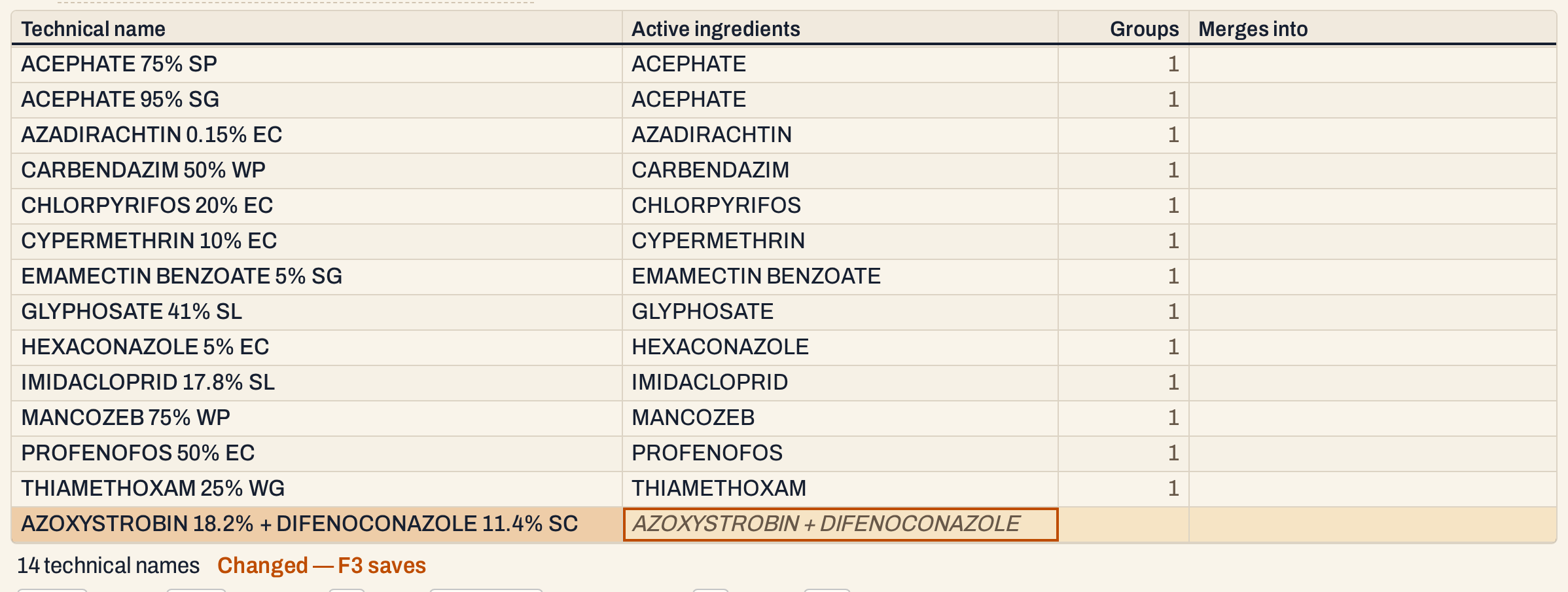 The italics mean the ingredients were read from the name and are not saved yet.
Press F3. The name is saved with its ingredients and takes its place in the list.
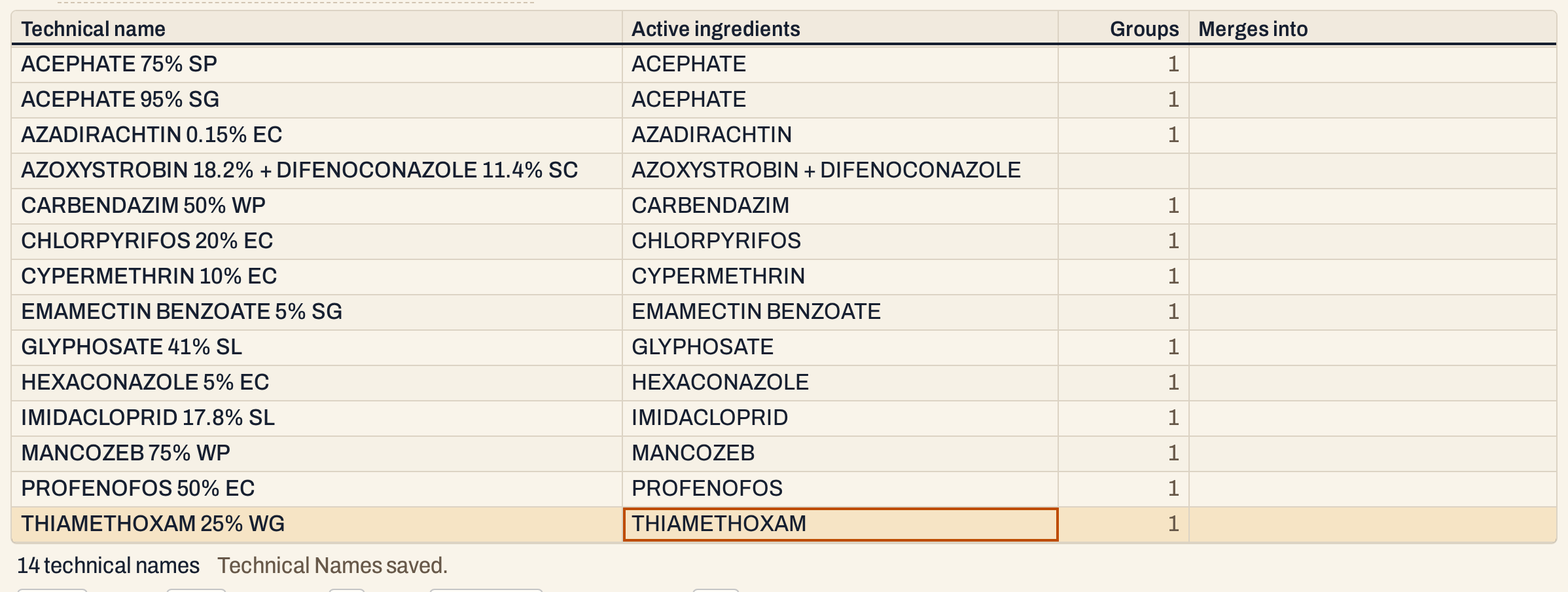 “Technical Names saved.” The new name has no group until a group names it.
When the name is spelt in a way the reading cannot follow, change the ingredients yourself. Move to the Active ingredients cell, press Enter and type them separated by +, for example AZOXYSTROBIN + DIFENOCONAZOLE. Each ingredient is kept once, in capitals; AMINO ACID and AMINOACID count as the same.
Find a name by an ingredient
Type in Find any part of a name or of an ingredient. A row you have changed stays in view while you search.
 “1 of 14 technical names” in the line below.
How alternatives use the ingredients
In the item grid, in the group form and on a bill line, Alt+A lists what can stand in for an item. The list is in this order, and in stock first in each part:
- Other packing: the same group in other packings.
- Same technical name: other groups with the same technical name.
- Same actives: the same active ingredients in another strength or form.
- Shares: groups that have some of the same ingredients.
The ingredients are what finds the last two. Here Acephate 75 Sp 500 Gm is listed with Acephate 95 Sg 500 Gm, which has another technical name but the same active ingredient.
 Esc closes the list. In the item grid, Enter on an alternative moves the cursor to it.
Rename, merge or delete a name
- Rename: move to the name, press Enter, type the new name, Enter, then F3. It changes on every group that uses it.
- Merge a misspelt name into the right one: type the name of another listed technical name over the misspelt one. The row greys out and shows “→” and the name it joins. F3 asks first, then moves the groups to the right name and removes the misspelt one. This works as it does for companies.
- Delete: Ctrl+Delete marks a name that no group uses (press it again to keep it). A name that groups use cannot be deleted; merge it into another.
- Groups: on a name that groups use, Enter on the Groups cell opens the group list showing only those groups.
What saving does to your books
Nothing is posted to the accounts. The list is saved in one go: merges and deletions first, then renames, changed ingredients and additions. If one change cannot be made, none is saved, and the message says which.
Keys on the technical name list
| Key | What it does |
|---|---|
| F9 | Add a name |
| Enter | Change the name or ingredients; again, keep it. On Groups, list the groups |
| Esc | Drop the change in the cell |
| Ctrl+Delete | Mark an unused name for deletion, or keep it again |
| F3 | Save (a merge asks first) |
| F1 | Help for the screen |
Common questions
Do I have to fill in the technical name of every group? No. A group without one has no ingredients, so it can only get its other packings as alternatives.
Where is the technical name used? It shows on the item grid and the group list. Appendix B has a Technical name choice that keeps only items with a technical name, in technical-name order.
Updated 4 November 2026.