Company Wise Turnover
On this page
The Company Wise Turnover report shows how much each customer bought on credit bills, and returned, in one company’s products in the period. Choose a company, and you see its sales, returns and net turnover for every customer.
Open the report
Press Alt+7 for Special Reports, then Z for More Special Reports, then E. The report opens for the financial year from its first day to today. It shows no figures until you choose a Company.
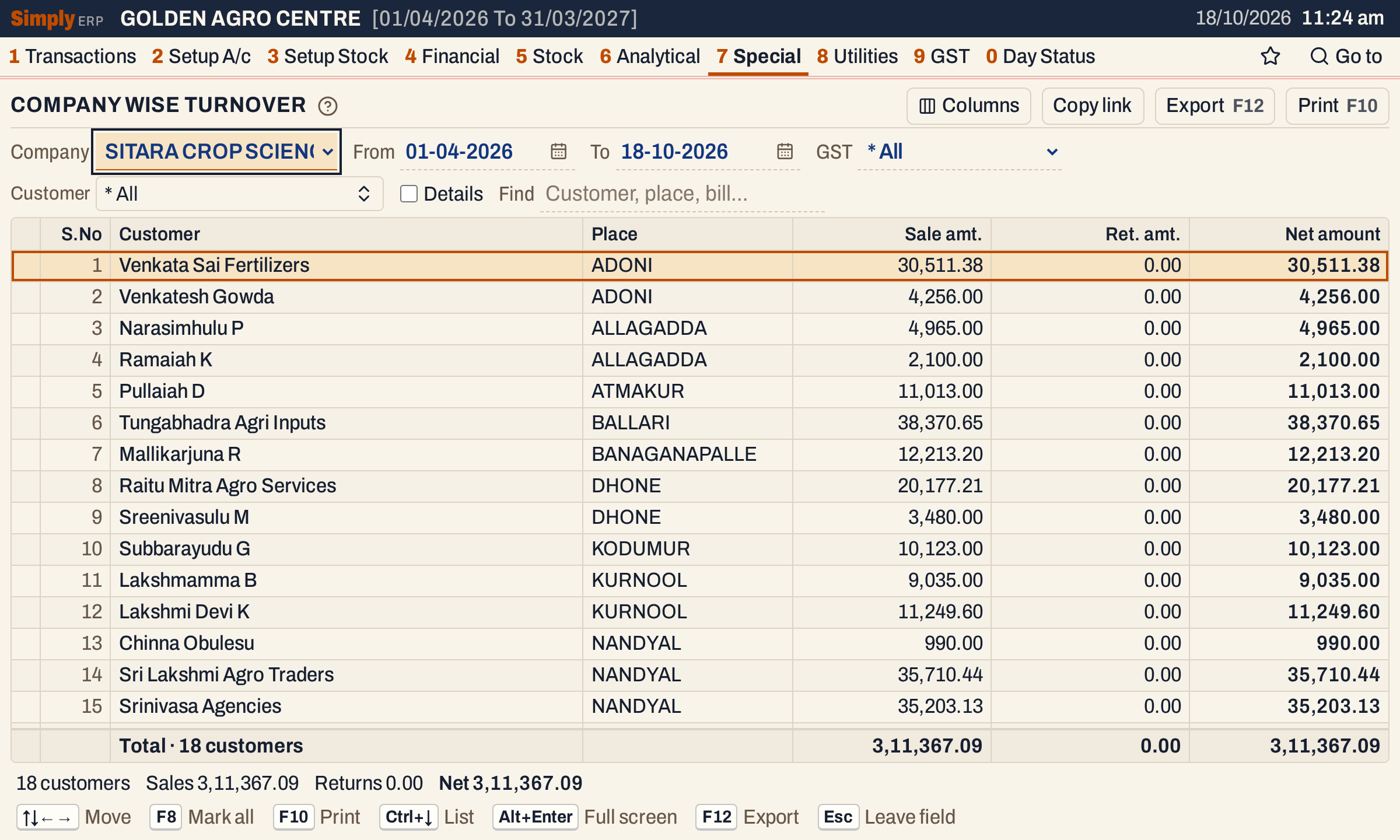 One line for each customer, with its place. The totals line adds up the customers.
What it lists
One line for each customer who has a credit bill with the chosen company’s products in the period. A customer whose net is nil is left out.
- Sales bills with the payment Credit that have at least one item of the company. A bill counts once, for its lines of that company and the bill’s charges.
- Sales returns with the payment Credit, counted the same way.
Cash bills are not in this report, and neither are bills paid by card or wallet. Goods delivered and not yet billed are not in it either. The period counts the bill’s date, and for a sales return its received date (Recd.).
The customers are in order of place, then name.
Columns
| Column | What it shows |
|---|---|
| S.No | The number of the customer. Hidden by Columns. |
| Customer | The customer’s name as written on the bill. With Details, the title is Customer / bill: the customer’s name and place are a heading, and each bill under it reads Sale or Sales return. |
| Place | The place written on the bill. Hidden by Columns, and not shown with Details. |
| Sale amt. | The sales to the customer, as worked out below. |
| Ret. amt. | The sales returns of the customer, as worked out below. |
| Net amount | Sale amt. less Ret. amt. |
With Details, Inv. date and Inv. no come before the name, and each bill’s Sale amt., Ret. amt. and Net amount are its own. A sales return shows its Ret. amt. and a negative net.
The totals line adds up the Sale amt., Ret. amt. and Net amount columns. The status line gives the number of customers and the sales, returns and net.
Choices
| Choice | What it does |
|---|---|
| Company | The company whose products are counted. The report needs one, and it starts with none chosen. |
| From, To | The period. Both days are included, and both must fall in the financial year. It opens on the financial year’s first day and ends on today. |
| GST | * All (the default), Registered or Unregistered: bills that record a GSTIN for the customer, or none. There is no Payment choice, because only credit bills are read. |
| Customer | One or more customers, chosen from the customers that have figures for the company, each with its place. The default is * All. |
| Details | Ticked, it lists each customer’s bills under it. Unticked (the default), it gives one line for each customer. |
| Find | Shows only the customers whose name or place matches what you type. With Details it also matches bill numbers. |
Click a column title to sort by it, and click again to reverse. Shift+click adds a second column to the sort. With Details only the three amount columns sort. Every choice is kept in the page address, so Copy link gives a link that opens the same report.
 The choices above the grid, with Details unticked. The Company field cuts the long name short.
How the figures are worked out
Each credit bill, sales bill or sales return, in the period that has items of the chosen company is read once:
- Sale amt. of a sales bill is the net amount of its lines of the chosen company, with GST and after their discounts, plus the bill’s Add charges and less its Less charges. The bill’s charges count in full, not only for the company’s share, and a charge of the kind Add + GST (freight with GST) is not counted. In practice the charges are mostly the round off, so a bill’s amount is usually whole rupees.
- Ret. amt. is the same figure for a sales return, and its net is negative.
- Net amount is Sale amt. less Ret. amt.
- A customer’s figures are the sums of its bills. A customer whose net is nil is left out.
- The totals line is the sum of the customers listed.
 The status line gives the sales, the returns and the net for the customers listed.
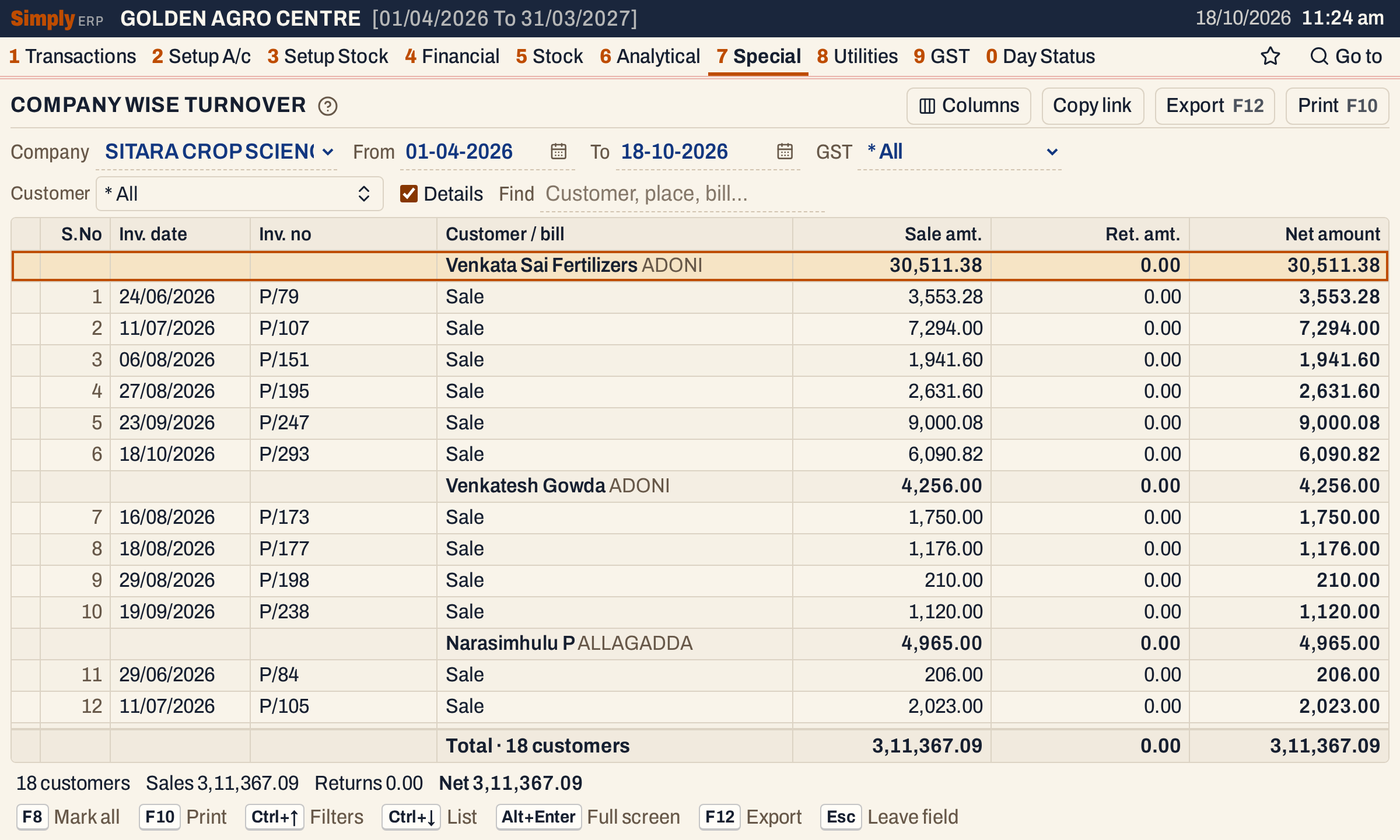 With Details, each customer heads its bills, with each bill’s date and number. Venkatesh Gowda’s four bills, 1,750.00, 1,176.00, 210.00 and 1,120.00, add up to its 4,256.00.
Open, mark, print and export
- Enter on a customer, without Details, ticks Details and chooses that customer in Customer, so it shows that customer’s bills.
- With Details, Enter on a bill opens the bill.
- F2 marks a line and F8 marks them all. F10 then prints only the marked lines.
- F10 prints the report with the company and the period in its heading, with the note “Credit bills, with GST and bill charges”, and your choices.
- F12 saves the printed report as an Excel workbook, with the figures as numbers.
- Alt+Enter gives the whole window to the list.
Updated 4 November 2026.