Out.St. [A/c Grp]
On this page
Out.St. [A/c Grp] lists the balance of every account that belongs to an account group, group by group, with a total for each group. It is how you see what a delivery route owes, or what a class of suppliers is owed.
Open the report
Press Alt+7 for Special Reports, then P. The report opens as on today, for every group.
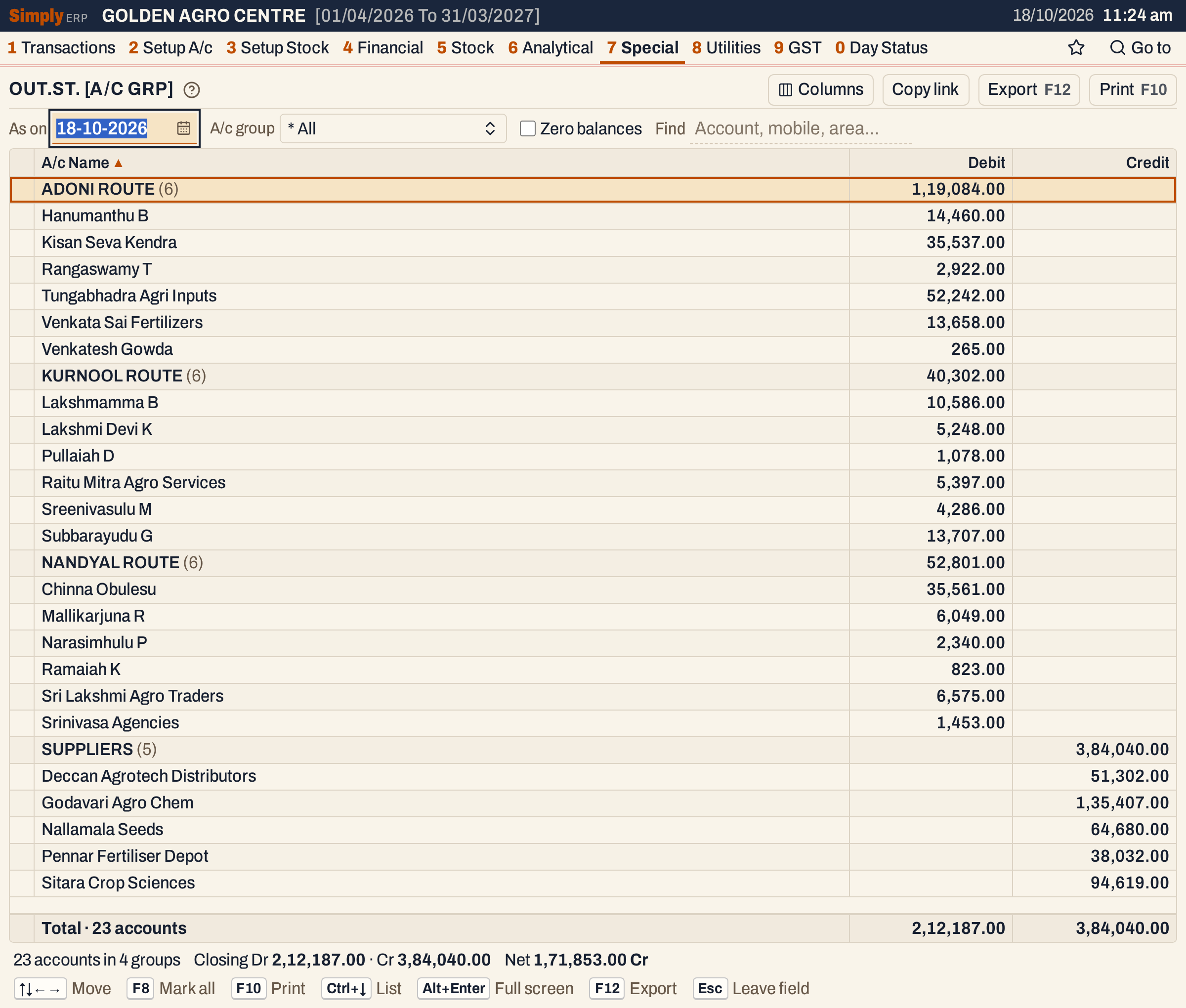 Each group is a heading with its number of accounts and its totals. The status line says 23 accounts in 4 groups.
What it lists
One line for each account that has an account group, in whatever type: customers, farmers, suppliers, and any other account you put in a group. An account with no group is not in this report. Put accounts in groups with A/c Grouping (2 C).
The balance counts everything posted to the account up to the As on date, including its opening balance. An account with a nil balance is left out unless you tick Zero balances.
Columns
| Column | What it shows |
|---|---|
| A/c Name | The trade name when the account has one, otherwise the account’s name. A group heading shows the group’s name and, in brackets, the number of accounts in it. |
| Debit | The balance, when it is a debit. |
| Credit | The balance, when it is a credit. |
A group heading carries the totals of its accounts in the Debit and Credit columns. The totals line adds up all the groups and counts the accounts.
Choices
| Choice | What it does |
|---|---|
| As on | The date of the balances. It must fall in the financial year and opens as today. |
| A/c group | Only the chosen groups. * All lists every group. |
| Zero balances | Also lists the accounts with a nil balance. |
| Find | Only accounts whose name, mobile or group matches what you type. |
| Columns | Hides the Debit or Credit column. The print leaves it out too. |
Click a column title to sort by it, and click again to reverse. The accounts are sorted within each group; the groups stay in name order. Every choice is kept in the page address, so Copy link gives a link that opens the same report.
 The choices above the grid.
A/c group opens a list of the groups. Choose one or several and press Done.
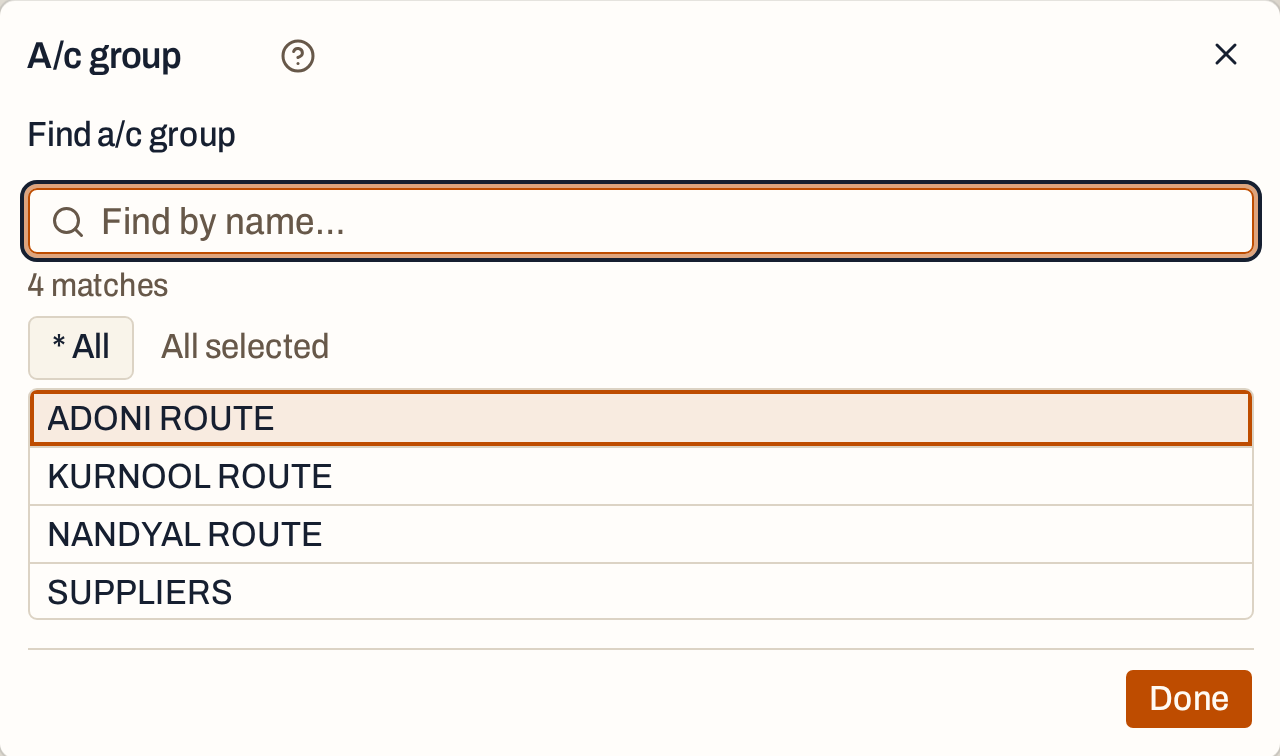 The list offers every group.
How the figures are worked out
For each account SimplyERP adds up every posting dated on or before the As on date, with the opening balance, debits as positive and credits as negative.
- A positive result is a debit balance, shown in the Debit column.
- A negative result is a credit balance, shown in the Credit column.
A group’s totals are the sum of the debit balances and the sum of the credit balances of its accounts, shown separately. They are not netted. In the picture, ADONI ROUTE has 1,19,084.00 of debits (14,460.00 + 35,537.00 + 2,922.00 + 52,242.00 + 13,658.00 + 265.00) and no credits. SUPPLIERS has 3,84,040.00 of credits.
The status line gives Closing Dr, the sum of the debit balances, Cr, the sum of the credit balances, and the Net of the two: 2,12,187.00 Dr, 3,84,040.00 Cr and 1,71,853.00 Cr. These are the same totals as in the Creditors/Debtors Statement, because every customer and supplier here is in a group.
One group
Choose a group in the A/c group list to see only its accounts. Here, KURNOOL ROUTE has six accounts owing 40,302.00 in all.
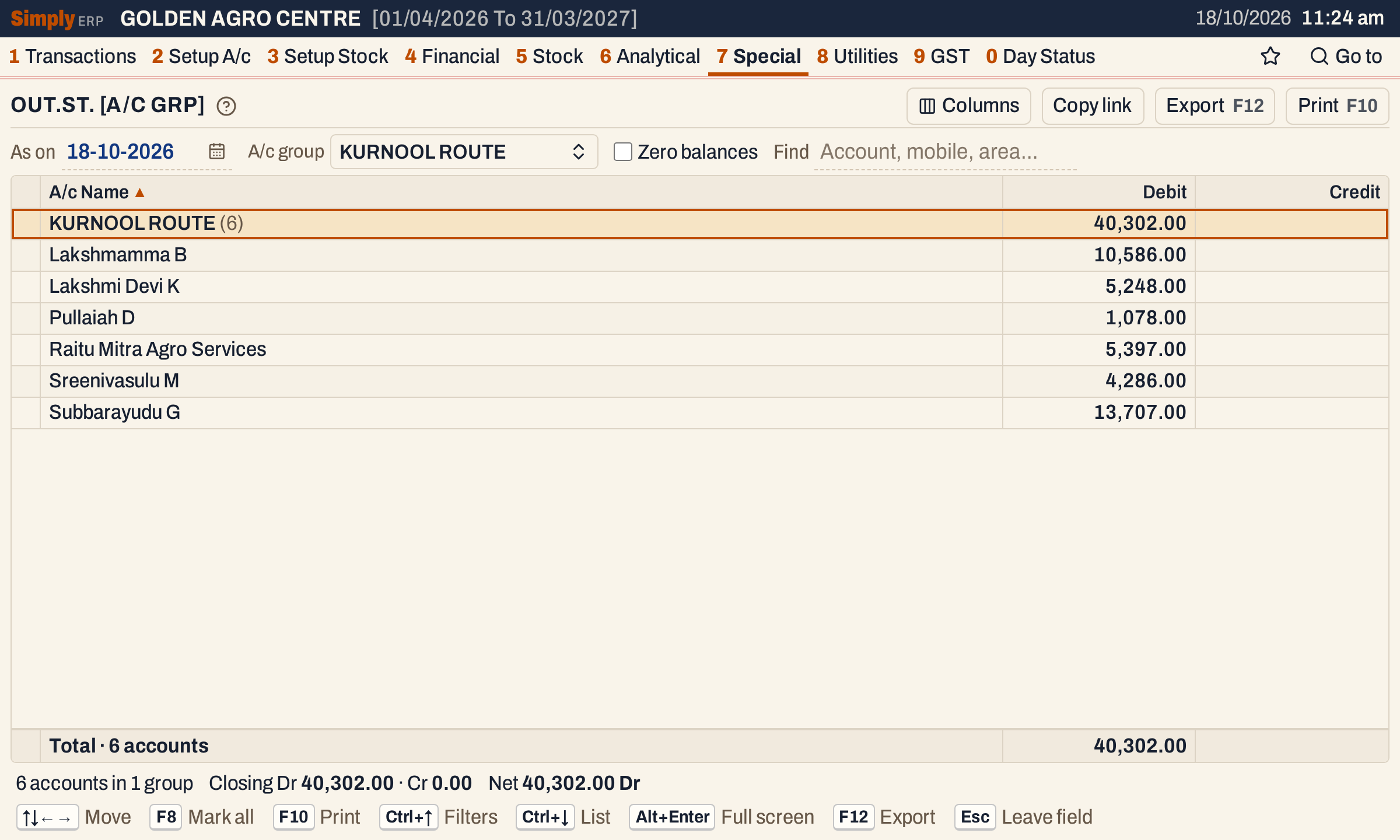 Only the chosen group is listed, and the totals follow.
Open, mark, print and export
- Enter on an account opens its Ledger, from the first day of the financial year to the As on date.
- F2 marks an account and F8 marks them all. F10 then prints only the marked accounts, with the group headings and totals worked out again for them.
- F10 prints the report as OUTSTANDING STATEMENT, with the date and your choices in its heading, a heading for each group, the columns Account, Debit and Credit and a totals line.
- F12 saves what the print shows as an Excel workbook, with the figures as numbers.
- Alt+Enter gives the whole window to the list.
Updated 4 November 2026.