Cust./Supp. Analysis
On this page
The Cust./Supp. Analysis report is one party’s statement for a period: every bill, receipt, payment and note posted to the account, with the items of each bill under it and a running balance. It reads like the account’s ledger, but a bill is spread over its items, so you can see what a customer bought or what a supplier supplied on each bill.
Open the report
Press Alt+7 for Special Reports, then C. The report opens with the cursor on Cust/Supp/Both and nothing listed. Press Enter to move to Account Name, type part of the name (or press F2 to list every account), and press Enter on the account.
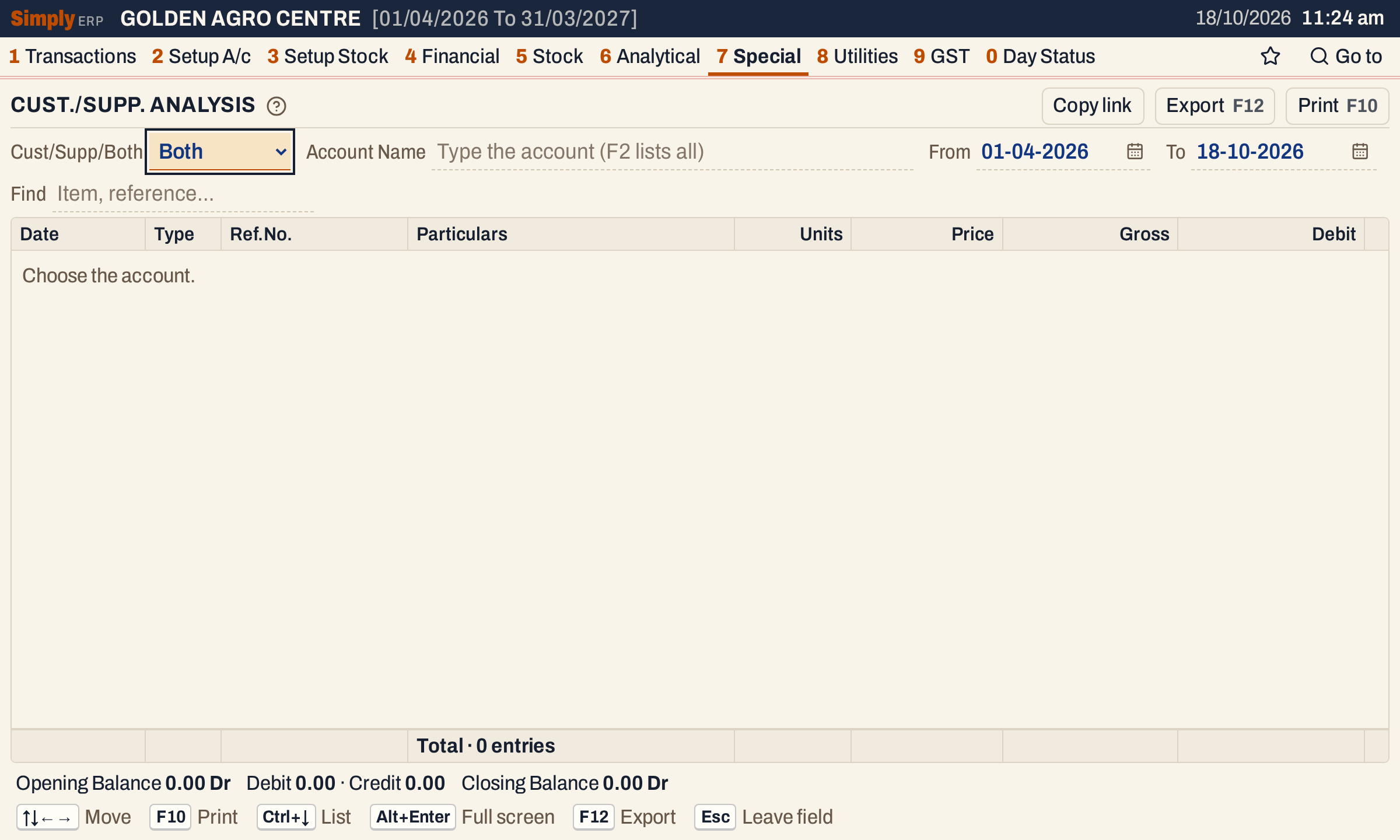 Nothing is listed until you choose an account. The period is the financial year up to today.
The account list shows each account’s place and its balance now. It offers customers, farmers, suppliers and accounts that are both customer and supplier.
 The list narrows as you type. Enter takes the highlighted account.
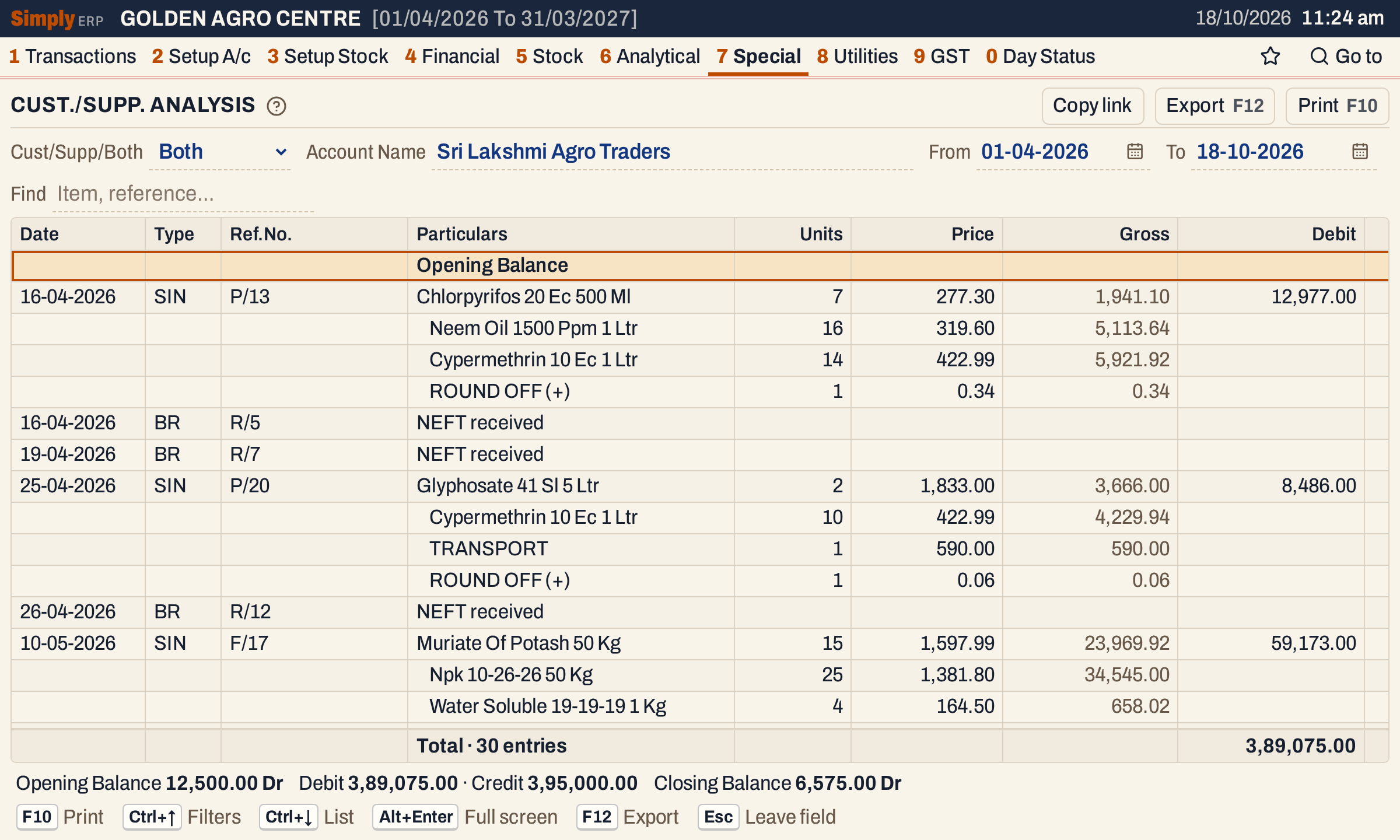 A bill is one line with its date, type and reference, then its other items, indented. Receipts follow in date order.
What it lists
Everything posted to the account in the period, in the order of its date, and for entries of the same day in the order they were posted:
- bills: sales (SIN), purchases (PIN), sales returns (SR) and purchase returns (PR);
- vouchers: receipts and payments by cash or bank, journal entries and notes.
The opening balance comes first. A bill is listed once, and its item lines are listed under it, including its charge lines such as freight, transport and round off. Opening balance entries are not listed as lines; they are in the opening balance.
Columns
| Column | What it shows |
|---|---|
| Date | The date of the posting, as DD-MM-YYYY. It is shown on the first line of a bill or voucher. |
| Type | SIN sale, PIN purchase, SR sales return, PR purchase return, CR cash receipt, BR bank receipt, CP cash payment, BP bank payment, JV journal entry, CNI and CNR credit notes (issued, received), DNI and DNR debit notes (issued, received). |
| Ref.No. | The bill’s or voucher’s reference. |
| Particulars | A bill’s item names, one on each line. For a voucher, its narration. |
| Units | The quantity on the item line. A charge line shows 1. |
| Price | The item line’s amount divided by its units, to two decimals. The amount includes GST and any discount on the line. |
| Gross | The item line’s amount including GST, in grey. A charge that is taken off the bill, such as ROUND OFF (-), is shown as a plain figure, not a minus. Add the lines and take off those charges, and you reach the bill’s amount. |
| Debit | The amount posted to the account on the debit side, on the bill’s first line or on the voucher. |
| Credit | The amount posted on the credit side. |
| Balance | The balance after the entry, with Dr or Cr. It is blank on a bill’s other item lines. |
The Debit, Credit and Balance columns are on the right. On a 1200-pixel window scroll the grid sideways to see them.
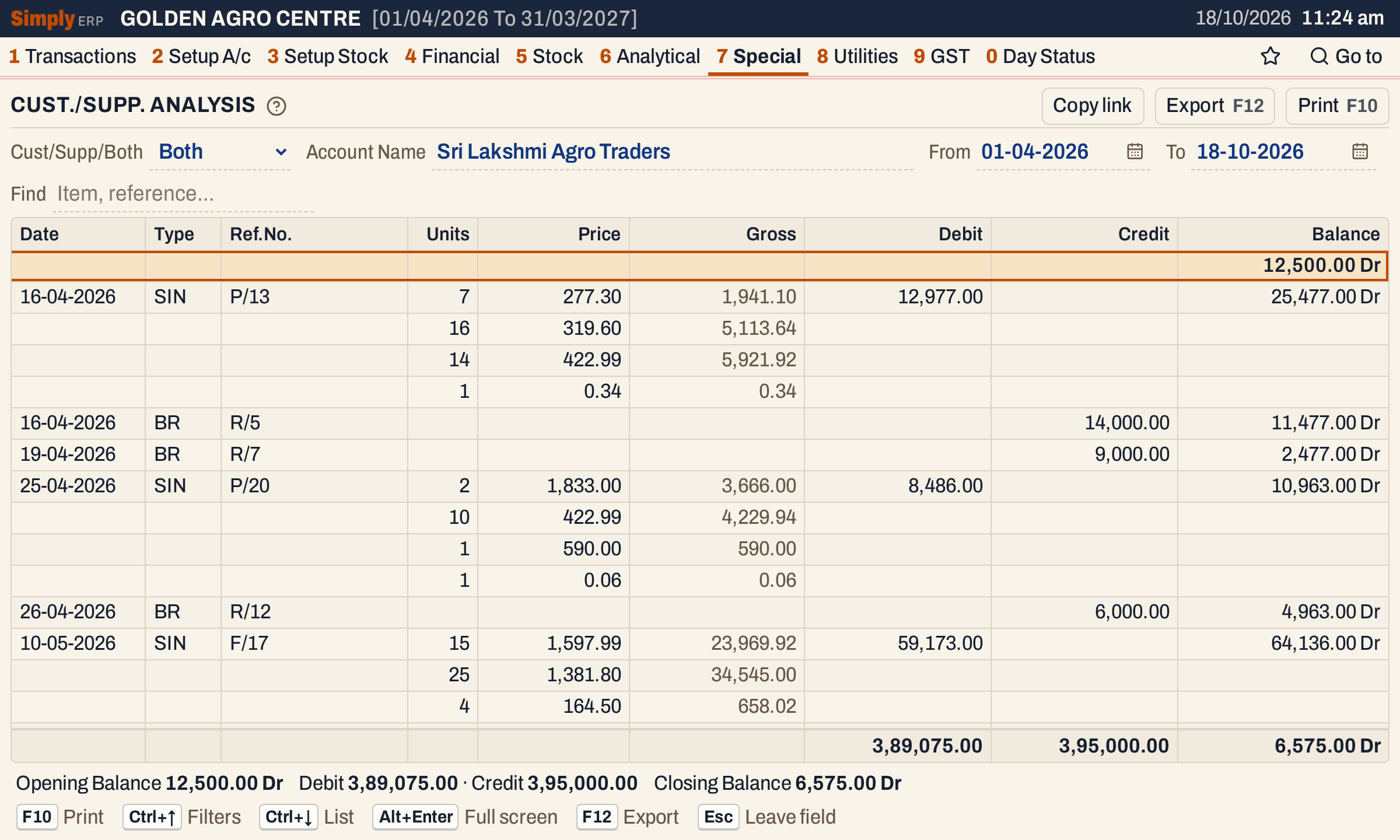 Scrolled to the right; Date, Type and Ref.No. stay in view. The opening balance is 12,500.00 Dr, the first bill brings it to 25,477.00 Dr, and the receipts reduce it.
Choices
| Choice | What it does |
|---|---|
| Cust/Supp/Both | Both (the default) lists every bill. Customer leaves out purchase bills and purchase returns. Supplier leaves out sales bills and sales returns. Vouchers and notes are always listed. This choice does not narrow the account list. |
| Account Name | The account. There is no default. |
| From, To | The period, both days included. The default is the financial year up to today. |
| Find | Shows only the lines whose type, reference or particulars match what you type. Every word you type must match; a word of three letters or more also matches when its letters appear in that order, close together. The totals and balances still cover every entry. |
Every choice is kept in the page address, so Copy link gives a link that opens the same report.
Supplier
Here the same customer is shown with Supplier chosen. Their sale bills are left out, so only the eleven receipts remain, and the closing balance is 3,82,500.00 Cr. This is the effect of the choice: the balance no longer includes the bills.
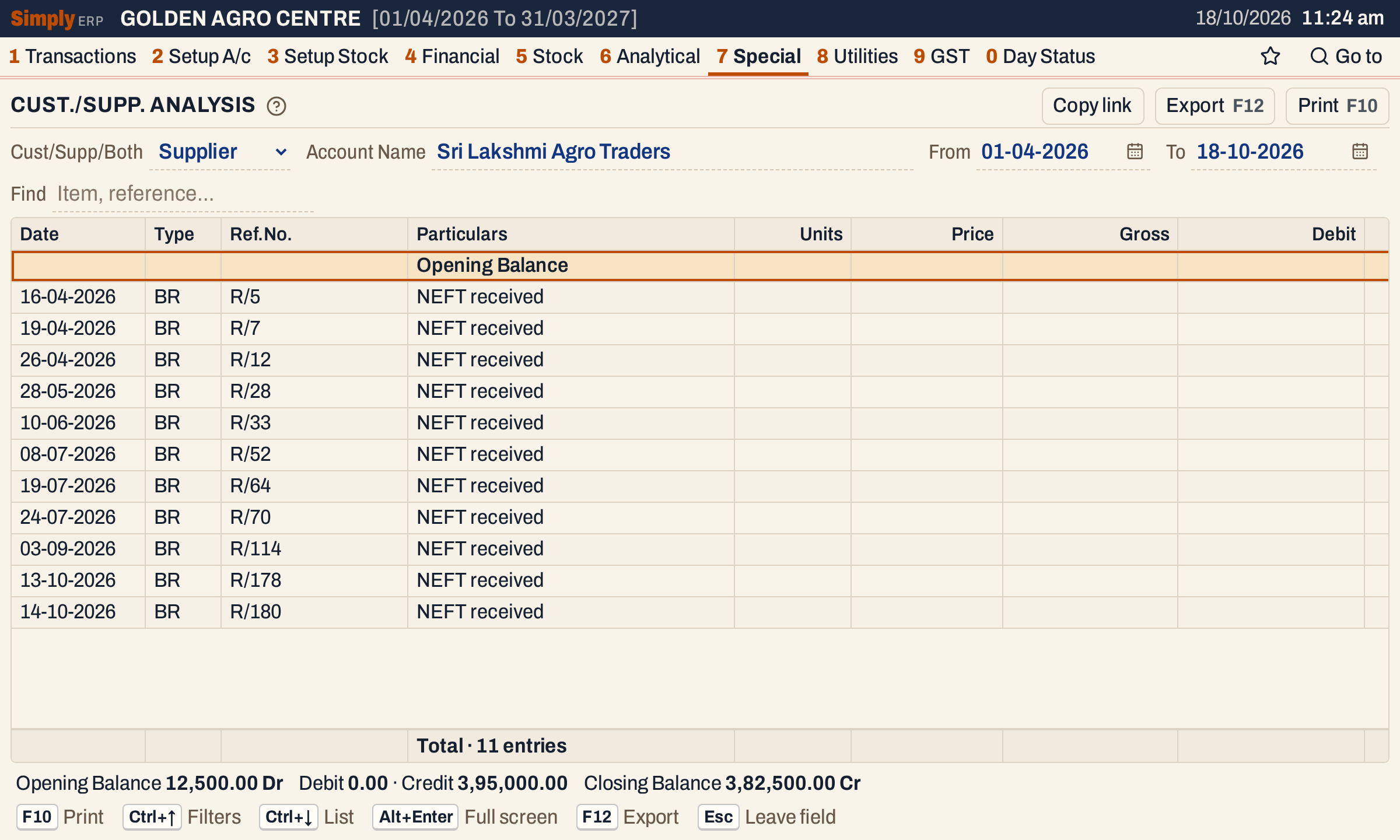 Supplier leaves out the sale bills; the receipts stay.
Find
Type a reference, a type or an item name. A reference shows every line of that bill, as here with p/249. An item name shows only the item lines that hold it: a bill’s date, type, reference and amount appear on its first line, so a matching item further down a bill is listed without them, under the line above it. To read a whole bill, find it by its reference.
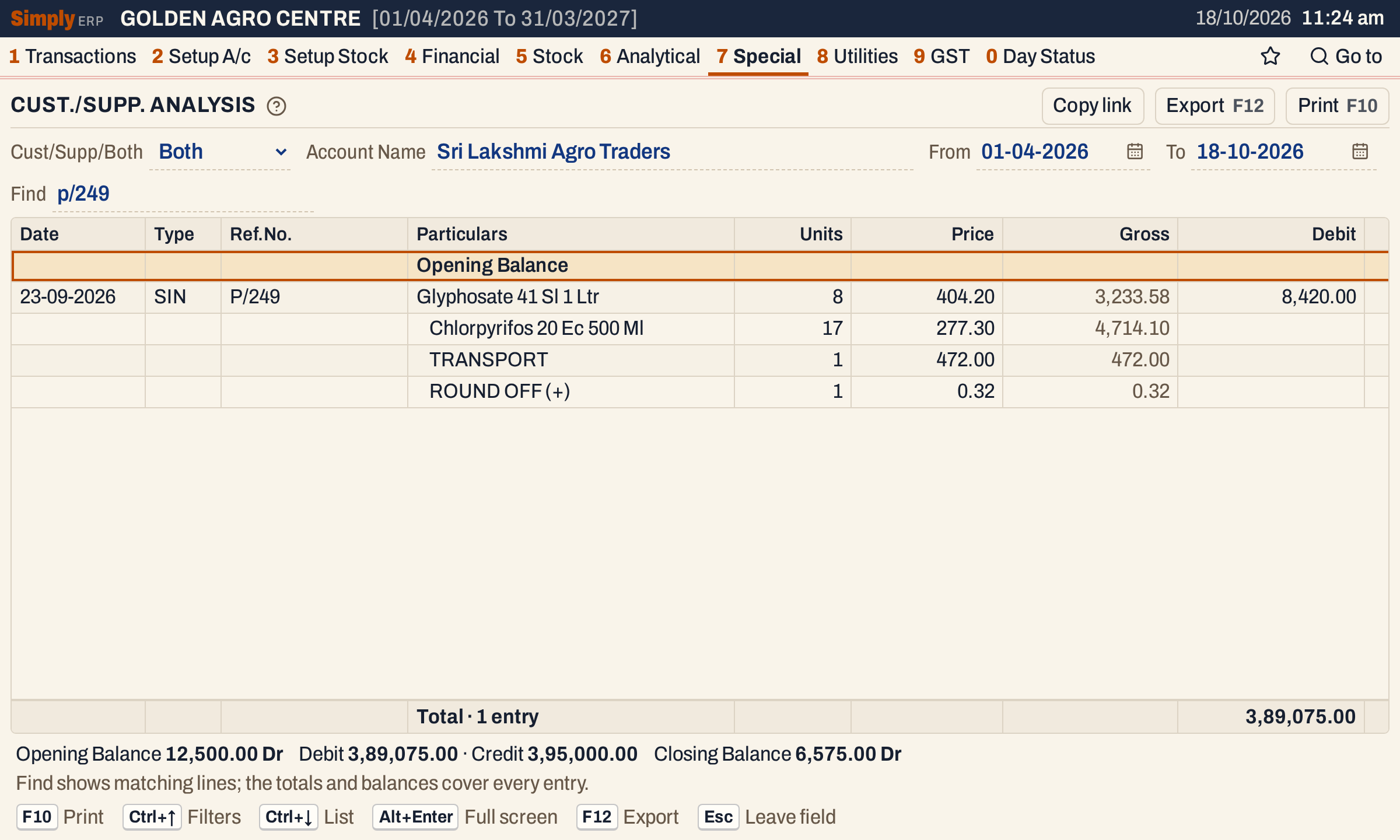 Find narrows the lines. The totals under the grid and the balances below still cover every entry.
How the figures are worked out
For the account chosen, SimplyERP reads its ledger postings between From and To.
- Opening balance = the account’s opening balance + the debits less the credits posted before the From date. It is shown as Dr or Cr.
- Debit and Credit on a line = the amount posted to the account by that bill or voucher. A bill’s posting is one amount for the whole bill, shown on its first line; the lines under it carry no Debit or Credit.
- Balance after each entry = the balance before it + Debit − Credit. A balance above zero is Dr and one below zero is Cr.
- Closing balance = Opening balance + total Debit − total Credit.
- Price and Gross come from the bill’s item lines: Gross is a line’s amount including GST and Price is Gross ÷ Units, rounded to two decimals.
The status line under the grid gives the opening balance, the total debit and credit, and the closing balance. The totals line counts the entries, that is, the bills and vouchers, not the item lines, and repeats the total Debit and Credit and the closing balance under their columns.
 12,500.00 + 3,89,075.00 − 3,95,000.00 = 6,575.00 Dr.
A supplier
For a supplier, the bills are credits and the payments are debits, so the balance is Cr: you owe the supplier. Here Pennar Fertiliser Depot starts at nil, each purchase bill adds a credit with its items, freight and round off listed under it, and each payment brings the balance down.
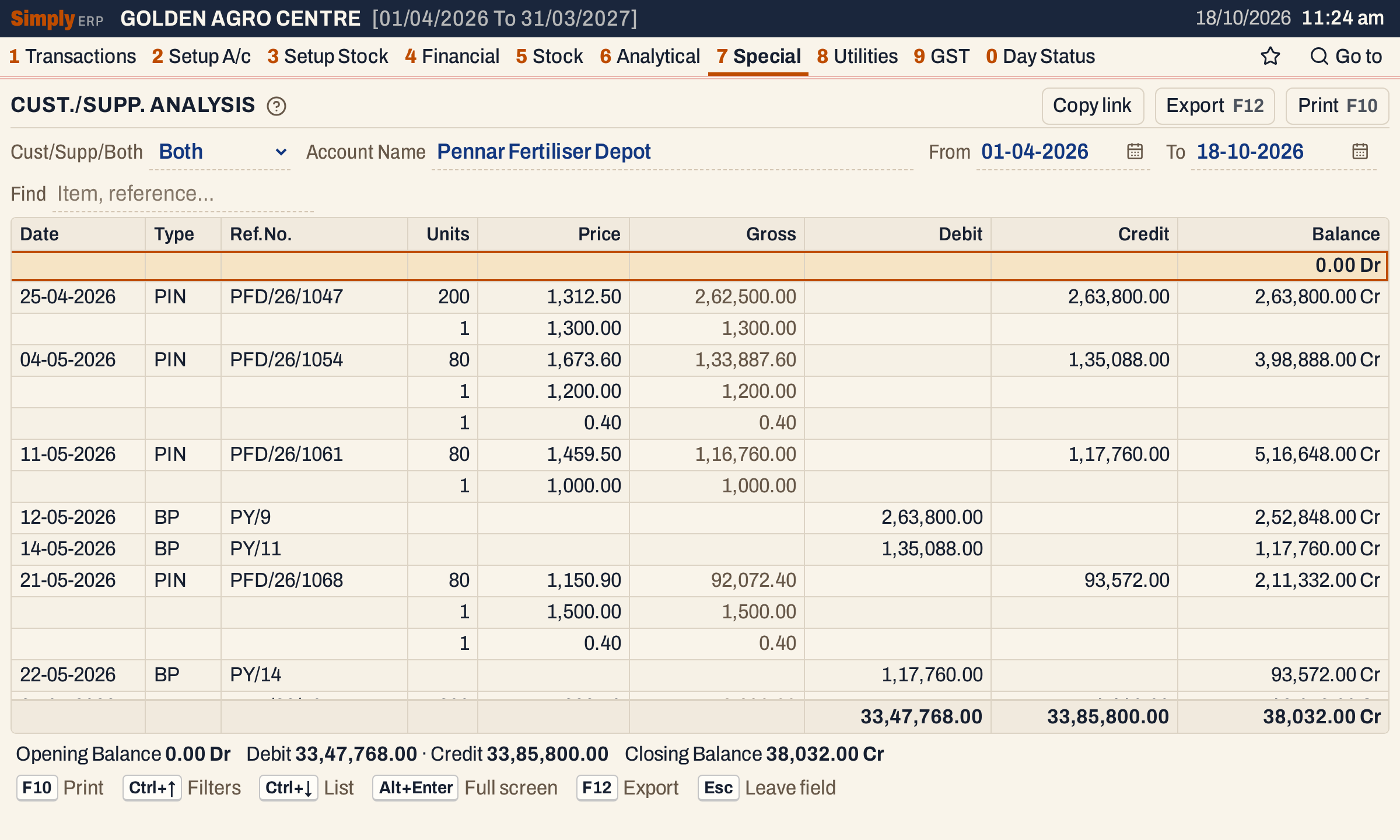 A supplier’s statement: purchases in Credit, payments in Debit, and a balance owed to the supplier. Bill PFD/26/1068 is 92,072.40 + 1,500.00 freight − 0.40 round off = 93,572.00.
Open, print and export
- Enter on a bill or voucher line opens that bill or voucher. Back returns to the list.
- Lines cannot be marked.
- F10 prints the statement. The title depends on Cust/Supp/Both: CUSTOMER SALES SUMMARY REPORT, SUPPLIER PURCHASE SUMMARY REPORT or CUSTOMER/SUPPLIER A/C SUMMARY. The heading gives the account’s name and the period, and the print ends with Totals, the Closing Balance and a key to the types.
- F12 saves it as an Excel workbook.
- Alt+Enter gives the whole window to the list.
Updated 4 November 2026.