Product Monthly Purchases
On this page
The Product Monthly Purchases report shows what you bought of each product in every month of the financial year. Choose one supplier to see what it sent you, or leave Supplier on all suppliers to see every purchase.
Open the report
Press Alt+7 for Special Reports, then J. The report opens for the financial year from its first day to today, for all suppliers, with Rows on Product.
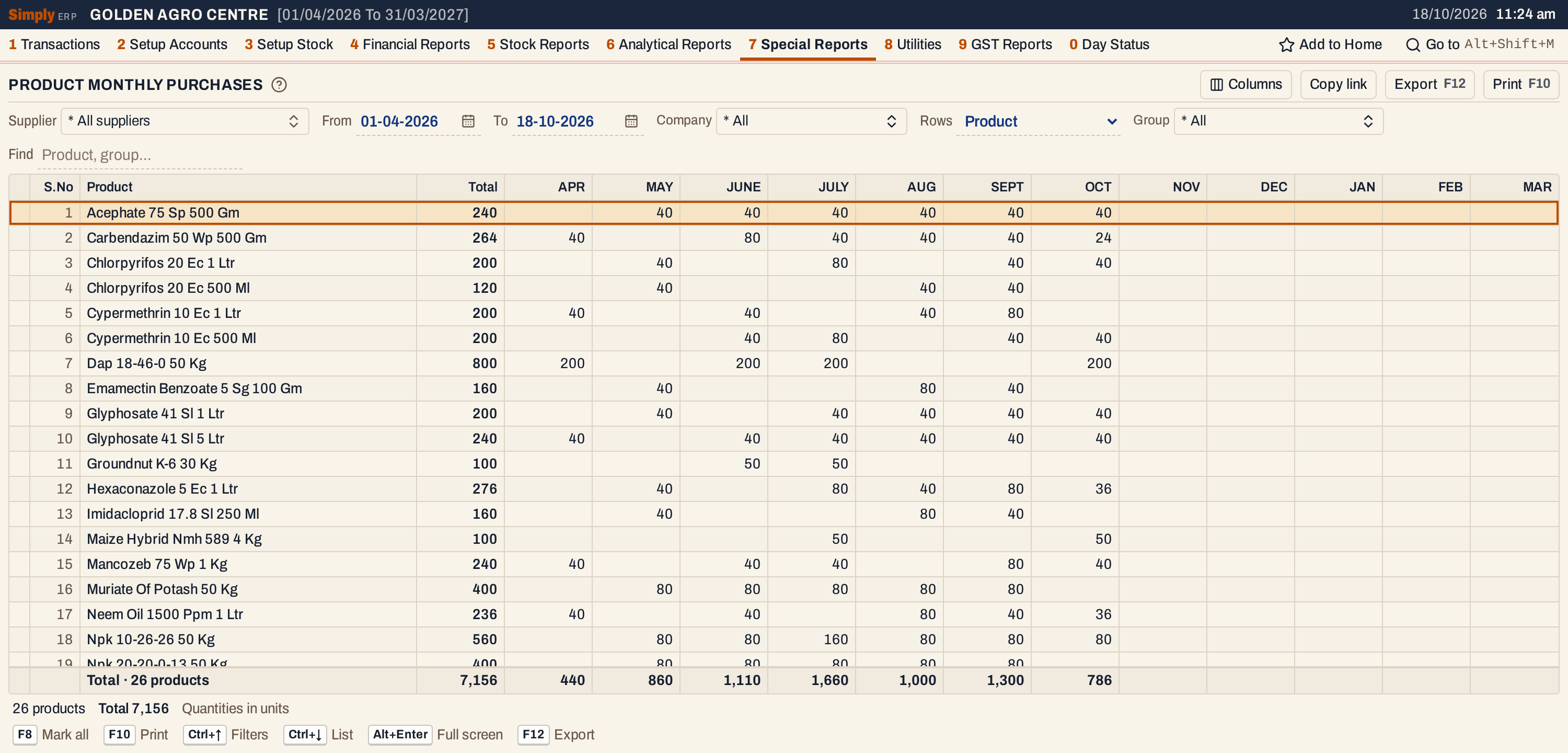 Each product has a row. The figures are units, as the purchase bills record them. NOV to MAR are empty because the books end on 18 October.
What it lists
One line for each product, or for each product group when Rows is on Group, that was bought in the period.
- Purchase bills, which add to the figures. With Supplier on all suppliers, a purchase with no supplier account counts too.
- Purchase returns, which take them off.
Sales are not in this report. Goods received on a delivery challan and not yet billed are not in it either.
Columns
| Column | What it shows |
|---|---|
| S.No | The number of the row. Hidden by Columns. |
| Product, or Group | The product’s name, or the product group’s name. |
| Total | The sum of the months, from April to March. |
| APR to MAR | The quantity bought in that month. A blank cell means nothing was bought that month. |
The totals line adds up each column. The status line gives the number of rows, the total and the unit.
Choices
| Choice | What it does |
|---|---|
| Supplier | * All suppliers (the default), or one supplier. The list has the accounts of type Supplier and Customer - Supplier, shows each one’s city and has a search box. |
| From, To | The period, from the financial year’s first day to today at first. Both days are included. A purchase bill counts on the date its goods were received (Recd. on the bill), and a purchase return on its own date. |
| Company | Only the products of the chosen manufacturers. * All is the default. |
| Rows | Product (the default) gives one line for each product. Group gives one line for each product group. |
| Group | Only the products of the chosen product groups. * All is the default. It has groups to choose from only with Rows on Product. |
| Find | Shows the rows whose name matches what you type. |
 The choices above the grid.
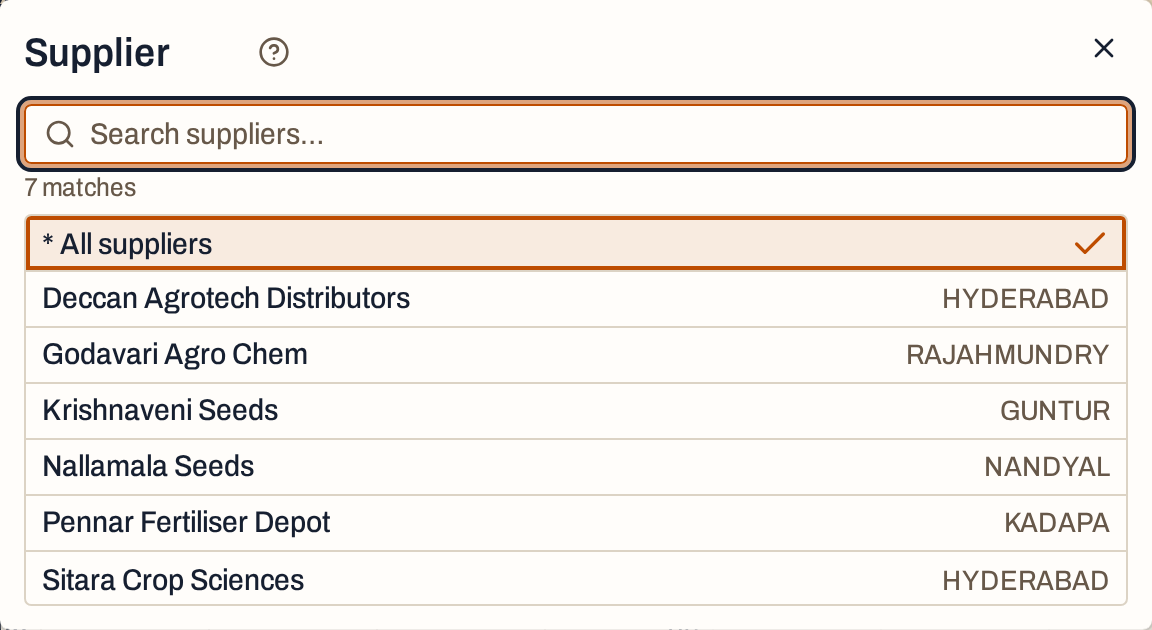 The Supplier list. Type in its search box to narrow it.
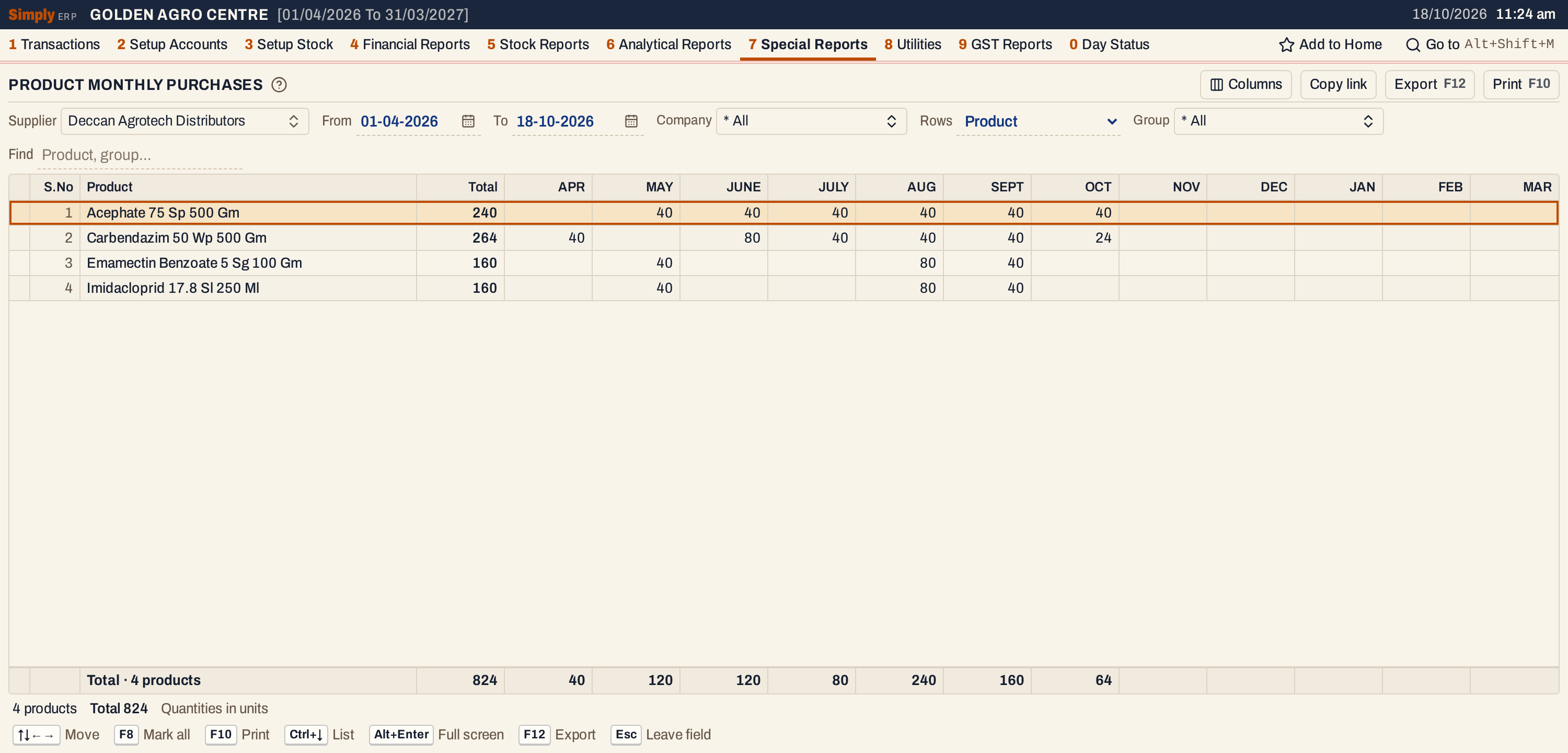 One supplier’s purchases. The four products add up to a total of 824 units.
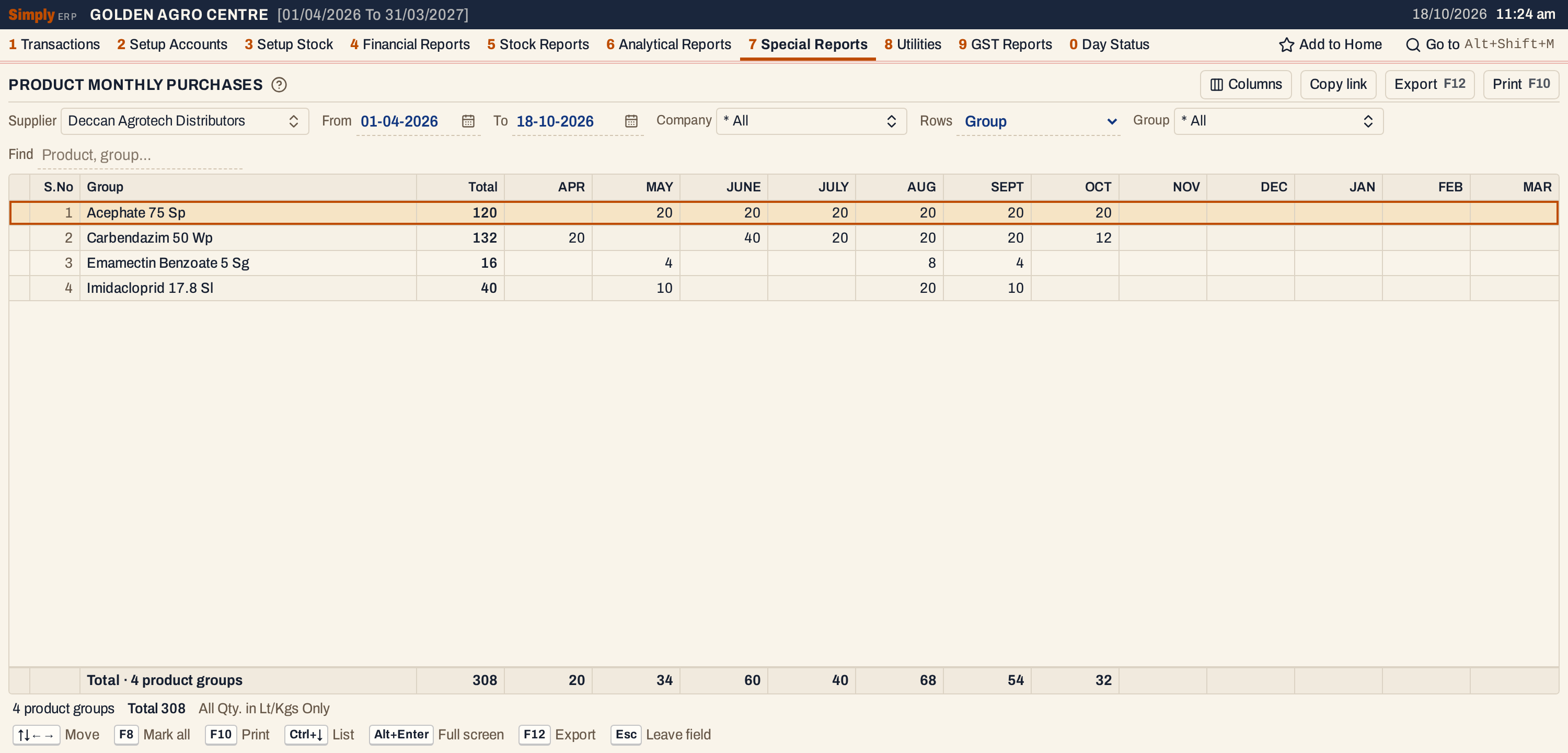 Rows on Group. The figures are litres or kilograms, not units: the 240 units of Acephate 75 Sp 500 Gm in the picture above are 120 kg.
How the figures are worked out
For each purchase bill line of an item, in the period, from the chosen supplier and manufacturer:
- Product rows add the units on the bill to the month of the bill’s received date. A purchase return takes its units off the month of the return. Each month is rounded to two decimal places.
- Group rows add the units multiplied by the size in litres or kilograms of the item’s packing (set in Packings). An item whose packing has no size adds nothing. Each month is rounded to five decimal places.
- Total = the sum of the twelve months, and each totals line is the sum of its column.
Only item lines count. Charges on a bill, such as freight, are not quantities. The months follow the financial year: APR is April and MAR is March.
 The status line gives the number of rows, the total and the unit. Group rows say All Qty. in Lt/Kgs Only.
Open, mark, print and export
- Enter on a product opens its Stock Ledger for the same period. On a group it opens the Stock Statement for the same period, with the group’s name typed in Find.
- F2 marks a row and F8 marks them all. F10 then prints only the marked rows.
- F10 prints the report with the period, the unit, the supplier and your choices. Columns hides S.No and months, and the print leaves them out too.
- F12 saves the printed report as an Excel workbook, with the figures as numbers.
- Alt+Enter gives the whole window to the list.
Updated 4 November 2026.