Rate Difference Statement
On this page
The Rate Difference Statement compares the price on each bill with the price you actually agreed with the customer or supplier. Use it when a supplier allows a lower rate after you were billed, or when you allow a customer a rate difference: it lists the lines, works out the difference in rupees, and prepares the GST credit note for sales.
Open the report
Press Alt+7 for Special Reports, then D. The report opens with the cursor on Party and nothing listed. Type part of the party’s name and press Enter on the account.
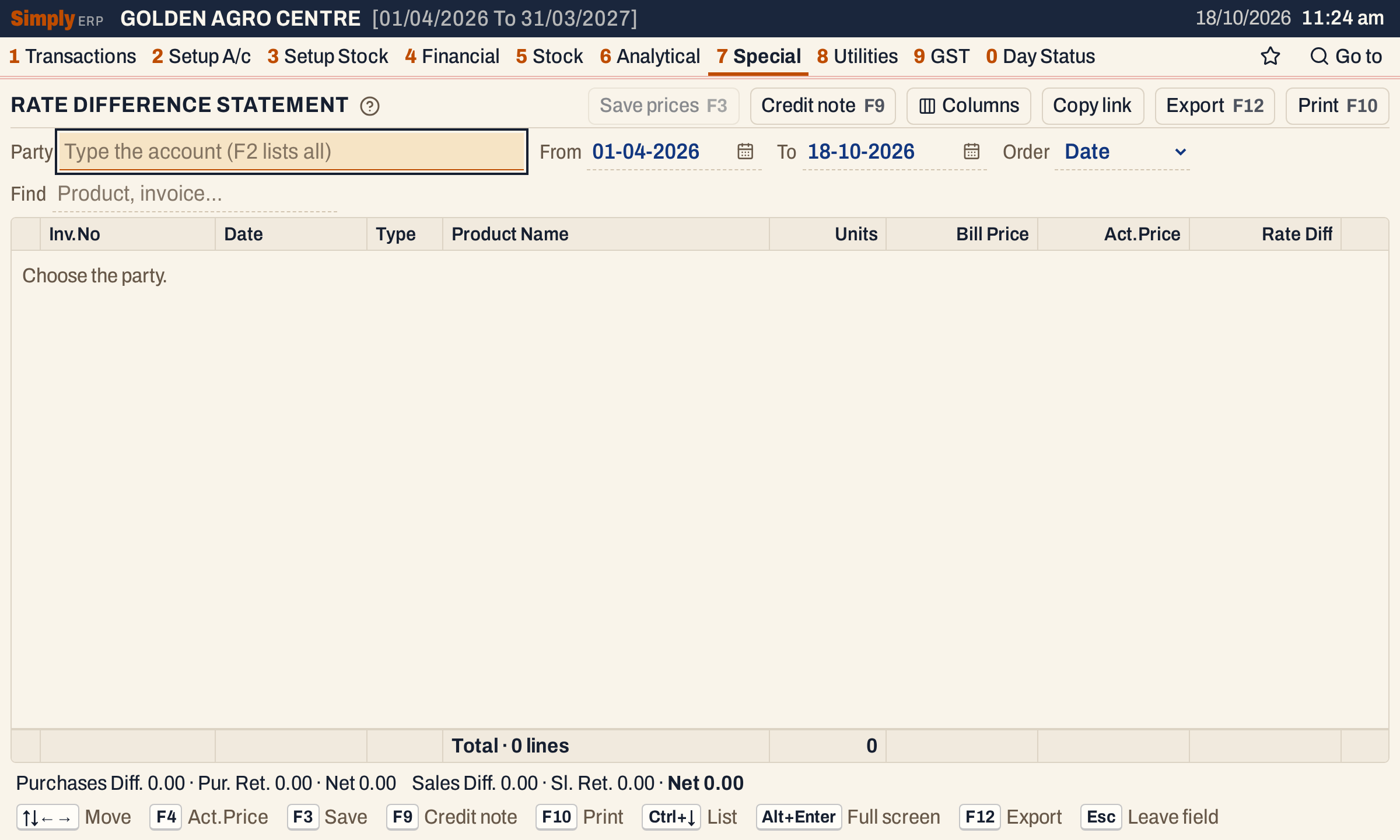 Nothing is listed until you choose a party. The period is the financial year up to today.
The statement then lists every stock line billed with the party. Sri Lakshmi Agro Traders has 53 lines. None has an actual price yet, so there are no differences.
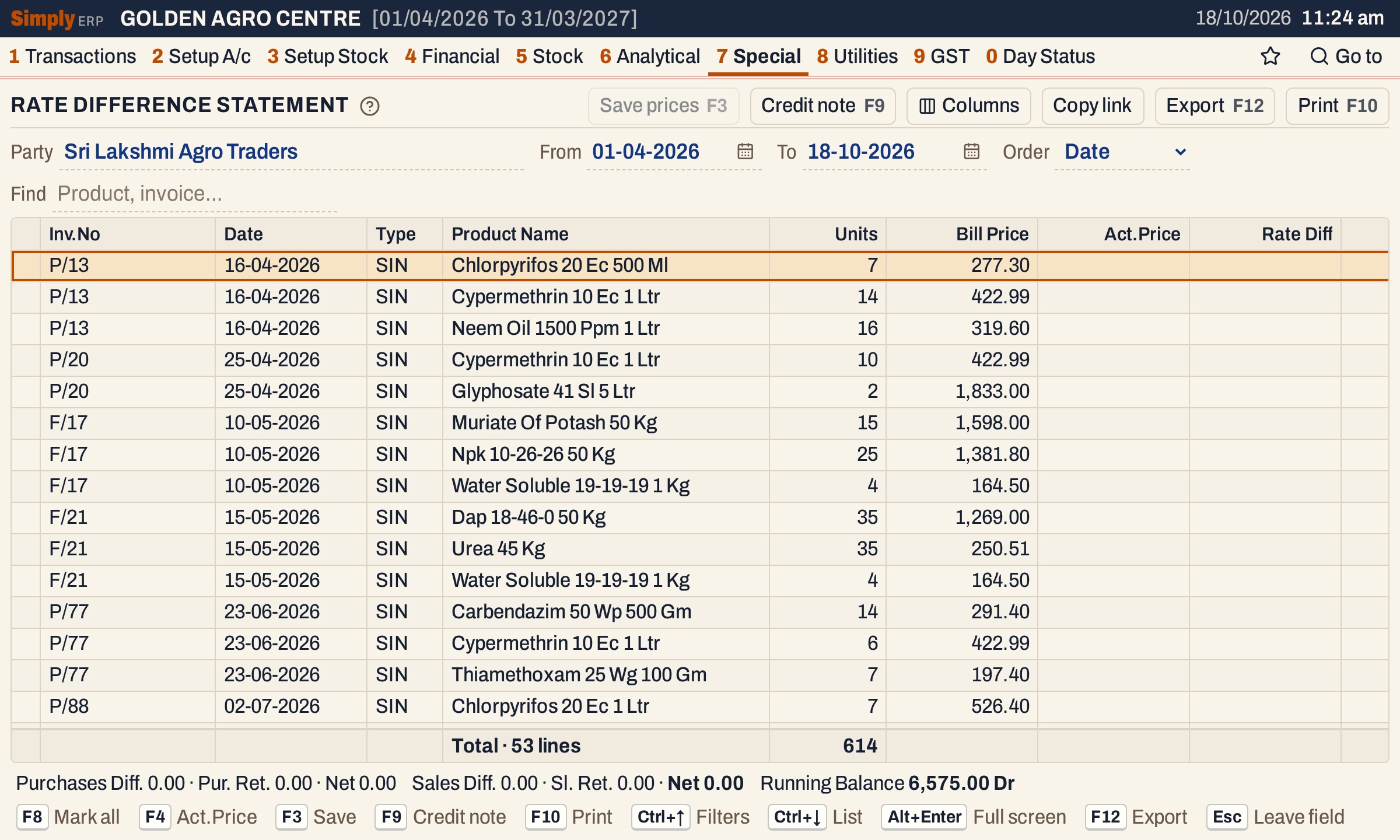 One line for each item of each bill. Act.Price is empty until a price is entered.
What it lists
One line for each item line of the party’s bills posted in the period, both days included:
- sales bills (type SIN) and sales returns (SR), which a customer has;
- purchase bills (PIN) and purchase returns (PR), which a supplier has.
An account that is both a customer and a supplier shows all four. Charge lines such as freight are not listed, only items. The party can be a customer, a supplier, a customer who is also a supplier, or a farmer.
The period is worked on the date a bill was posted. For a sale that is the bill’s date; a purchase bill is posted on its Recd. date, which can differ from the bill’s date shown in the Date column.
Columns
| Column | What it shows |
|---|---|
| Inv.No | The bill’s number. |
| Date | The bill’s date. |
| Type | SIN sale, SR sales return, PIN purchase or PR purchase return. |
| Product Name | The item. |
| Units | The quantity on the line. |
| Bill Price | The price per unit on the bill, worked out as described below. |
| Act.Price | The actual price: the price agreed with the party, if one has been recorded for the line. It includes GST, like the Bill Price. |
| Rate Diff | Bill Price − Act.Price, when there is an actual price. Hide it with Columns. |
| Diff.Amt | Units × Rate Diff. A negative amount is shown in red. |
The totals line counts the lines and adds up the Units and Diff.Amt columns. On a 1200-pixel window the right-hand columns are off to the right; scroll the grid sideways to see Diff.Amt.
Choices
| Choice | What it does |
|---|---|
| Party | The customer or supplier. There is no default. |
| From, To | The period, both days included. The default is the financial year up to today. |
| Order | Date (the default), Product or Inv. No.: the order of the lines. Date puts the lines in bill date, bill number and product order; Product in product, date and bill number order; Inv. No. in book and number order. |
| Find | Shows only the lines whose product, bill number, type, company or date match what you type. Every word you type must match; a word of three letters or more also matches when its letters appear in that order, close together. The status line still adds up every line of the party. |
Click a column title to sort by it, and click it again to reverse. Every choice is kept in the page address, so Copy link gives a link that opens the same report.
 The choices of the report once a party is chosen.
Entering the actual prices
The actual price is recorded on the bill line. You can type it on the bill, in its optional Agreed column, or enter it here, where you see the difference at once.
- Move to a line with the arrow keys and press F4. An Act.Price box opens below the grid, showing the product, the bill number and the bill price.
- Type the actual price and press Enter. The price is kept and the cursor moves to the next line. Esc cancels, and 0 clears a price (when you save, the screen asks you to confirm the cleared prices).
- Press F3, or click Save prices, to save every price you typed.
If you type a price higher than the bill price, the screen asks you to confirm it. A price is not saved until you press F3: the lines you changed are underlined, the Save prices button counts them, and the status line says how many are not saved.
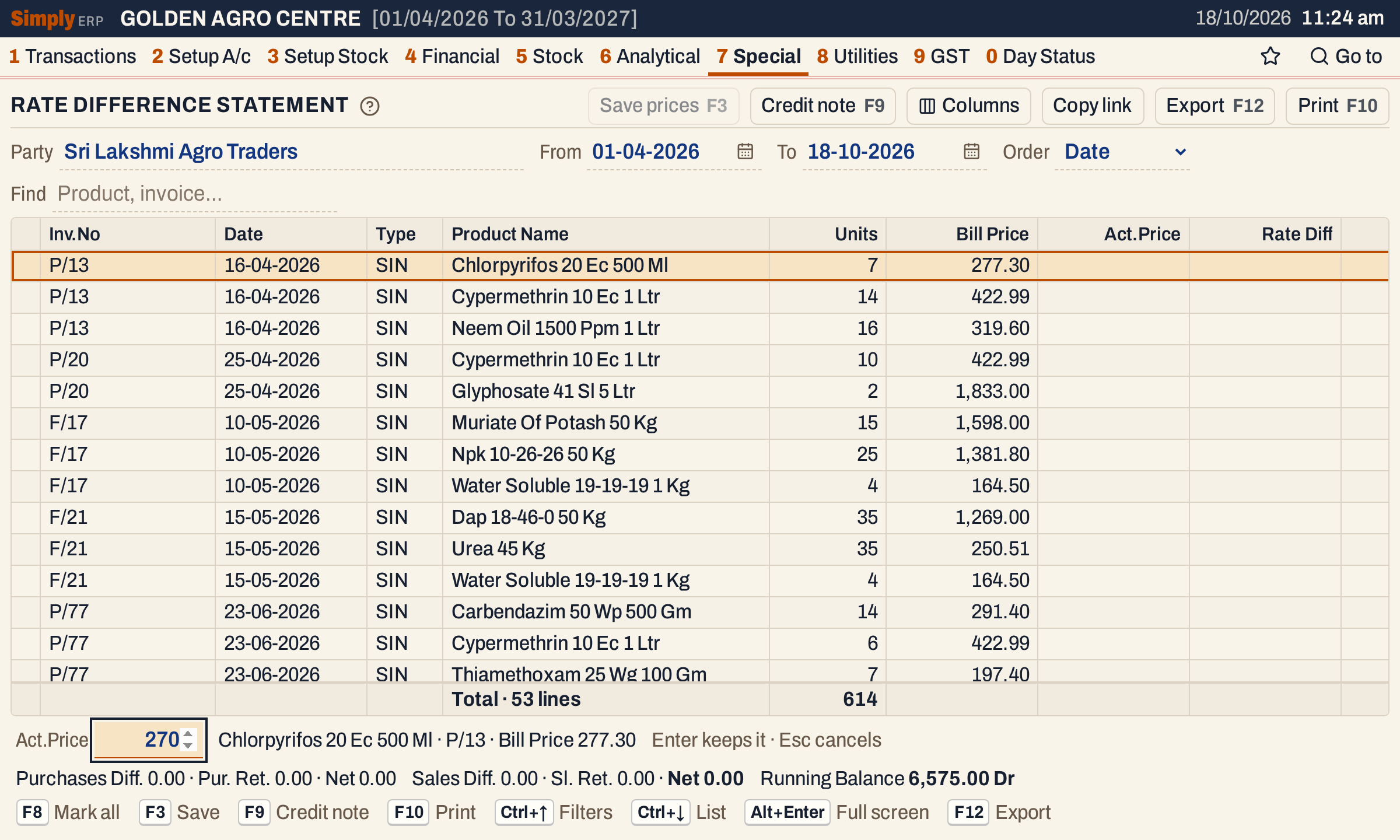 F4 on the first line. Enter keeps the price and moves to the next line.
Here prices were typed on four lines. Each line shows its rate difference and its amount.
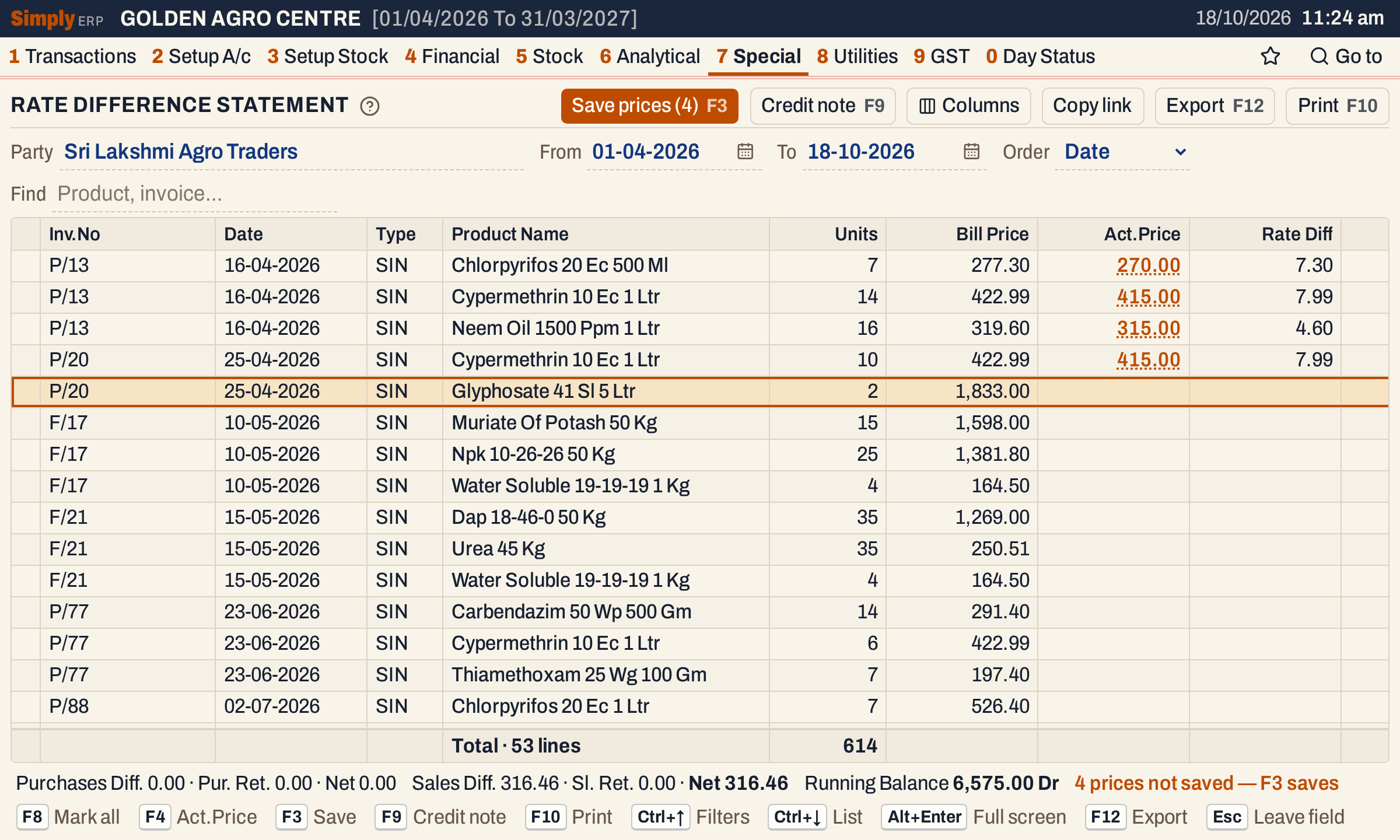 Chlorpyrifos 20 Ec 500 Ml: 277.30 − 270.00 = 7.30 a unit. The Save prices button counts the four prices not yet saved.
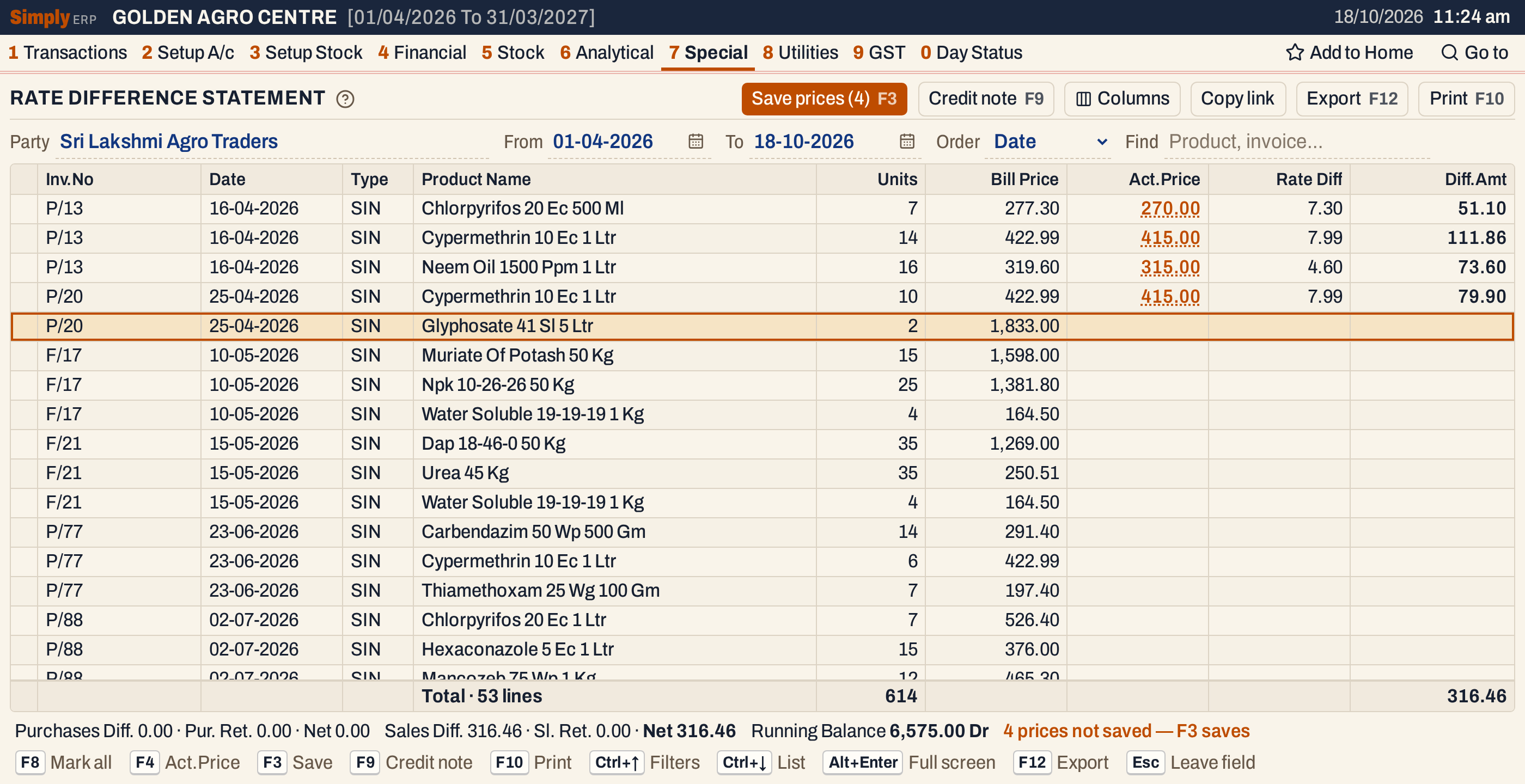 On a wider window every column fits. The first line is 7 units × 7.30 = 51.10, and the four lines add up to 316.46.
Saving only records the actual price. It does not change the bill, its amounts, its stock or its postings, but the change is added to the bill’s history.
 Before saving, the status line warns that the prices are not saved.
 After F3 the message says how many prices were saved.
How the figures are worked out
- Bill Price = the unit cost of the line, to two decimals. It is the line’s amount with GST divided by its units: for a party with a GSTIN, the taxable amount plus GST at the line’s rate; for a party without one, the line’s net amount. Charges on the bill that are set to be added to the cost of the goods are shared in. It is not the quoted price before discount.
- Rate Diff = Bill Price − Act.Price, when Act.Price is not zero. With no actual price, or 0, there is no difference. A line whose actual price is above its bill price has a negative difference.
- Diff.Amt = Units × Rate Diff, rounded to the paisa.
- Purchases Diff., Pur. Ret., Sales Diff. and Sl. Ret. = the Diff.Amt of all lines of each type, added up. They cover every line of the party in the period, not only the lines Find leaves on the screen.
- Net for purchases = Purchases Diff. − Pur. Ret. Net for sales = Sales Diff. − Sl. Ret. Returns are taken off.
- Running Balance = the party’s balance at the end of the To day, from its opening balance and every posting to the account, with Dr or Cr.
The totals line adds up every Diff.Amt on the screen as it is shown, without taking the returns off. The Net figures in the status line are the ones to use.
For a supplier the bills are purchases. Here two prices were typed on purchase lines of Pennar Fertiliser Depot: Dap 18-46-0 50 Kg, 200 units billed at 1,312.50 and agreed at 1,300.00, a difference of 12.50 × 200 = 2,500.00, and Muriate Of Potash 50 Kg, 80 units billed at 1,673.60 and agreed at 1,660.00, a difference of 13.60 × 80 = 1,088.00. Together, Purchases Diff. is 3,588.00.
 The purchase differences of a supplier, and the balance owed to the supplier.
Open, mark, print and export
- Enter on a line opens the bill. Back returns to the statement.
- F2 marks a line and F8 marks every line on the screen. When any are marked, F10 prints only those, and the print says Marked lines only.
- F9 (Credit note) prepares a GST credit note from the marked lines. Mark only sales or sales return lines that have a difference and no credit note yet, save the prices first, and the marked lines together must have a positive net difference. The credit note opens on the note screen for you to check and save; see Rate difference notes. The help on the screen says up to 15 lines go into one note.
- F10 prints the statement under the title RATE DIFFERENCE STATEMENT [SUMMARY], with the party’s name and the period. The print groups the lines by type, as PURCHASES, PURCHASE RETURNS, SALES and SALES RETURNS, with each company above its products, and ends with the total of each type, the net difference and the running balance.
- F12 saves it as an Excel workbook.
- Alt+Enter gives the whole window to the list.
The read-only SimplyERP Online shows the statement but has no F4, F3 or F9, because it cannot change a bill.
Updated 4 November 2026.