Near Expiry Stocks
On this page
The Near Expiry Stocks report lists the batches you have bought, earliest expiry first, with each batch’s number and its manufacturing and expiry dates. Use it to find the batches to sell first, return to the supplier or write off. A date that has already passed is shown in red.
Open the report
Press Alt+7 for Special Reports, then R. The report opens with every category, the earliest expiry at the top, and the cursor on Category.
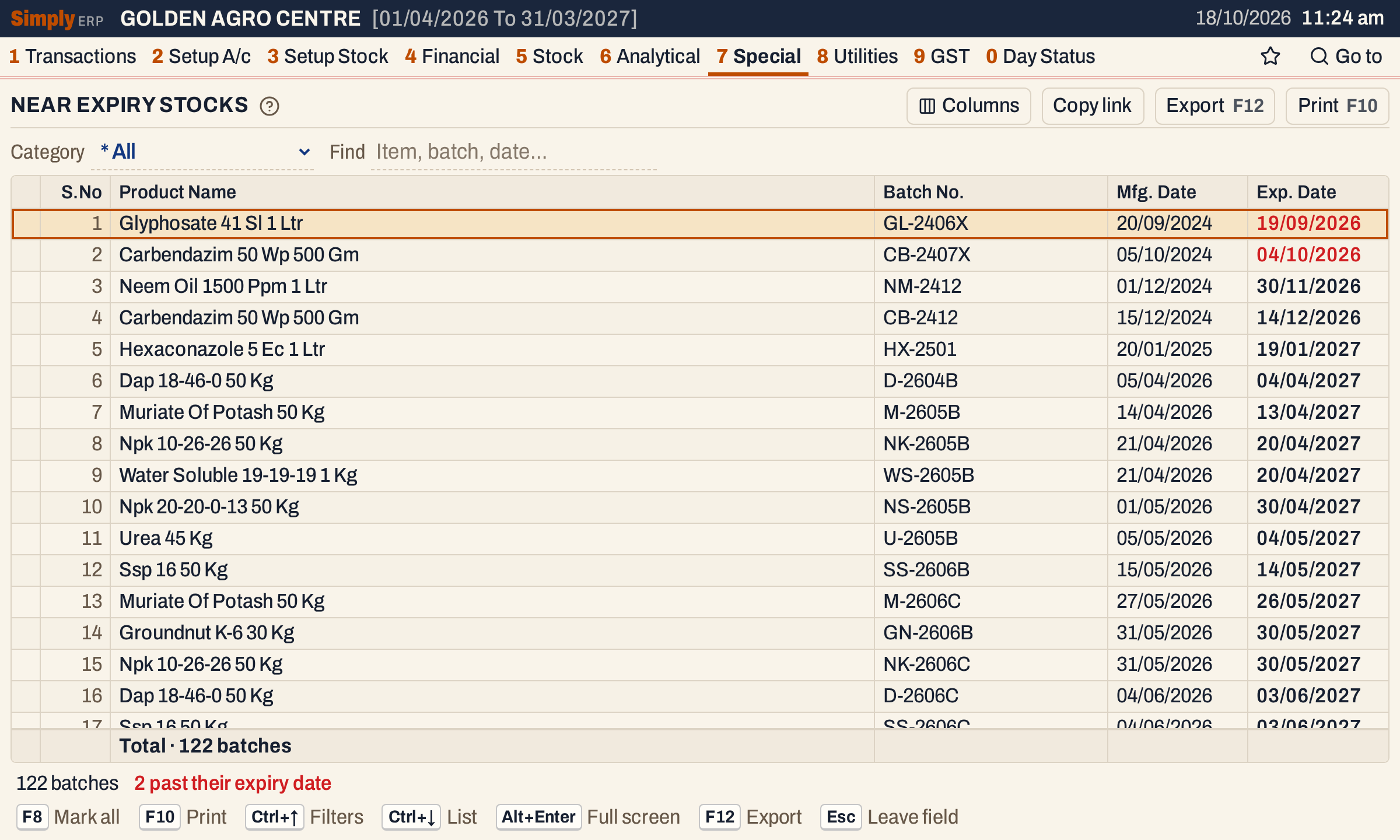 The first two batches expired before today (18-10-2026), so their dates are red.
What it lists
One line for each item line of a purchase bill, and for each purchase received without a bill that has not been billed yet. The report reads:
- purchase bills of any date, not only the financial year, with the batch number and the manufacturing and expiry dates written on each item line;
- goods received and not yet billed, with the batch recorded on the receipt, for the quantity not yet taken into a bill.
It does not look at the stock you have left. A batch you have sold out is still listed, and purchase returns do not remove a line. Opening stock is not listed, because it has no purchase bill. A batch bought on two bills has two lines. Only items are listed, not charges.
The count in the totals line and the status line is therefore a count of lines.
Columns
| Column | What it shows |
|---|---|
| S.No | The line’s number in the current order. Hide it with Columns. |
| Product Name | The item’s name. |
| Batch No. | The batch number on the bill line. |
| Mfg. Date | The manufacturing date on the bill line, as DD/MM/YYYY, blank when none was written. Hide it with Columns. |
| Exp. Date | The expiry date, as DD/MM/YYYY, blank when none was written. In bold, and in red once the date has passed. |
The totals line counts the batches. The status line gives the count and how many of the lines are past their expiry date; it shows in red when there are any.
 A date is red when it is before the working date. A batch that expires on the working date itself is not red.
Choices
| Choice | What it does |
|---|---|
| Category | Only the items of this category. The default is * All. |
| Find | Shows only the lines that match what you type in the product name, batch number or either date. Every word you type must match; a word of three letters or more also matches when its letters appear in that order, close together. |
The report has no period: it always covers every purchase. Click a column title to sort by it, and again to reverse. Exp. Date sorts by the date itself, not by the text. Every choice is kept in the page address, so Copy link gives a link that opens the same report.
 The choices of the report as it opens.
Sort
The usual order is the earliest expiry first. Lines with no expiry date come before the dated ones, and lines with the same date follow in product name and batch order. Click Product Name to list the batches by product instead; the batches of one product stay in expiry order.
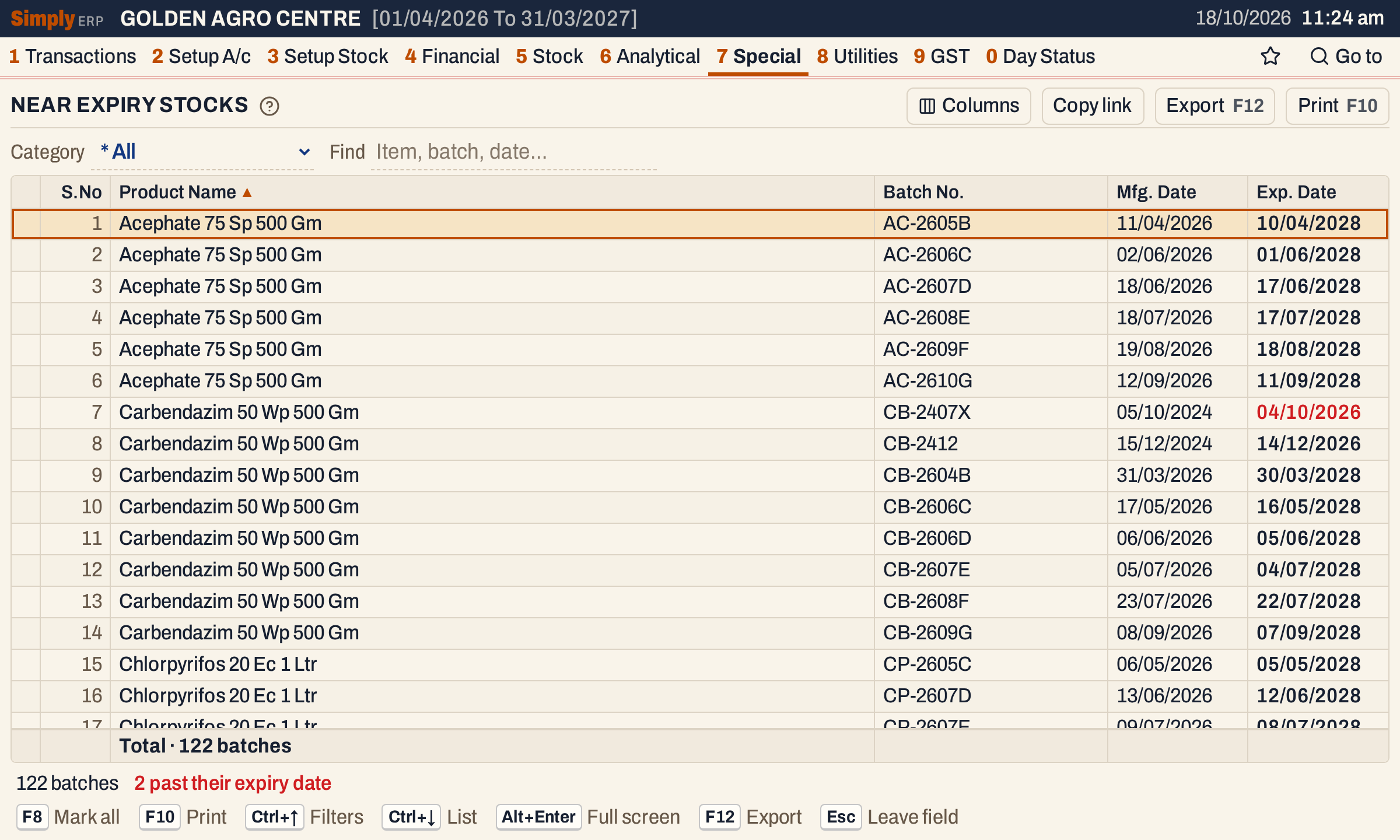 Sorted by Product Name. The arrow on the title shows the column the list is sorted by.
Category
Choose a category to see only its items. Here SEEDS has 6 batches.
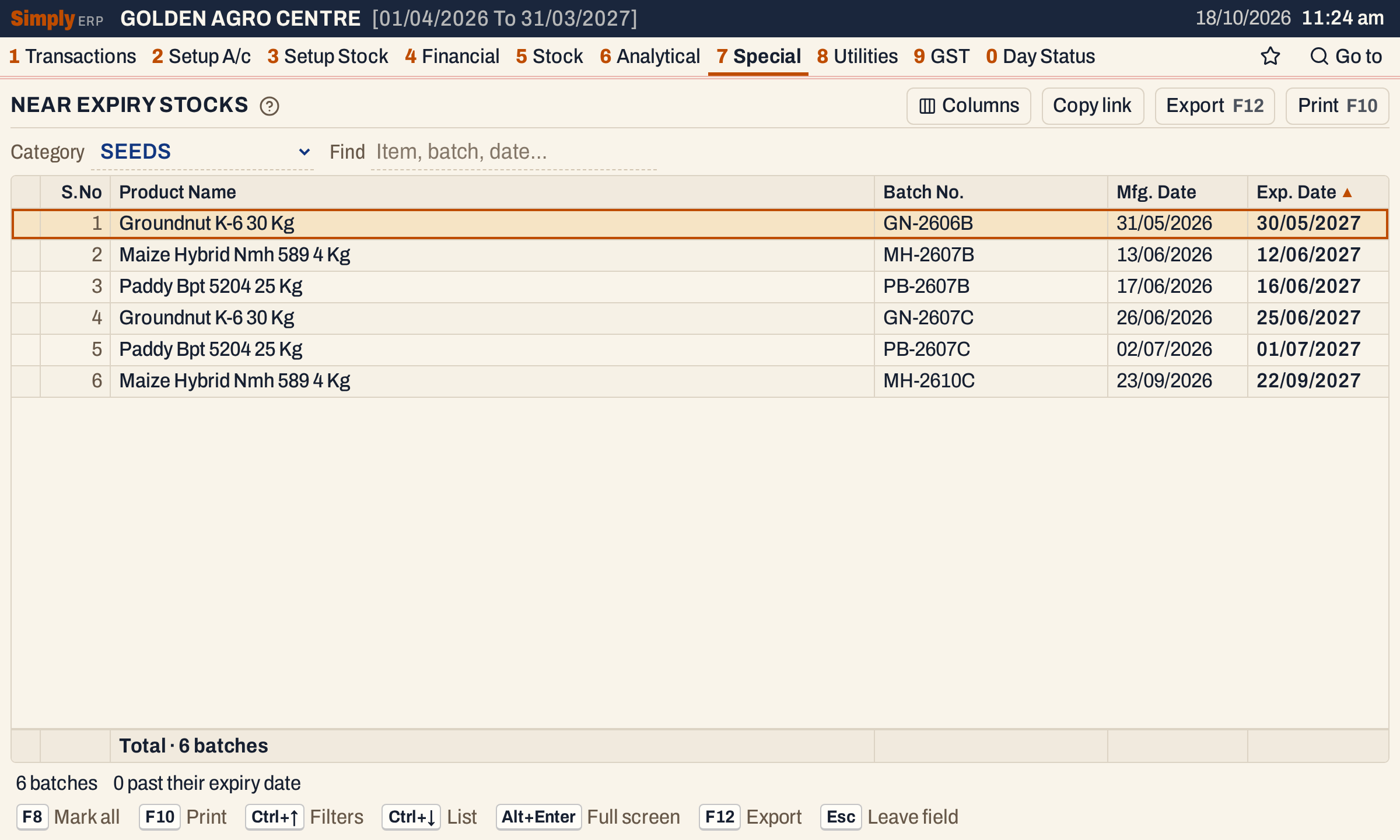 Only the items of the SEEDS category.
Find
Type a product name, a batch number or a date. Here the word carbendazim leaves 8 batches of one product, and the first is past its expiry date.
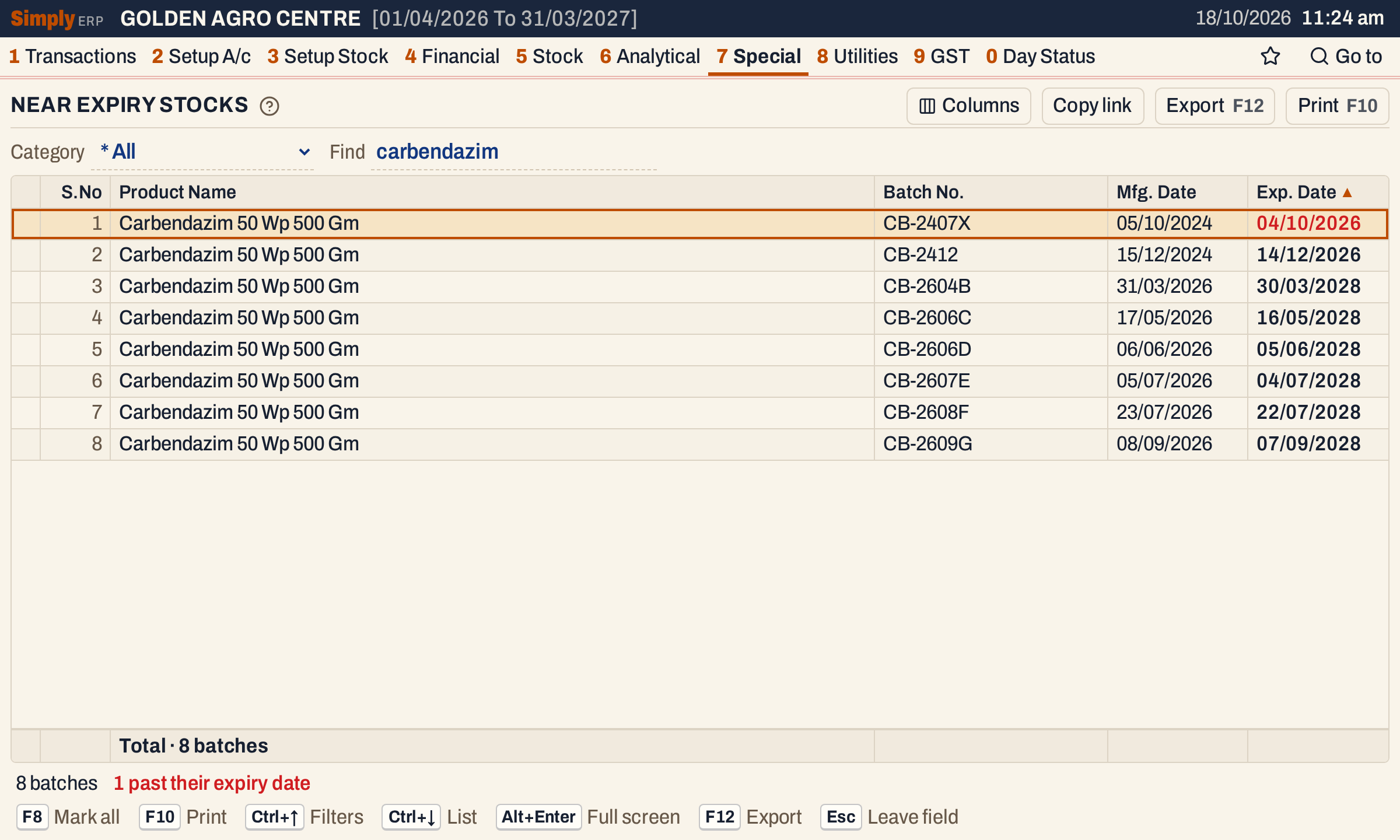 Find narrows the lines, the count and the status line.
How the figures are worked out
The report has no amounts. Each line shows what was written on the purchase bill (or the goods received note) for that item and batch: the batch number, the manufacturing date and the expiry date. Nothing is worked out from the stock in hand.
- Order: by expiry date, earliest first, with lines without an expiry date first. Lines with the same expiry date follow in product name, then batch number, then the order they were posted.
- Past their expiry date: a line is counted when its expiry date is before the working date shown at the top of the screen. The line whose expiry date is the working date is not counted.
- Count: the number of lines on the screen, after Category and Find.
To see how much of a batch is left, use the Batch wise Stock St. report.
Open, mark, print and export
- Enter on a line opens the Stock Ledger of its item for the financial year.
- F2 marks a batch and F8 marks every batch on the screen. When any are marked, F10 prints only those, and the print says Marked batches only.
- F10 prints the report as it is on the screen, under the title STOCKS - NEAR EXPIRY, with the category in its heading and any Find. The print has the columns Item Name, Batch No., Mfg. Date and Exp. Date, and leaves out the ones you hid.
- F12 saves it as an Excel workbook.
- Alt+Enter gives the whole window to the list.
Updated 4 November 2026.