Out.St. Detailed
On this page
Out.St. Detailed explains each customer’s outstanding. For the period it shows what they owed at the start, the sales billed to them, what they paid in cash and through the bank, what they returned, and what they owe now. The customers are grouped by area. A month wise view adds up the sales and receipts of every month.
Open the report
Press Alt+7 for Special Reports, then U. The report opens for the financial year from its first day to today, for all areas, in the Accounts view.
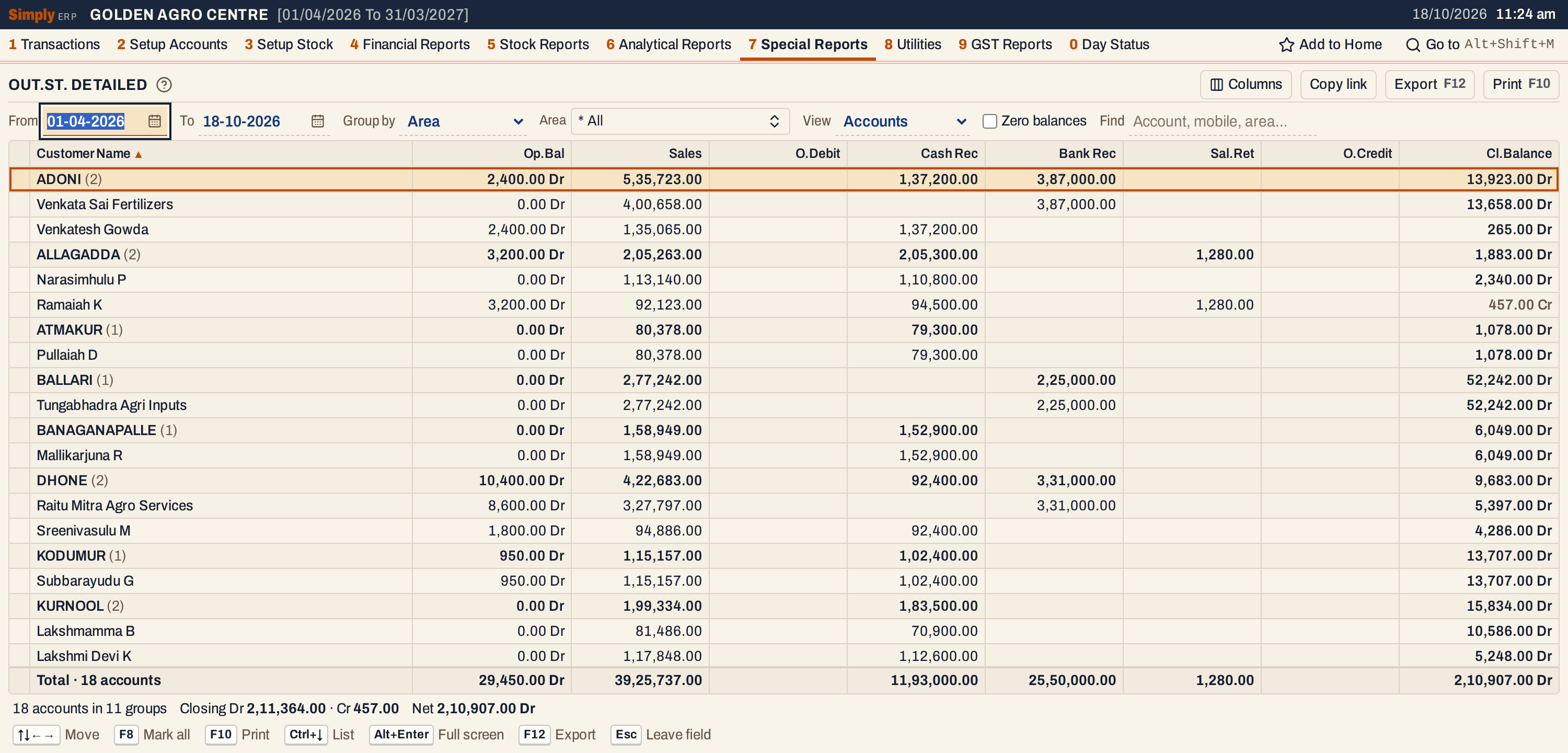 An area is a heading with the number of customers under it and their totals. This window is wider than usual to hold all the columns.
What it lists
One line for each account of type Customer, Customer - Supplier or Farmer whose place (city) is filled in. The place is the account’s area: an account with no place is left out. The areas are in name order, and the customers within an area in name order unless you sort by a column.
A customer whose closing balance is nil is left out. Tick Zero balances to list those that had an opening balance or any of the entries below in the period.
Columns
| Column | What it shows |
|---|---|
| Customer Name | The customer’s trade name, or the account name when there is no trade name. An area heading shows the area and, in brackets, the number of customers in it. |
| Op.Bal | The balance at the start of the period, marked Dr or Cr. |
| Sales | The sales bills debited to the customer in the period. |
| O.Debit | Every other debit in the period, such as a payment made to the customer, a debit note or a journal entry that debits the customer. |
| Cash Rec | Cash receipts credited to the customer in the period. |
| Bank Rec | Bank receipts, and journal entries that credit the customer, in the period. |
| Sal.Ret | Sales returns credited to the customer in the period. |
| O.Credit | Credit notes issued to the customer in the period. |
| Cl.Balance | The balance at the end of the period, marked Dr or Cr. |
An area heading carries the totals of its customers. Its Op.Bal and Cl.Balance are net: debits take away credits. The totals line under the grid counts the customers and adds up each column. The status line under it gives the number of customers and areas, the closing debits and credits added up separately, and their net.
Choices
| Choice | What it does |
|---|---|
| From, To | The period. Both dates must fall in the financial year. It opens with the first day of the year and today. |
| Group by | Area (the default). Representative lists only the customers that have a representative, still under their areas, and the next box then lists the representatives instead of the areas. |
| Area (or Representative) | Only the chosen areas. * All lists every area. |
| View | Accounts (the default): one line for each customer. Month wise: one line for each month. |
| Zero balances | Also lists customers whose closing balance is nil but that had activity. Accounts view only. |
| Find | Only customers whose name, mobile or area matches what you type. Accounts view only. |
| Columns | Hides any figure column. The print leaves it out too. Accounts view only. |
Click a column title to sort by it, and click again to reverse. The customers are sorted within each area. Every choice is kept in the page address, so Copy link gives a link that opens the same report.
 The choices above the grid.
How the figures are worked out
For each customer, SimplyERP adds up the postings to their account:
- Op.Bal = the opening balance entered for the account + everything posted to it before the From date. Debits count as positive and credits as negative.
- Sales = the debits of sales bills, from the From date to the To date, both days included. The amount is the bill’s total as posted to the customer.
- O.Debit = the other debits of the period, apart from sales bills and the opening balance.
- Cash Rec = the credits of cash receipts. Bank Rec = the credits of bank receipts and journals. Sal.Ret = the credits of sales returns. O.Credit = the credits of credit notes issued.
- Cl.Balance = Op.Bal + Sales + O.Debit − Cash Rec − Bank Rec − Sal.Ret − O.Credit.
The closing balance is worked out from the columns, so a credit posting that is none of the four credit kinds is not taken off.
For example, Venkatesh Gowda opens with 2,400.00 Dr, is billed 1,35,065.00 and pays 1,37,200.00 in cash. The closing balance is 2,400.00 + 1,35,065.00 − 1,37,200.00 = 265.00 Dr.
Ramaiah K opens with 3,200.00 Dr, is billed 92,123.00, pays 94,500.00 and has a sales return of 1,280.00 entered. The closing balance is 3,200.00 + 92,123.00 − 94,500.00 − 1,280.00 = −457.00, so it is a credit: Ramaiah K is owed that amount. The status line shows it as Cr 457.00 next to Closing Dr 2,11,364.00, and the net as 2,10,907.00 Dr.
The totals line adds the same way. Here 29,450.00 + 39,25,737.00 − 11,93,000.00 − 25,50,000.00 − 1,280.00 = 2,10,907.00 Dr.
Hide the columns you do not need
The Columns button lists the figure columns, and you tick the ones to show. Hiding O.Debit and O.Credit, which have no entries here, leaves the rest more room. The print leaves out the same columns.
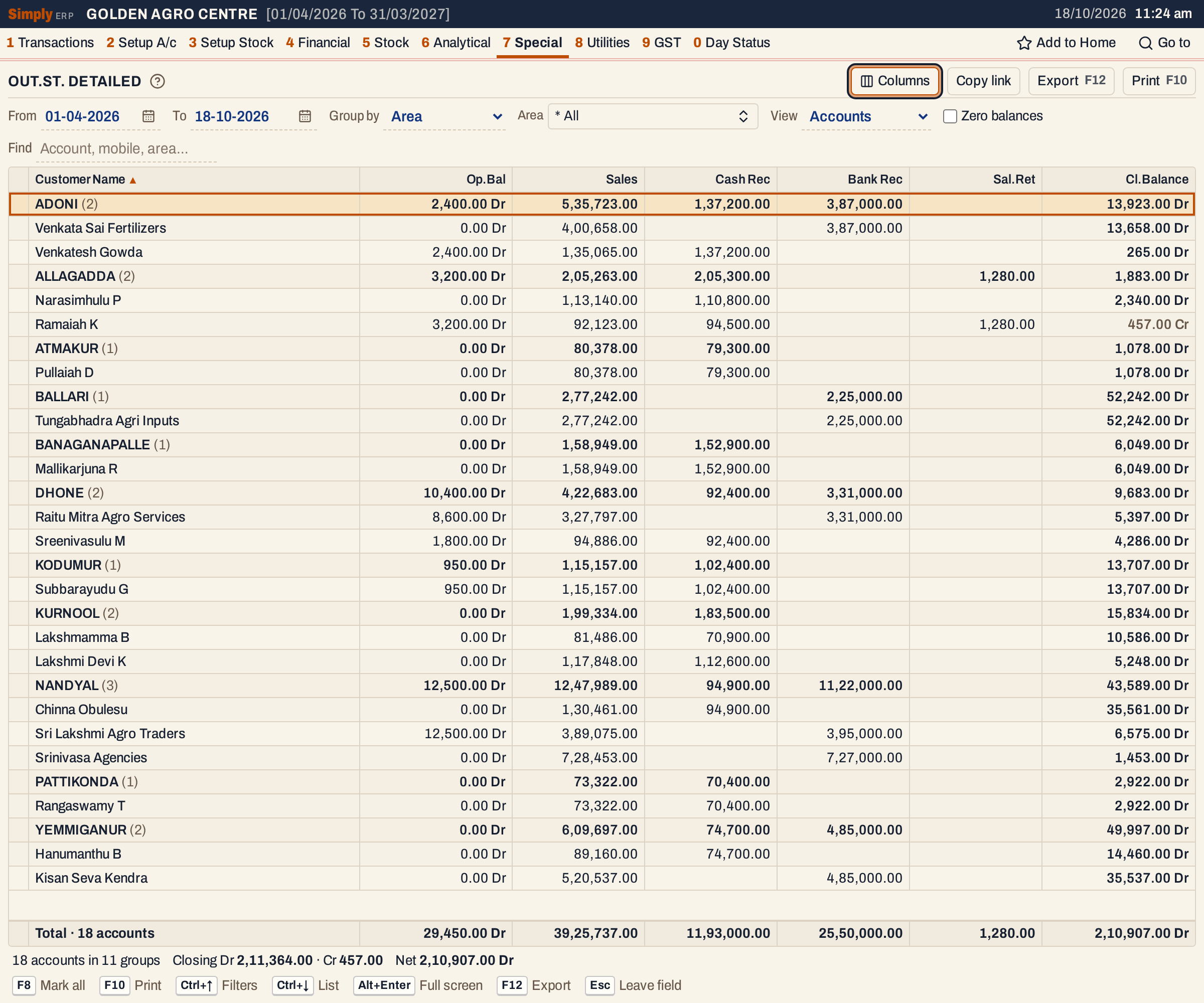 The same report without the two empty columns.
Month wise
Choose View Month wise for the totals of every month in the period: sales, cash receipts, bank receipts and sales returns, for the customers of the chosen areas. The Month wise view has no opening or closing balance, and it does not offer Zero balances or Find: every customer with a place counts, whatever the balance. Months are in date order, and a month with none of these entries is not listed. The last line, Grand Totals, adds up the months.
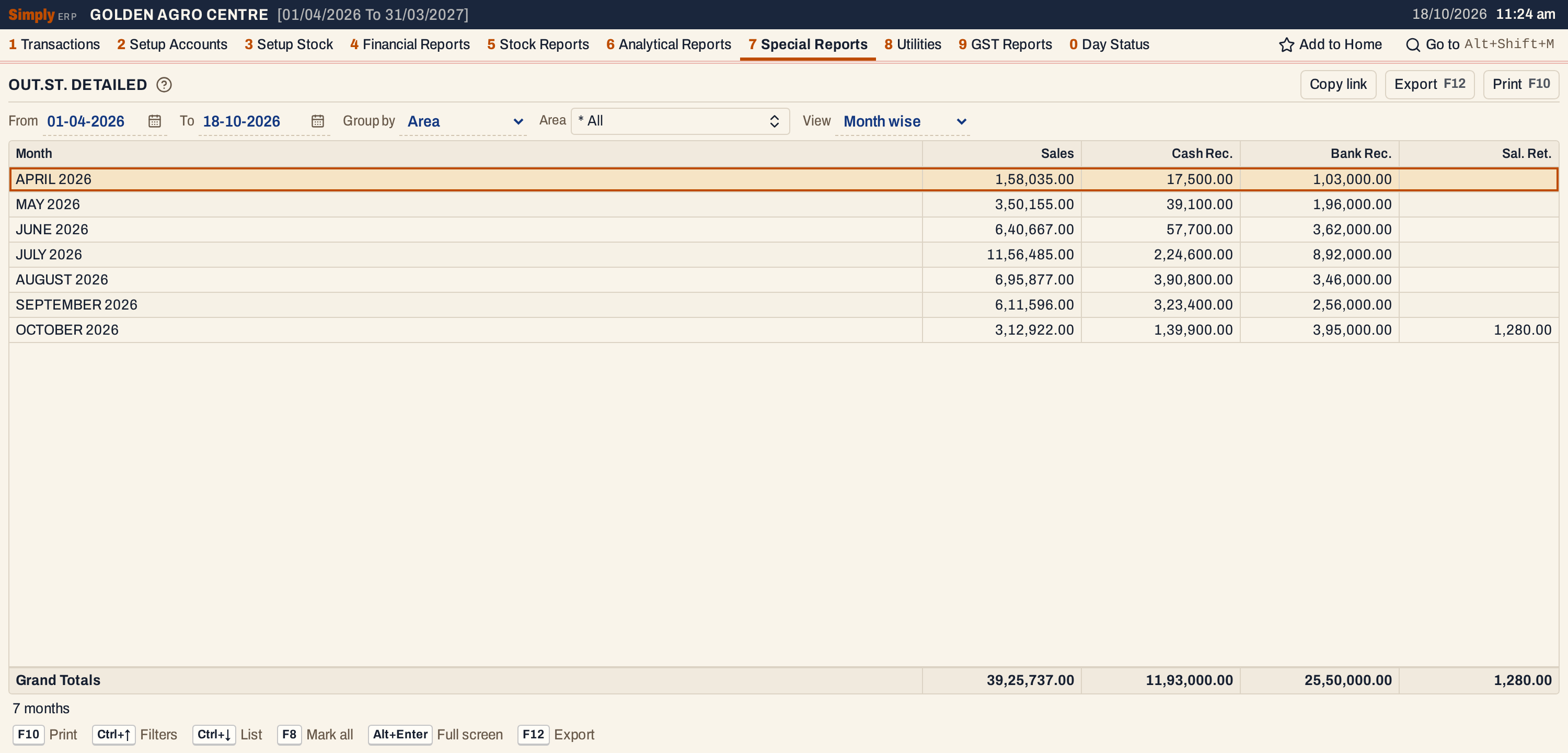 Seven months. Here the grand totals equal the totals of the Accounts view.
Open, mark, print and export
- Enter on a customer opens their Ledger for the same period. The Month wise view has no Enter, marking or Columns.
- F2 marks a customer and F8 marks them all. F10 then prints only the marked customers, with the area headings and totals worked out again for them.
- F10 prints the report as DETAILED CUSTOMERS OUTSTANDING St. with the period and your choices in its heading, the same columns as the screen, and after the last customer three lines: Totals, Debit balances and Credit balances, the last two splitting the opening and closing balances by side. The month wise view prints as MONTH WISE SUMMARY [OUTSTANDING].
- F12 saves what the print shows as an Excel workbook, with the figures as numbers.
- Alt+Enter gives the whole window to the list.
Updated 4 November 2026.