Record a receipt
On this page
A receipt records money that came in: a farmer paying cash at the counter, a dealer’s cheque, a transfer into your bank. It settles what the customer owes you and raises your cash or bank balance. You type who paid and how much, and F3 saves. Every row you fill becomes its own receipt with its own number, so one sitting at the counter can record many.
Open a new receipt
Press Alt+1 for the Transactions menu, B for Receipts, then N for New Entries. The other choice under Receipts, M (View / Modify / Delete / Print), lists the receipts already saved; see Change or delete a voucher.
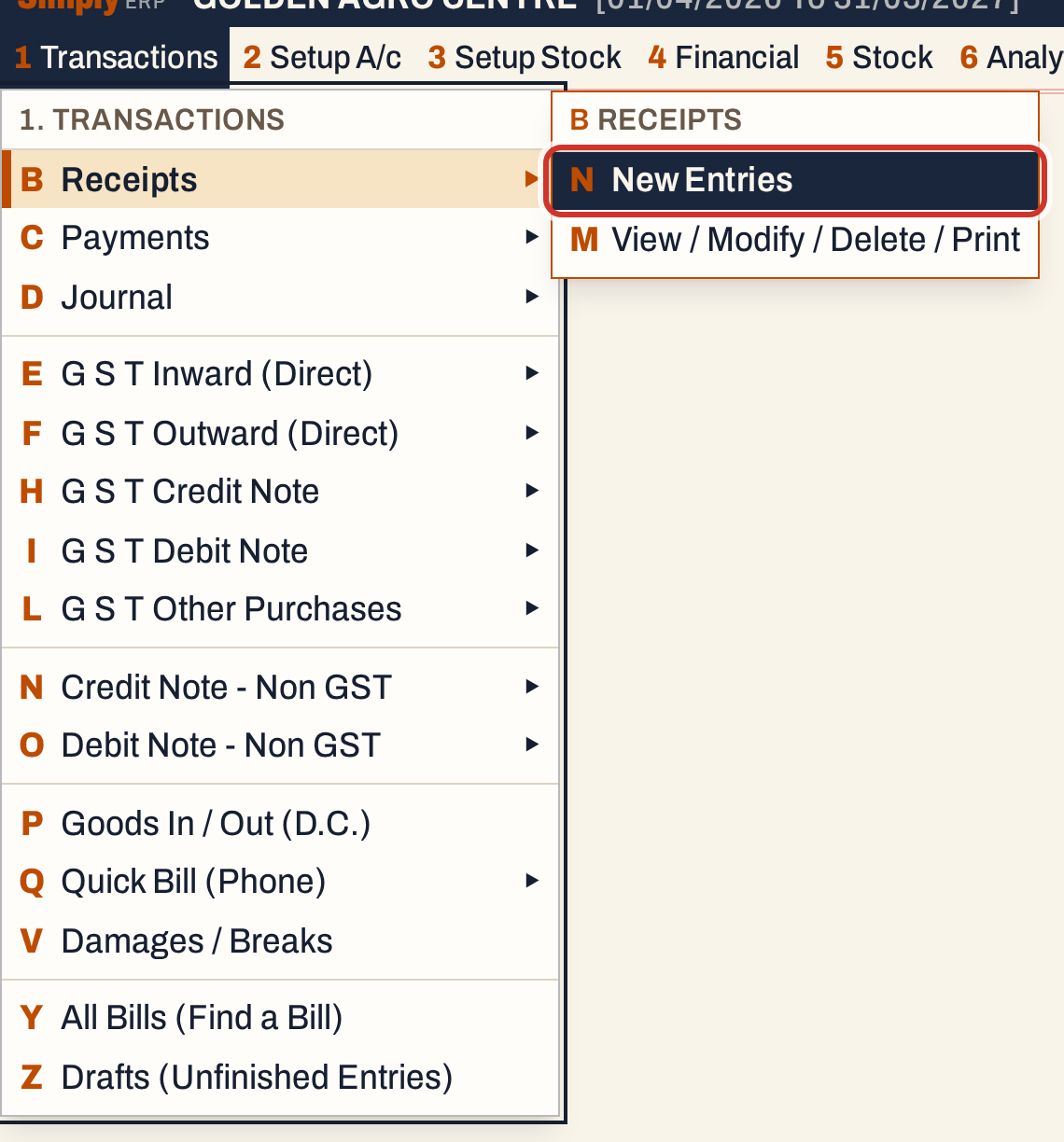 1 B N: Transactions, Receipts, New Entries.
The screen opens with the cursor on the first row, ready for the customer’s name. The line above the rows is the header, and it holds what every row of this sitting shares.
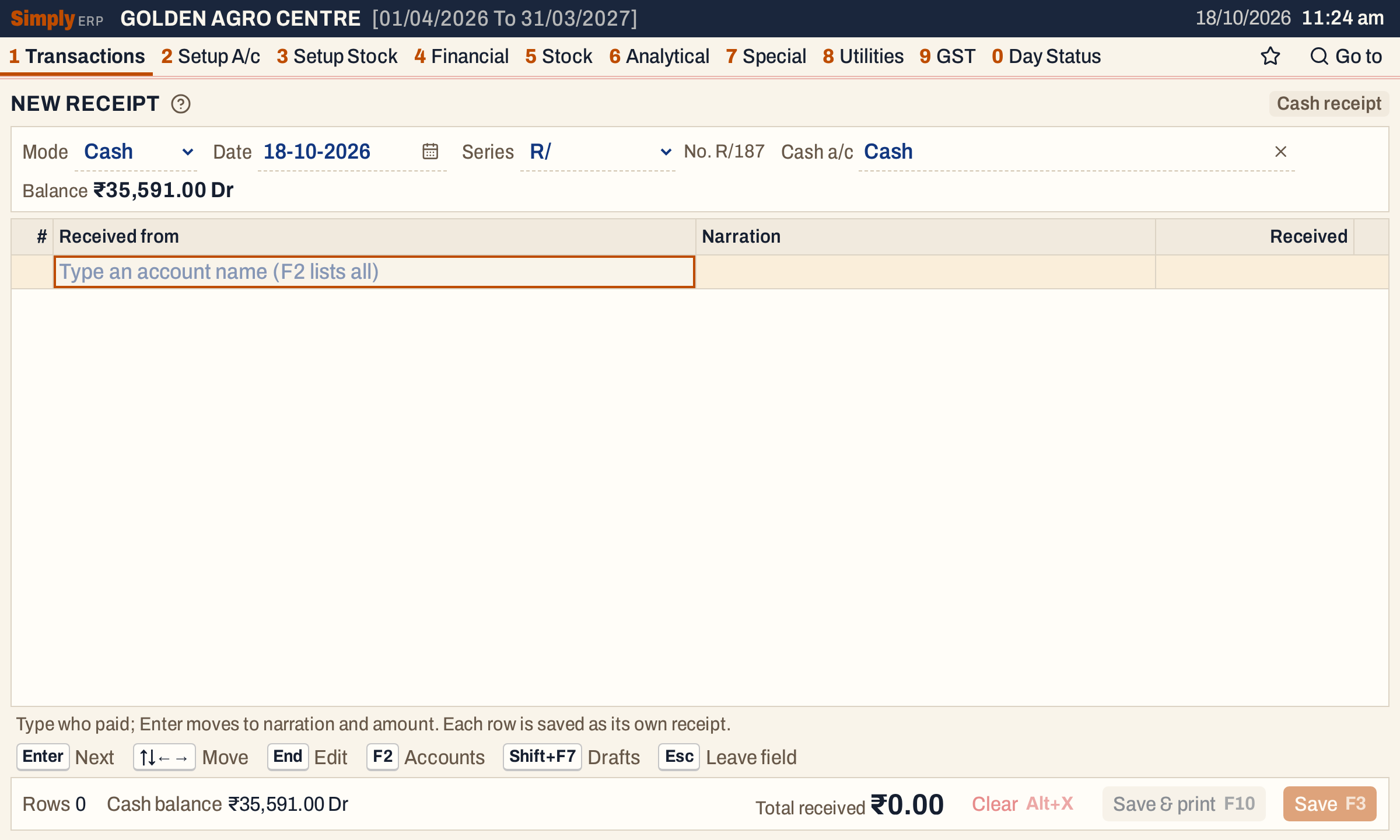 A new cash receipt. The next number, R/187, shows beside the series.
The header has four things:
- Mode: Cash or Bank.
- Date: starts on today’s working date. It must lie in the books’ financial year, or saving is refused.
- Series and the next number: the voucher series from Bill Books & Series (8 C). When the books have only one series for receipts it is chosen for you; when there are several, the screen starts on the series so you can choose one.
- Cash a/c or Bank a/c: the account the money goes into, with its balance. When the books have one cash account it is chosen for you.
A Type field comes first only when the books have more than one entry type for receipts; choose one there.
To change the header, press Shift+Tab or ↑ from the first row.
Record a cash receipt
Each row has three fields: who paid, a narration and the amount.
- Type part of the name in Received from. The list shows every matching account with its place and balance. F2 lists them all. Enter takes the highlighted one.
- Type the Narration, which is printed on the slip and shown in the ledger. F2 in this field lists the narrations saved in Saved Suggestions; any text can be typed instead.
- Type the amount in Received.
 Ramaiah K owes ₹823.00. Any customer, supplier or other account can be chosen.
The line under the rows shows the account you are on, its balance and what it will be after this entry. The footer shows the cash balance before and after, and the total received.
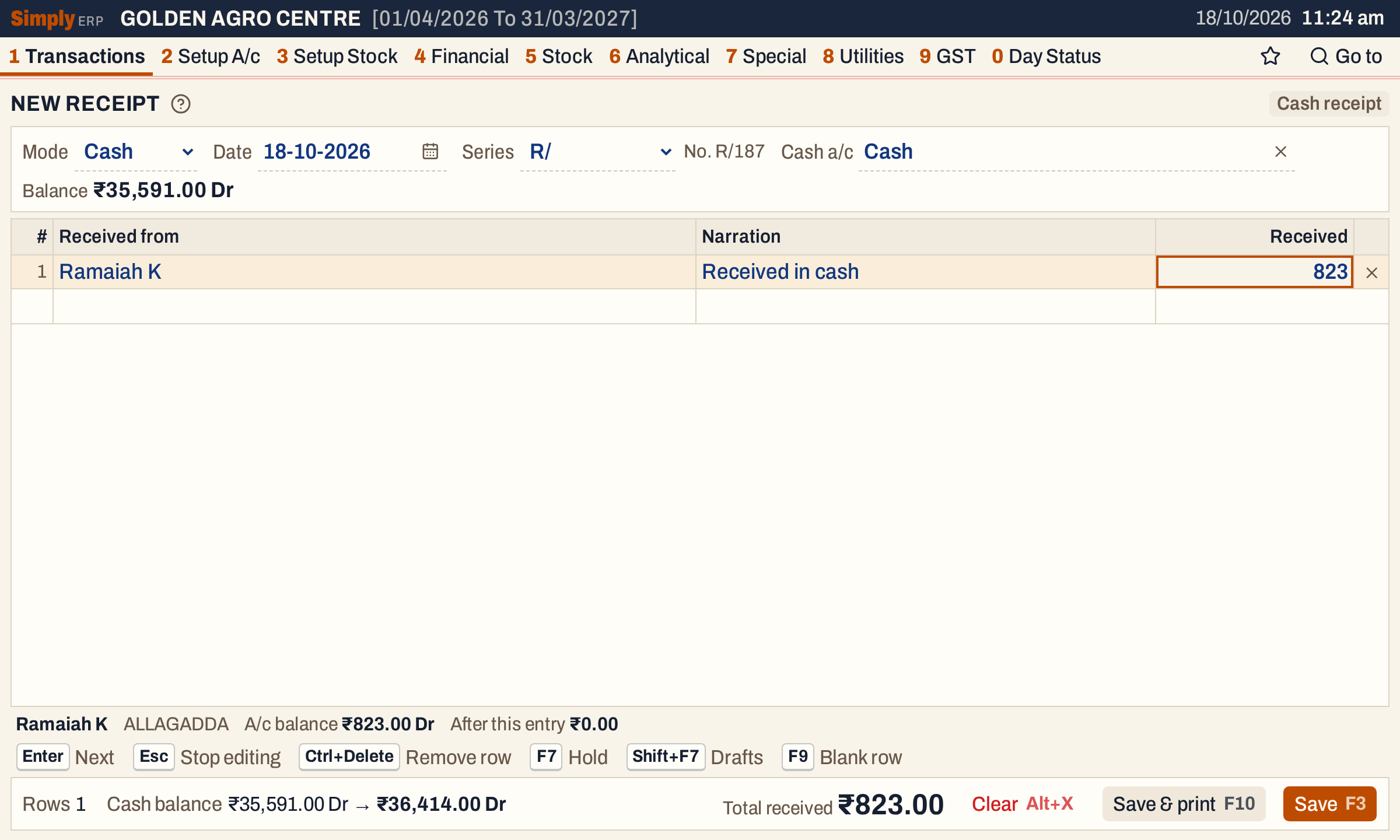 Ramaiah K pays all he owes. His balance goes to ₹0.00 and the cash balance rises by ₹823.00.
Press F3 to save. A notice says “1 receipt saved”. The rows clear for the next receipt, and the header stays: the same mode, date, series and cash account, with the next number and the new cash balance.
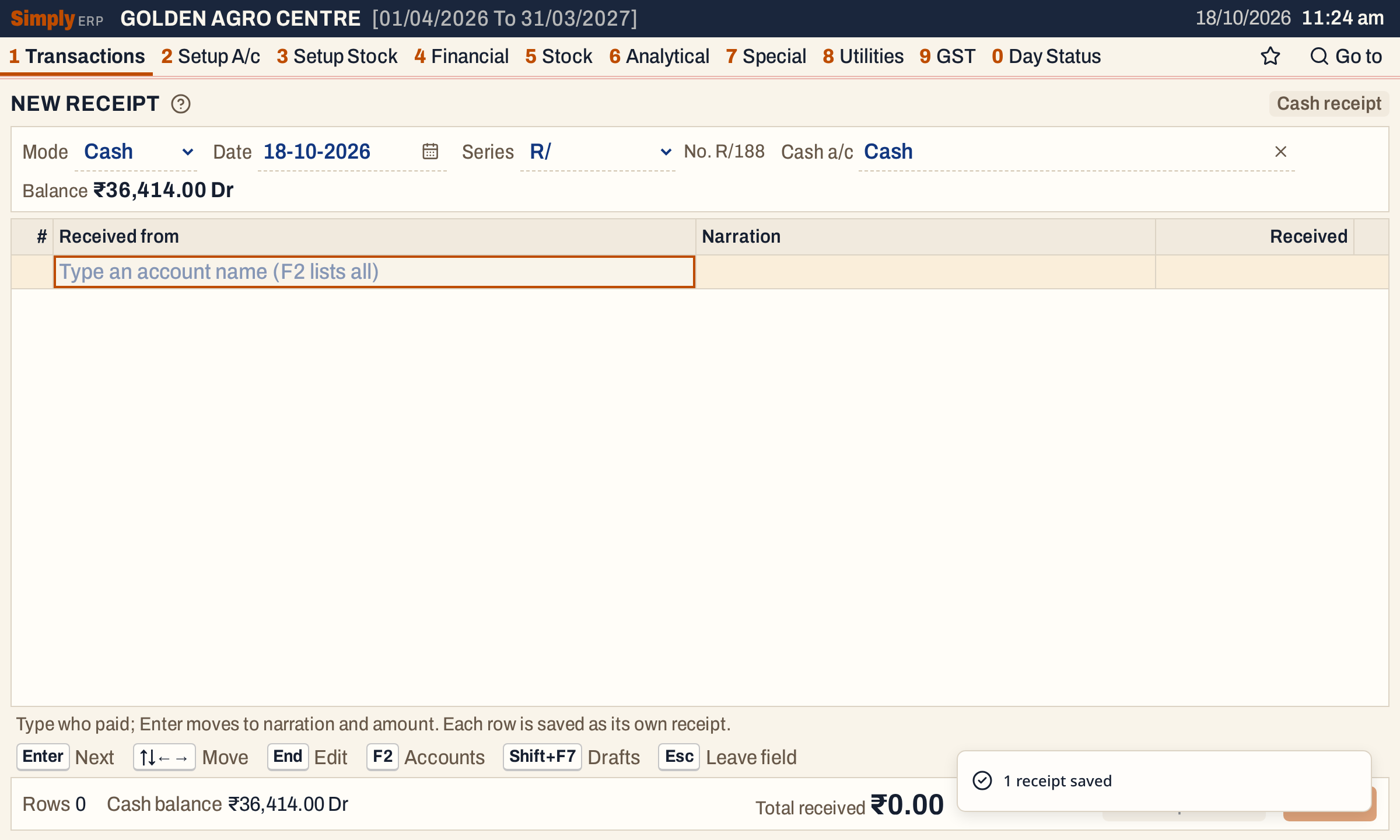 After saving, the screen is ready for the next customer.
Record a bank receipt
Change Mode to Bank. The two extra columns for a bank row appear, Chq./UTR no. and Chq. date, and the header asks for a bank account. Type part of its name, or press F2 to list the bank accounts.
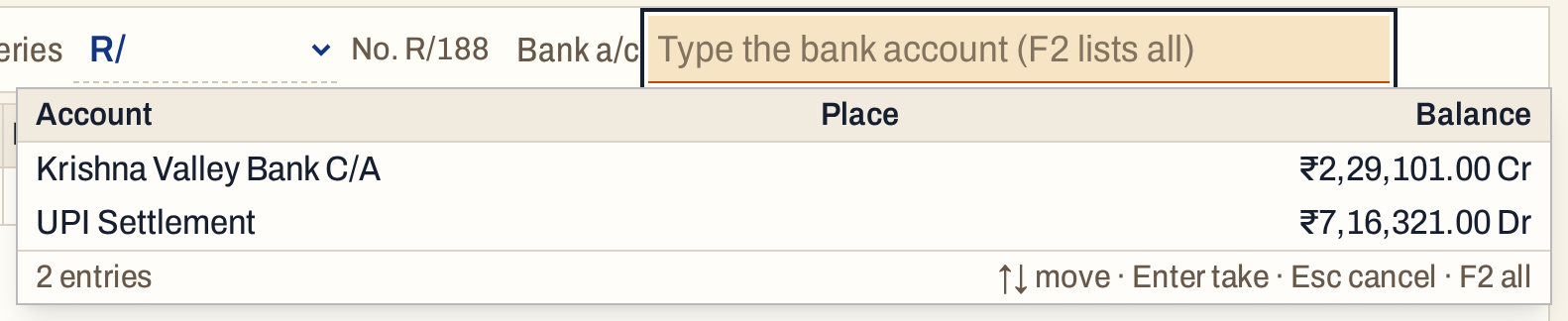 A bank account list shows each balance. Krishna Valley Bank C/A is overdrawn, so it shows Cr.
Fill a row as for cash, then:
- For a cheque, type the cheque number in Chq./UTR no. and press Enter for its date in Chq. date.
- For a transfer, type its type in Chq./UTR no.: NEFT, RTGS, IMPS or UPI. Enter then asks for a date, which you can leave empty. The transfer’s reference number (the UTR) goes in the narration.
A cheque date needs a cheque number with it: a date alone is refused when you save. The cheque or transfer details are only for bank receipts. If you change the mode back to Cash while they are typed, the screen asks you to remove them first.
Press Enter after the last field to go to the next row. This receipt takes two rows into Krishna Valley Bank C/A: a cheque from Kisan Seva Kendra dated 16-10-2026, and a NEFT transfer from Tungabhadra Agri Inputs.
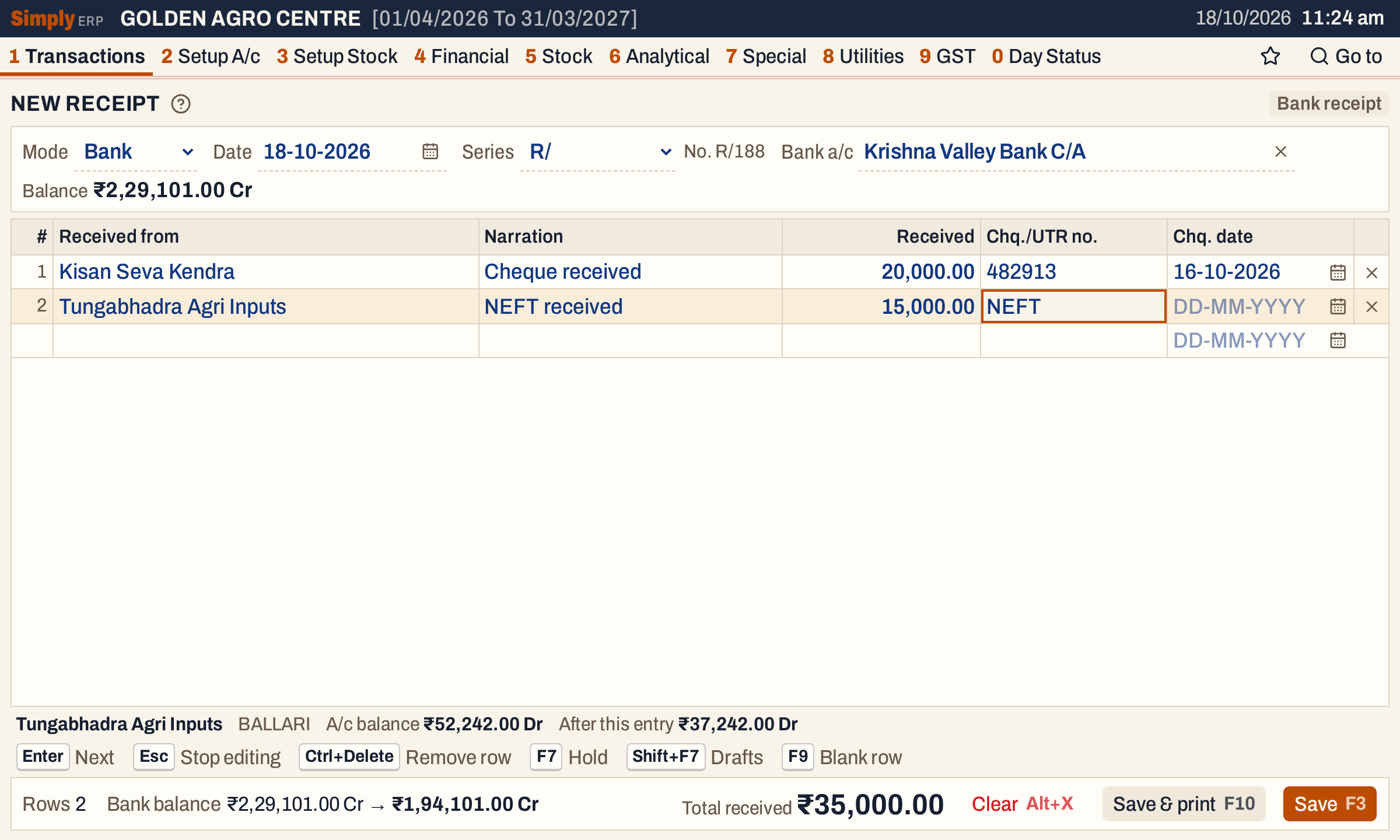 Two rows, ₹35,000.00 in all. The bank balance of ₹2,29,101.00 Cr becomes ₹1,94,101.00 Cr.
Press F3. The notice counts the receipts, one for each row.
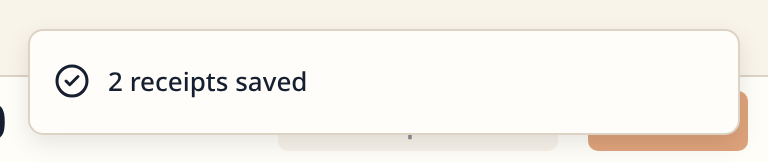 Two rows, two receipts.
What saving does to your books
Each row makes one receipt with its own number, taken in order from the series, dated on the header’s date. The receipt has two postings:
| Account | Debit | Credit |
|---|---|---|
| The cash or bank account of the header | The amount | |
| The account of the row (the party) | The amount |
For the three receipts of this example:
| Receipt | Debit | Credit | Amount |
|---|---|---|---|
| R/187, cash | Cash | Ramaiah K | 823.00 |
| R/188, bank, cheque 482913 | Krishna Valley Bank C/A | Kisan Seva Kendra | 20,000.00 |
| R/189, bank, NEFT | Krishna Valley Bank C/A | Tungabhadra Agri Inputs | 15,000.00 |
The balances change to match: Ramaiah K goes from ₹823.00 Dr to nil, Kisan Seva Kendra from ₹35,537.00 Dr to ₹15,537.00 Dr, Tungabhadra Agri Inputs from ₹52,242.00 Dr to ₹37,242.00 Dr, and the bank from ₹2,29,101.00 Cr to ₹1,94,101.00 Cr. Stock is not touched.
The saved receipts are listed under 1 B M, one line each, the latest date first. The register opens on the whole financial year to date; here From and To are both set to 18-10-2026. The same register, with Show set to All, is All Vouchers.
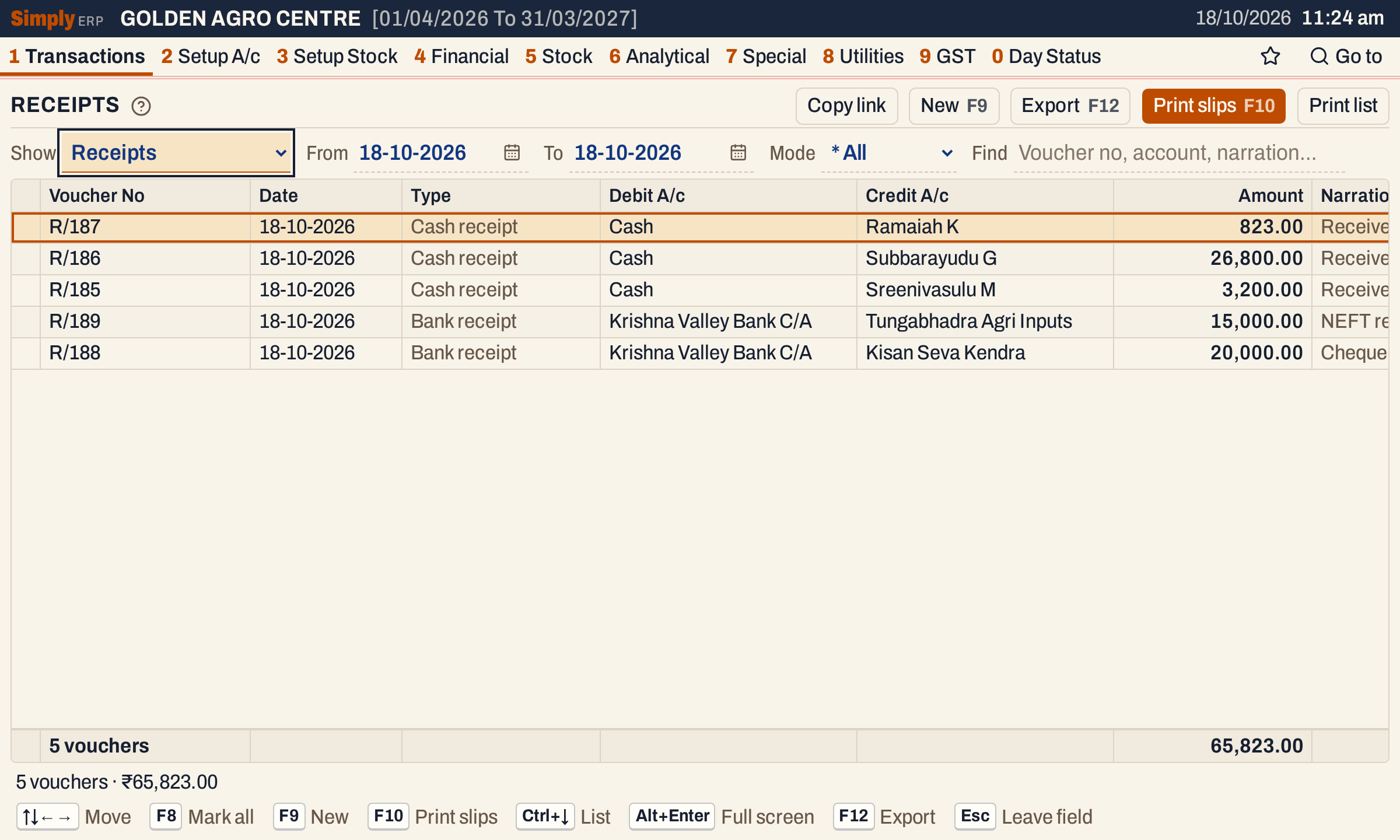 Each receipt has its own line and number. R/185 and R/186 were already in the books that day.
Open a receipt to see both postings.
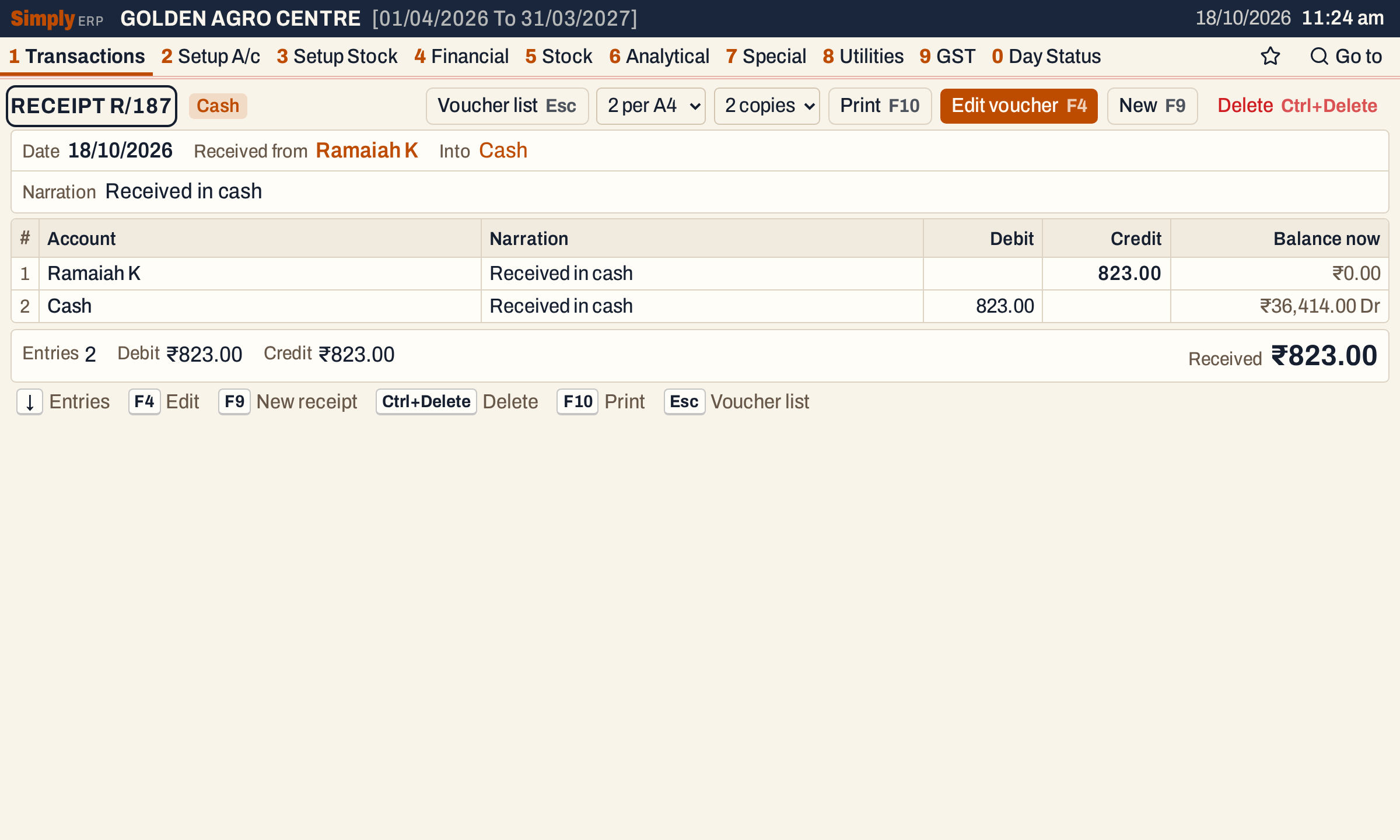 Balance now shows each account’s balance today: Ramaiah K ₹0.00 and Cash ₹36,414.00 Dr.
The receipt then shows in the party’s ledger, the cash book or bank book, and the cash day book.
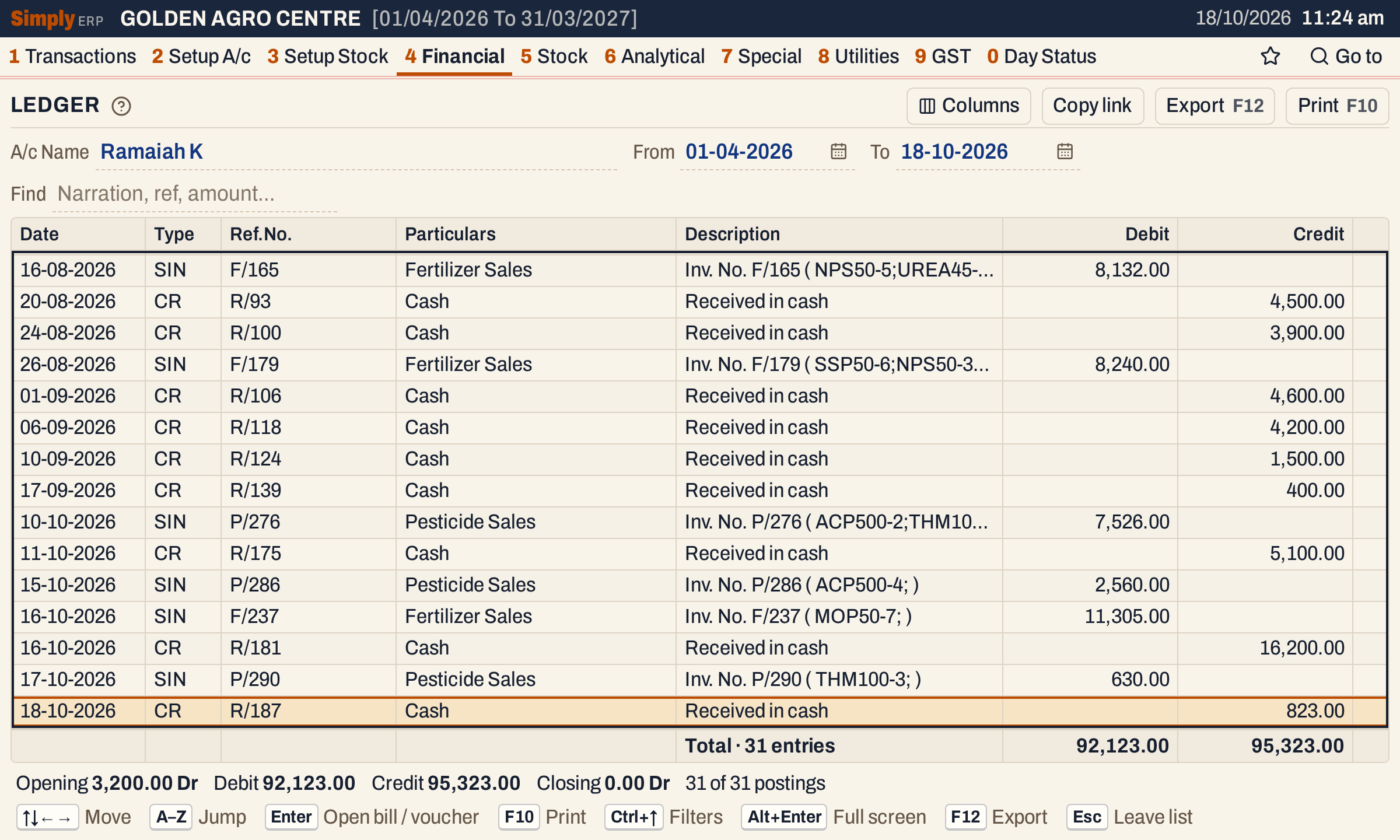 The receipt is the last line of the ledger, and the closing balance is ₹0.00.
Print the receipt
F10 saves and prints the slip of every row, in one job. On a saved receipt, F10 prints it again; there you can choose two slips to an A4 sheet or one per A5 sheet, and one to three copies. With two copies the slips are marked Original and Duplicate.
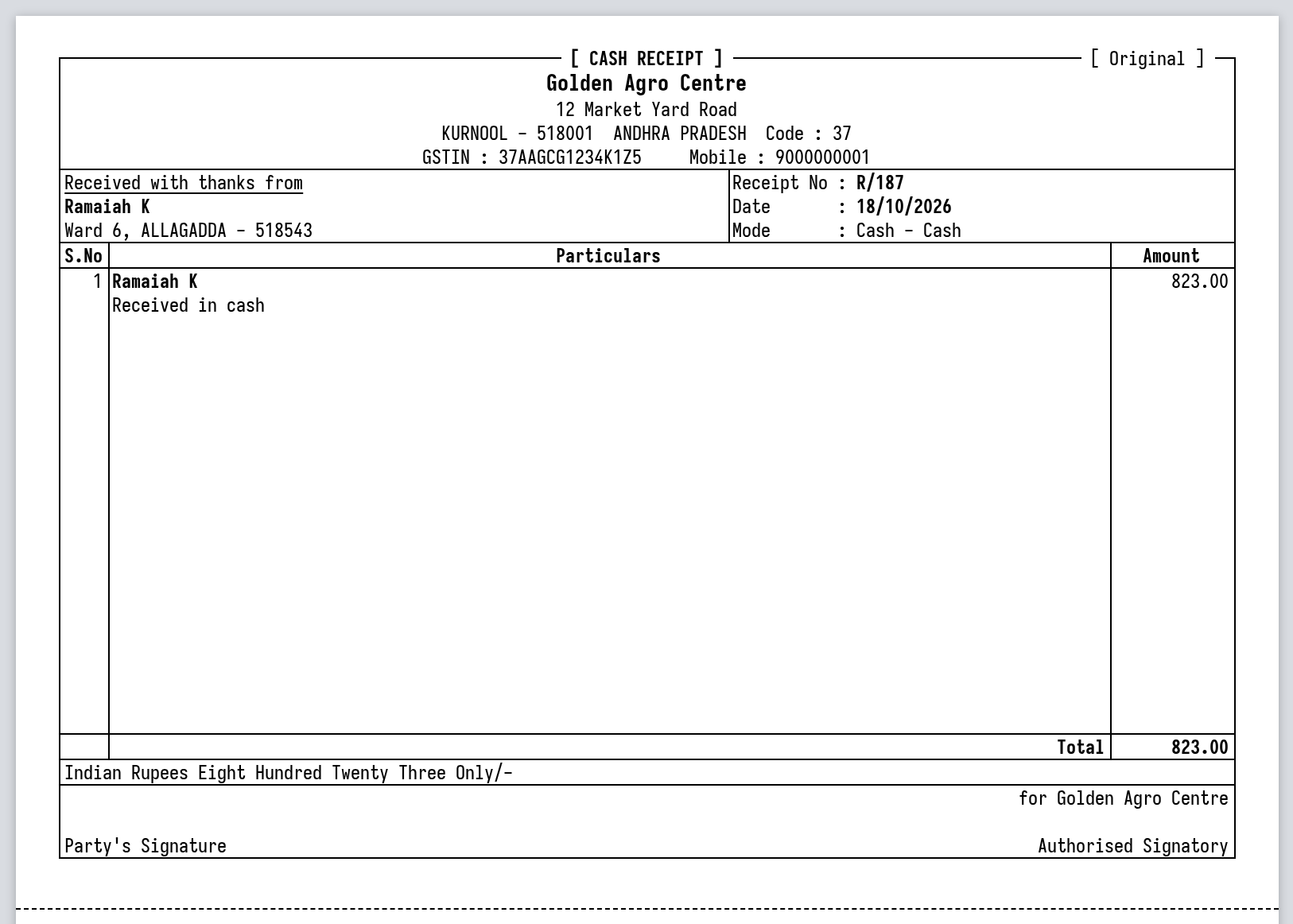 The slip names the party and the amount in words, with a place for the party’s signature.
Keys on the receipt screen
| Key | What it does |
|---|---|
| Enter | Next field, and on to the next row after the last field |
| F2 | List the accounts, or in Narration the saved narrations |
| F3 | Save every row |
| F10 | Save and print the slips |
| F9 | Go to the blank row |
| Ctrl+Delete | Remove the row |
| Esc | Stop editing a field, so the arrow keys move between cells again |
| F7 | Hold the entry in Drafts |
| Shift+F7 | List other drafts and switch to one |
| Alt+X | Clear the entry (asks first) |
On a Mac, ⌥ stands for Alt and ⌘ for Ctrl.
Common questions
Can I receive money from a supplier, or into another account? Yes. Any account can be chosen in Received from, except the cash or bank account of the header itself and any cash account. Moving money between cash and bank is a journal entry, and saving says so.
What if I leave in the middle of an entry? Nothing is lost. What you typed is kept in Drafts and comes back when you open the screen again.
I saved a wrong amount. Can I correct it? Yes. Open the receipt from the register and press F4, or delete it and enter it again. See Change or delete a voucher.
Does a bank receipt go into the cheque register? No. The cheque register is for the cheques you issue. The cheque number and date of a cheque you receive stay on the receipt, and show in the register’s Chq/UTR column.
Updated 4 November 2026.