Saved suggestions
On this page
Saved suggestions are short texts you type again and again: the narration of a receipt, the name of a transport, a customer’s title. You save them once, and SimplyERP offers them while you type, so the counter spells them the same way every time. A suggestion is only an offer: any other text can still be typed.
Open Saved Suggestions
Press Alt+8 for Utilities, then N.
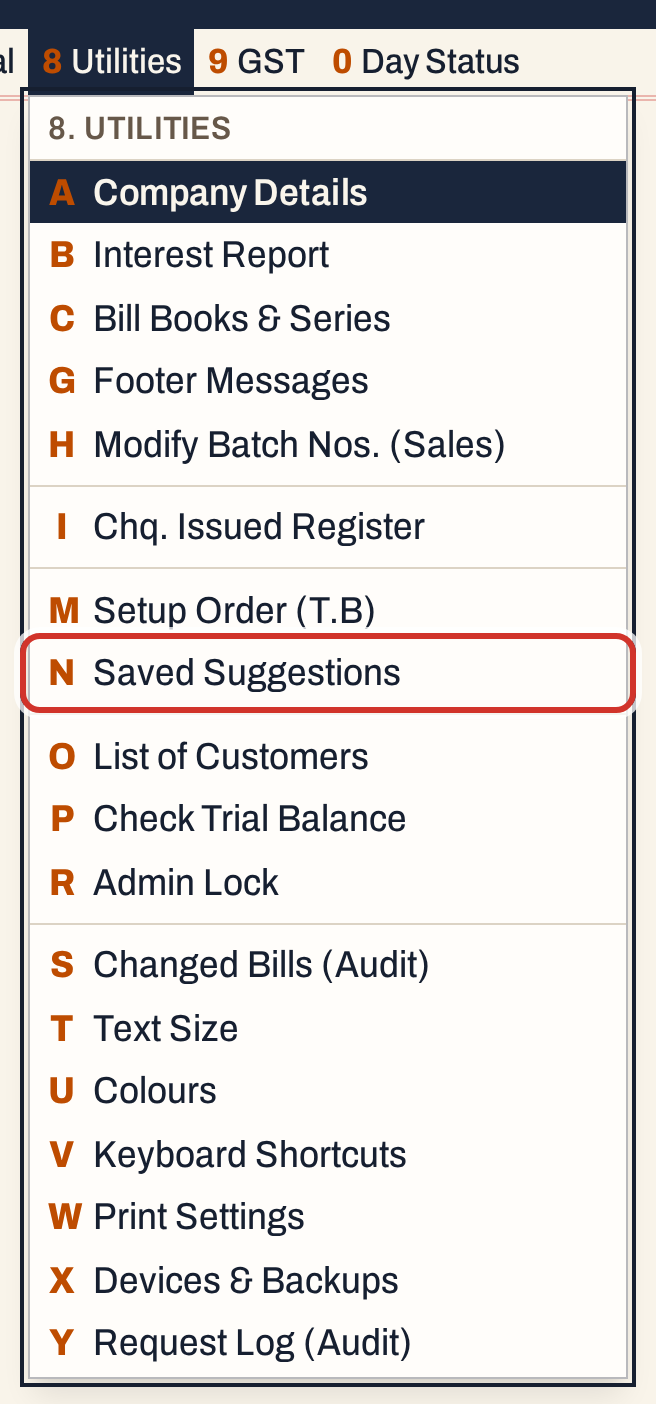 8 N: Utilities, Saved Suggestions.
The screen has four lists. Choose one in List; the number beside it counts what is saved. On the example books nothing is saved yet, so every list starts empty.
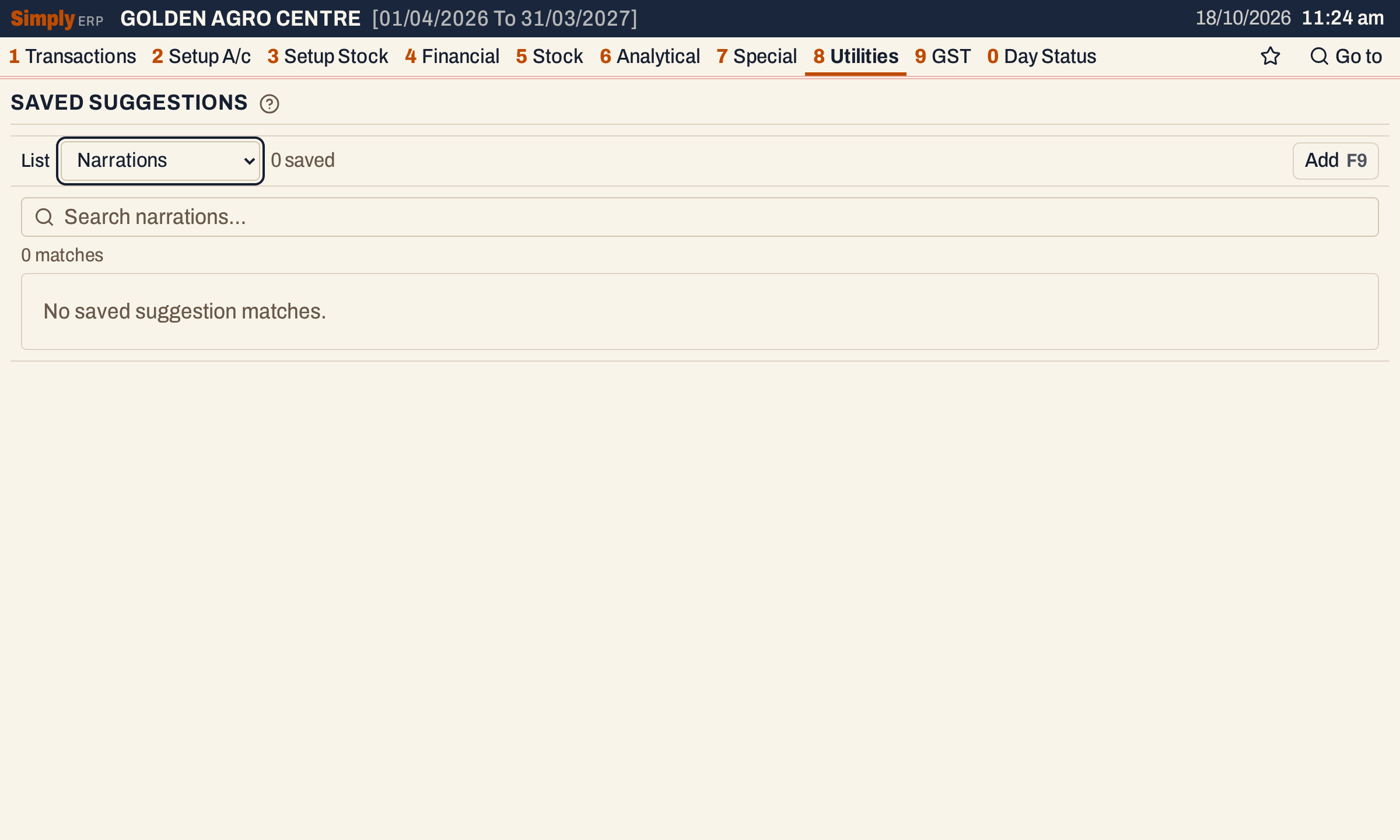 An empty list. Nothing is offered until you add something.
| List | Offered in |
|---|---|
| Narrations | The Narration column of receipts, payments and journal entries, and the narration of notes. Press F2 in the cell to list them. |
| Account subareas | The Representative field of an account |
| Transport names | The Transport field of a bill, and the Transport of a party’s address |
| Salutations | The Title field of an account |
Add a suggestion
Choose the list, then click Add, or press Tab once from the List box and press Enter. The editor has the text itself (it is named after the list, here Narration), a Group and an Order.
 The text is required. Group and Order are optional.
- Group is a label of your own, such as Receipts or Payments. It is shown beside the suggestion, and typing part of a group finds the suggestion too.
- Order is a whole number. Suggestions are listed by order, lowest first, and those with the same order by their text, from A to Z. A blank order counts as 0, so it is listed before 1, 2 and 3. Give the ones you use most the lowest numbers.
Enter saves, and the notice “Suggestion saved” appears. Esc closes the editor without saving. A suggestion can be up to 1,000 characters.
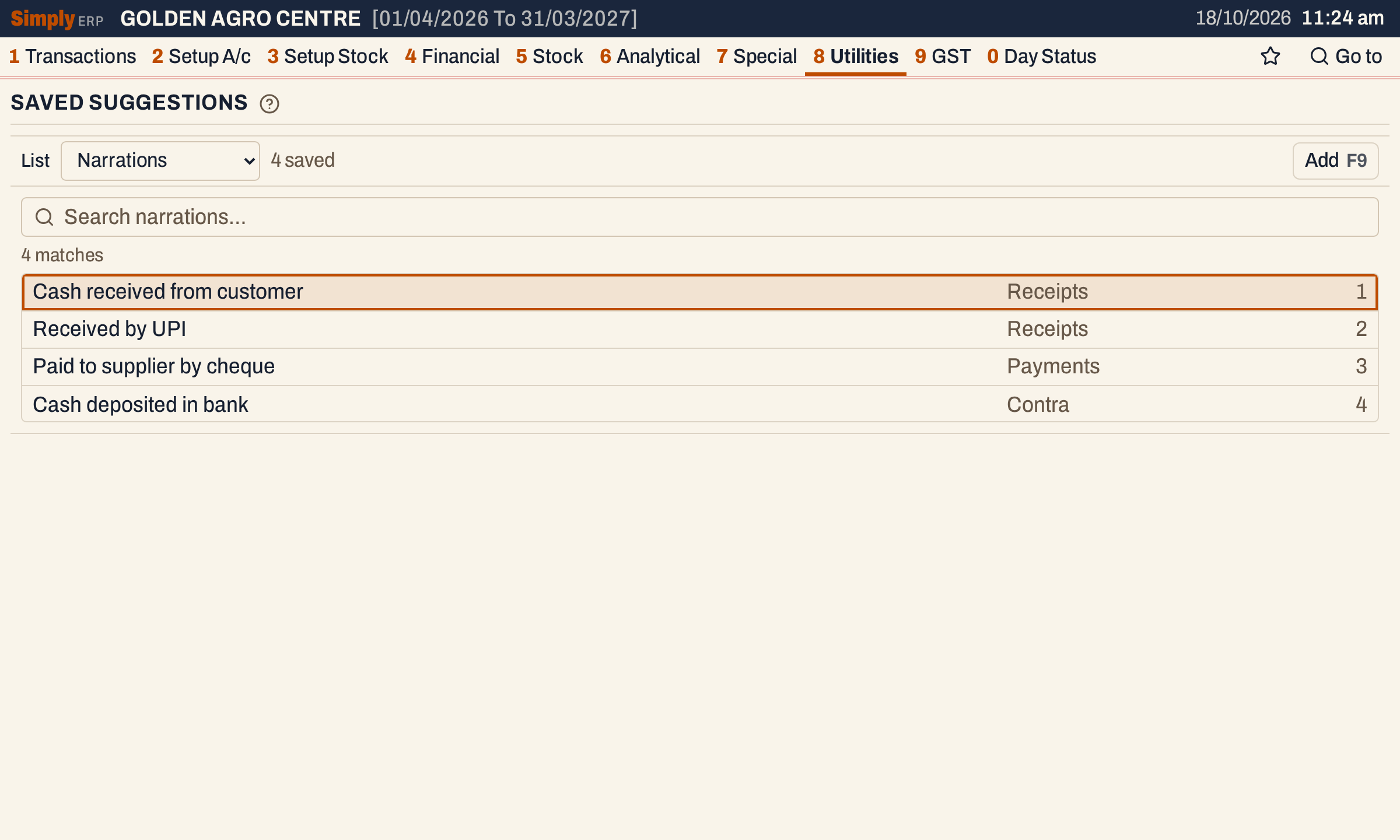 Each row shows the text, its group and its order (a blank order shows nothing).
Search and change a suggestion
The search box above the rows finds a suggestion by any part of its text or its group. Press Tab twice from the List box to reach the search box. The first row is highlighted; ↓ moves down, and Enter opens the highlighted row in the editor. Change the text, group or order and save. The screen has no way to delete a suggestion.
The other lists work the same way. The text of a transport name is the name of the carrier, and its group could be the town it runs from.
 Transport names: three saved, in their order.
How SimplyERP offers them
In a narration cell, press F2 to list the saved narrations. The list shows the narrations whose text or group contains what is already typed in the cell, so typing a few letters first narrows it. ↓ and ↑ move, Enter puts the highlighted narration in the cell, and Esc closes the list. Typing on without choosing keeps your own text.
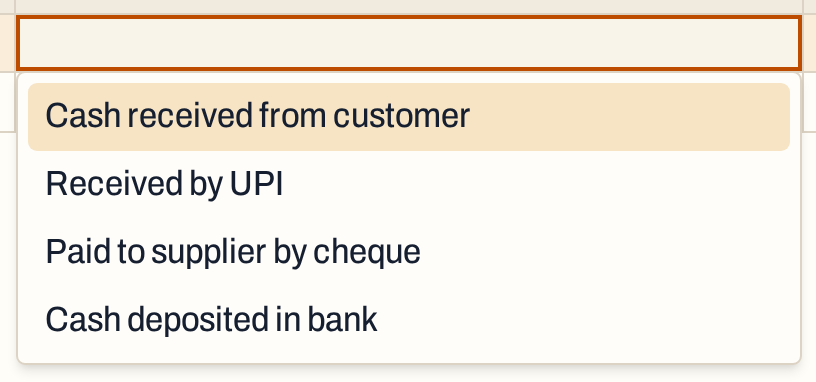 F2 in the Narration column of a receipt.
 The chosen narration, ready to edit if the day needs a different wording.
In the other fields (Transport, Title, Representative), matching suggestions are offered as a drop-down list while you type. The Representative field changes what you type to capitals, so a subarea you choose is kept in capitals.
Saving a bill or voucher with a text you typed does not add it to the lists. Add it here when you want it offered.
Keys on this screen
| Key | What it does |
|---|---|
| Tab | From the List box to Add, then to the search box |
| ↓ ↑ | Move along the rows |
| Enter | Open the highlighted suggestion; in the editor, save |
| Esc | Close the editor without saving |
| F1 | Every key on the screen |
On a Mac, ⌥ stands for Alt and ⌘ for Ctrl.
Common questions
Do I have to choose a suggestion? No. Choosing one is optional, and any text can still be typed.
Does the admin PIN guard these lists? No. Adding and editing a suggestion is routine upkeep that never asks for the admin PIN.
Updated 4 November 2026.