Set an admin PIN
On this page
The admin PIN keeps saved work from being changed by accident or by the wrong person. While a PIN is set, changing or deleting a saved bill or voucher, and changing the shop’s setup, asks for the PIN first. Making new bills and vouchers, holding drafts, printing and looking at reports never ask for it, so the counter keeps working.
Open Admin Lock
Press Alt+8 for Utilities, then R.
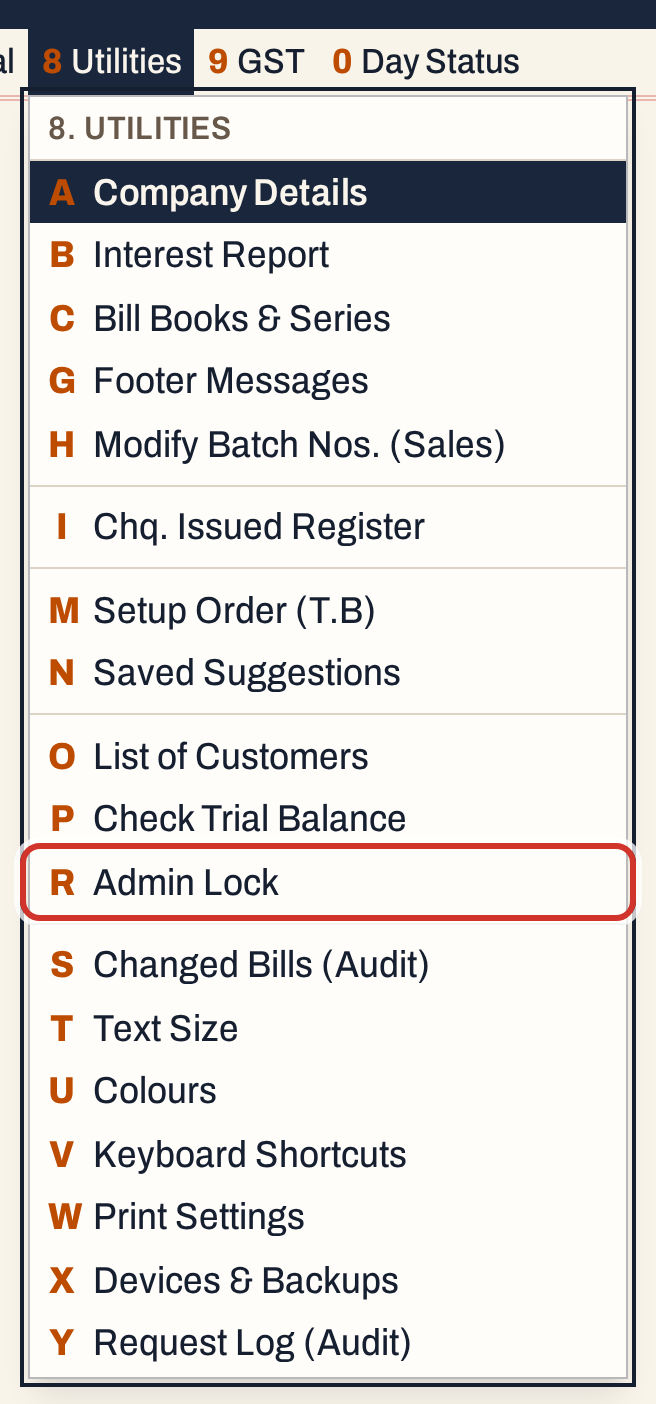 8 R: Utilities, Admin Lock.
With no PIN set, the Status line reads “No PIN: anyone can change and delete saved work”. The cursor is in the PIN field.
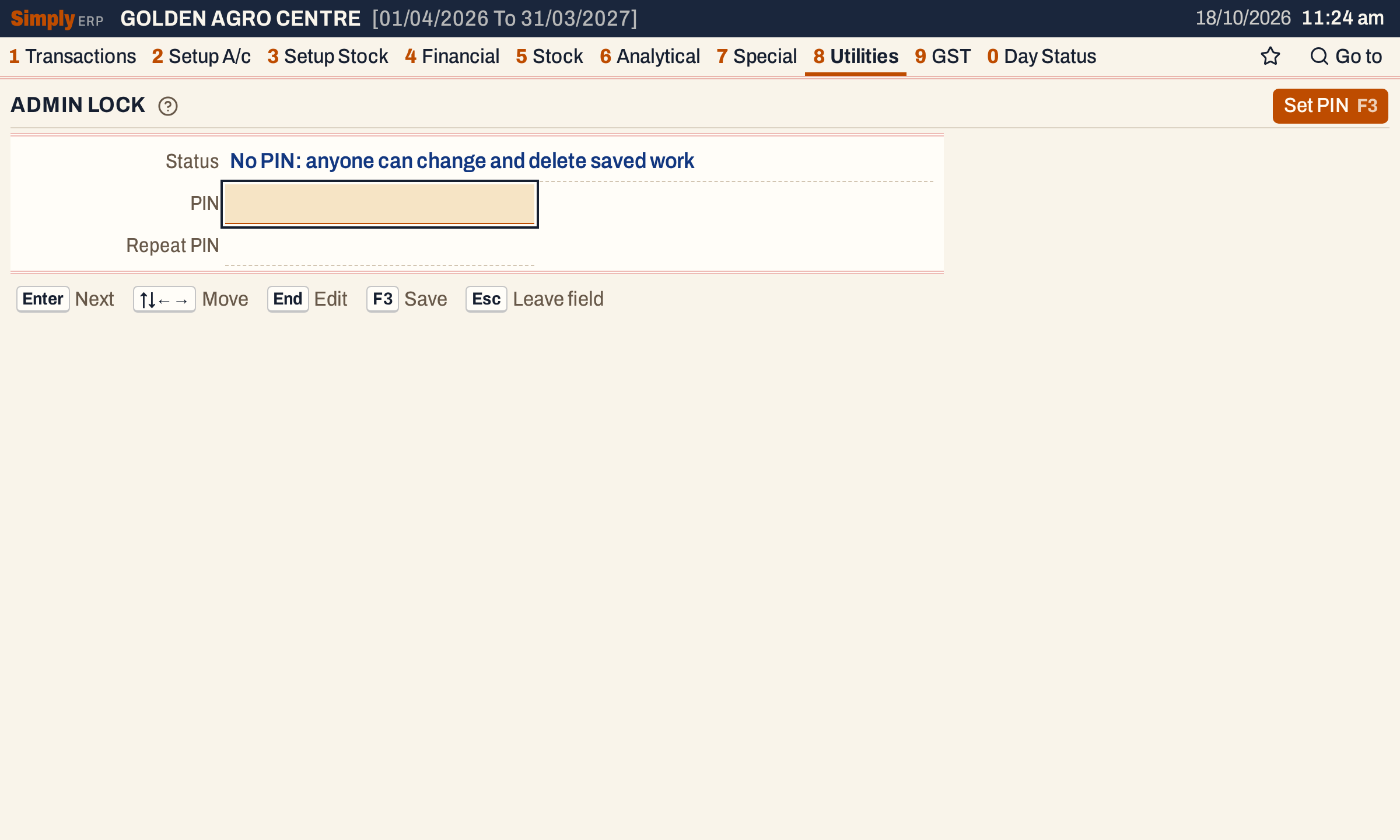 A new company has no PIN. The question mark beside the title explains the screen.
Set the PIN
A PIN is 4 to 8 digits. The field takes digits only, and shows dots as you type. Type the PIN, press Enter, type it again in Repeat PIN, and press Enter again or F3 to save.
 The same PIN twice. If the two differ, the screen says “The repeated PIN does not match.” and saves nothing.
Keep the recovery code
Saving the PIN shows a recovery code once, three groups of four letters and digits. Write it on paper and keep it away from the counter: SimplyERP does not show it again.
 The recovery code of these example books. Yours is different each time a PIN is set.
The code is for a PIN you have forgotten. On this screen, type it in place of the current PIN to change the PIN or remove it. Capital letters and the dashes make no difference when you type it. It never unlocks a bill or a voucher; only the PIN does that. Each time you set or change the PIN, a new recovery code is made and the old one stops working.
If you have neither the PIN nor the recovery code, the PIN can be removed only by whoever looks after the computer that keeps your books, with SimplyERP closed.
What the PIN guards
From the moment the PIN is saved, every open window is locked until the PIN is typed. These need it:
| Area | Needs the PIN | Never asks for it |
|---|---|---|
| Bills and notes | Changing or deleting a saved bill; changing a saved credit note, debit note, other purchase or other sale; cancelling a bill’s e-invoice or e-way bill | Making a new bill or note; generating an e-invoice or e-way bill; holding a draft |
| Vouchers and cheques | Changing or deleting a saved voucher; changing, cancelling or reopening an issued cheque | Making a receipt, payment or journal; clearing a cheque |
| Stock | Changing or deleting a damage, goods in or out entry, godown allocation or stock transfer; deleting a godown; changing opening stock lots | Making a new stock entry or godown; changing item prices |
| Accounts and items | Merging accounts; regrouping accounts; deleting an account group or sub-account; merging items; changing the company or technical name lists; deleting a stock group | Adding or editing an account, its addresses, a stock group or its items’ prices |
| Setup | Company Details, Print Settings, Quick Bill setup, Bill Books & Series, charges, footer messages, the trial balance order, and this lock | Reports, prints and every screen you only look at |
Unlock when it asks
Change a saved bill as you normally do: open it from All Bills, press F4, change it and press F3. When the save needs the PIN, the Admin PIN dialog opens. Type the PIN and press Enter. The save then goes through, and you do not repeat it.
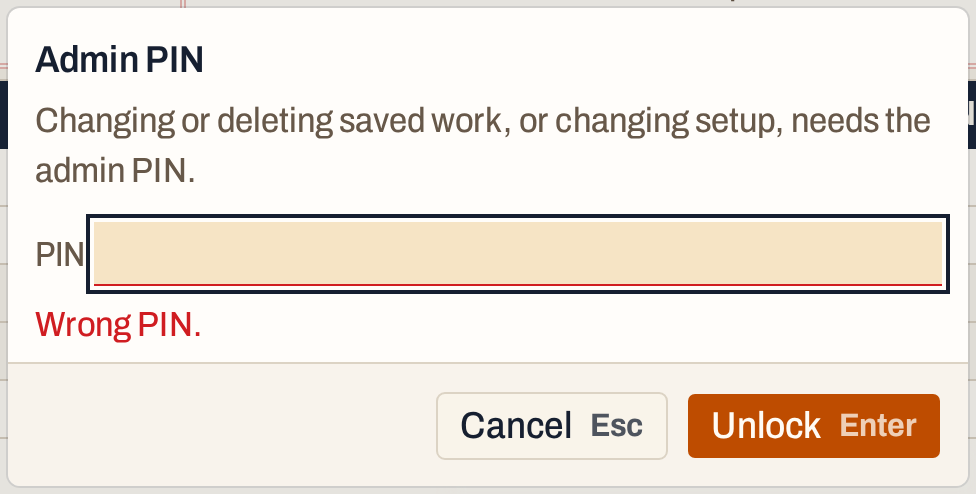 A wrong PIN is refused and the field empties for another try.
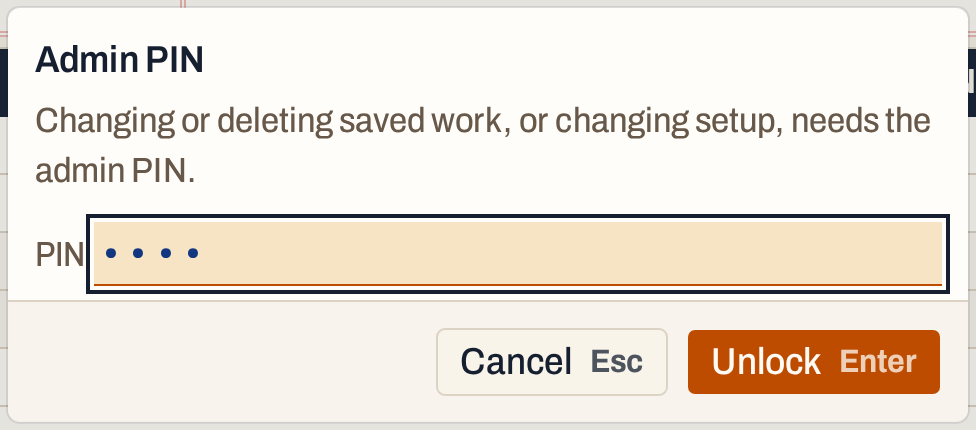 The right PIN and Enter unlock this window.
Esc cancels the dialog and the change is not made.
After five wrong PINs in a row, SimplyERP makes you wait before the next try: 30 seconds, then twice as long for each wrong PIN after that, up to 15 minutes. The message says how long is left. A correct PIN clears the count.
Unlocked and Lock
While the window is unlocked, the company band at the top shows Unlocked and a Lock button.
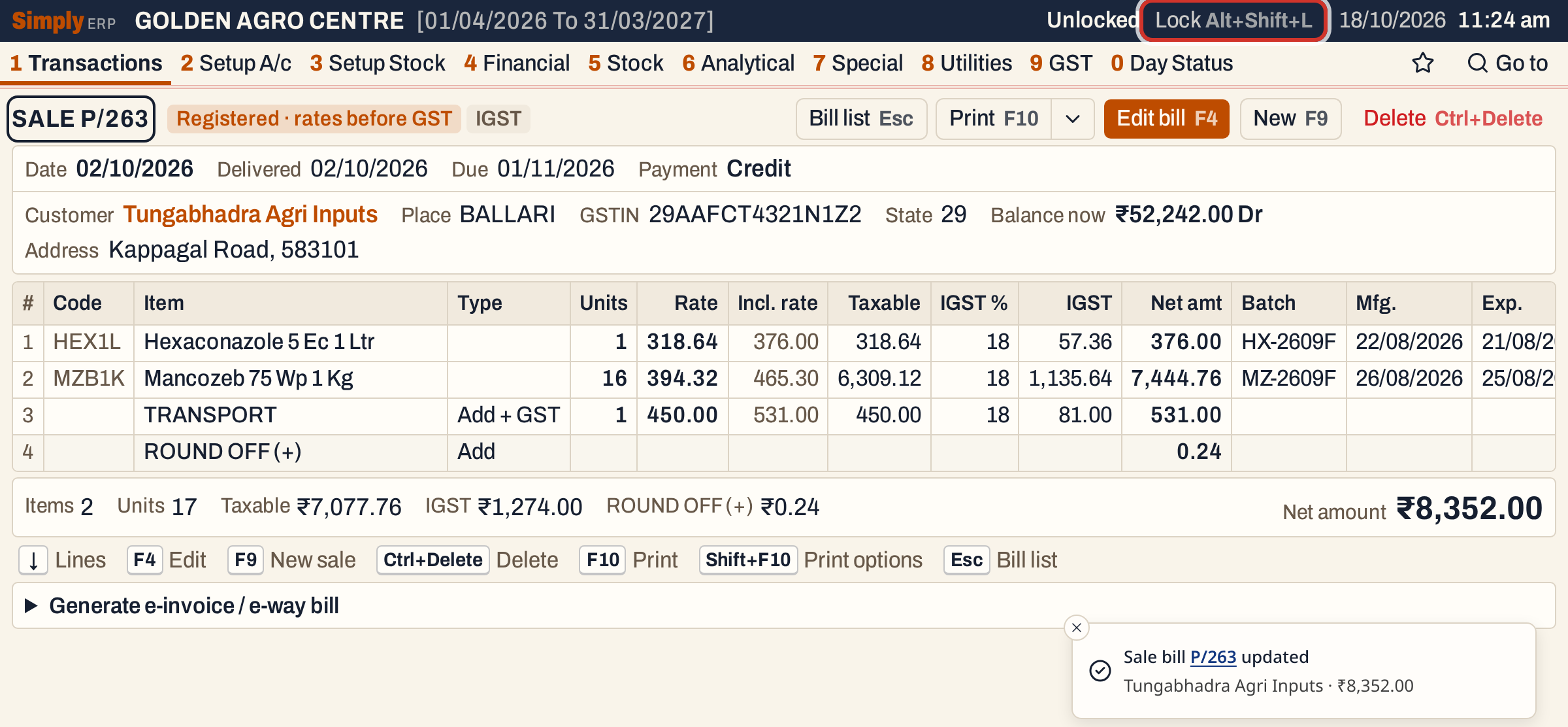 Further changes in this window no longer ask. Only this window is unlocked.
The window locks itself again when it has gone 15 minutes without a change or delete that needs the PIN, and when SimplyERP is restarted. To lock it at once, click Lock or press Alt+Shift+L (⌥⇧L on a Mac) from any screen. The mark goes away.
 Locked again.
Lock the window when you leave the counter.
Change the PIN
Open 8 R again. With a PIN set, the screen has three fields: Current PIN (it also takes the recovery code), New PIN and Repeat PIN.
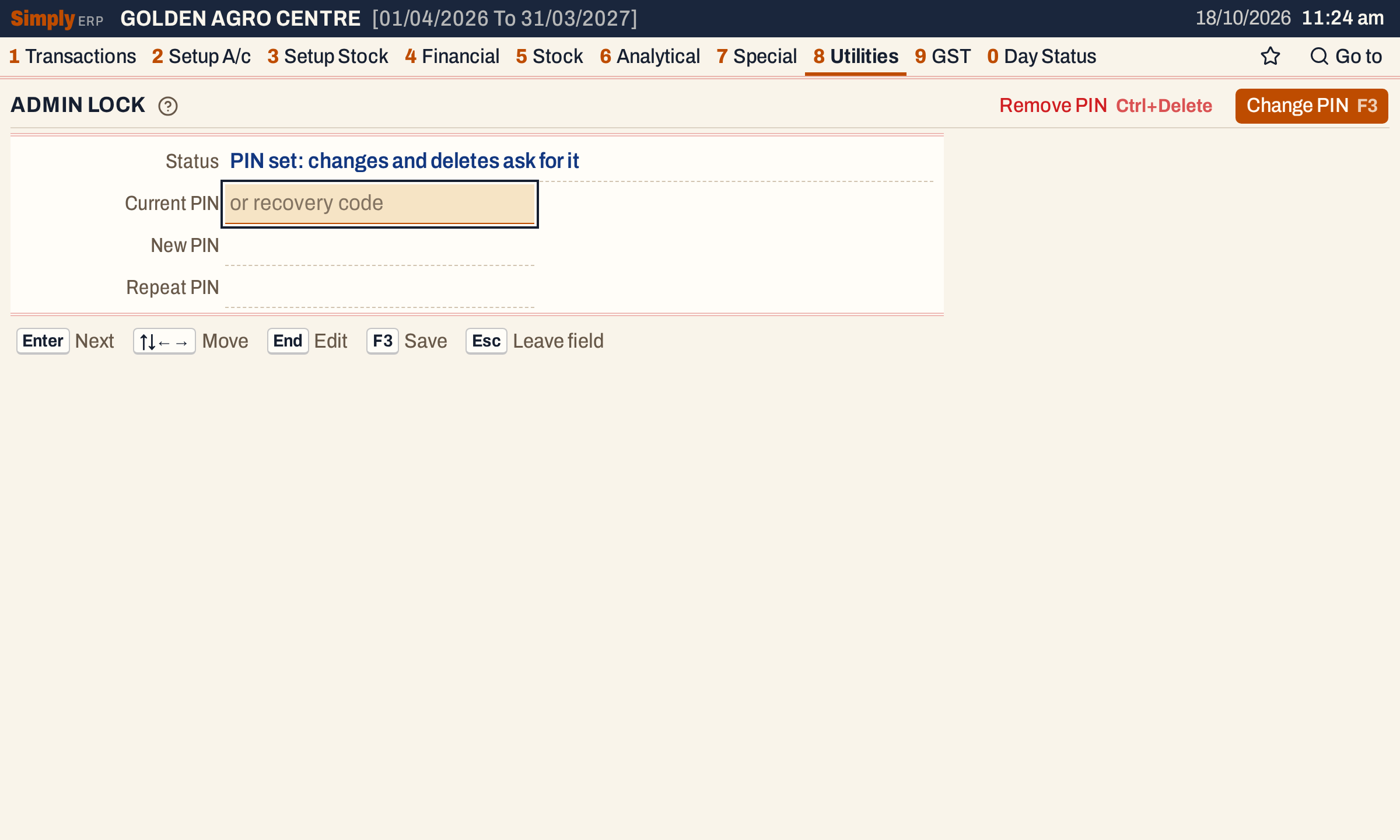 Type the current PIN, then the new one twice.
Enter on the last field or F3 saves. A new recovery code is shown, and every window is locked again.
 Write the new recovery code down; the old one no longer works.
Remove the PIN
Type the current PIN, or the recovery code, in Current PIN. Press Esc to stop editing the field and Esc again to leave it, then press Ctrl+Delete (⌘⌫ on a Mac), or click Remove PIN.
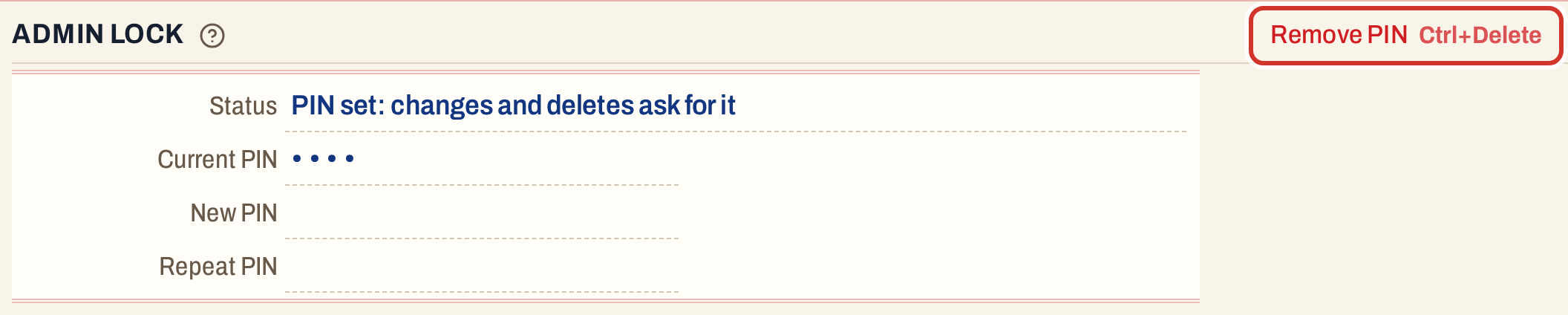 Remove PIN needs the current PIN or the recovery code too.
 With no PIN, saved work can be changed again.
Keys on this screen
| Key | What it does |
|---|---|
| Enter | Next field; on the last field, save |
| F3 | Set or change the PIN |
| Esc | Stop editing a field; again, leave it |
| Ctrl+Delete | Remove the PIN (when the cursor is not in a field) |
| Alt+Shift+L | Lock this window again, from any screen |
On a Mac, ⌥ stands for Alt and ⌘ for Ctrl.
Common questions
Does the PIN stop staff making bills? No. New bills, notes, vouchers and drafts never ask for it. It stops them changing or deleting what is already saved.
Is the PIN a login? No. The PIN unlocks the window it is typed in, and anyone at an unlocked window can change saved work until it locks.
How do I see what was changed? The Request Log (8 Y) lists every change to the books, with who made it and from which device. Changed Bills (8 S) is the audit of changed bills.
Updated 4 November 2026.