Request Log
On this page
The Request Log lists every change the books handled: a bill saved, edited or deleted, a voucher, an account, an item, a setting. For each one it shows when it came in, the request in its own words, how it ended, who sent it, from which device and address, and what it created or changed. Use it to find out who made a change and whether it went through.
Open the report
Press Alt+8 for Utilities, then Y for Request Log (Audit). The list opens for today, newest request first. The log keeps real times, so its days are the computer’s days, not the working date shown at the top of the window.
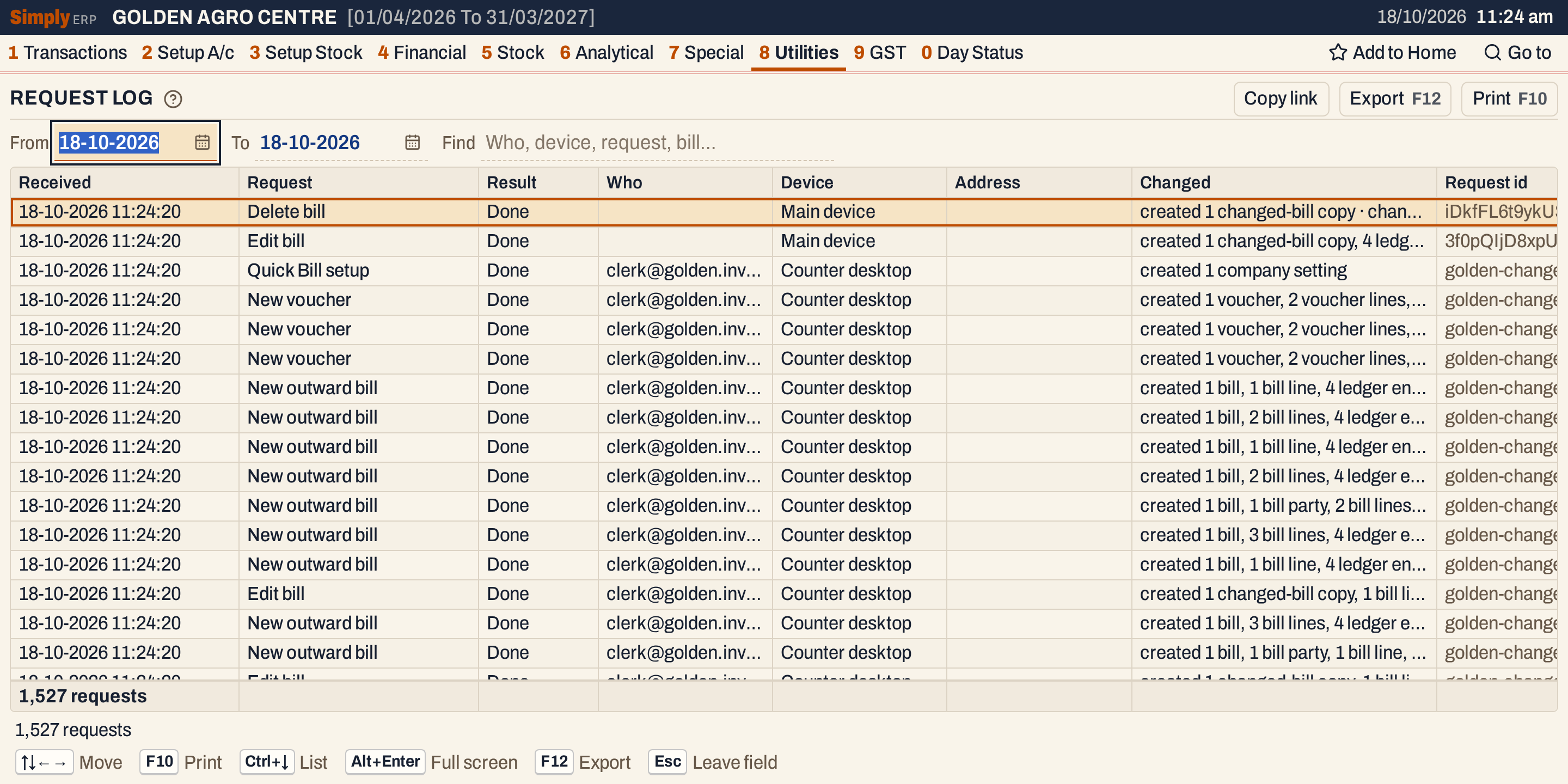 The newest requests are at the top. Delete bill is the change made most recently, and Edit bill is the one before it. Changed is cut short where a request touched many records, and Handling id is further right. The status line gives the count: 1,527 requests.
What it lists
One line for each change request the books handled, whatever came of it: done, refused or failed. A request sent again is listed again, as a Repeat. Drafts, which are kept while a clerk types, and reading the books are not listed. A request turned away before it reaches the books, such as a change on a read-only copy, is not listed either.
A change sent from another phone or computer through the main device names that device and the address it came from. A change made on the main device itself shows the name the store gives that device, or Main device when it has none, and no address.
Columns
| Column | What it shows |
|---|---|
| Received | The day and time the request arrived, to the second, in the computer’s time. |
| Request | What the request did, in the clerk’s words: New outward bill, Edit bill, Delete bill, New voucher, Quick Bill setup and so on. A request not named here shows the books’ own name for it, tidied. |
| Result | Done, Refused, Failed, Repeat, Working or Stopped. See below. |
| Who | The name of the signed-in account that sent it, or its email when it has no name. |
| Device | The device it was sent from. Main device when no device is named for a change made on the main device. |
| Address | The address the request came from. Blank for the computer’s own address. |
| Changed | What the request created, changed or deleted, such as created 1 voucher, 2 voucher lines, 2 ledger entries · changed 2 accounts, 1 bill series. Created, changed and deleted come in that order, and a bill, voucher or account is named before its lines. |
| Request id | The id the sender gave the request. The same id is kept on every resend. |
| Handling id | The id the books gave this handling of the request. |
Changed counts records, and it names them as the books do. A request that edits or deletes a bill also creates a changed-bill copy, the copy of the bill that Changed Bills lists. Two examples from the books above:
- Delete bill: created 1 changed-bill copy · changed 4 accounts, 2 items, 2 batches, 1 posting counter · deleted 1 bill, 2 bill lines, 4 ledger entries. The bill, its lines and its ledger entries are gone, and the items and batches it moved are changed.
- Edit bill: created 1 changed-bill copy, 4 ledger entries · changed 1 bill, 4 accounts, 2 items, 2 batches, 1 posting counter, 2 bill lines · deleted 4 ledger entries. An edit saves the bill again, so its ledger entries are deleted and posted again.
The Result column means:
- Done: the change was made.
- Refused or Failed: the change was not made. A refusal is, for instance, an admin PIN that was needed or a rule that was broken. Anything it saved before failing is listed under Changed.
- Repeat: the same request was sent again after its answer was lost. The books answered it from the first save and did not save it twice.
- Working: SimplyERP is making the change now.
- Stopped: SimplyERP stopped while making the change, because it was closed or the computer went off. What it had saved is listed under Changed. Look for it before entering the change again.
Choices
| Choice | What it does |
|---|---|
| From, To | The days of the requests, both days included. Both start on today. |
| Find | Narrows the list as you type. Every word typed must match the request’s name, result, who sent it, device, address, what it changed, the request or handling id, or its path. |
The line under the list gives the number of requests, or N of M requests while Find narrows them. When some were sent through the main device it says how many, and it counts those refused or failed, and those stopped. When a period has more requests than the list holds, it says that the last ones are shown and asks you to choose fewer days.
Open what a change changed
Enter on a request opens the first bill, voucher or account it created or changed. Something it only deleted is not opened, and a request that touched none of these opens nothing.
 Enter on the Edit bill request opens P/295 as it is saved now. Its first line is six units; before the change it was four, as Changed Bills shows.
Print and export
- F10 prints the list: Received, Request, Result, Who, Device, Address and Changed. The print leaves out the ids.
- F12 exports the list to Excel, with those columns and Email, Status, Request id, Handling id, Repeat of and Path.
- Copy link gives a link that opens the same list with the same days and Find.
Keys on this screen
| Key | What it does |
|---|---|
| Enter | Open what the request created or changed |
| ↓ or Enter in Find | Move from Find into the list |
| A letter | Jump to the first request whose name starts with the letters typed |
| F10 | Print the list |
| F12 | Export the list to Excel |
| Alt+Enter | Give the list the whole window |
Common questions
Who made a change that shows no name? A change made on the main device with no account signed in has no Who. Its Device usually shows Main device.
Why does the list stop at some number of requests? The screen reads at most 20,000 requests for one period, the last ones first. Choose fewer days to see the rest.
What do I do with a Stopped request? Look for what it saved before you enter the same change again. The Changed column lists it.
Updated 4 November 2026.