Change the text size and colours
On this page
SimplyERP can show its screens in larger text and in other colours. Choose a size that is easy to read from where you sit, and a colour theme for the counter’s light. Both are personal to the device you use: they change how the screens look, not your books or your printed bills.
Open Text Size and Colours
Press Alt+8 for Utilities. T opens Text Size and U opens Colours.
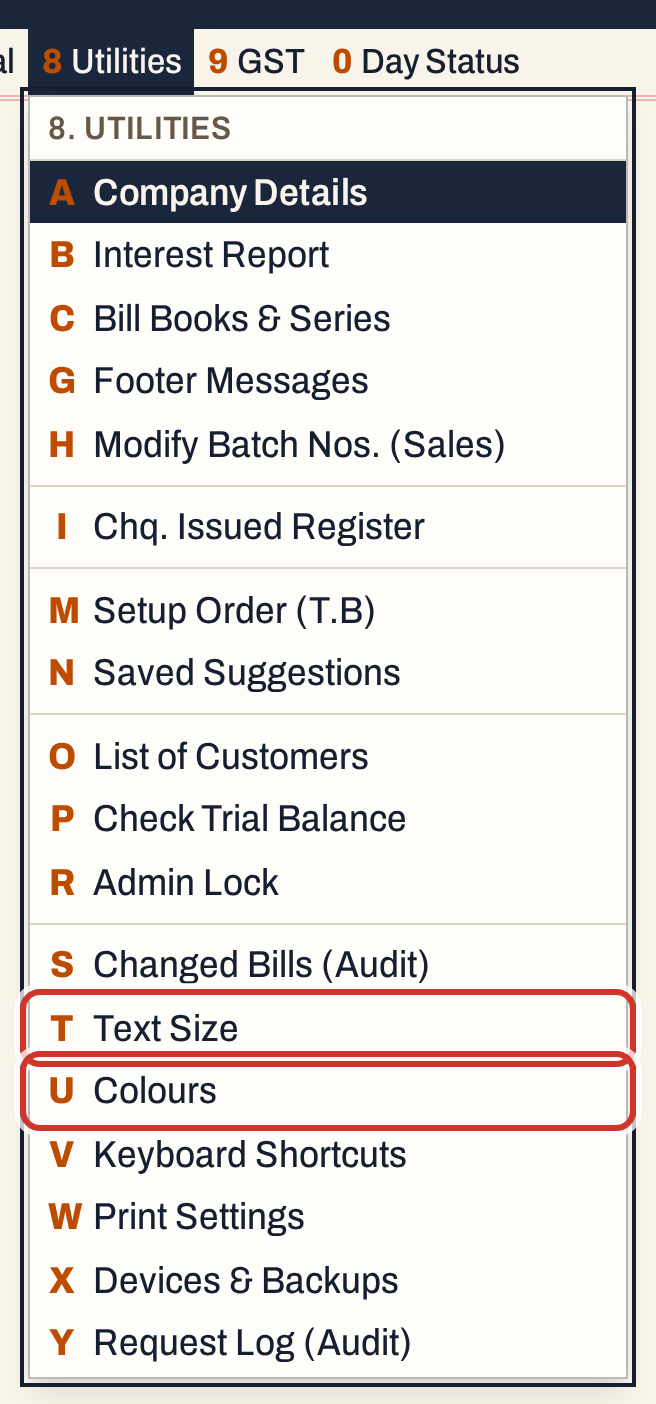 8 T: Text Size. 8 U: Colours.
Choose the text size
Text Size lists nine sizes, each with a sample line in that size so you can compare them before you choose.
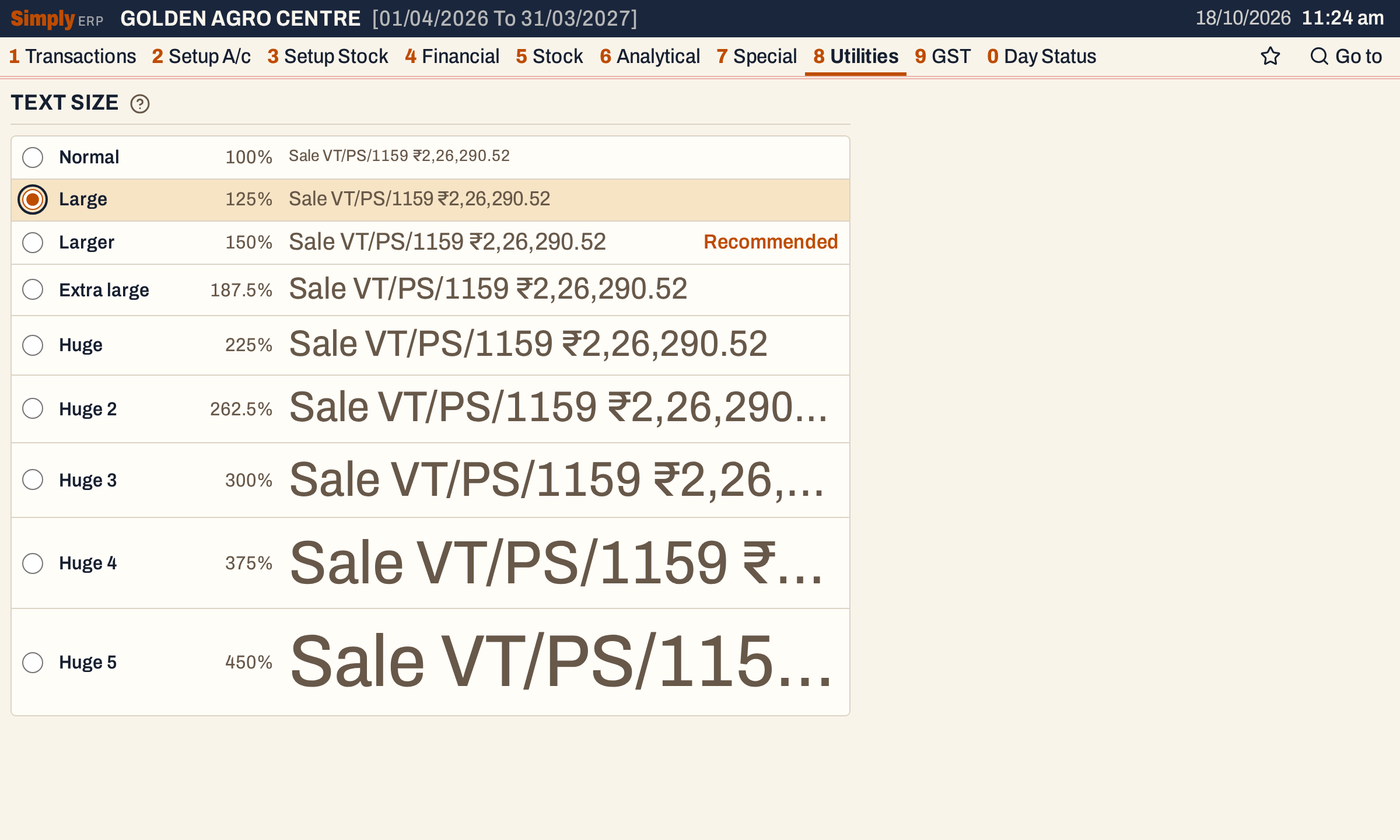 The sizes are Normal 100%, Large 125%, Larger 150%, Extra large 187.5%, Huge 225%, Huge 2 262.5%, Huge 3 300%, Huge 4 375% and Huge 5 450%.
↑ and ↓ choose a size, or click one. The whole app changes at once; there is nothing to save. A new device starts at Normal.
Recommended is shown beside the size that suits the width of this device’s screen. Huge is the recommended size on a screen 1920 pixels wide. The sizes above Huge are meant for wider screens, such as a 4K monitor. In the picture the screen is 1200 pixels wide, so Larger is the one marked.
On the same screen, a larger size means bigger letters and fewer columns across the window. Here is the All Bills list at Normal and at Extra large:
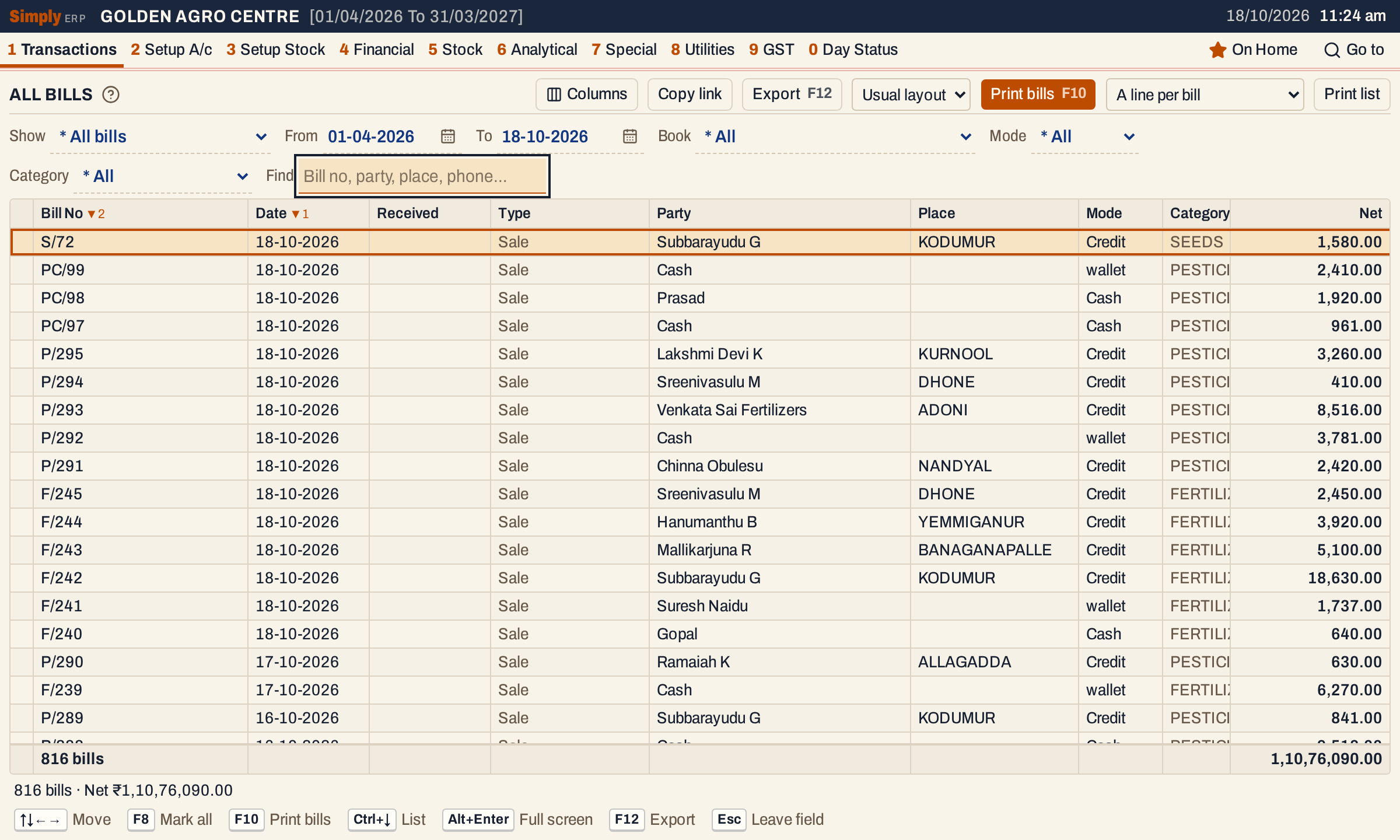 Normal: more columns and more rows fit in the window.
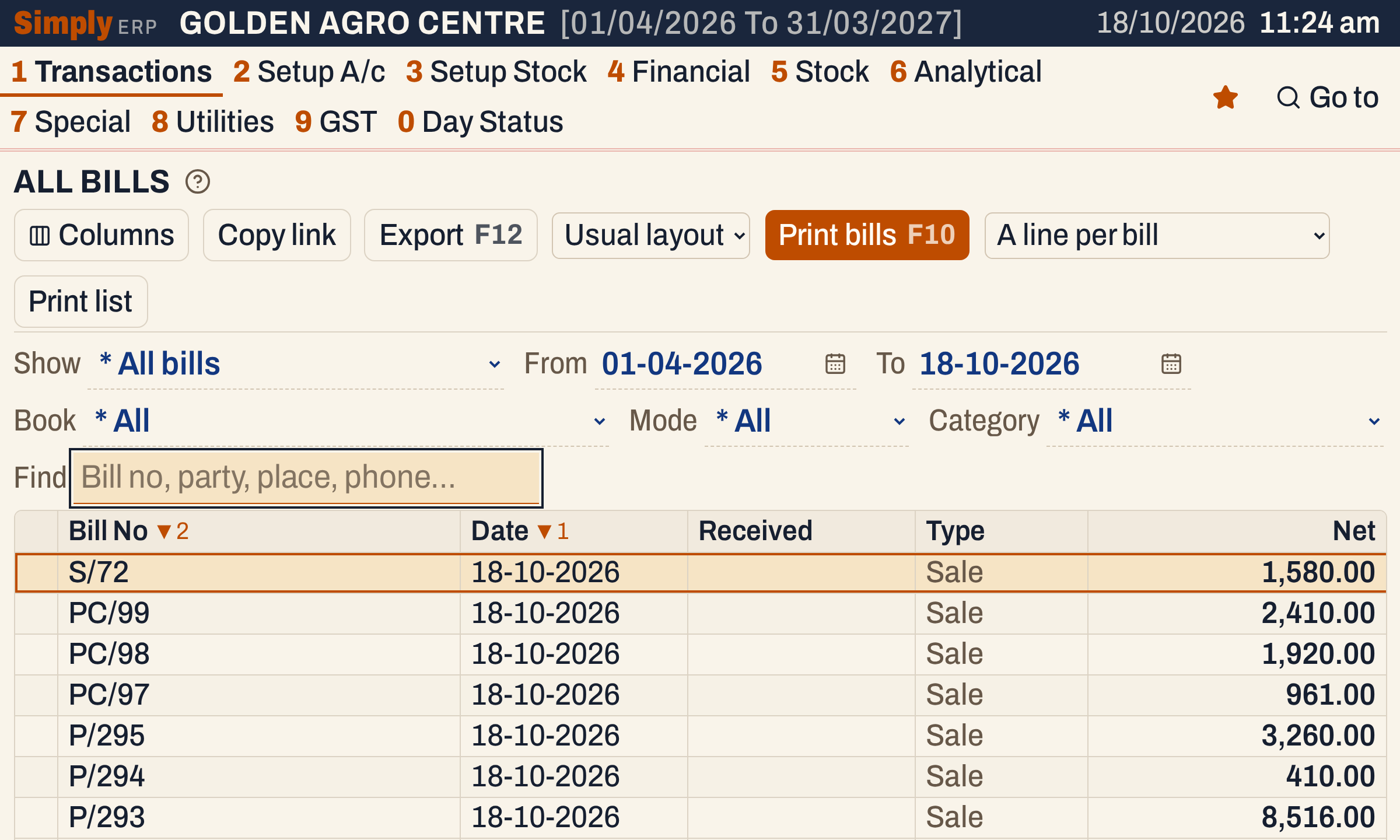 Extra large: the letters are bigger, so fewer columns and fewer rows fit. The menu bar wraps onto two lines.
Ctrl++ and Ctrl+- (⌘ instead of Ctrl on a Mac) still zoom the whole window on top of the size you chose.
Choose the colours
Colours lists nine themes. Each has a sample row in its own colours, so you see the theme before you choose it.
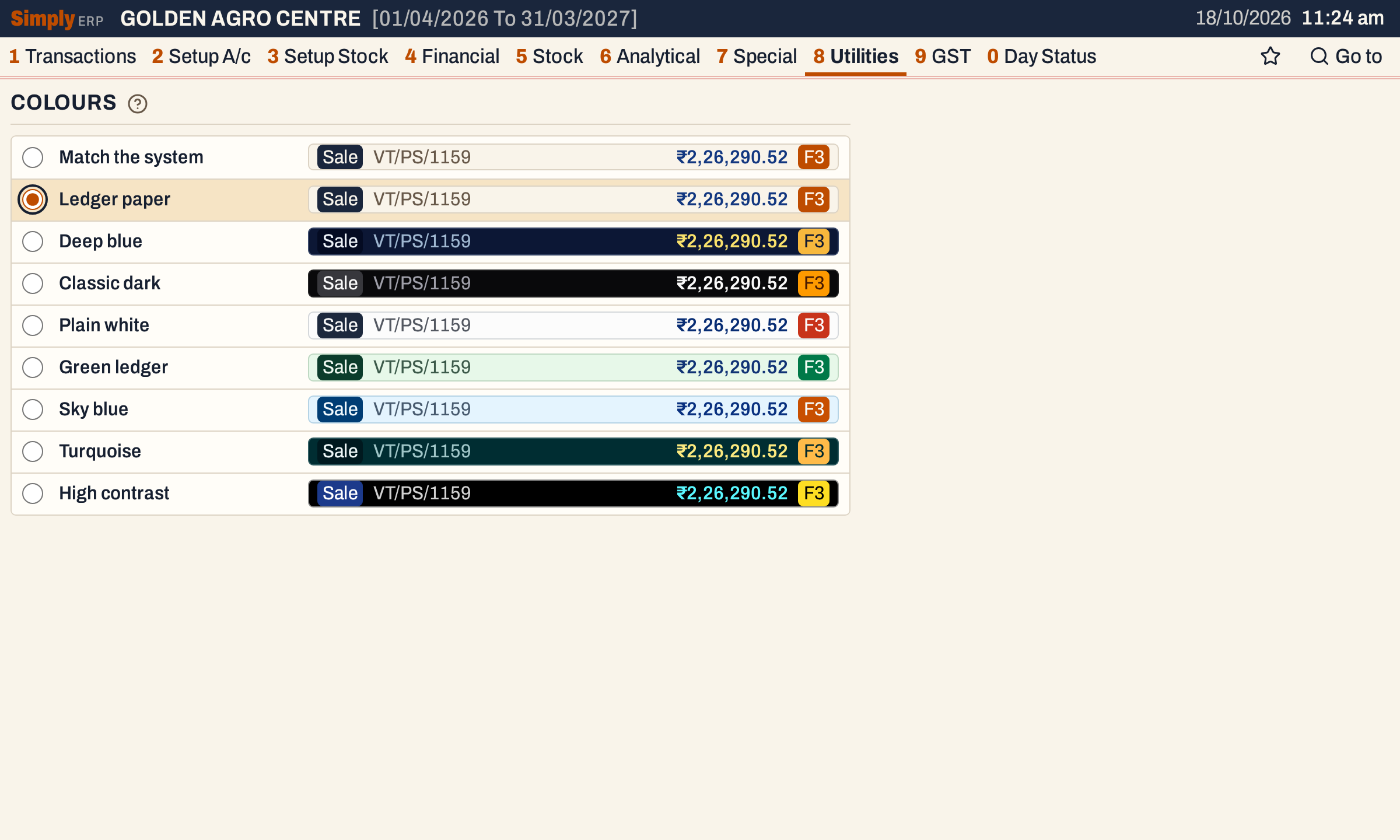 Ledger paper is selected here. The sample row shows a sale line with its amount and a key.
| Theme | Look |
|---|---|
| Match the system | Ledger paper while the computer is in light mode, Deep blue while it is in dark mode. This is the choice a new device starts with. |
| Ledger paper | Warm paper colour, light |
| Deep blue | Dark blue, dark |
| Classic dark | Black, dark |
| Plain white | White, light |
| Green ledger | Pale green, light |
| Sky blue | Pale blue, light |
| Turquoise | Dark green-blue, dark |
| High contrast | Black with bright text, dark |
↑ and ↓ choose a theme. It applies to every screen and window at once.
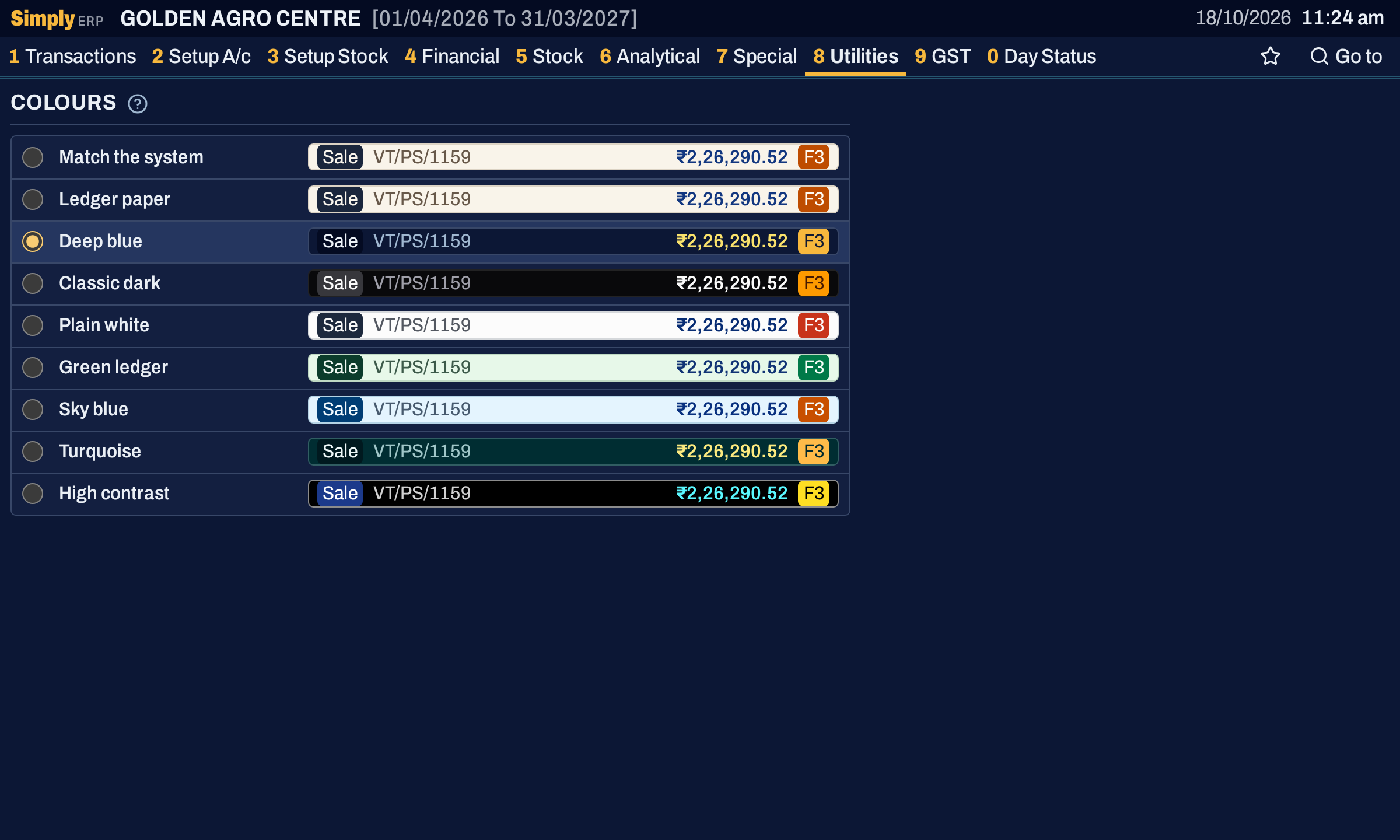 Deep blue. The whole screen changes as soon as the theme is chosen.
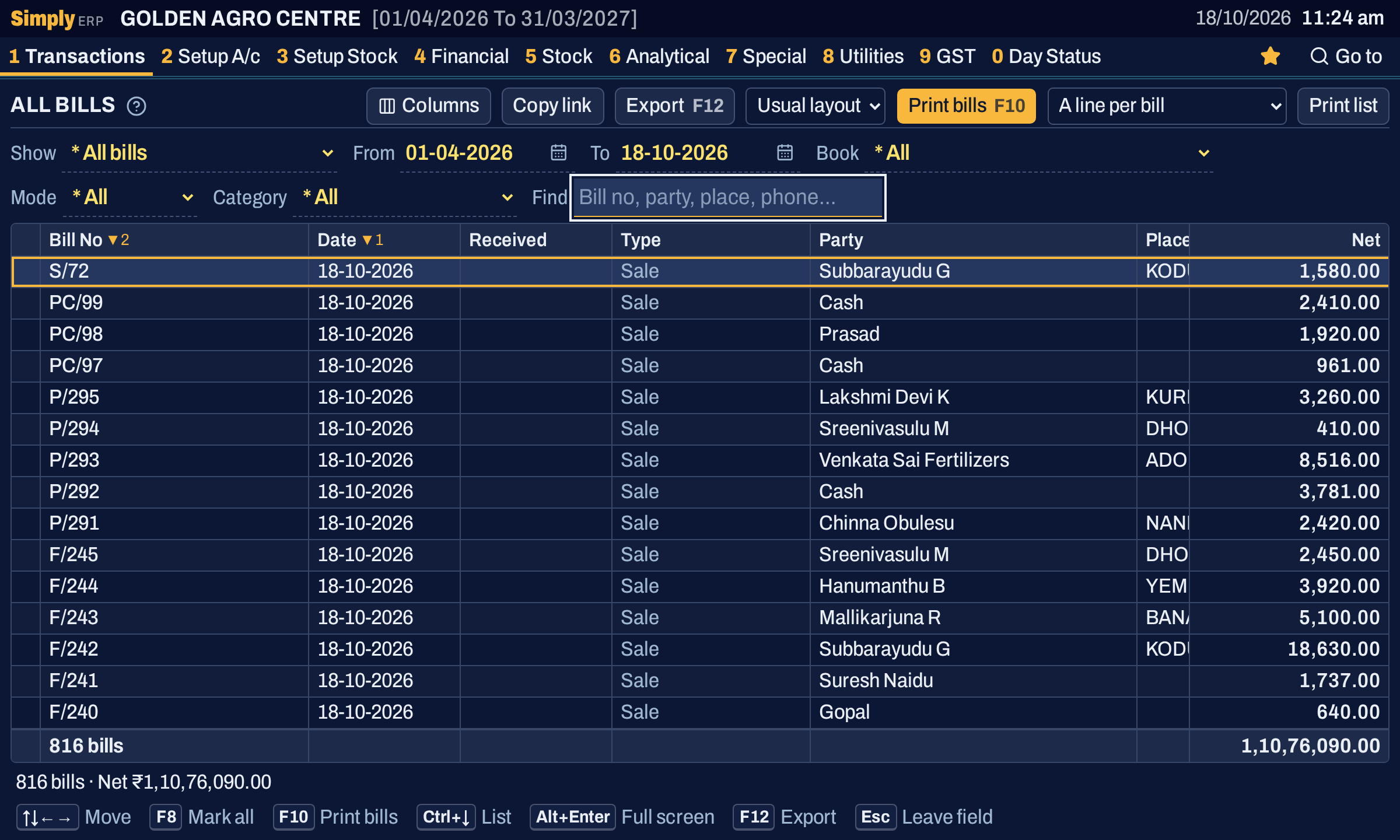 A register in Deep blue.
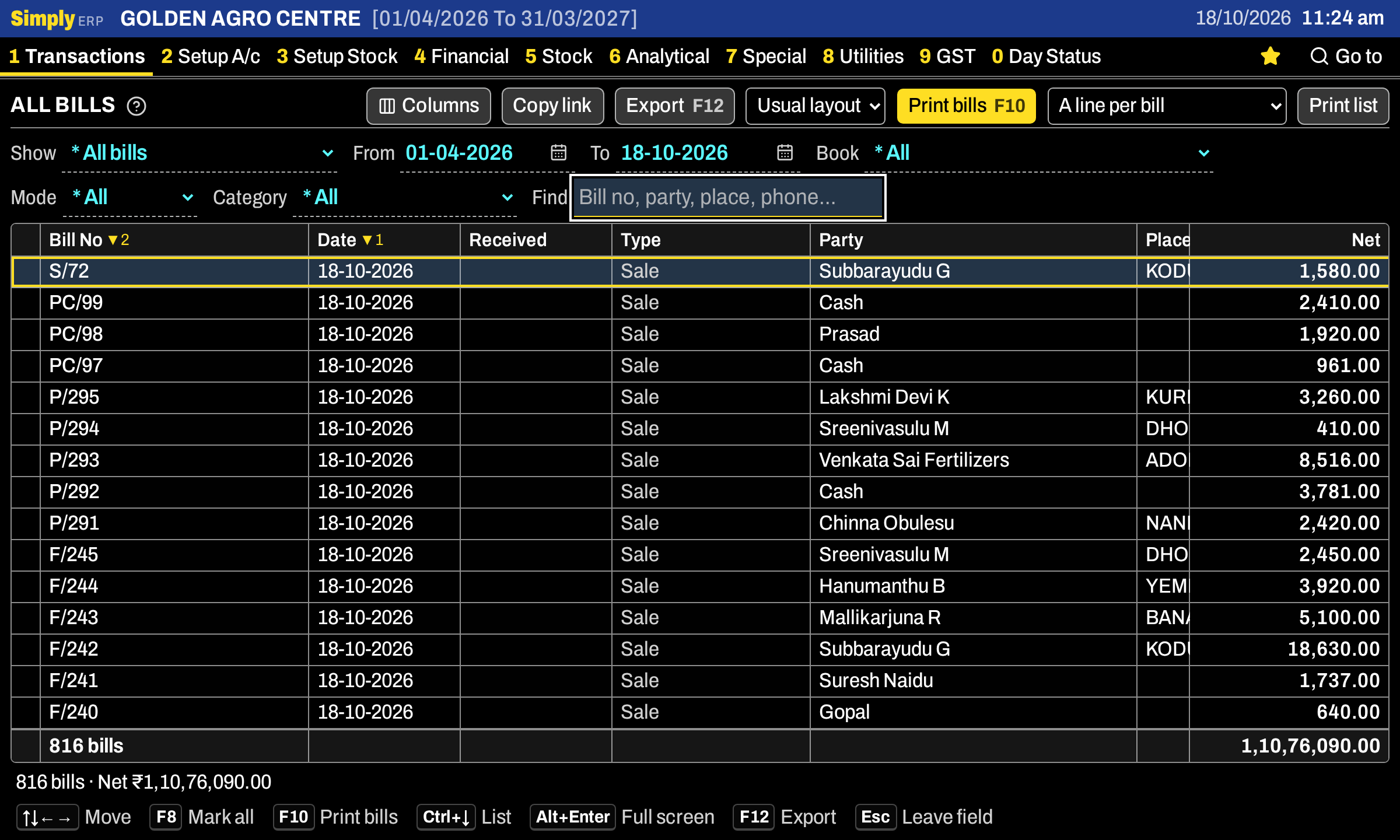 The same register in High contrast.
Printed bills, reports and notes do not change with the theme.
Kept on this device only
Text size and colours are saved on the device you choose them on, not in your books. A counter PC, a home PC and a phone can each have their own. The choice stays when you close SimplyERP and open it again. Another window of SimplyERP open on the same device follows the change.
The store launcher, which you see before a company’s books are open, has a Text size list and a Colours list of its own at the top of its window, because 8 T and 8 U are inside the books.
Keys on these screens
| Key | What it does |
|---|---|
| ↑ ↓ | Choose the previous or next size or theme |
| Ctrl++ or Ctrl+- | Zoom the whole window (⌘ instead of Ctrl on a Mac) |
| F1 | Every key on the screen |
Common questions
Does the text size change my printed bills? The text size is for the screens. The fonts of bills, notes and reports are chosen in Print settings.
Will my change reach the other computers? No. Each device keeps its own size and colours.
Updated 4 November 2026.