Put your screens on Home
On this page
Home lists your favourites: the screens you open most, each under a name you gave it, with a short note if you want one. Press the letter beside a favourite and the screen opens, so a daily report is one key away instead of a trip through the menu. Home shows no balances, bills or stock figures, so it is safe on a monitor the customer can see.
What Home shows
Home opens with two favourites, New Bill (the GST sale bill, 1 F N) and View Bills (All Bills, 1 Y). The company line (name, place, GSTIN and financial year) is above them and the menu bar at the top, as on every screen. On the main device in the desktop or mobile app, Home also shows whether the books are backed up.
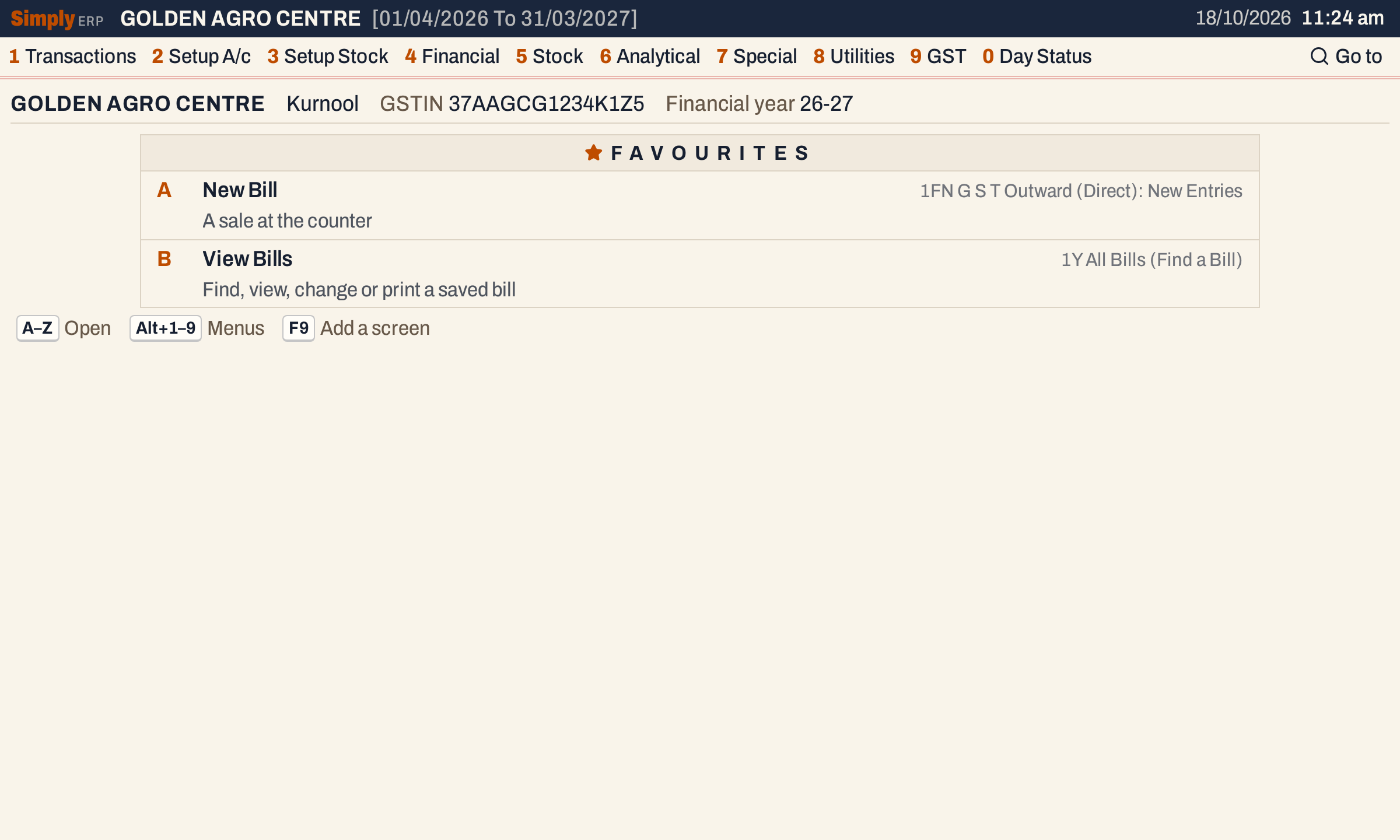 Each row has a letter, your name for the screen, your note under it and, quieter on the right, the screen’s own name in the menu.
The keys under the list are A–Z to open a favourite, Alt+1 to Alt+9 for the menus and F9 to add a screen. A letter belongs to the row it is beside: the first favourite is A, the second B, and so on. You can keep up to 26.
The digits still work on Home: 1 to 9 open the menus and 0 opens Day Status.
Add the screen you are on
Open the screen you want, for example Day to Day Sales from 6 A. Beside Go to at the top is a star. Click it, or press Alt+Shift+F (⌥⇧F on a Mac) from anywhere on the screen.
 Add to Home. When the window is wide the words “Add to Home” show beside the star.
The Add to Home dialog names the screen and starts the Name with the screen’s own name, with the cursor at its end.
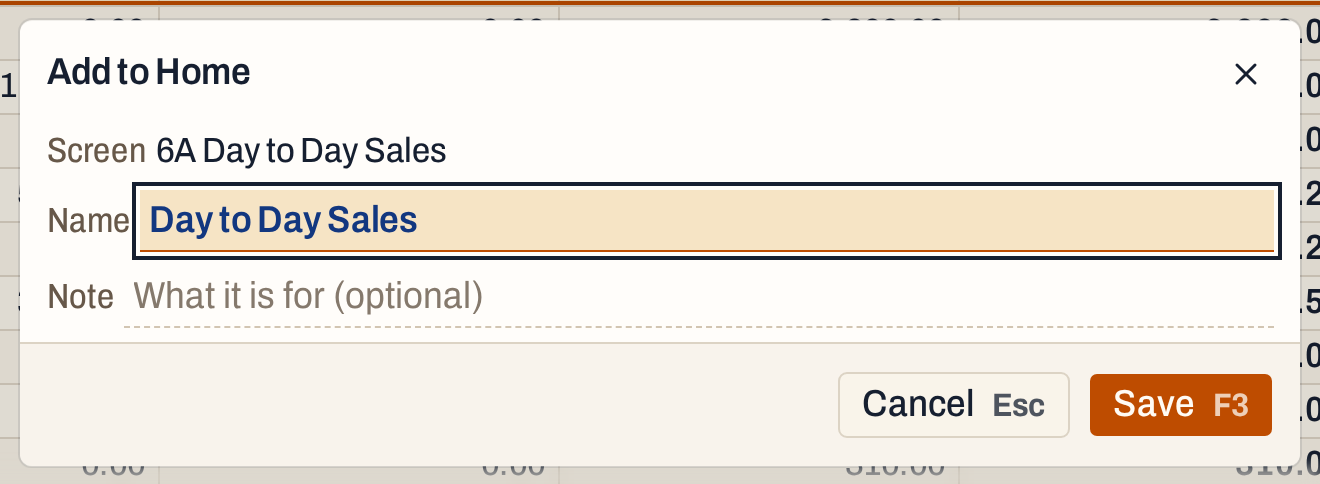 The Name is yours to change: up to 40 characters. The Note is optional, up to 80.
Press Ctrl+A to select the name, type the name you want and press Enter to go to Note. Type what the screen is for and press Enter again, or press F3 at any time, to save.
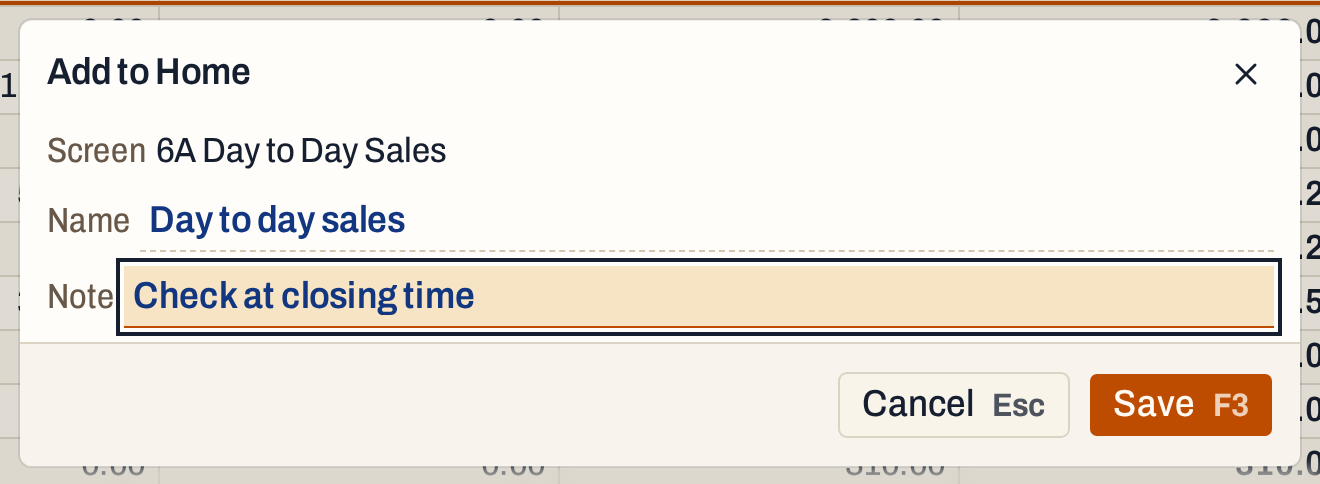 Esc closes the dialog without adding anything.
Once the screen is on Home, its star is filled and reads On Home. Click it, or press the same keys again, to rename the favourite or remove it.
 On Home: the star is filled.
Home now lists the new favourite with the next letter.
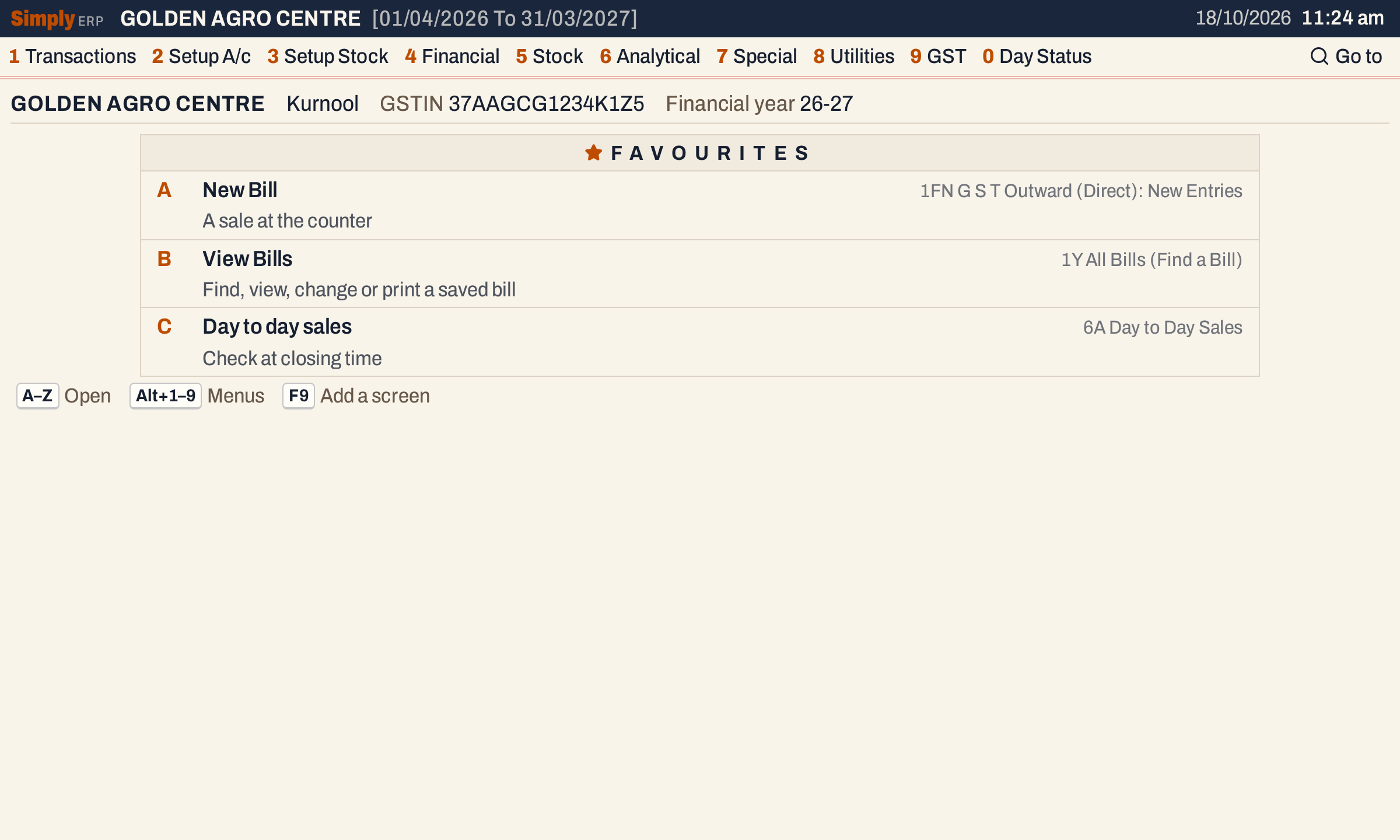 Day to day sales is on Home as C, with its note under the name and “6A Day to Day Sales” on the right.
A favourite keeps the choices that last on its screen, such as a report’s options, but not dates, a half-made draft or the row the cursor was on. A report from a favourite opens on its usual period, such as the year so far, and not on the days it was added from.
Add a screen from Home
On Home you do not have to open the screen first. Press F9. The same dialog opens with Screen empty.
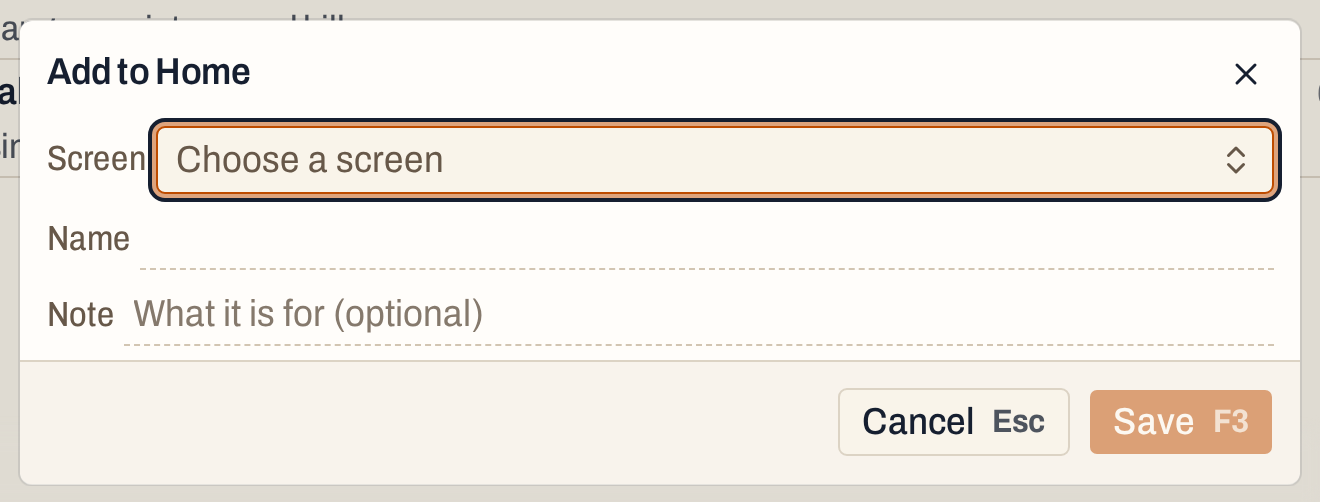 Save stays dimmed until a screen is chosen.
Press Enter on Screen to open the list of every screen in the menu. Type part of a name or its menu code, such as 4E, and the list narrows. ↓ and ↑ move, Enter chooses.
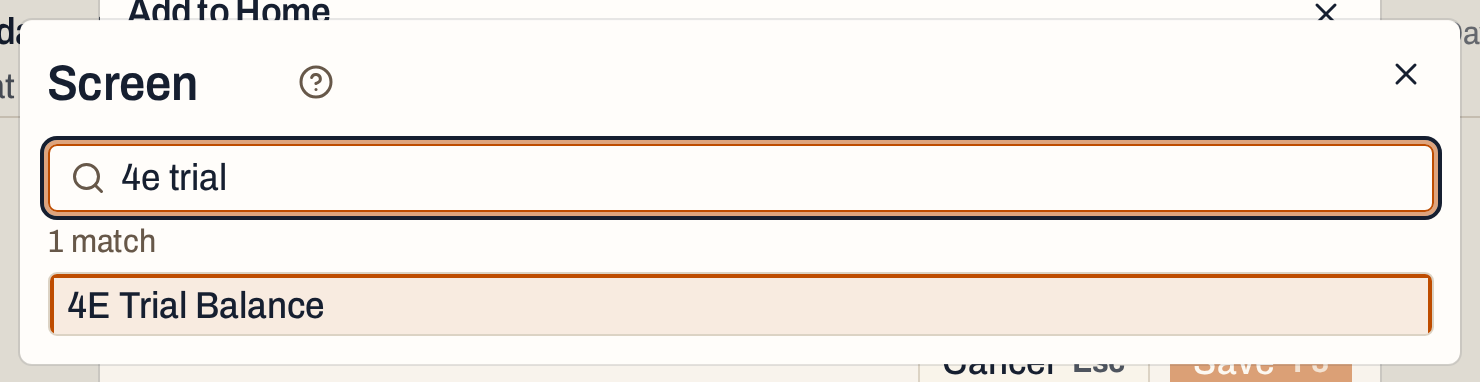 Menu code and name both match.
The Name fills with the screen’s name without its code, selected, ready to be typed over.
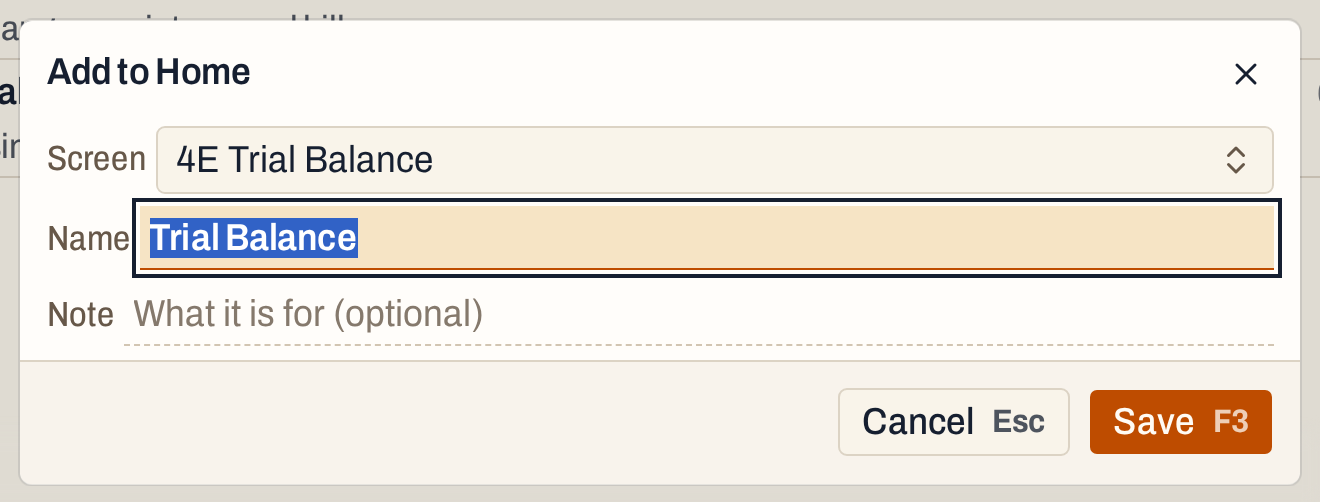 Press F3, or Enter twice, to add it.
If the screen you choose is already on Home, the dialog is titled Favourite on Home and saving renames that favourite. A screen is never on Home twice.
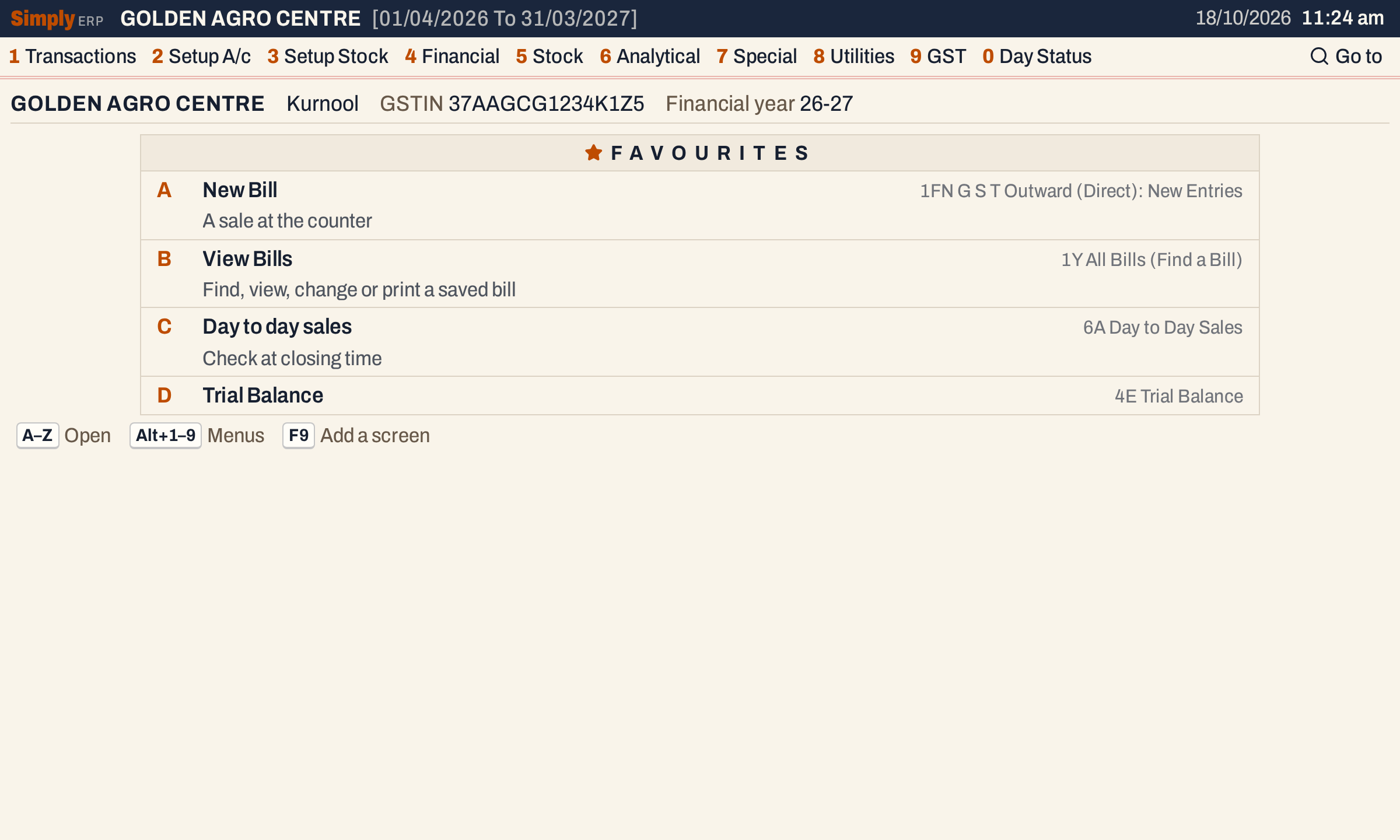 Trial Balance added as D. A favourite without a note has one line.
Rename, move or remove a favourite
Use ↑ and ↓ on Home to put the cursor on a favourite. The keys under the list then also show Enter, F6, Alt+↑ ↓ and Ctrl+Delete. They do this:
- F6 renames it. The dialog is titled Favourite on Home and also has a Remove from Home button.
- Alt+↑ or Alt+↓ (⌥↑ or ⌥↓ on a Mac) moves it one place. Its letter changes with its place.
- Ctrl+Delete (⌘⌫ on a Mac) takes it off Home.
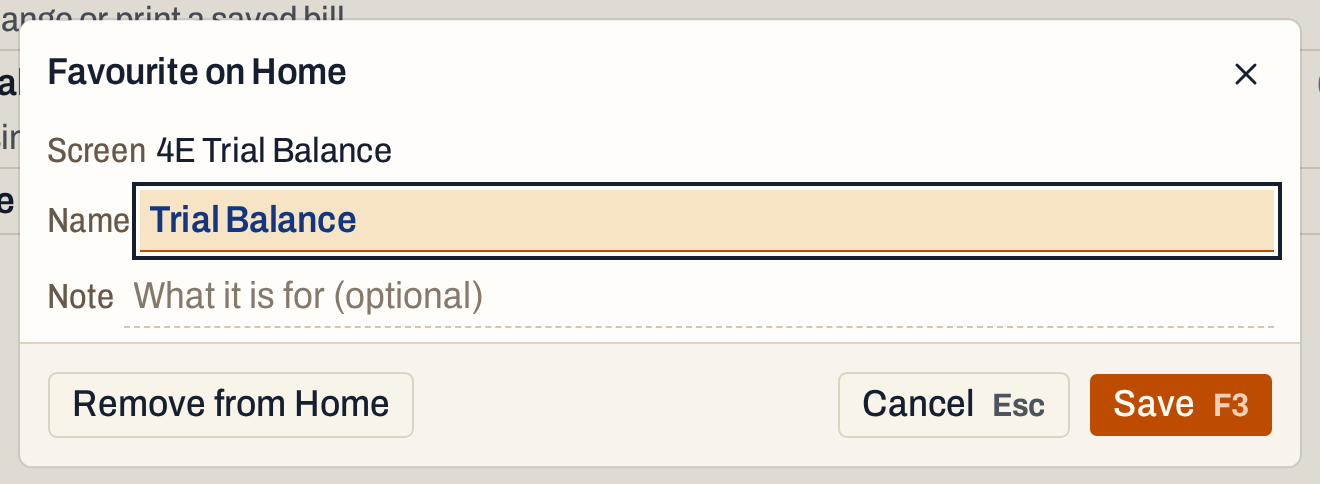 F6 on Trial Balance.
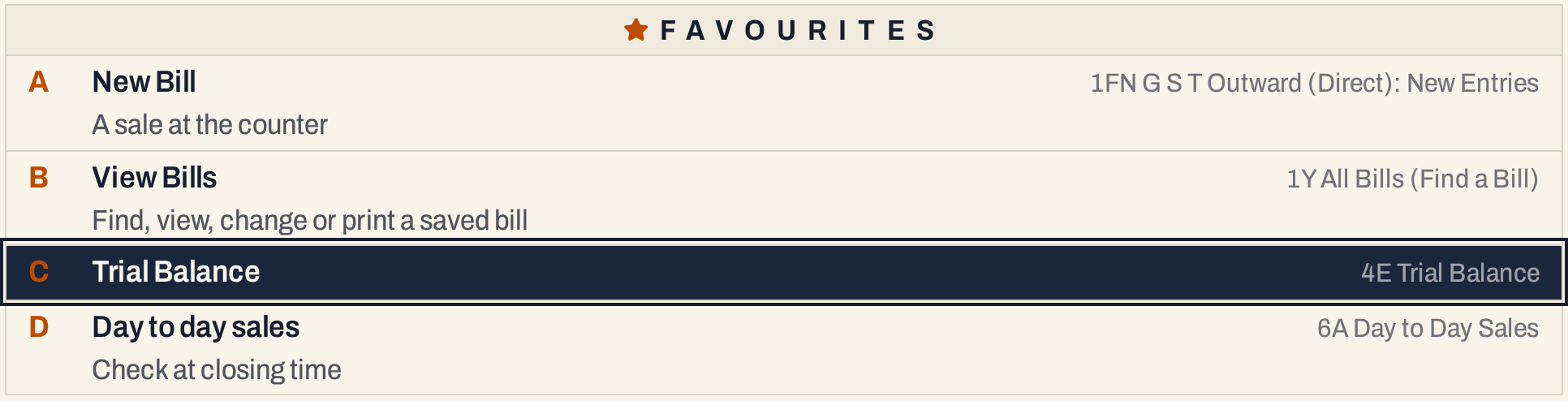 Trial Balance moved up one place and became C. Day to day sales became D.
Taking a favourite off Home does not ask. A notice, “Trial Balance is off Home.”, has an Undo button that brings it back in its place.
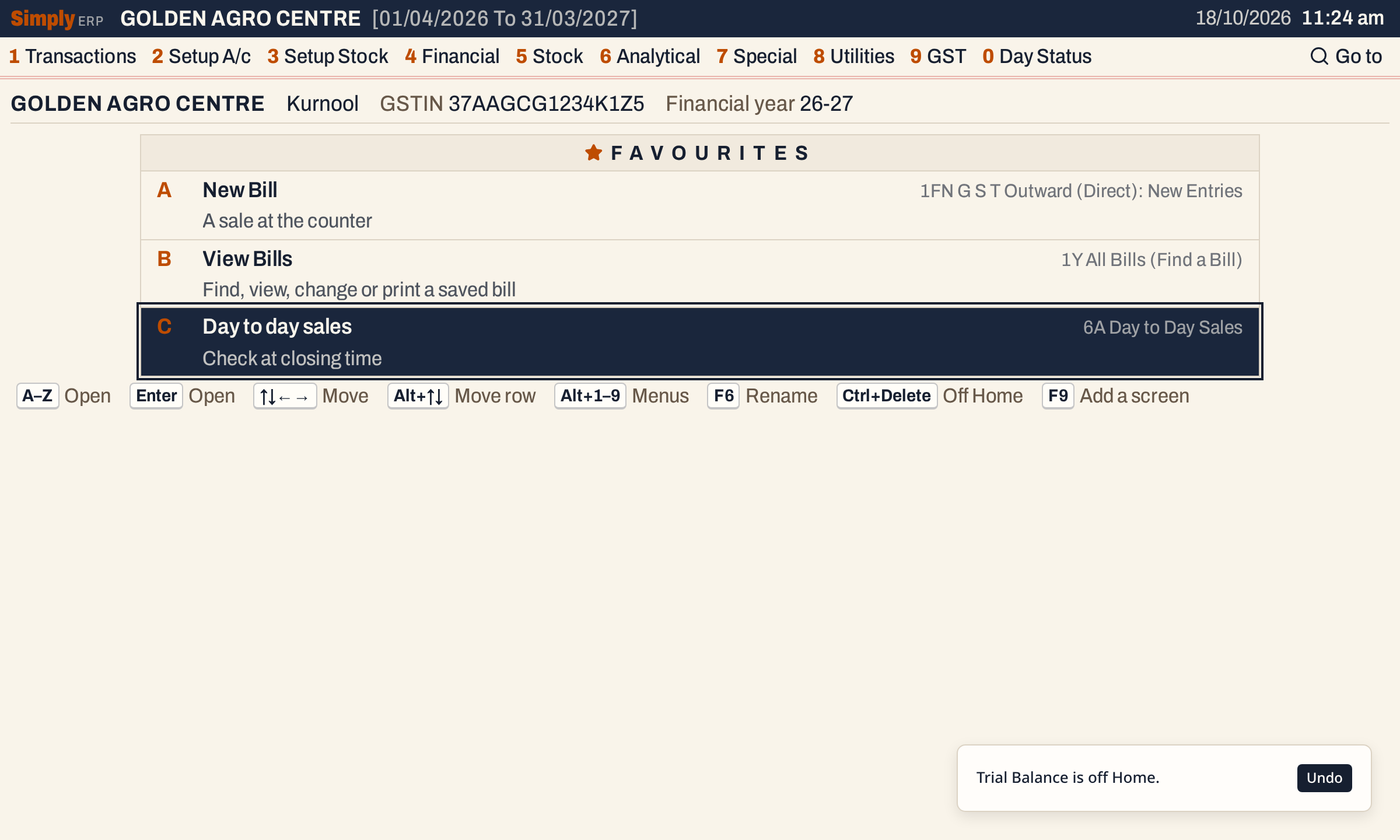 Off Home. Undo is on the notice.
Kept on this device
Favourites are saved in the browser’s storage on the device you use, not in your books. A counter PC and a phone each have their own list, and it stays when you close SimplyERP and open it again. Another window of SimplyERP on the same device shows the change. A favourite never changes your books or other devices.
On a read-only copy of the books, favourites that open a screen for making or changing records (a new bill, a new voucher, a new account) are left out of the list.
A new store made by sign-up shows its first steps on Home in place of the favourites until they are done.
Keys on Home
| Key | What it does |
|---|---|
| A–Z | Open the favourite with that letter |
| ↑ ↓ | Move the cursor along the favourites |
| Enter | Open the favourite under the cursor |
| F9 | Add a screen, chosen from the menu |
| F6 | Rename the favourite under the cursor |
| Alt+↑ Alt+↓ | Move it up or down |
| Ctrl+Delete | Take it off Home |
| Alt+Shift+F | On any other screen: add it to Home |
| F1 | Every key on the screen |
On a Mac, ⌥ stands for Alt and ⌘ for Ctrl.
Common questions
How many favourites can I keep? Up to 26, one for each letter. At 26, adding another does nothing until you take one off.
Will a favourite open the report for the dates I added it from? No. A favourite opens a report on its usual period and keeps the other choices you had made.
Can I put New Bill back if I remove it? Yes. Press F9 on Home, choose 1FN G S T Outward (Direct): New Entries, type New Bill as the name and save.
Updated 4 November 2026.