Keyboard shortcuts
On this page
SimplyERP is made to be used from the keyboard. Each job has the same key on every screen: F3 saves, F10 prints, F9 adds a line or a new entry, and Enter goes to the next field. Learn the key once and it works on bills, vouchers, lists and reports. The mouse works too.
Press F1 on any screen to see the keys of that screen. The page Keyboard Shortcuts lists every key in the app.
Open Keyboard Shortcuts
Press Alt+8 for Utilities, then V.
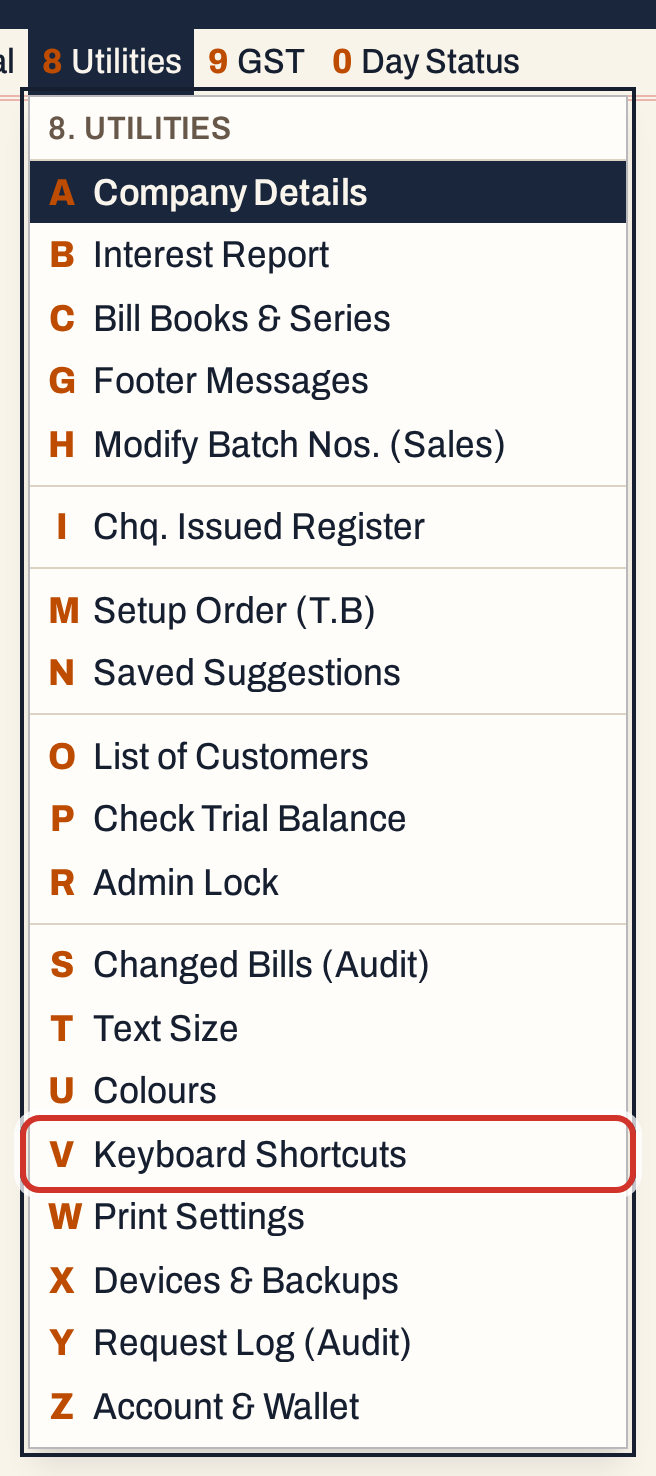 8 V: Utilities, Keyboard Shortcuts.
The page lists the keys in groups. Its Windows and Mac columns show the same job on each computer; the column of the computer you are on is in bold.
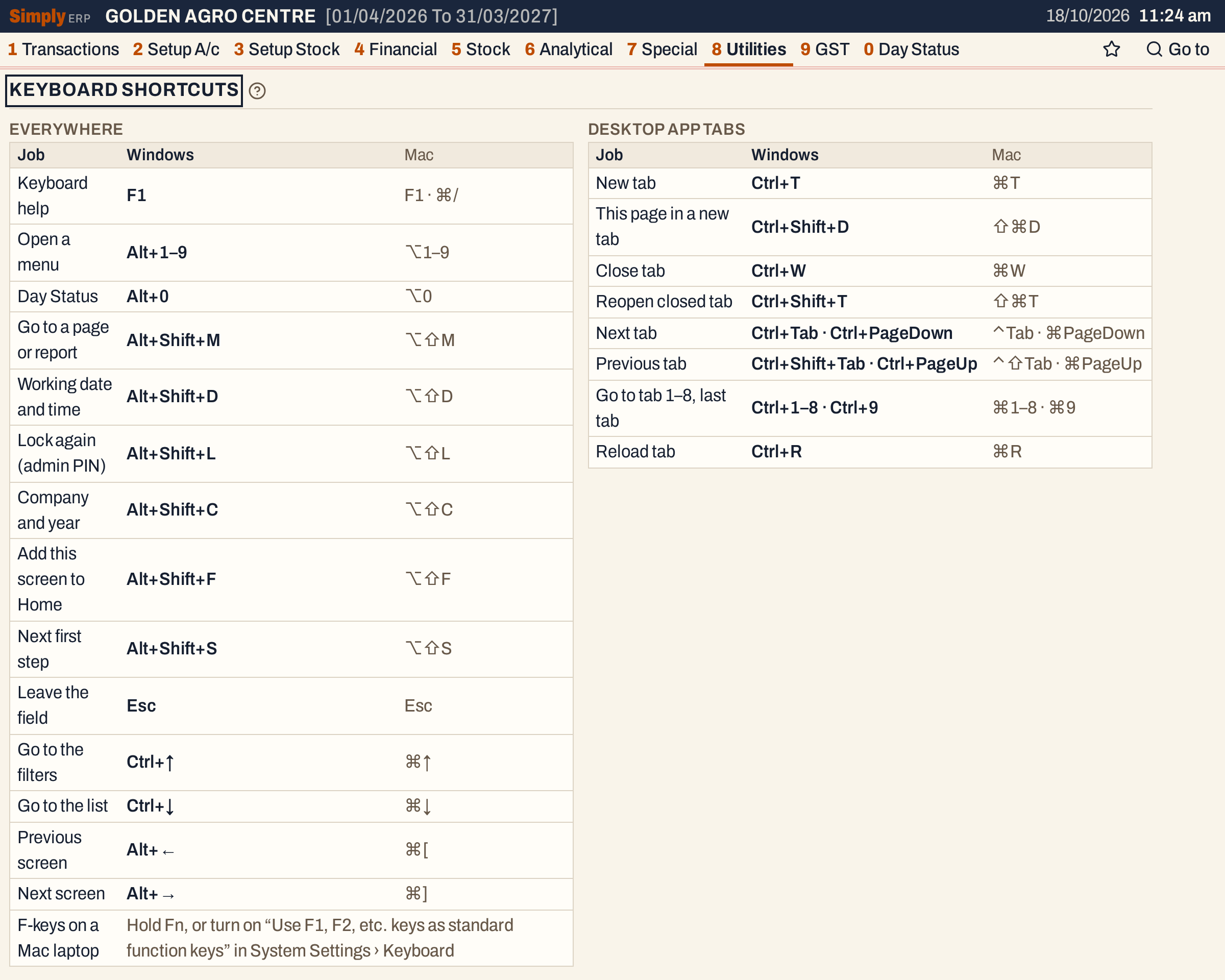 The Everywhere table and the Desktop app tabs table. The Actions table is further down the page.
Keys on a Mac
On a Mac, SimplyERP uses the Mac’s own keys: ⌘ where Windows has Ctrl, ⌥ for Alt and ⇧ for Shift. ⌃ is the Control key, which SimplyERP uses where macOS keeps ⌘ for itself (⌃Tab for the next tab). The tables below show both.
The function keys F1 to F12 are the same on both. On a Mac laptop, hold Fn with them, or in System Settings, Keyboard, turn on “Use F1, F2, etc. keys as standard function keys”.
Keys that work everywhere
| Job | Windows | Mac |
|---|---|---|
| Keyboard help | F1 | F1 or ⌘/ |
| Open a menu | Alt+1–9 | ⌥1–9 |
| Day Status | Alt+0 | ⌥0 |
| Go to a page or report | Alt+Shift+M | ⌥⇧M |
| Working date and time | Alt+Shift+D | ⌥⇧D |
| Lock again (admin PIN) | Alt+Shift+L | ⌥⇧L |
| Company and year | Alt+Shift+C | ⌥⇧C |
| Add this screen to Home | Alt+Shift+F | ⌥⇧F |
| Next first step | Alt+Shift+S | ⌥⇧S |
| Leave the field | Esc | Esc |
| Go to the filters | Ctrl+↑ | ⌘↑ |
| Go to the list | Ctrl+↓ | ⌘↓ |
| Previous screen | Alt+← | ⌘[ |
| Next screen | Alt+→ | ⌘] |
Alt+Shift+D opens the working date and time, the clock at the top right. Alt+Shift+C opens Company and year. Alt+Shift+S is for a new store that is still doing its first steps.
Typing in fields
A field you reach with the keyboard has its text selected, so typing replaces it. The arrow keys move to the neighbouring field. End, Home, a click or typing starts editing the text in the field. Esc stops editing, and a second Esc lets go of the field. Wherever the focus is, Ctrl+↑ goes to the filters and Ctrl+↓ to the list.
| Job | Windows | Mac |
|---|---|---|
| Next field | Enter | Enter |
| Move | ↑↓←→ | ↑↓←→ |
| Edit the text | End or Home | End or Home |
| Stop editing | Esc | Esc |
| List the choices | F2 | F2 |
Lists and reports
| Job | Windows | Mac |
|---|---|---|
| Open | Enter | Enter |
| Jump | A–Z | A–Z |
| Mark | F2 | F2 |
| Mark all | F8 | F8 |
| Full screen list | Alt+Enter | ⌥↩ |
 Two of the tables on the page, with the Windows and Mac keys side by side.
Actions
| Job | Windows | Mac |
|---|---|---|
| Save | F3 or Ctrl+S or Ctrl+Enter | F3 or ⌘S or ⌘↩ |
| Details | F4 | F4 |
| Switch view | F5 | F5 |
| Change | F6 | F6 |
| Hold as a draft | F7 | F7 |
| Switch to another draft | Shift+F7 | ⇧F7 |
| Delete | Ctrl+Delete | ⌘⌫ |
| New | F9 | F9 |
| F10 or Ctrl+P | F10 or ⌘P | |
| Print options | Shift+F10 | ⇧F10 |
| Export to Excel | F12 | F12 |
| Move the row | Alt+↑ or Alt+↓ | ⌥↑ or ⌥↓ |
| Add a charge | Alt+C | ⌥C |
| Merge into another item | Alt+M | ⌥M |
| Rates billed before | Alt+H | ⌥H |
| Another batch of the item | Alt+B | ⌥B |
| Alternatives of the item | Alt+A | ⌥A |
| Opening stock of the item | Alt+O | ⌥O |
| Add a new account or item | Alt+N | ⌥N |
| Clear the entry | Alt+X | ⌥X |
Not every action exists on every screen. The keys that work where you are are in the key line under the screen and in F1.
Desktop app tabs
The desktop app opens several screens in tabs, like a browser. These keys work in the desktop app only, and the F1 panel shows them only there.
| Job | Windows | Mac |
|---|---|---|
| New tab | Ctrl+T | ⌘T |
| This page in a new tab | Ctrl+Shift+D | ⇧⌘D |
| Close tab | Ctrl+W | ⌘W |
| Reopen closed tab | Ctrl+Shift+T | ⇧⌘T |
| Next tab | Ctrl+Tab or Ctrl+PageDown | ⌃Tab or ⌘PageDown |
| Previous tab | Ctrl+Shift+Tab or Ctrl+PageUp | ⌃⇧Tab or ⌘PageUp |
| Go to tab 1–8, last tab | Ctrl+1–8 or Ctrl+9 | ⌘1–8 or ⌘9 |
| Reload tab | Ctrl+R | ⌘R |
Press F1 for the keys of the screen you are on
F1 (⌘/ on a Mac) opens the Keyboard panel. On the left is This screen, the keys of that screen with the names that screen gives them. On the right are the keys that work everywhere and the keys for typing in fields. Under them, Every shortcut (menu 8 V) opens the full page. Esc closes the panel.
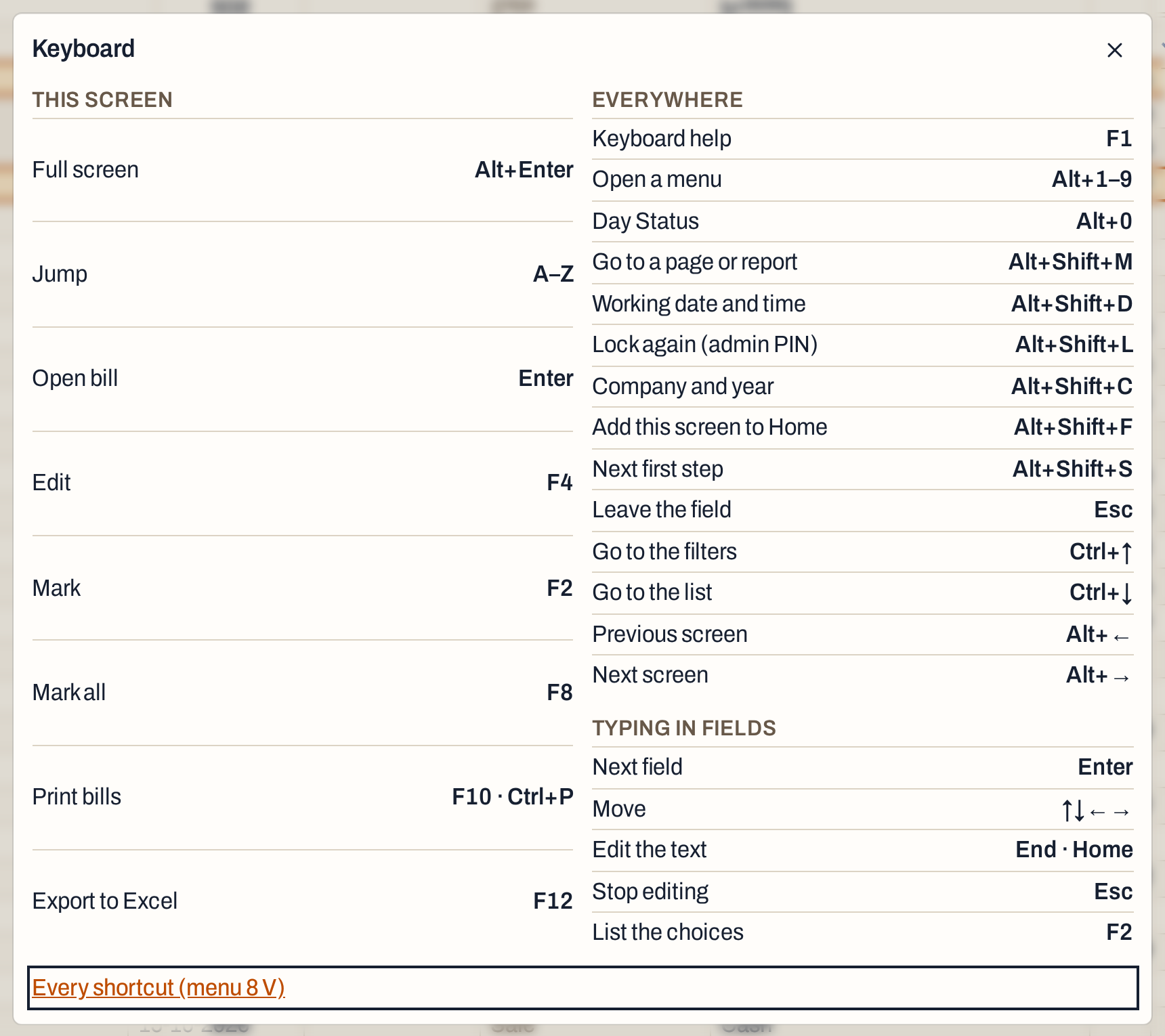 F1 on All Bills. Here Enter opens a bill, F4 edits it, F10 prints the marked bills, or the one under the cursor, and F12 exports the list.
The same panel on a new sale bill lists keys that only a bill has.
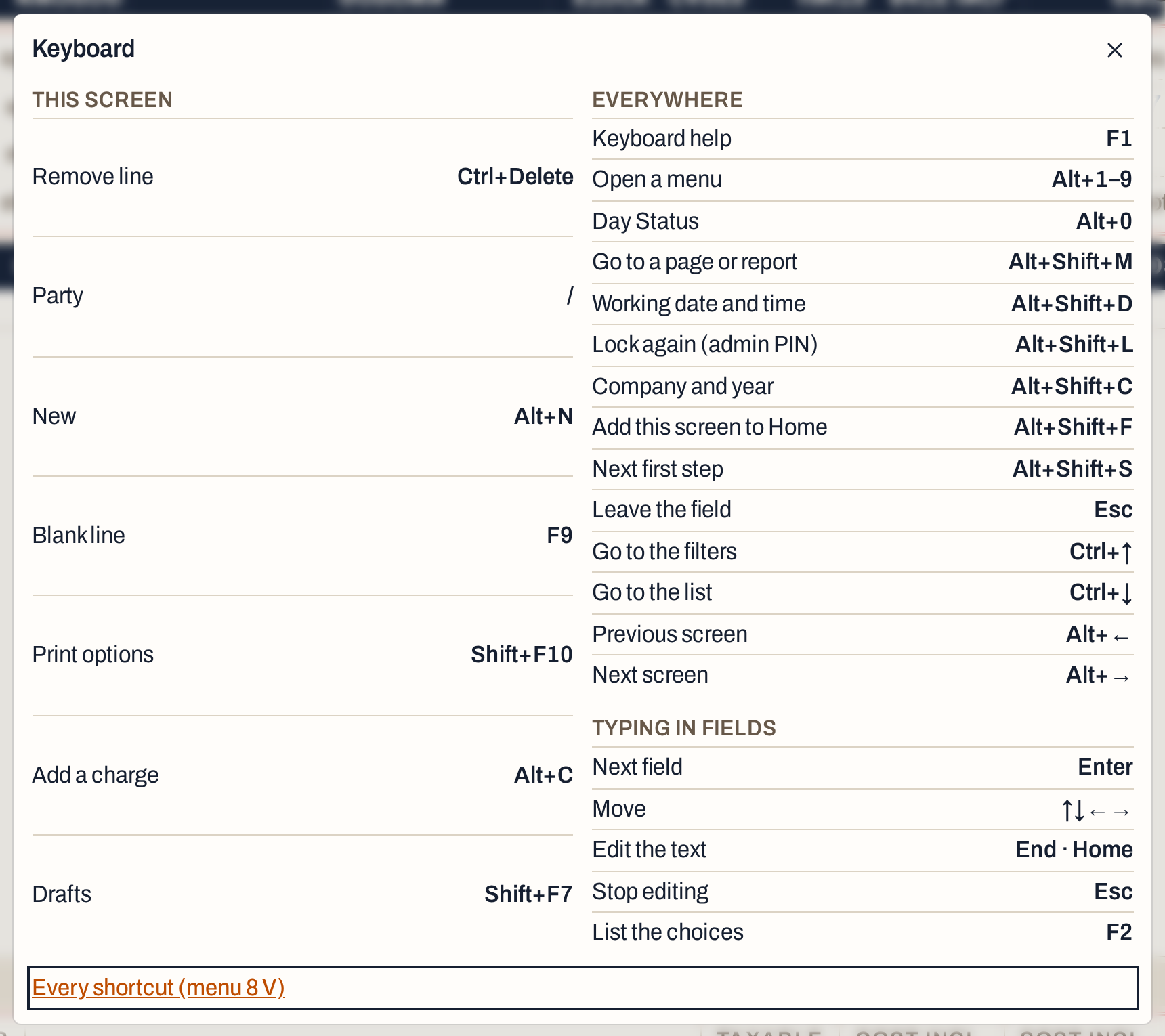 F1 on a new sale bill: remove a line, blank line, add a charge and the drafts.
The key line under each screen
Every screen has a key line under its content. It shows the keys that act where the cursor is now, so it changes as you move from a field to a list. It is one line. When the keys do not fit, the least needed ones are left out, and F1 lists them all.
 The key line of a new sale bill with the cursor on the first field.
Each key in the line can be clicked. A click presses that key where the cursor is. Keys that stand for a range, such as A–Z or the arrows, have no one press and are only shown. Hovering a button shows its key too.
Common questions
Does every key do the same on every screen? The jobs do. F3 saves a bill, a voucher or a setup screen, and F9 adds a line or a new entry. What a key does on a screen is shown in the key line and in F1.
Can I change the keys? The Keyboard Shortcuts page only lists them; it has no way to change them. The keys are fixed, so a clerk finds the same keys at every counter. A Mac uses its own keys, as the tables show.
A key does nothing on my Mac laptop. The function keys may be set to the Mac’s own jobs, such as brightness. Hold Fn with the key, or change the setting named above.
Updated 4 November 2026.