GSTR-3B
On this page
GSTR-3B adds up the GST you paid on purchases (input tax) and the GST you charged on sales (output tax) for a period, line by line: one line for each kind of document, trading account and GST rate. The last line, Balance Input, is input tax less output tax. Use it to fill your GSTR-3B return, and press Enter on a line to see the bills it is made of.
Open the report
Press Alt+9 for GST Reports, then A. The report opens on the month of the working date, from its first day to its last. The pictures on this page are October 2026 on the sample books, with a sale to a walk-in in another state, a sales return, a credit note issued and one received, a debit note, a purchase return and a purchase from a supplier without a GSTIN added, so that most kinds of document have a line.
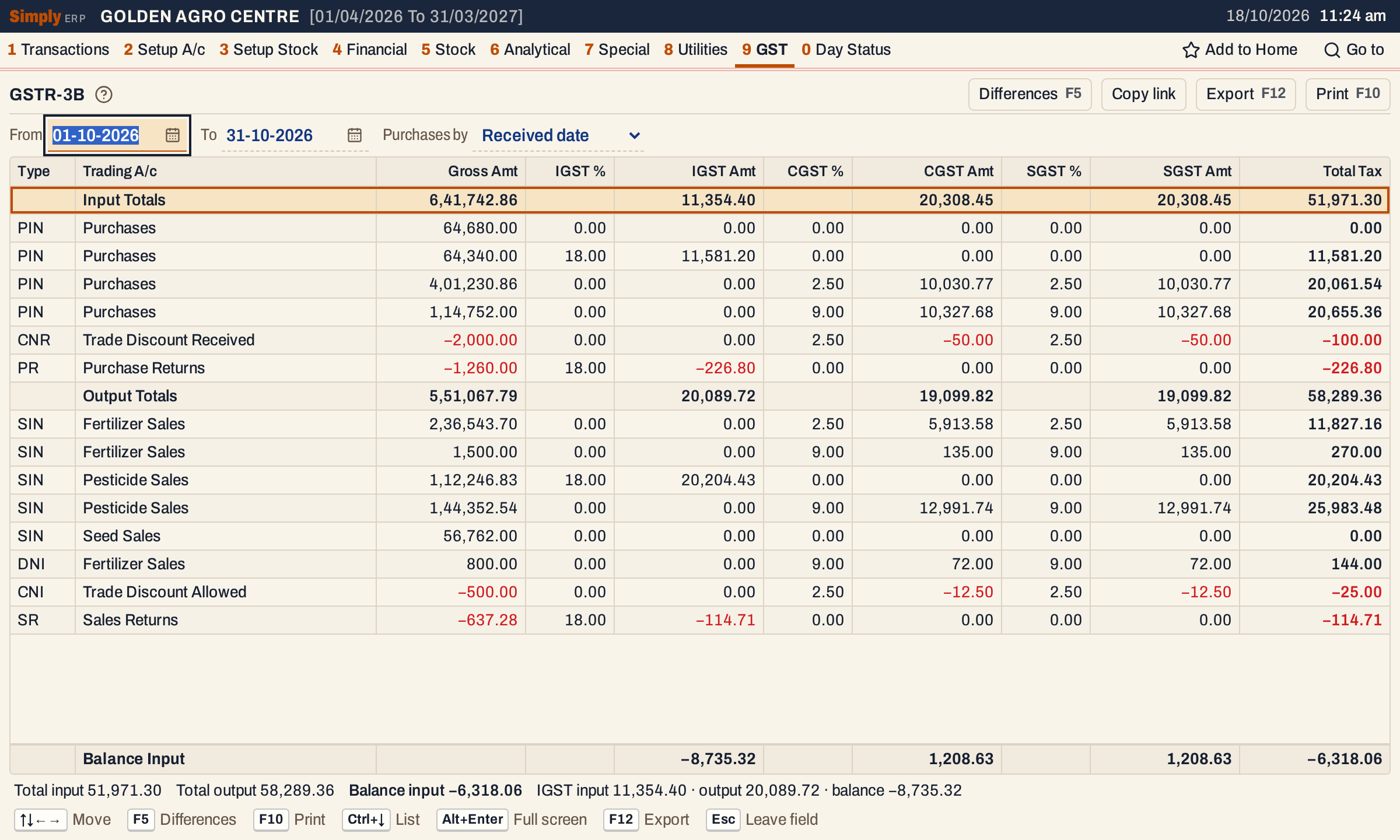 Input lines first, then output lines. Returns and credit notes are in red because their figures are minus.
What it lists
GSTR-3B reads the saved GST amounts of these documents:
| Type | Document | Side | Counts as |
|---|---|---|---|
| PIN | Purchase bill | Input | plus |
| OPN | Other purchase | Input | plus |
| DNR | Debit note received | Input | plus |
| CNR | Credit note received | Input | minus |
| PR | Purchase return | Input | minus |
| SIN | Sale bill | Output | plus |
| OSL | Other sale | Output | plus |
| DNI | Debit note issued | Output | plus |
| CNI | Credit note issued | Output | minus |
| SR | Sales return | Output | minus |
Each document is read through its goods lines (and, on sale and purchase bills only, the charge lines that carry GST). It does not read receipts, payments, journals or the non-GST credit and debit notes (1 N and 1 O).
One line of the report is one kind of document, one trading account and one set of GST rates. The trading account is the side of the posting that is not the customer or supplier: Pesticide Sales and Fertilizer Sales for the sale books, Purchases for purchase bills, Purchase Returns and Sales Returns for returns, and the account a credit or debit note was made to (Trade Discount Allowed, Trade Discount Received and Fertilizer Sales in the pictures).
A bill with goods at two rates is in two lines. A line at 0% is listed, with no tax, so the Gross Amt still adds up to your turnover.
Columns
| Column | What it shows |
|---|---|
| Type | The document code from the table above. |
| Trading A/c | The trading account, or Input Totals and Output Totals on the heading lines. |
| Gross Amt | The taxable value of the lines: after discounts, before GST. |
| IGST % | The IGST rate of the lines. |
| IGST Amt | The IGST on them. |
| CGST % | The CGST rate. |
| CGST Amt | The CGST. |
| SGST % | The SGST rate. |
| SGST Amt | The SGST. |
| Total Tax | CGST + SGST + IGST. |
The first two columns stay in place when you scroll sideways. The two heading lines, Input Totals and Output Totals, add up the lines under them. The last line of the grid, Balance Input, shows input less output for IGST Amt, CGST Amt, SGST Amt and Total Tax; Gross Amt has no balance.
Choices
| Choice | What it does |
|---|---|
| From, To | The period, inside the financial year. Changing From moves To to the day before the same date next month, so a first of the month gives that whole month. Setting To earlier than From moves both to that date. |
| Purchases by | Received date (the default) counts a purchase bill on the day the goods were received. Invoice date counts it on the supplier’s invoice date. Only purchase bills (PIN) use this choice. |
 The choices above the grid.
Every choice is kept in the page address, so Copy link gives a link that opens the same report.
How the figures are worked out
- Which date counts. A document is in the period when its date is from the From date to the To date, both days included. For a purchase bill the date is the received date or the invoice date, as chosen in Purchases by. Every other document counts on its posting date: a sale on its bill date, a sales return on the day the goods came back, a note on its posting date.
- Lines. SimplyERP sums the taxable value, CGST, SGST and IGST that were saved on each line of the document, as the bill screen worked them out, and does not calculate the tax again. Lines are grouped by document, then by CGST, SGST and IGST rate.
- Sign. The figures of purchase returns, credit notes received, sales returns and credit notes issued are taken off: they are shown as minus. A debit note adds to its side.
- Total Tax of a line is CGST + SGST + IGST, each rounded to two decimals.
- Input Totals and Output Totals are the sums of their lines for each column. In the October pictures, input tax is 51,971.30 and output tax is 58,289.36.
- Balance Input is input less output, for each tax. In the pictures, Total Tax is 51,971.30 − 58,289.36 = −6,318.06. A minus balance means you charged more GST than you paid. The three taxes are not set against each other: IGST balance is 11,354.40 − 20,089.72 = −8,735.32, CGST balance is 20,308.45 − 19,099.82 = 1,208.63, and SGST balance is the same as CGST.
 The status line gives the same totals as the grid, with the IGST balance.
- Check against GSTR-1. When you have no other sales, the Gross Amt of Output Totals is the Tax.Value total of the HSN view of GSTR-1 for the same period: both read the same saved amounts. In October it is 5,51,067.79 in both.
The order of the lines is fixed: purchases, other purchases, debit notes received, credit notes received, purchase returns, then sales, other sales, debit notes issued, credit notes issued and sales returns. Within a kind, lines are in the order of the trading account’s name, then CGST rate, then IGST rate.
The bills behind a line
Click a line or move to it and press Enter to list its bills. The heading names the kind of document and the account, for example GSTR-3B · Sales Details · Pesticide Sales. The Input Totals and Output Totals lines do not open.
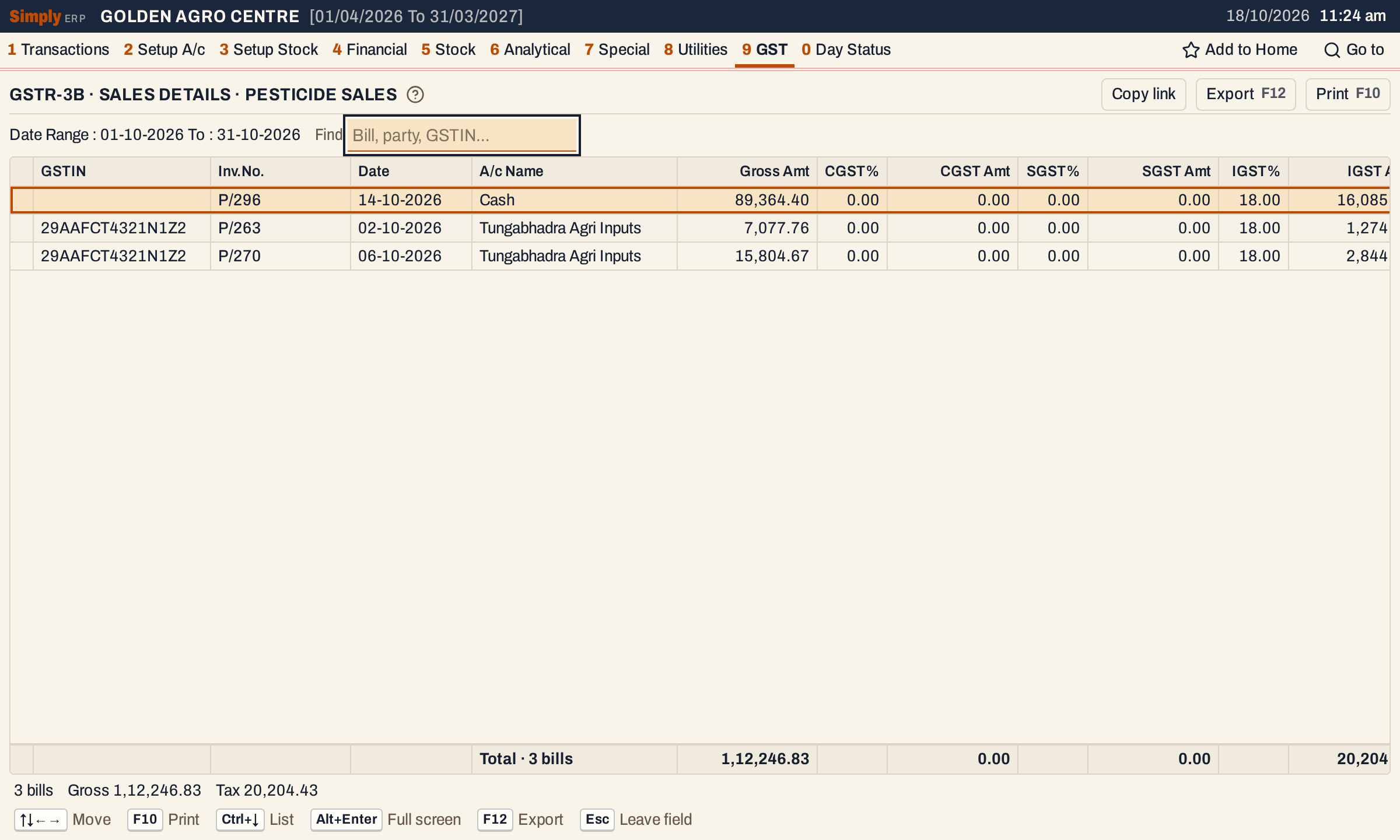 Three bills make the Pesticide Sales line of 1,12,246.83 at 18% IGST. P/296 is the cash bill of 14-10-2026 to a customer in another state.
| Column | What it shows |
|---|---|
| GSTIN | The GSTIN of the party on the bill. |
| Inv.No. | The bill or note number. |
| Date | The date the bill counted on: the received or invoice date for a purchase, as chosen. |
| A/c Name | The account the bill was made to. A cash bill shows the book’s cash account (Cash here), not the name typed on the bill. |
| Gross Amt | The taxable value of the bill’s lines at this rate. |
| CGST%, CGST Amt, SGST%, SGST Amt, IGST%, IGST Amt | The rates and tax of those lines. |
| Tot.Amt | Gross Amt + CGST + SGST + IGST. It is not the bill’s own total, which also holds charges that carry no GST and the round off. |
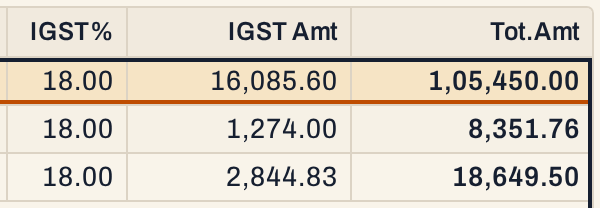 Scrolled to the right: the IGST and the total of each bill. P/296 has 16,085.60 of IGST and is 1,05,450.00 in all.
The list has a Find box, which keeps the bills whose number, party or GSTIN match what you type. Click a column title to sort by it. The totals line adds up what is listed, and the status line shows the number of bills, their gross amount and their tax. The count is of the lines in the list, so a bill listed twice counts twice. A bill with goods at two rates is in the list of each rate’s line, with the amounts of that rate. On a purchase bill, a charge that carries GST is a line of its own, apart from its goods, so the bill is listed twice. A bill whose CGST is off the rate, as in the next section, is shown in red here too.
Press Enter on a bill to open it, and Esc to come back.
Bills whose CGST is off the rate
Press F5 (or click Differences) to list the sale, purchase and return bills whose CGST is not the CGST rate on their gross amount. For each bill and CGST rate, SimplyERP works out Gross Amt × CGST % ÷ 100 and compares it with the CGST saved. It lists the bill when the difference, rounded to ten paise, is not zero; that is, when the two differ by 5 paise or more. This catches a bill whose figures were changed by hand or whose rate was wrong. The list adds the Type, Calc. CGST and Diff. columns and shows its lines in red.
When there is any such bill, the status line under the report says how many (“1 bill with CGST differences (F5)”). On the sample books there is none, so the status line shows no such message.
Open, mark, print and export
- Enter on a line lists its bills, as above. F5 lists the bills with a CGST difference.
- In the list of bills, F2 marks a bill and F10 then prints only the marked bills. Enter opens the bill.
- F10 prints the report. The print gives the input lines, then TOTAL INPUT, then the output lines, then TOTAL OUTPUT, and ends with Balance Input. Its heading gives the period and whether purchases are counted by received date or invoice date.
- F12 saves the report as an Excel workbook.
- Alt+Enter gives the whole window to the list.
GSTR-3B is a summary for you to enter in your return. SimplyERP does not file it, and does not make a GSTR-3B file.
Updated 4 November 2026.