Make a GST debit note
On this page
A GST debit note raises an amount you charged or were charged. You issue one to a customer when a bill was too low, for example a rate that was set too small, or when you add a charge after the bill. You receive one from a supplier who raises a bill. A debit note is only an amount: no stock moves. Saving it changes the party’s balance and corrects the GST in your returns.
Open a new debit note
Press Alt+1 for the Transactions menu, I for G S T Debit Note, then N for New Entries.
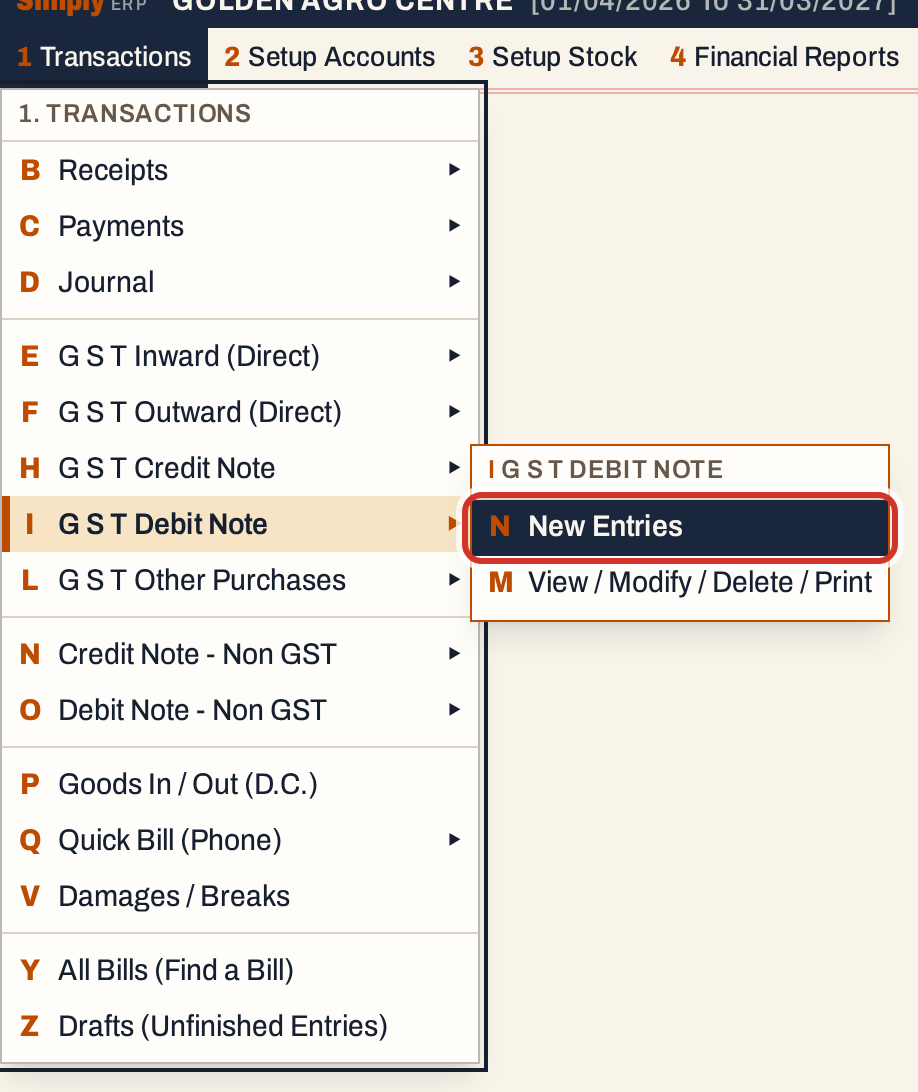 1 I N: Transactions, G S T Debit Note, New Entries.
The screen opens on Debit Notes Issued, with the cursor in the Type field. The date and due date start on today’s working date, and the payment on Credit. The next number of the book shows beside it (No. DN/1 here).
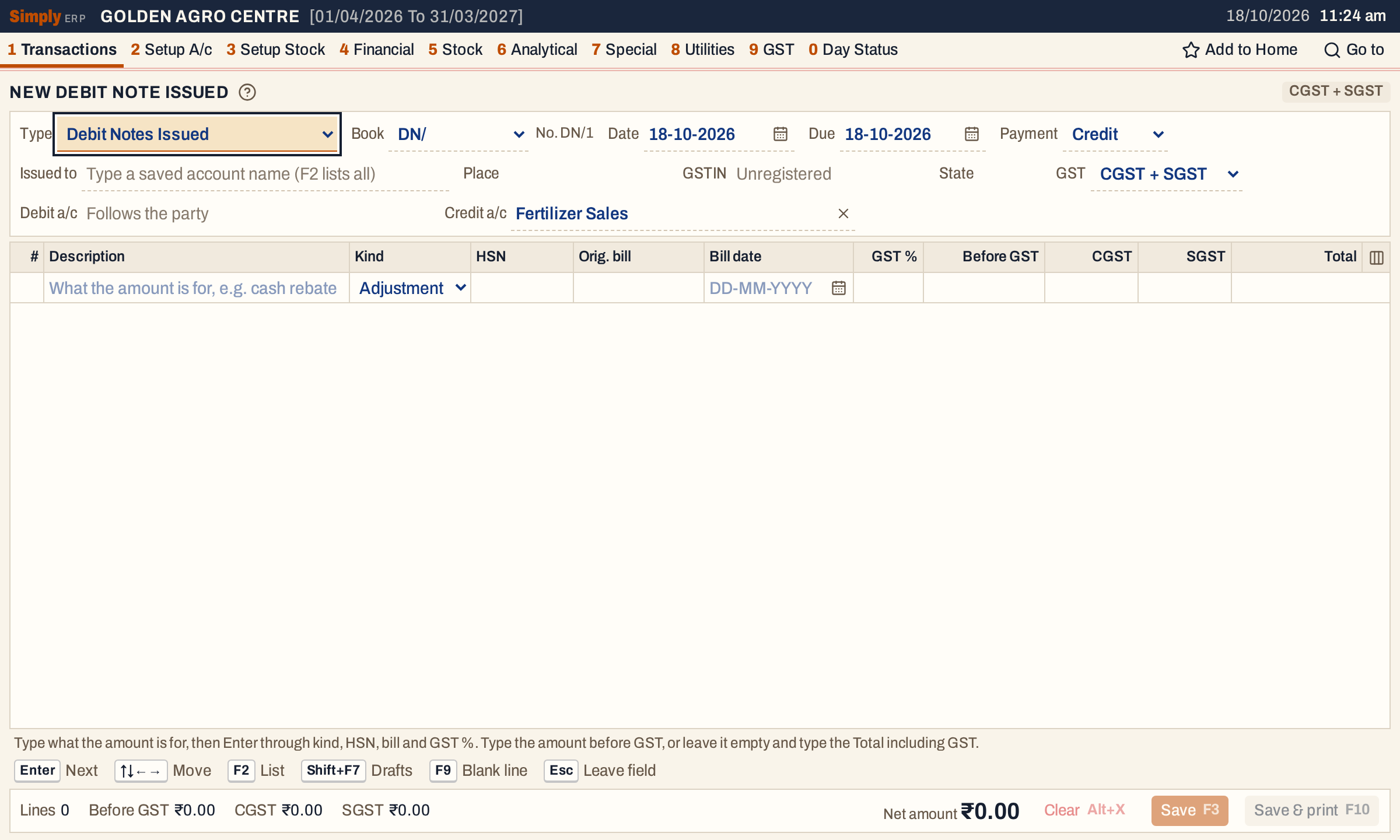 A new debit note issued. The credit account is already filled in; the debit account follows the party.
Choose the party
Type part of the account’s name in Issued to. The list shows each match with its place, GSTIN and balance. Enter takes the highlighted one; F2 lists every account.
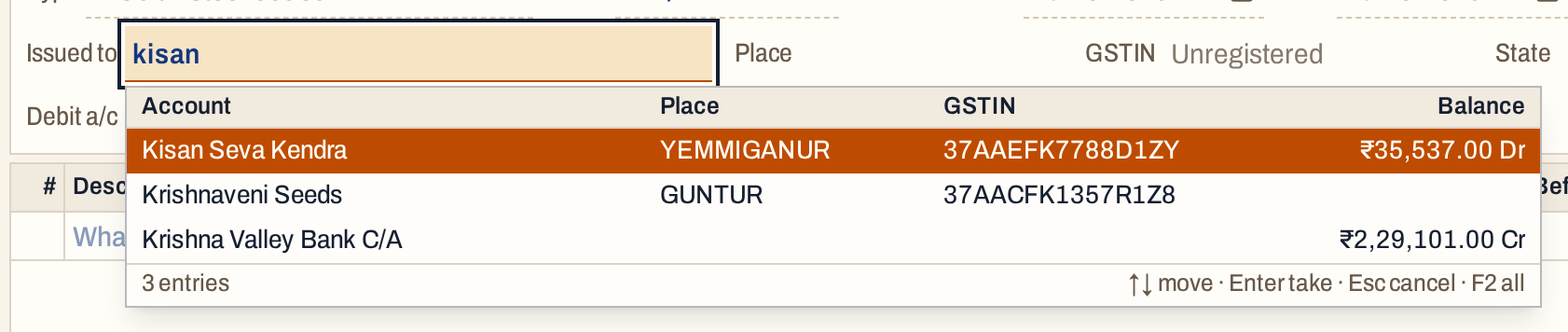 The note needs a saved account. The first match is highlighted.
The party’s place, GSTIN and state fill in, and A/c balance shows what the party owes you before the note. The GST field follows the party’s state: CGST and SGST for a party in your state, IGST for a party in another. Change it and every line is worked out again.
Check the accounts
For a debit note issued, the party is the Debit a/c and cannot be changed (“Follows the party”). The Credit a/c starts with the account set for the note type, Fertilizer Sales here. Type another account name, or press F2, if the amount belongs elsewhere.
 The note debits the party and credits Fertilizer Sales.
Payment is Credit or Cash. On a cash note the party’s side goes to the cash account of the note’s book instead of the party.
Add the amounts
Each line is one amount. Type what it is for in Description, then press Enter through the cells:
- Kind: Adjustment carries GST. Add + GST is a taxable charge. Add and Less are plain amounts without GST, for example a round-off: Add raises the note’s net amount and Less lowers it.
- HSN: a new line starts with the HSN and GST % of the line above.
- Orig. bill and Bill date: the number and date of the bill the note corrects. The date cannot be after the date of the note.
- GST %, then Before GST: type the amount and the CGST and SGST (or IGST) and Total are worked out.
 Line 1 corrects bill F/228, which sold ten bags of Urea 45 Kg: it adds ₹12.00 a bag, ₹120.00 in all.
To start from the total including GST, leave Before GST empty and press Enter. The cursor goes to Total, and SimplyERP works back to the amount before GST. See Make a GST credit note for how this looks.
In this note line 2 is a charge, so its kind is Add + GST. Choose it in the Kind list (Space or F2 opens it).
 Each line carries its own rate: ₹126.00 and ₹236.00.
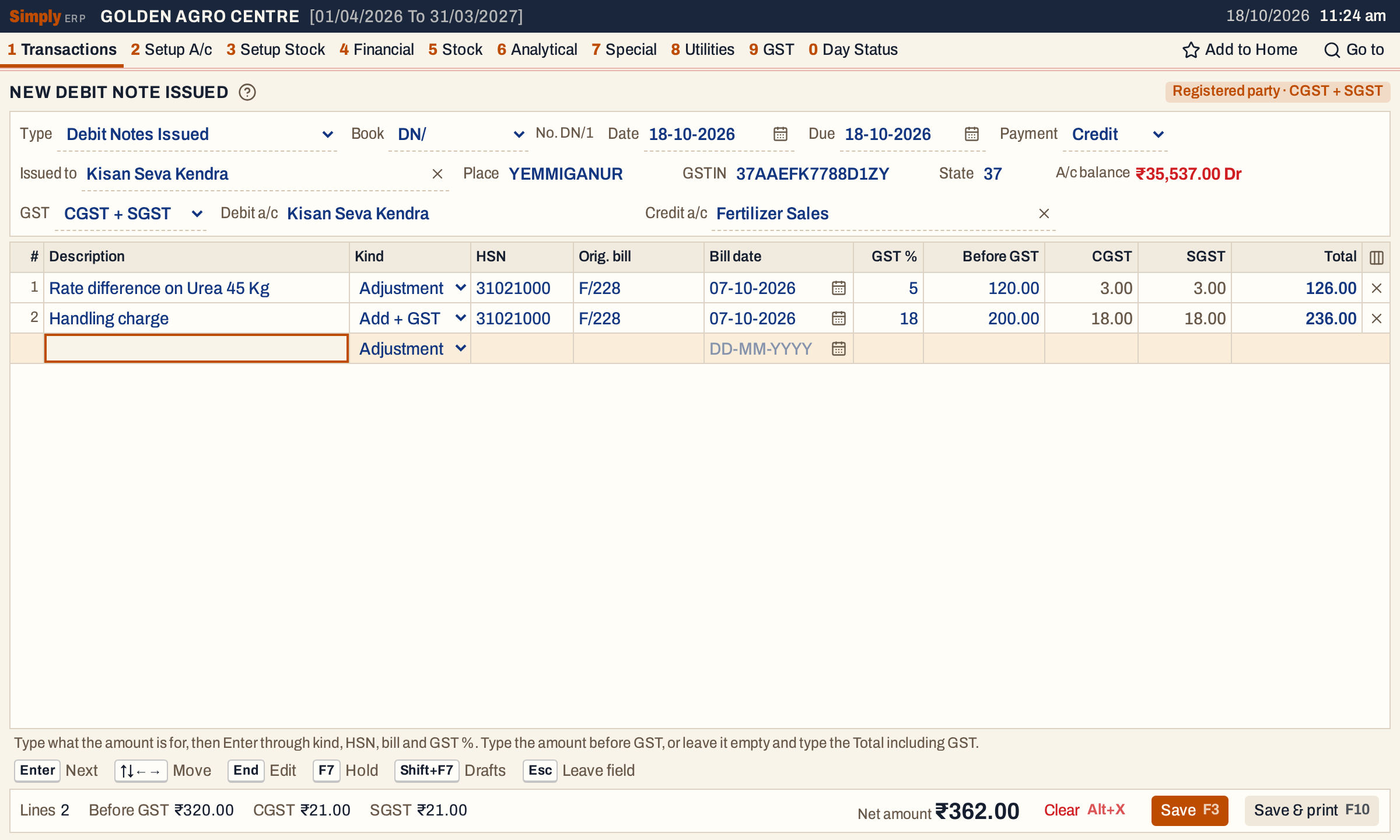 Two lines, ₹362.00 in all. A blank line is always ready below.
Check the totals
The totals under the grid show the number of lines, the amount before GST, the CGST and SGST (or IGST), any Add or Less amounts, and the net amount.
 ₹320.00 plus ₹42.00 of GST is ₹362.00.
The net amount must be above zero. A GST note also needs an Adjustment or Add + GST line with an amount and a GST rate or an HSN; otherwise SimplyERP refuses it and points you to the non-GST notes, see Make a non-GST debit note.
Save
F3 saves. F10 saves and prints a debit note issued; a debit note received does not print. A notice says the note is saved and a new empty note opens, with the same type.
Every note you save is in All Bills (1 Y). Open it from there and press F4 to edit it or Ctrl+Delete to delete it.
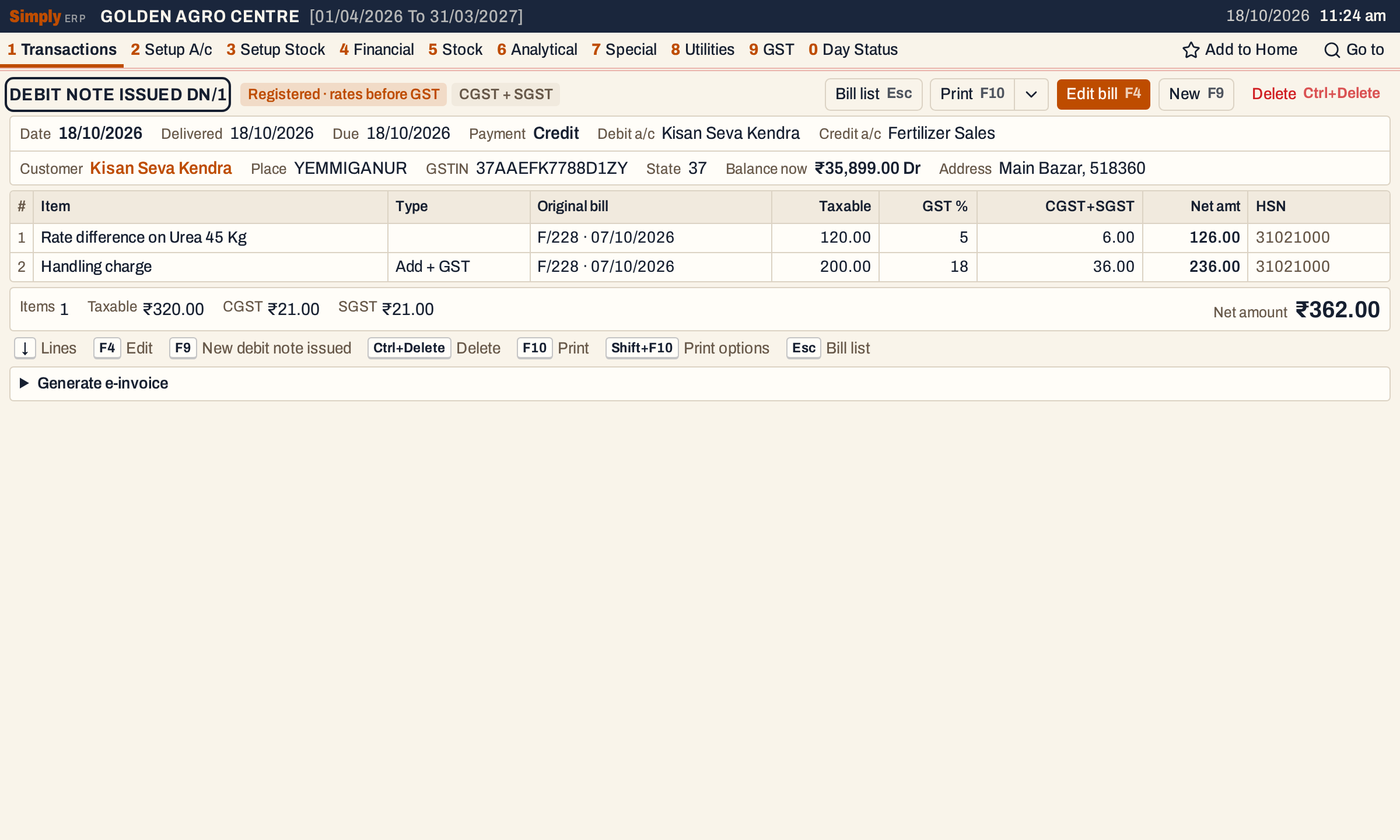 The saved note. The customer’s balance rose from ₹35,537.00 Dr to ₹35,899.00 Dr, by the net amount.
What saving does to your books
A debit note issued is posted on its date:
| Account | Debit | Credit |
|---|---|---|
| The party | Net amount | |
| The credit account (or each line’s own account) | Each line’s amount before GST | |
| CGST and SGST output accounts, or IGST output | Each line’s tax |
Each line posts on its own, so an account shows one posting for each line. A Less line posts its amount on the other side. For this note, Kisan Seva Kendra is debited ₹362.00. Fertilizer Sales is credited ₹320.00 (₹120.00 and ₹200.00 as two postings), the CGST Output 5% and SGST Output 5% accounts ₹3.00 each, and the CGST Output 18% and SGST Output 18% accounts ₹18.00 each. No stock moves.
A debit note issued adds to your output tax. GSTR-1 lists the notes of registered customers in its credit and debit notes table, and nets the notes of unregistered customers in its state and rate table. GST Monthly Totals adds the tax to your output tax, and the party’s ledger shows the note.
A debit note received
A debit note received comes from a supplier who raises an earlier bill. Choose Debit Notes Received in the Type field. The header changes, because the supplier numbered and dated the note:
- Their note no.: the supplier’s number for the note. Leave it empty to use the next number of your book.
- Note dt.: the date on the supplier’s note.
- Recd.: the day you received it. The note enters your books on this day, and its date cannot be later than it.
- The party field is Received from. The party is the Credit a/c, and the Debit a/c starts with the account set for the note type (Freight Inward here).
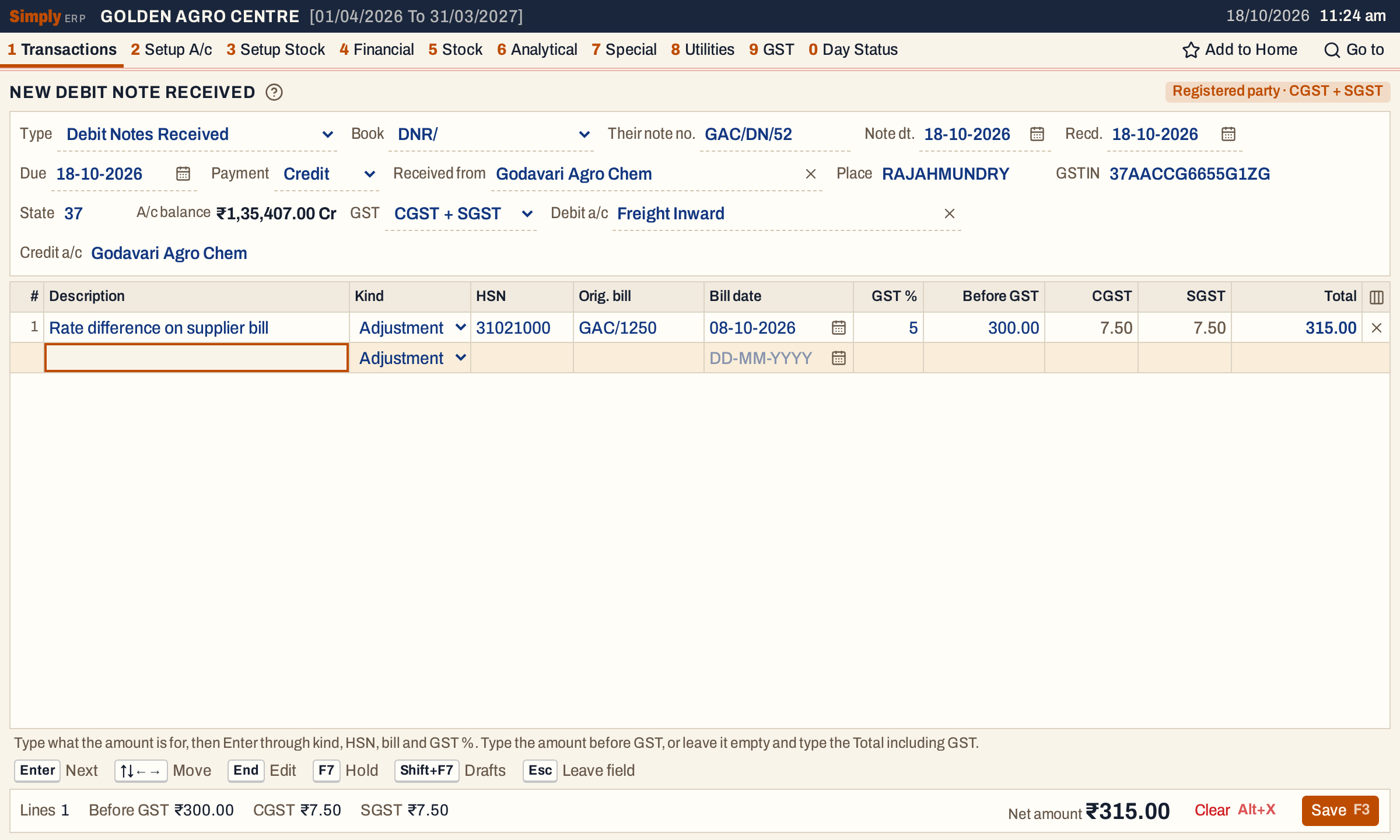 The supplier’s balance before the note, ₹1,35,407.00 Cr, shows beside the GST field.
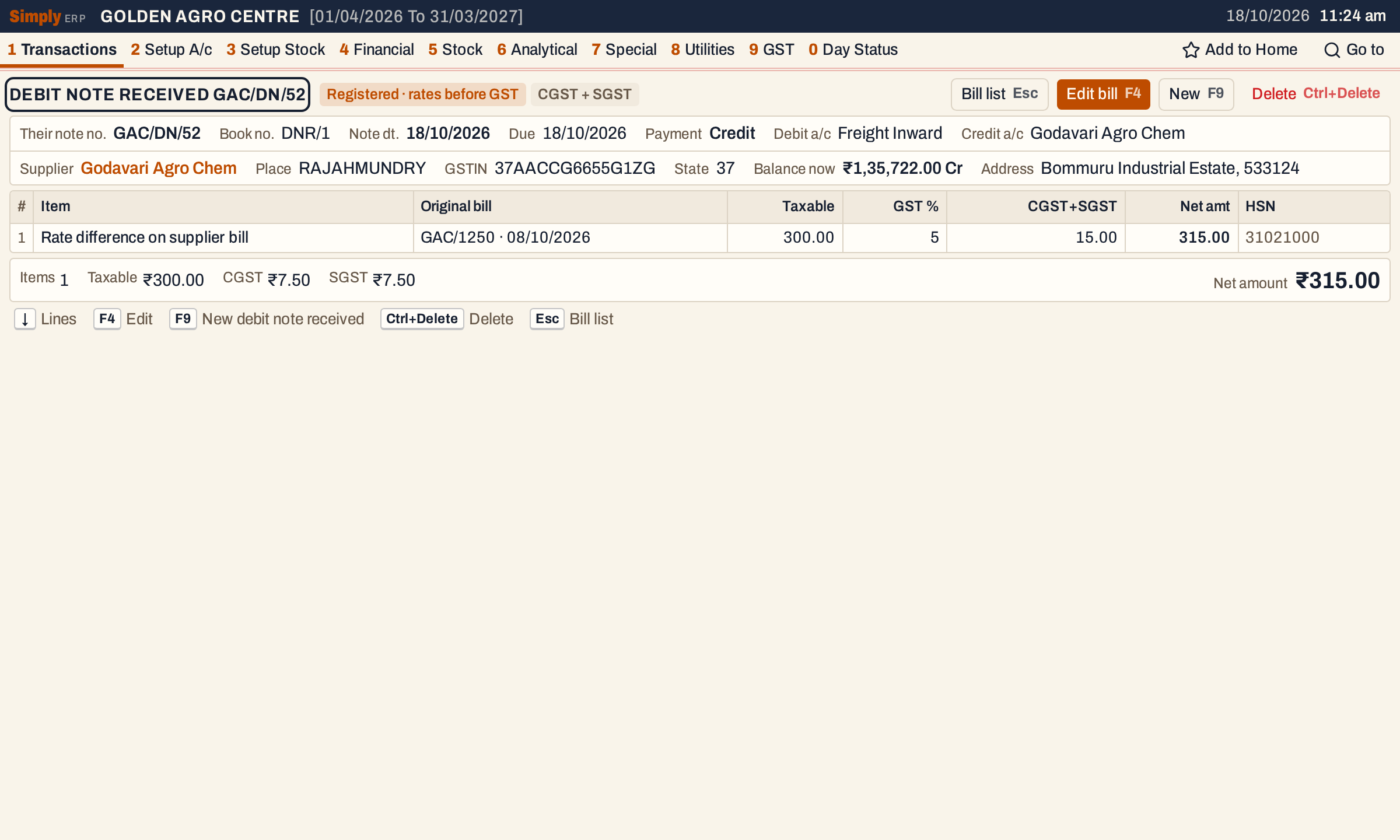 After the note you owe the supplier ₹315.00 more: ₹1,35,407.00 Cr becomes ₹1,35,722.00 Cr.
The postings are the other way round, and the tax goes to the input tax accounts:
| Account | Debit | Credit |
|---|---|---|
| The supplier | Net amount | |
| The debit account (or each line’s own account) | Each line’s amount before GST | |
| CGST and SGST input accounts, or IGST input | Each line’s tax |
Here Godavari Agro Chem is credited ₹315.00, Freight Inward is debited ₹300.00, and CGST Input 5% and SGST Input 5% ₹7.50 each. A debit note received adds to your input tax in GSTR-2 and GST Monthly Totals.
Keys on the note screen
| Key | What it does |
|---|---|
| Enter | Next field, and along each line |
| F2 | List the accounts |
| F3 | Save |
| F10 | Save and print (notes issued) |
| F9 | Go to the blank line |
| Ctrl+Delete | Remove the line |
| F7 | Hold the note in Drafts and start another |
| Alt+X | Clear the note (asks first) |
| / | Go to the party, when the cursor is not in a field |
| F1 | Every key on the screen |
On a Mac, ⌥ stands for Alt and ⌘ for Ctrl.
Common questions
Should I make a debit note or a new bill? A debit note changes an amount on a bill already made, without goods. To bill more goods, make a new sale bill.
Can I change a saved note? Yes, with F4 on the saved note, but not its type or book. A note with an active e-invoice cannot be edited or deleted until the e-invoice is cancelled.
Why does SimplyERP say the note number already exists? A number can be used once for each type. A received note takes the number you type in Their note no.
Updated 4 November 2026.