Record an other purchase
On this page
An other purchase records a bill from a supplier for something that is not stock: freight, loading, bank or repair charges. It posts the expense and the GST you can claim as input tax, and puts the amount on the supplier’s account. No stock moves, so there are no items or batches.
Open a new other purchase
Press Alt+1 for the Transactions menu, L for G S T Other Purchases, then N for New Entries.
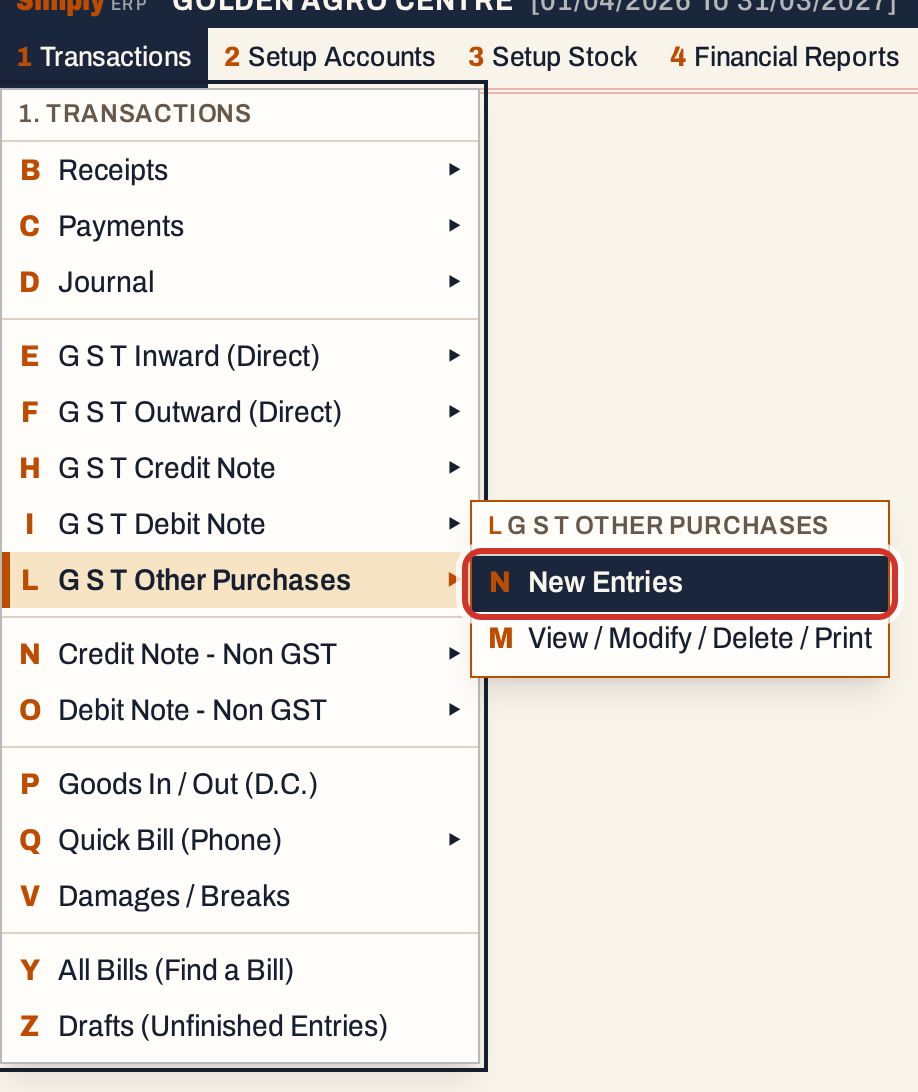 1 L N: Transactions, G S T Other Purchases, New Entries.
Set up the book first
Other purchases are numbered from a bill book of the kind Other purchases. If the books have none, the screen says so and cannot take an entry:
 The notice links to Bill Books & Series.
Add the book once, in Bill Books & Series (8 C; see Bill books and series). Press F9 for a new row and fill in:
- Kind: Other purchases.
- Description: the name of the book, here Other Purchases.
- Posting A/c: the expense account the bills post to unless a line names another. Here it is Freight Inward. The list offers purchases and expense accounts.
- Cash A/c: the account a cash bill is paid from.
- Category: * All.
- Series and Start no.: the prefix of the book’s numbers and the first number. Here the series is OP/ and it starts at 1.
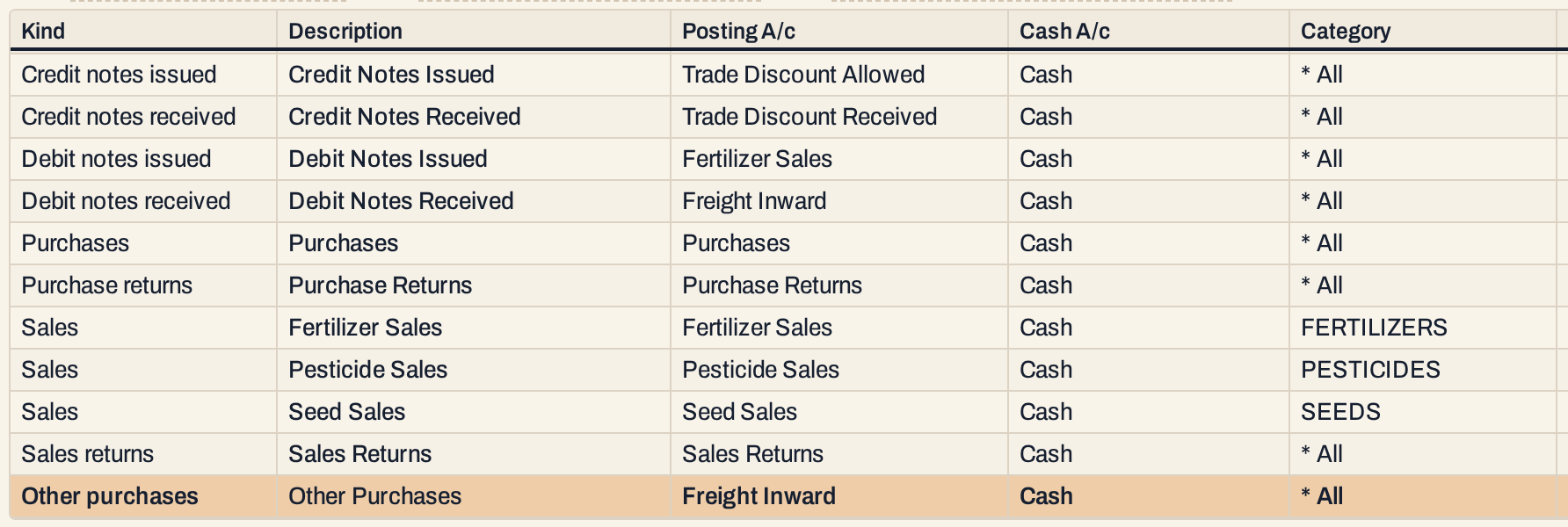 The new book, with its kind, accounts and category.
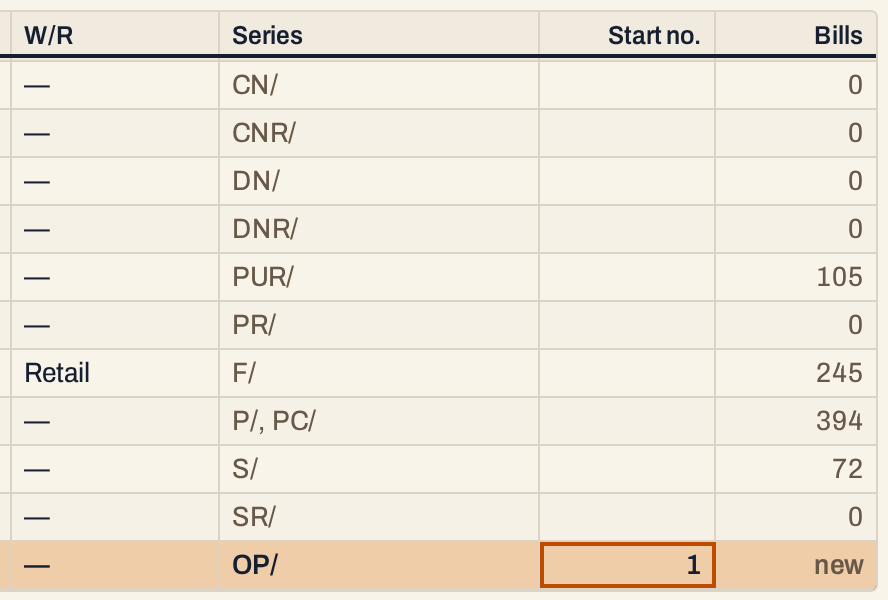 Further right in the same row: the series OP/ and the first number, 1.
F3 saves the book. Go back to 1 L N.
Fill in the bill
The type, book and dates come first. The book is chosen for you when there is only one. The screen starts with the cursor on Type.
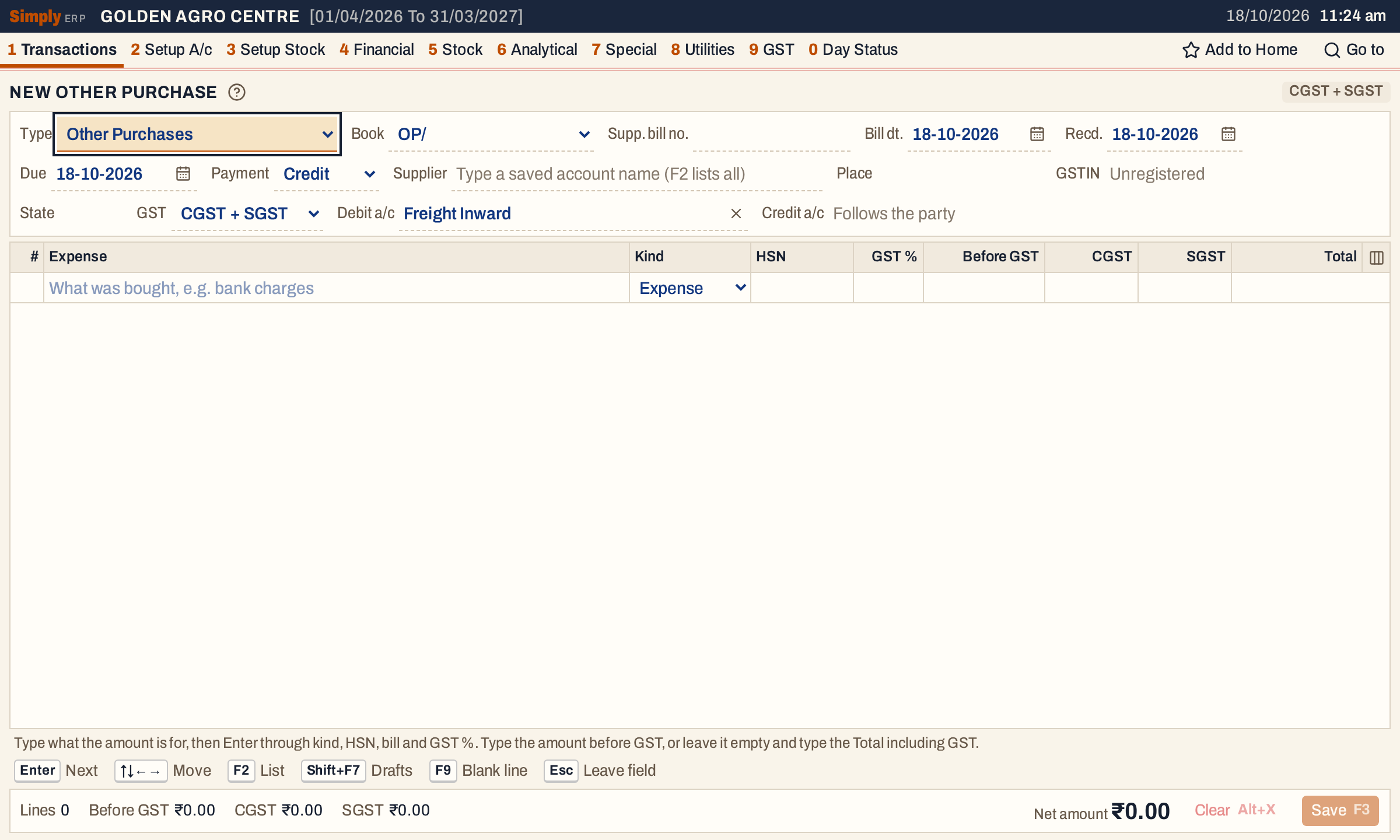 The Debit a/c starts with the book’s posting account, Freight Inward here. The screen does not show the book’s next number: it is used when Supp. bill no. is left empty.
Type the supplier’s own details from their bill:
- Supp. bill no.: the number on the supplier’s bill. Leave it empty to use the next number of your book.
- Bill dt.: the date on the bill.
- Recd.: the day you received it. It starts on the working date. The bill is posted on this day, and the bill date cannot be later than it.
- Due and Payment: Credit puts the bill on the supplier’s account. Cash pays it from the book’s cash account.
Then the Supplier: type part of the account’s name. The list shows each match with its place, GSTIN and balance. Enter takes it. F2 lists every account.
 An other purchase needs a saved supplier account.
The supplier’s place, GSTIN and state fill in. The GST field follows the state: CGST and SGST for a supplier in your state, IGST for another state. You can change it, and every line is worked out again. The credit account follows the supplier. You can change the debit account.
 The bill debits the expense and credits the supplier.
Add the lines
Each line is one expense. Type what it was in Expense, then press Enter through the cells:
- Kind: Expense carries GST. Add + GST is a taxable charge. Add and Less are plain amounts without GST, for example a round-off.
- HSN: a new line starts with the HSN and GST % of the line above.
- GST %, then Before GST: type the amount and the CGST and SGST (or IGST) and Total are worked out. To start from the total on the bill, leave Before GST empty and press Enter: the cursor goes to Total.
Optional columns are under the column button at the end of the grid header: Original bill, Line account, Narration, Reference quantity, Price difference and Discount. A Line a/c posts that line to another expense account than the debit account.
 Each line carries its own rate. The rates here are examples: type the rate on your supplier’s bill.
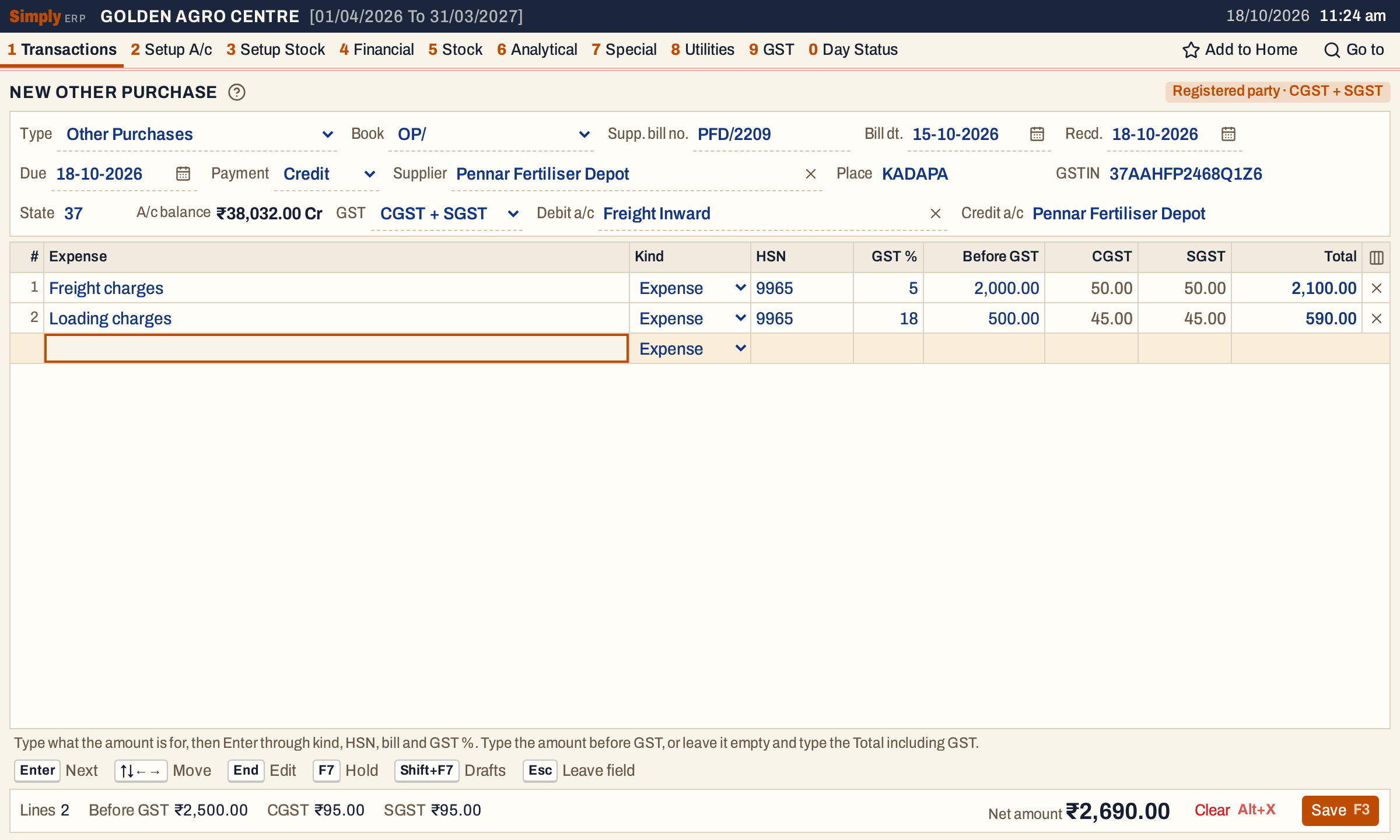 Two lines, ₹2,690.00 in all. A blank line is always ready below.
The totals under the grid show the number of lines, the amount before GST, the CGST and SGST (or IGST), any Add or Less amounts, and the net amount, which must be above zero.
 ₹2,500.00 plus ₹190.00 of GST is ₹2,690.00.
Save
F3 saves the bill. An other purchase does not print, so there is no Save & print button. A notice says it is saved and a new empty entry opens.
Every other purchase is in All Bills (1 Y). Type the supplier’s bill number in Find, then press Enter to open it. The register adds a Received column when a bill was received on another day than its bill date.
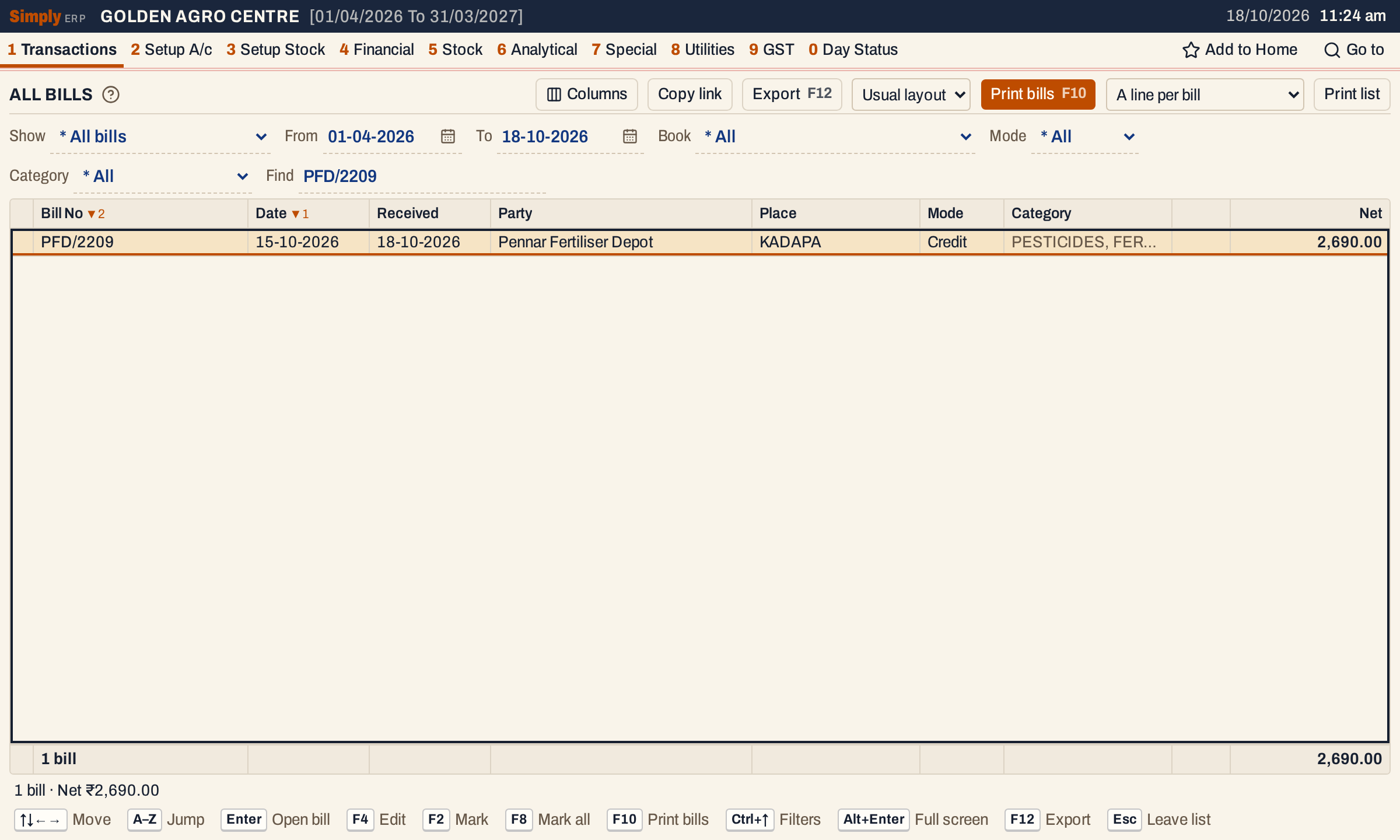 Bill date and received date are kept apart.
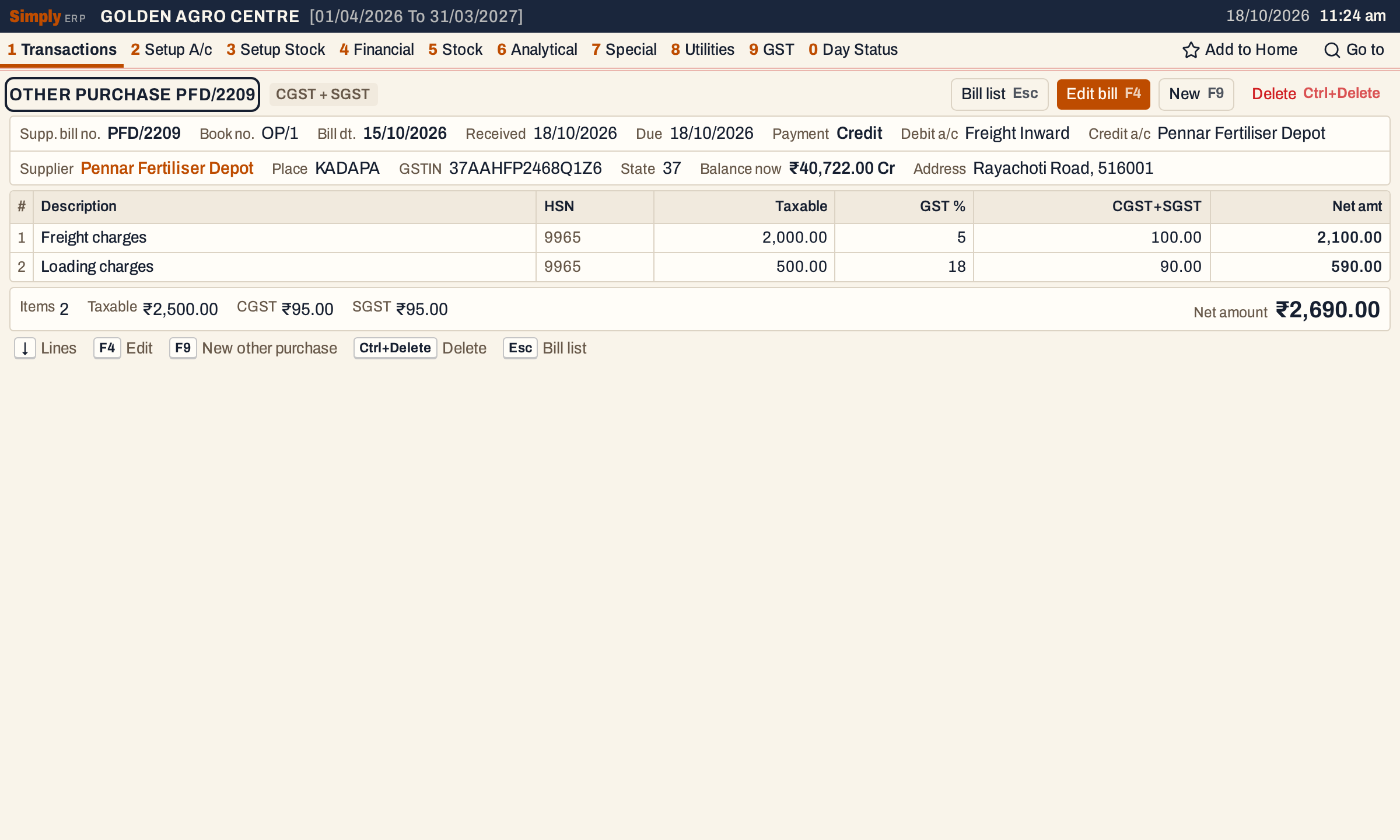 The supplier’s balance rose from ₹38,032.00 Cr to ₹40,722.00 Cr, by the net amount.
Open the saved bill and press F4 to edit it, or Ctrl+Delete to delete it after SimplyERP asks. An edit cannot change the book.
What saving does to your books
An other purchase is posted on the day it was received (here 18-10-2026):
| Account | Debit | Credit |
|---|---|---|
| The supplier (a credit bill), or the book’s cash account (a cash bill) | Net amount | |
| The debit account (or each line’s own account) | Each line’s amount before GST | |
| CGST and SGST input accounts, or IGST input | Each line’s tax |
For this bill, Pennar Fertiliser Depot is credited ₹2,690.00. Freight Inward is debited ₹2,000.00 and ₹500.00 (one posting for each line). The CGST Input 5% and SGST Input 5% accounts are debited ₹50.00 each, and the CGST Input 18% and SGST Input 18% accounts ₹45.00 each. No stock moves.
The bill adds to your input tax in GSTR-2 and GST Monthly Totals, and shows in the supplier’s ledger.
Keys on the screen
| Key | What it does |
|---|---|
| Enter | Next field, and along each line |
| F2 | List the accounts |
| F3 | Save |
| F9 | Go to the blank line |
| Ctrl+Delete | Remove the line |
| F7 | Hold the bill in Drafts and start another |
| Shift+F7 | Switch to another draft |
| Alt+X | Clear the entry (asks first) |
| / | Go to the supplier, when the cursor is not in a field |
| F1 | Every key on the screen |
On a Mac, ⌥ stands for Alt and ⌘ for Ctrl.
Common questions
When do I use this and not a purchase bill? Use a purchase bill when you receive goods that go into stock. Use an other purchase for charges and services, with no items.
How do I pay the supplier? Make a payment to the supplier’s account, see Payments.
What if the supplier bills extra after a purchase? If it corrects a bill you already entered, a debit note received records it against that bill.
Updated 4 November 2026.