GST E-Invoice Export
On this page
GST E-Invoice Export lists the sale lines of your bills to customers who have a GSTIN (B2B) for a period, and writes them as an Excel worksheet for e-invoicing. Before it writes anything, it checks that every buyer has a pincode and a place of supply, and shows the bills that do not in red.
The report does not send anything to the government or to any other service. It only writes the worksheet.
Open the report
Press Alt+9 for GST Reports, then D. The report opens on today’s bills: From and To are both the working date.
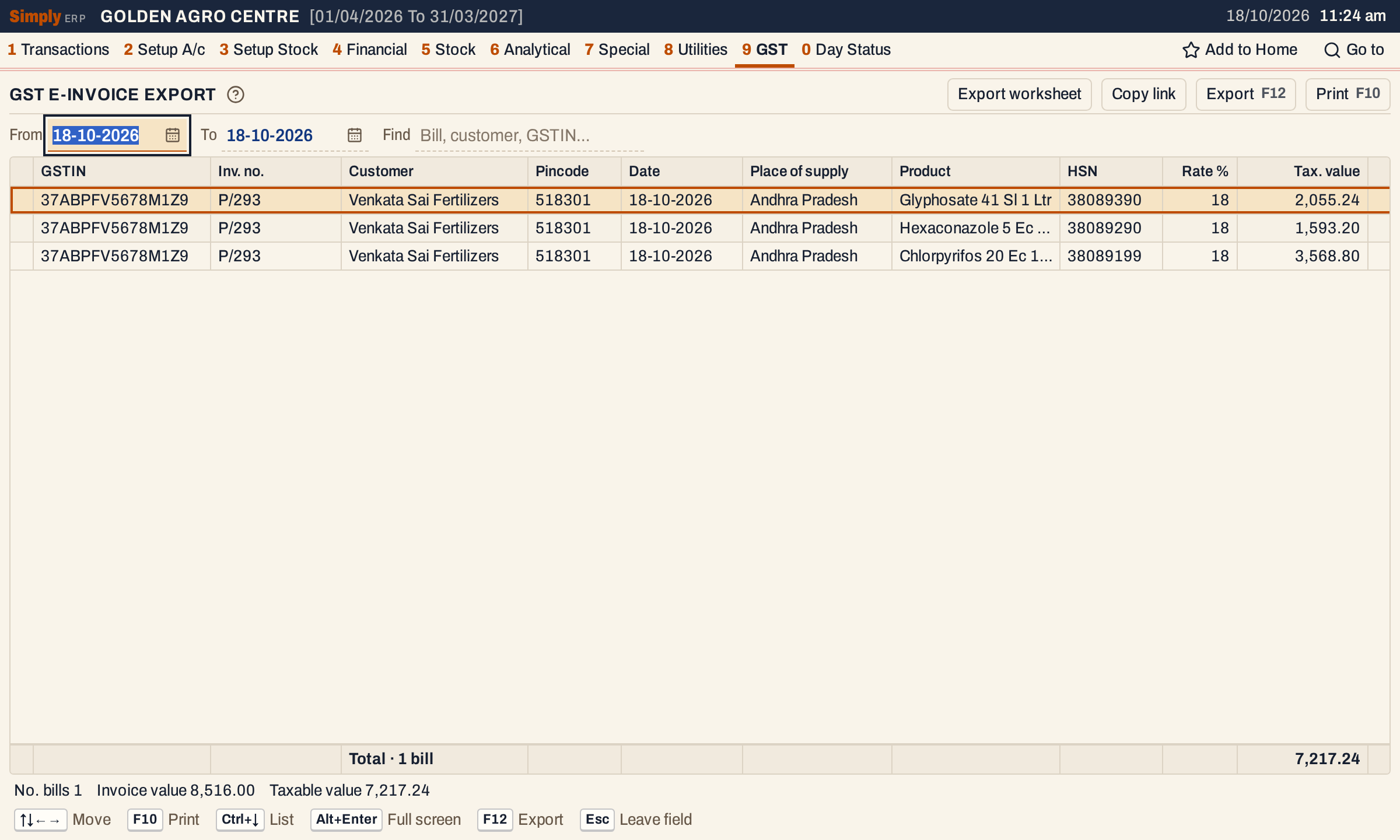 Today’s B2B bills: one bill, P/293, with one line for each item. The status line gives 1 bill, invoice value 8,516.00 and taxable value 7,217.24.
What it lists
One line for each item line of a sale bill to a customer with a GSTIN, in the period.
- A bill counts on its posting date, which for a sale is its bill date, From and To both included.
- Goods lines, and the charge lines that carry GST (Add + GST charges such as freight), are listed. Other charges are not.
- Bills to customers without a GSTIN are not listed: they are not B2B. Sales returns, credit and debit notes and purchases are not listed either.
- Bills that already have an e-invoice are listed along with the others.
- Lines are in the order of date, then bill number.
Columns
| Column | What it shows |
|---|---|
| GSTIN | The customer’s GSTIN on the bill. |
| Inv. no. | The bill number. |
| Customer | The customer’s name on the bill. |
| Pincode | The customer’s pincode on the bill, or missing in red. |
| Date | The bill date. |
| Place of supply | The state named by the state code in the customer’s details on the bill, or missing in red. |
| Product | The item or charge. |
| HSN | Its HSN code. |
| Rate % | Its GST rate. |
| Tax. value | The line’s taxable value: after discounts, before GST. |
| Item total | The line’s taxable value plus its tax. Scroll right to see it. |
The totals line gives the number of bills and the totals of Tax. value and Item total. The status line gives No. bills, Invoice value (each bill’s net amount as saved, counted once) and Taxable value (the lines’ Tax. value). Invoice value is the bill’s net amount, so it also counts the charges without GST and the Less charges, which are not lines: it can differ from the Item total of a bill’s lines.
Choices
 The choices above the list.
| Choice | What it does |
|---|---|
| From, To | The period, inside the financial year. It opens on the working date alone. Moving From past To, or To before From, makes the other date the same day. |
| Find | Keeps the lines that match what you type in the bill number, customer, GSTIN, product or HSN. |
Every choice is kept in the page address, so Copy link opens the same report again.
When a buyer’s details are missing
The worksheet needs every buyer’s pincode and place of supply, so SimplyERP stops before making it. A bill whose buyer has no pincode, or a state that SimplyERP cannot name from the state code, has its lines in red with the word missing where the detail should be. The status line says how many bills need it, and Export worksheet is switched off until none is left.
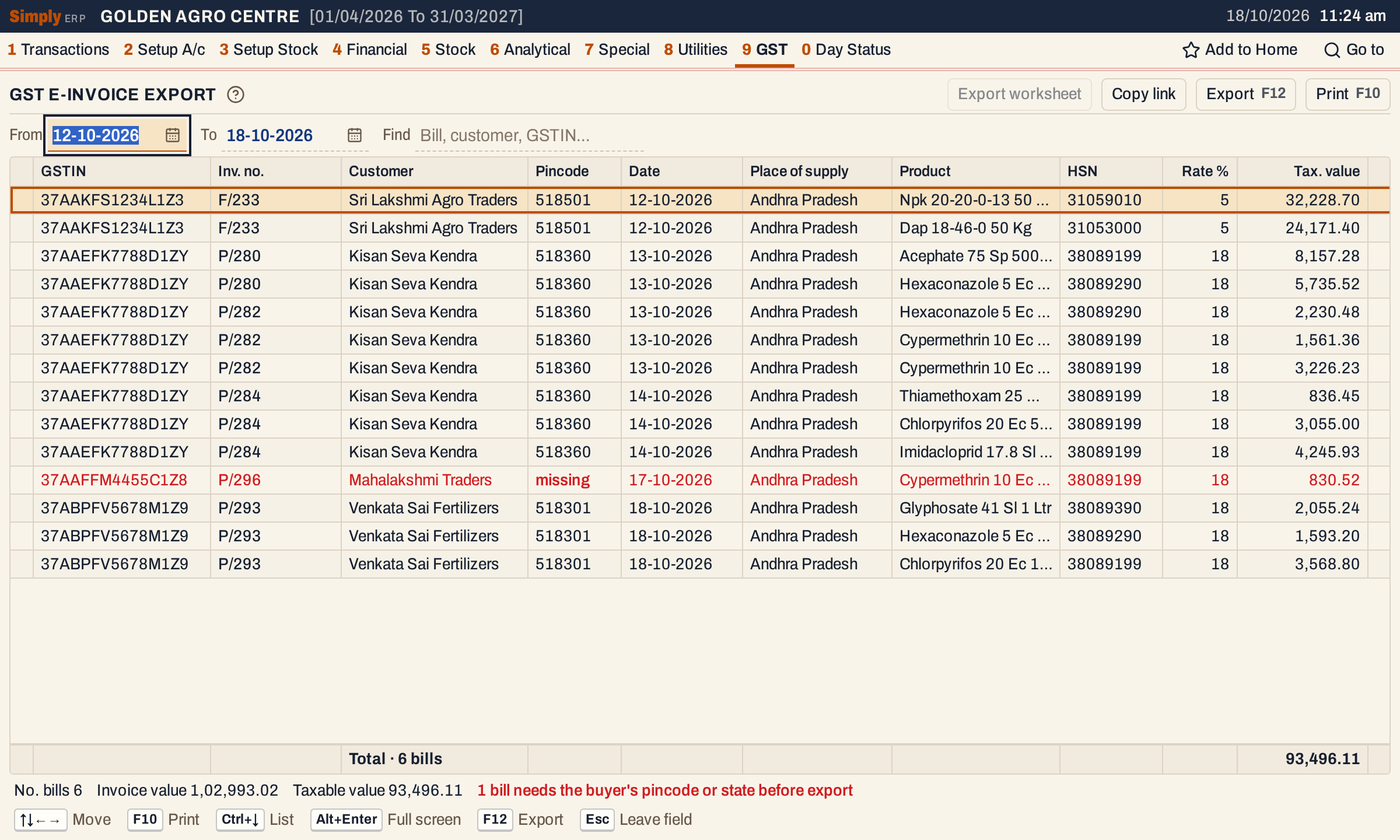 P/296 was made to a buyer whose address has no pincode. Its line is red, and Export worksheet at the top is greyed out. The other five bills are complete.
A bill keeps the buyer’s details as they were when it was saved, so changing the account does not change a bill already made. To fix it:
- Add the pincode to the customer’s address in Head of Accounts (2 A); see Change an account. A cash bill to a name you typed, as P/296 was, has no pincode field, so add the buyer as an account first.
- Press Enter on the red line to open the bill, then F4 to edit it.
- Choose the customer again: F2 in the Customer field lists the saved accounts. The bill takes the account’s address with its pincode.
- Press F3 to save.
When no line is red, Export worksheet works.
The worksheet
Export worksheet saves an Excel file named GST E-Invoice Worksheet with the period, such as GST E-Invoice Worksheet 2026-10-12 to 2026-10-18.xlsx. It has one sheet, E-Invoice, with a row for each line listed and 70 columns under fixed names (SCODE, DOCNO, DOCDT, BGSTIN and so on). The columns carry:
- The document: supply type B2B, document type Tax Invoice, the bill number, and the bill date as DD/MM/YYYY.
- The buyer: GSTIN, name (as both legal and trade name), the address or place, pincode, phone, email, and the state as the place of supply.
- The line: its number in the bill, the product, whether it is a service (a charge line is), HSN code, units, unit of measure (PIECES for goods, OTHERS for a charge), unit price, gross amount, discount, taxable value, GST rate, CGST, SGST and IGST amounts, the line total, and the batch number and expiry date for goods with a batch.
- The bill’s totals, repeated on each of its rows: taxable value, CGST, SGST and IGST, the Add charges without GST (OTHCH), the Less charges as a negative amount (RNDOFF), and the total invoice value, which is the bill’s net amount.
The columns for dispatch and ship-to details, reverse charge, e-commerce, cess and state cess are left blank or zero.
The worksheet always holds every line of the period: Find and marked lines do not narrow it. It is not available when the period has no B2B lines or while a line shown in the list is missing the buyer’s pincode or place of supply.
Open, mark, print and export
- Enter on a line opens its bill. Typing the first letters of a customer’s name jumps to that customer.
- F2 marks a line and F10 then prints only the marked lines.
- F10 prints the lines under the heading GST - E-INVOICE, with the period and Find, and its last line gives the number of bills and the total taxable value. The print has the buyer’s GSTIN, bill, customer, pincode, date, place of supply, rate and taxable value.
- F12 saves the lines as an Excel workbook as they print, with the product, HSN and item total added. It is not the e-invoice worksheet: use Export worksheet for that.
- Alt+Enter gives the whole window to the list.
Updated 4 November 2026.