Product Group Wise Sales
On this page
The Product Group Wise Sales report shows what each customer bought from one product group, pack by pack. Choose the group, and each customer has a line with a column for every pack size of its products, the units they returned, and their net total. Use it to see which customers buy a group, and in which packs, area by area.
Open the report
Press Alt+6 for Analytical Reports, then D. The report opens for the financial year from its first day to today. Choose a product group in Group first: until you do, the list stays empty and the report asks you to choose a group.
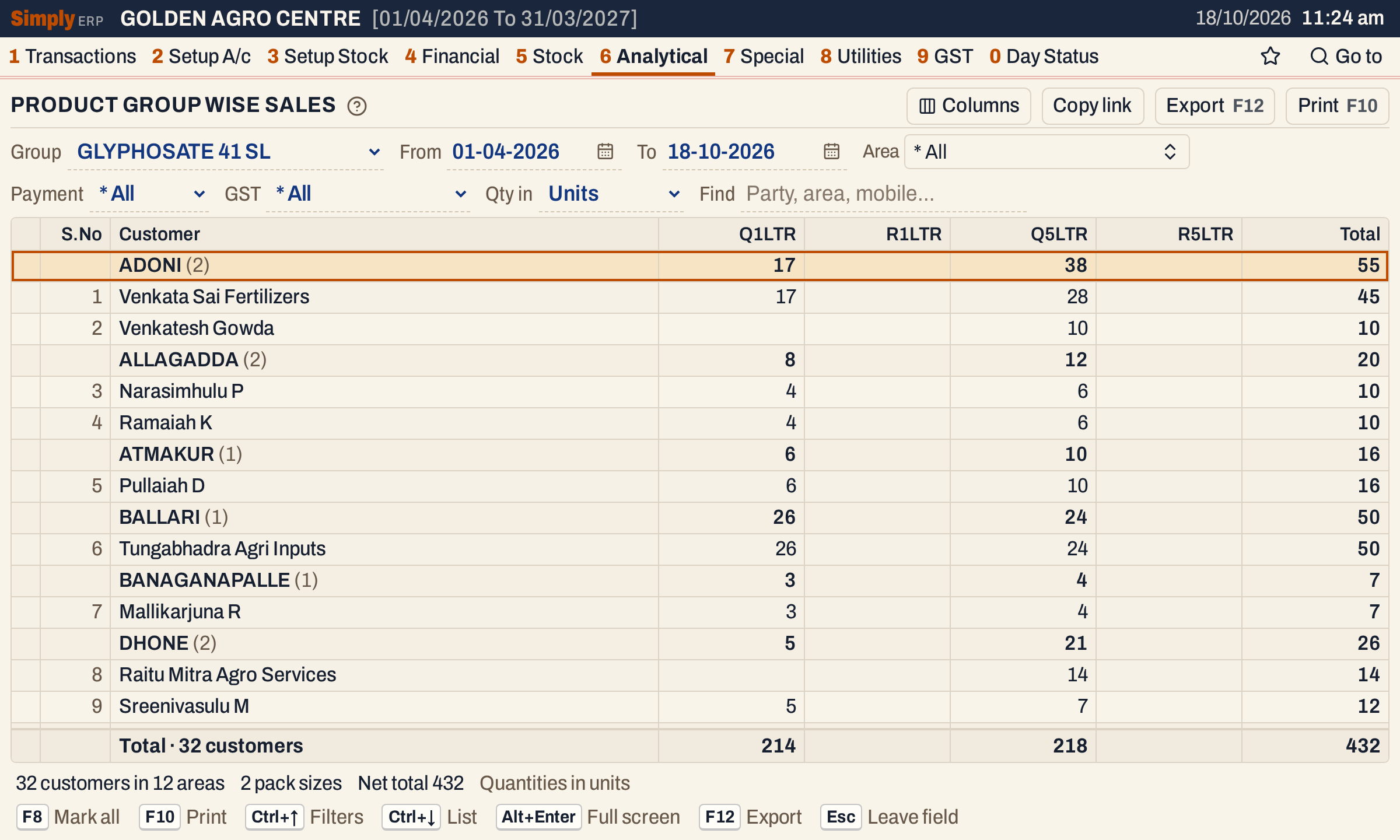 The group Glyphosate 41 SL, in units. Its two customers in ADONI, Venkata Sai Fertilizers and Venkatesh Gowda, bought 55 units in all: 17 of the 1 litre pack and 38 of the 5 litre pack.
What it lists
One line for each customer who bought a product of the group in the period. The report reads:
- sale bills of the period, by the bill’s date, for the products in the group. Both the From and To days are counted.
- sales returns of the period, on the day each was received, subtracted from the same customer’s sales.
- when Payment and GST are both All, goods delivered but not yet billed, for the same products.
A customer with no quantity in the period is left out. Purchases are not counted; use Product Group Wise Purchases for those.
Customers are grouped under their area. Each area has a heading line with the number of customers in brackets and the totals of its customers. Areas are listed in alphabetical order. Customers with no area come last under * General: sales to no account, listed by the name written on the bill (Cash in these books), and accounts that have no city.
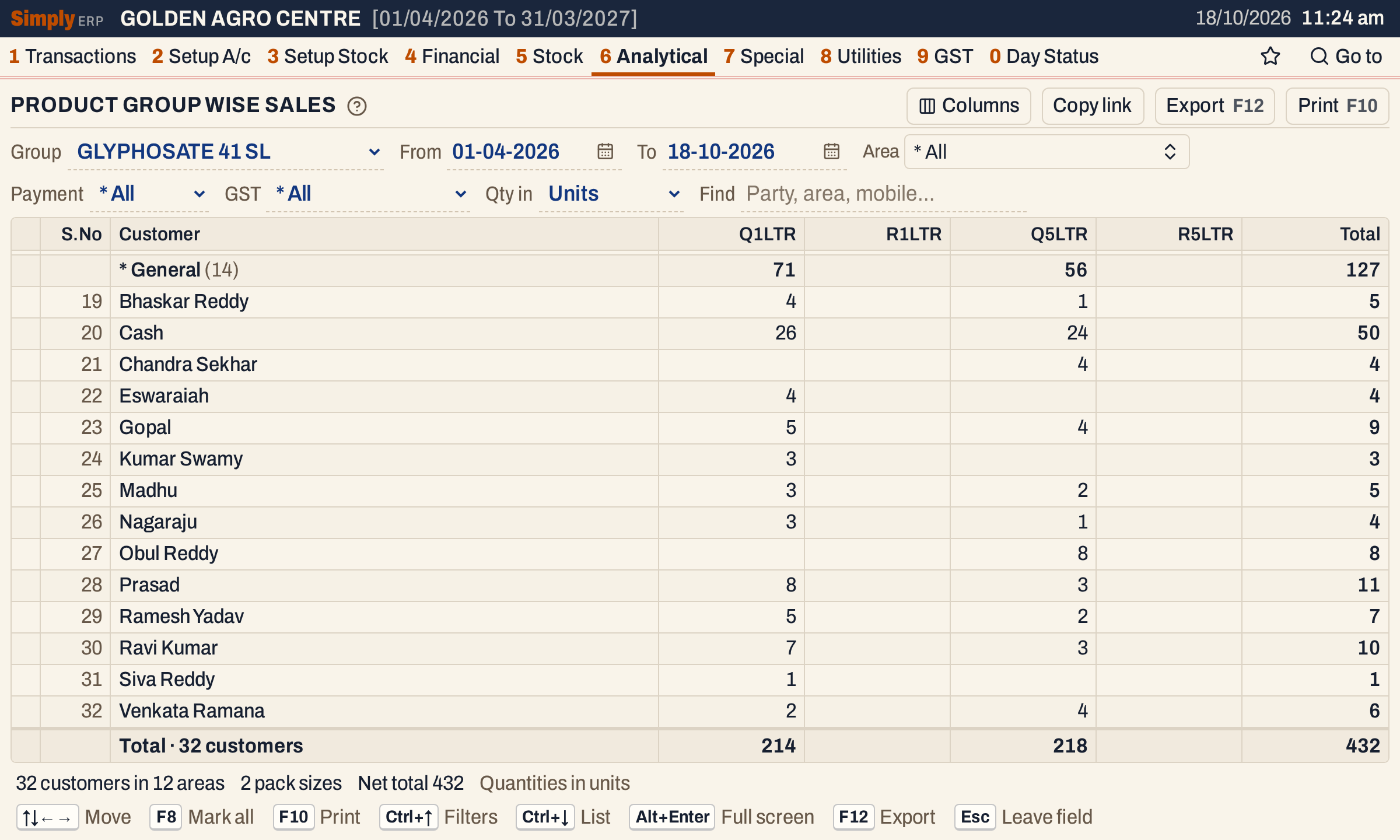 Customers with no area come last, under * General.
Columns
| Column | What it shows |
|---|---|
| S.No | The customer’s number in the list. Hide it with Columns. |
| Customer | The customer’s name, as on the account. A sale to no account is listed by the name written on its bill, such as Cash, under * General. |
| Mobile | The customer’s phone number. Shown only when at least one customer has one; hide it with Columns. |
| Q and the pack, such as Q1LTR | The quantity sold in that pack. In units, one column for each pack size, such as 1LTR and 5LTR. |
| R and the pack, such as R1LTR | The quantity returned in that pack. In units only. |
| Returns | The quantity returned, all packs together. In Kg / Ltr only. |
| Total | The quantity sold less the quantity returned. Shown in bold. |
The pack names come from the packing of each product, and the packs are listed smallest first. The totals line under the grid adds up every column and counts the customers. The status line gives the number of customers and areas, the number of pack sizes and the net total.
Choices
| Choice | What it does |
|---|---|
| Group | The product group to report on. Required; the list stays empty until you choose one. |
| From, To | The period, both days included. Both dates must fall in the financial year. |
| Area | Only the customers of the areas you choose. The default is * All. The picker lists the areas of the period and Done closes it; F2 on the field opens it. While an area is chosen, the customers with no area (* General) are left out, and a pack that none of the chosen customers bought has no column. |
| Payment | * All (the default), Cash or Credit: only the bills paid in cash, or only those on credit. |
| GST | * All (the default), Registered (customers with a GSTIN on the bill) or Unregistered. |
| Qty in | Units (the default) or Kg / Ltr: the quantity in the pack’s units, or in kilograms or litres. |
| Find | Shows only the customers whose name, area or mobile matches what you type. Every word must be found in one of these; a word of three or more letters also matches when its letters appear in that order close together. |
Payment and GST narrow the bills before anything is added up.
Click the title of Customer, Mobile or a figure column to sort by it, and click again to reverse. A figure column puts the largest first, and the areas then come in the order of their totals, largest first, with each area’s customers in the same order. Choosing another group clears the sort, and so does a change of Qty in.
 The choices of the report with the group chosen.
Area
Open the Area picker and choose one or more areas. Here NANDYAL is chosen: the list keeps its three customers, Chinna Obulesu, Sri Lakshmi Agro Traders and Srinivasa Agencies, and their 62 units.
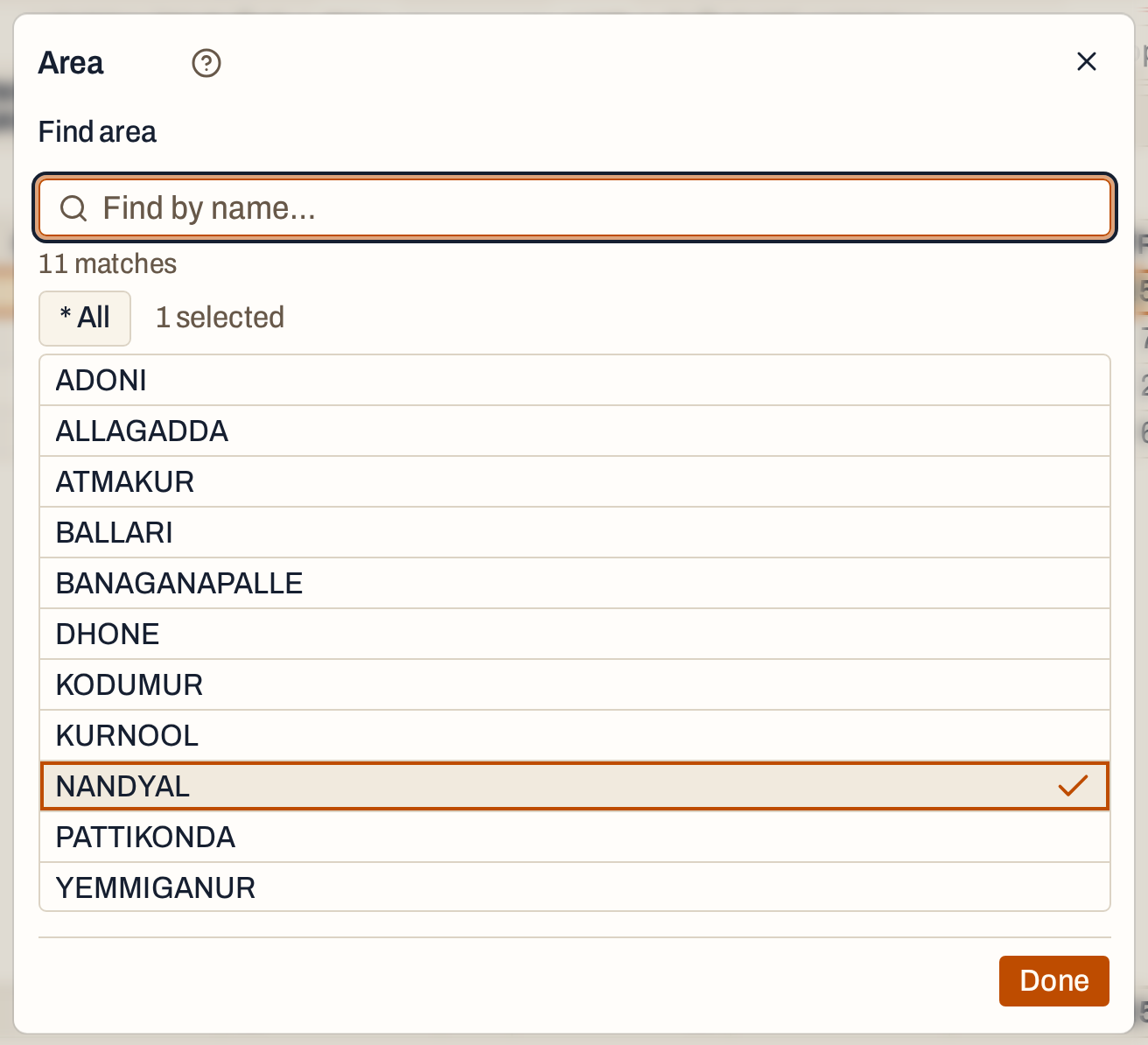 The areas of the period. Choose one or more; * All shows every area again.
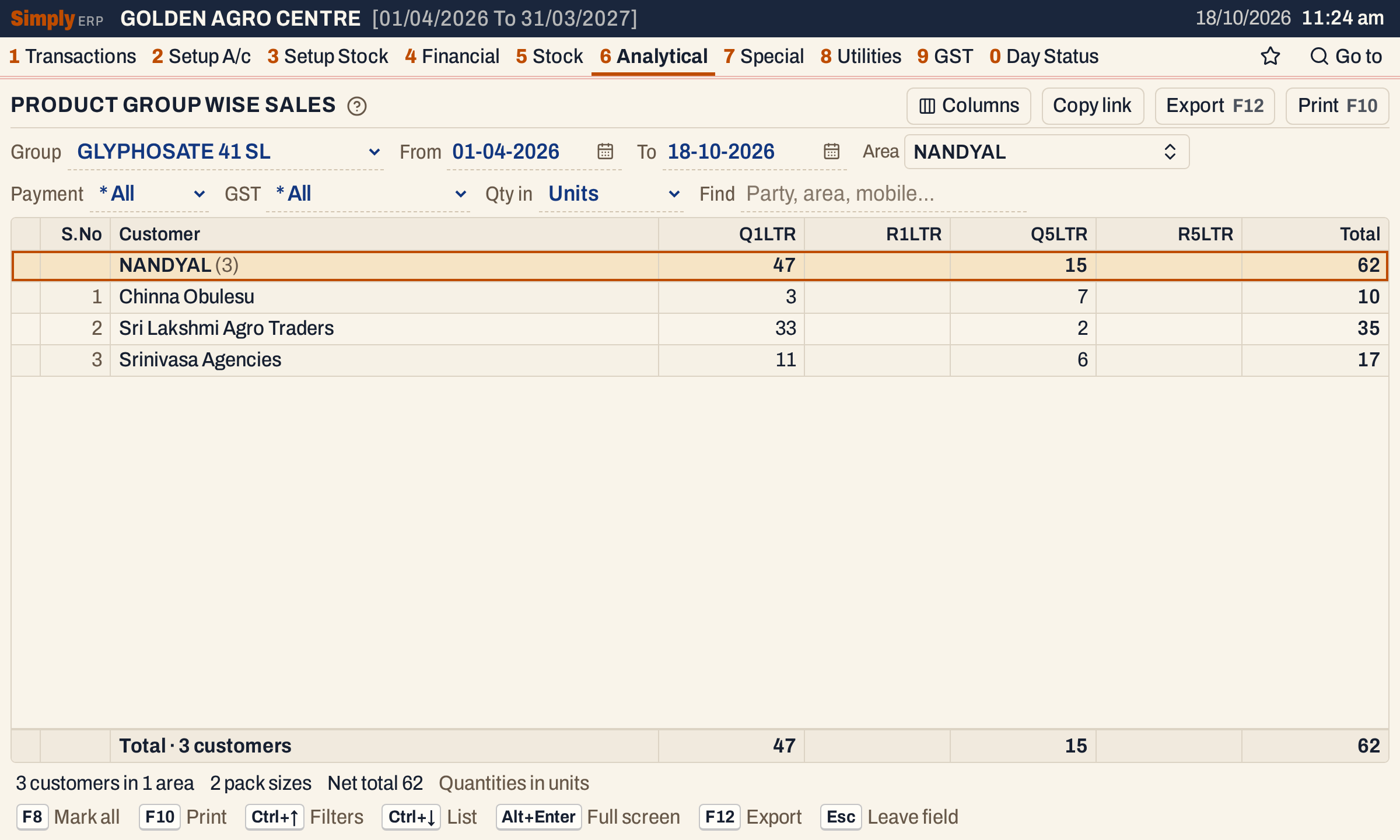 With NANDYAL chosen, only its customers are listed. The 14 customers under * General are left out.
Kg / Ltr
Choose Kg / Ltr in Qty in to see the quantities as kilograms or litres. Each pack keeps one Q column, now in litres or kilograms, and the returns are in one Returns column instead of one R column for each pack. Here the 5 litre pack is 1,090 litres, which is 218 units.
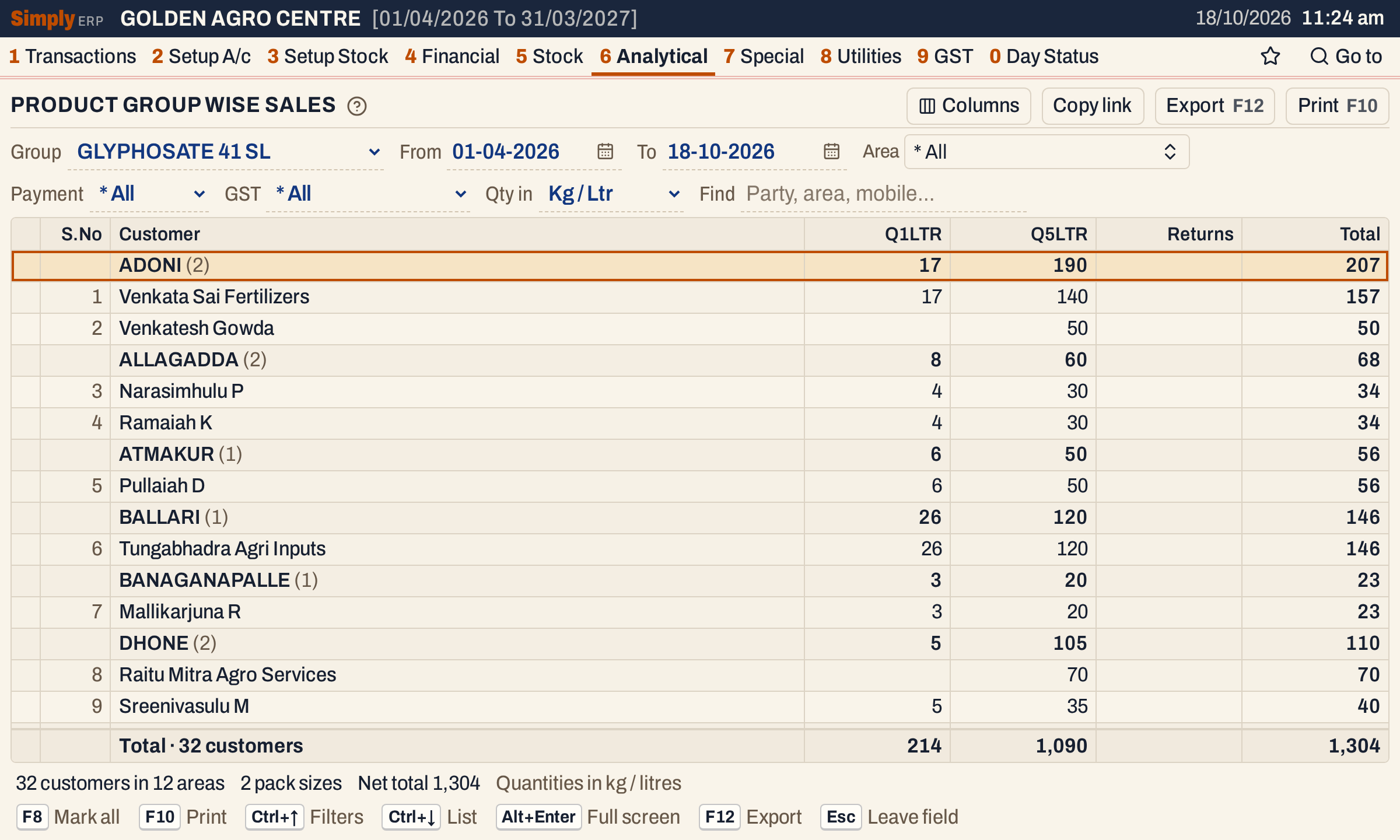 Quantities in kilograms and litres. The 5 litre pack’s 218 units are 1,090 litres.
Find
Type in Find to narrow the list. Here the word ramaiah leaves one customer, Ramaiah K of ALLAGADDA, with 10 units.
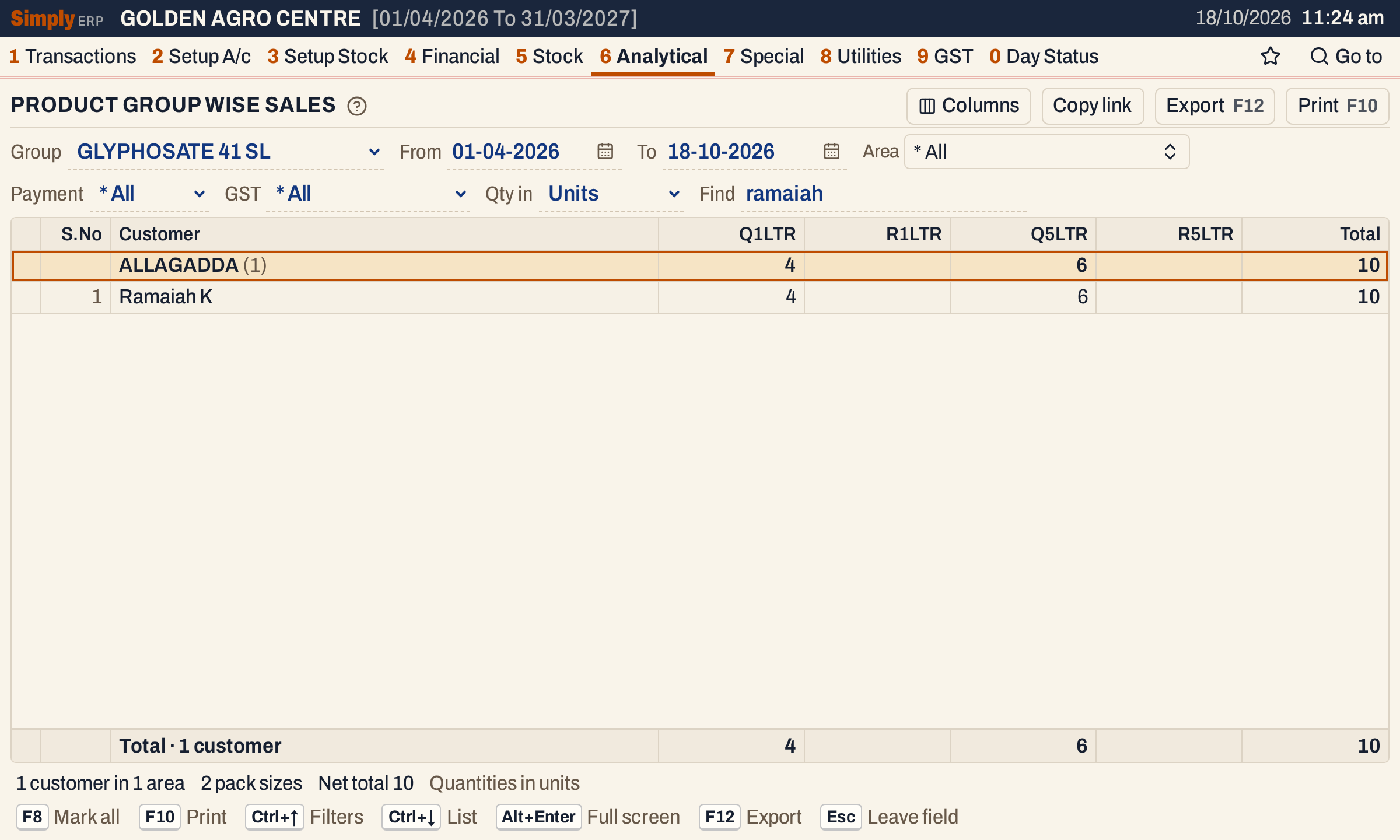 Find searches each customer’s name, area and mobile number.
How the figures are worked out
For each customer and each product of the group, SimplyERP reads the bill lines posted in the period, after the Payment and GST choices have been applied:
- Sold = the quantity on the sale lines, added up for each pack. In Kg / Ltr it is the quantity multiplied by the litres or kilograms in one unit of the pack.
- Returned = the same for the sales return lines of the same customer and pack.
- Total = Sold − Returned. A customer whose Total is negative shows it in red.
- Customer’s area = the city recorded on the customer’s account, or on the bill when the account has none. A customer with no area is headed * General.
Each column adds up the customers’ figures, and the totals line adds up the columns. The net total in the status line is the grand total of the Total column. Choosing areas and Find only leave customers out; they do not change any customer’s figures.
 The totals line adds up each column. The status line gives the customers, the areas, the pack sizes and the net total.
Open, mark, print and export
- Enter on a customer opens the Sales Statement for that customer and the products of the group, with the same period, Payment and GST choices. Alt+← returns to the list, with the cursor on that customer.
- F2 marks a customer and F8 marks every customer on the screen. When any are marked, F10 prints only those, and the print says Marked parties only.
- F10 prints the report as it is on the screen, under the title PRODUCT GROUP WISE SALES ANALYSIS. Its heading gives the group, the period, the units or Kg / Ltr, and the Area, Payment, GST and Find choices in words. Each area prints as a heading with its customers and a Grand Totals line.
- F12 saves it as an Excel workbook.
- Alt+Enter gives the whole window to the list.
Updated 4 November 2026.