Bill wise Analysis [Purchases]
On this page
The Bill wise Analysis [Purchases] report lists your purchase bills for a period, bill by bill, under their days. Each day has its total, and each bill has its number, supplier and bill amount. Use it to find a bill from its day or its supplier, or to see what each day’s bills came to.
Open the report
Press Alt+6 for Analytical Reports, then J. The report opens for the financial year from its first day to today, with every series, showing the bills.
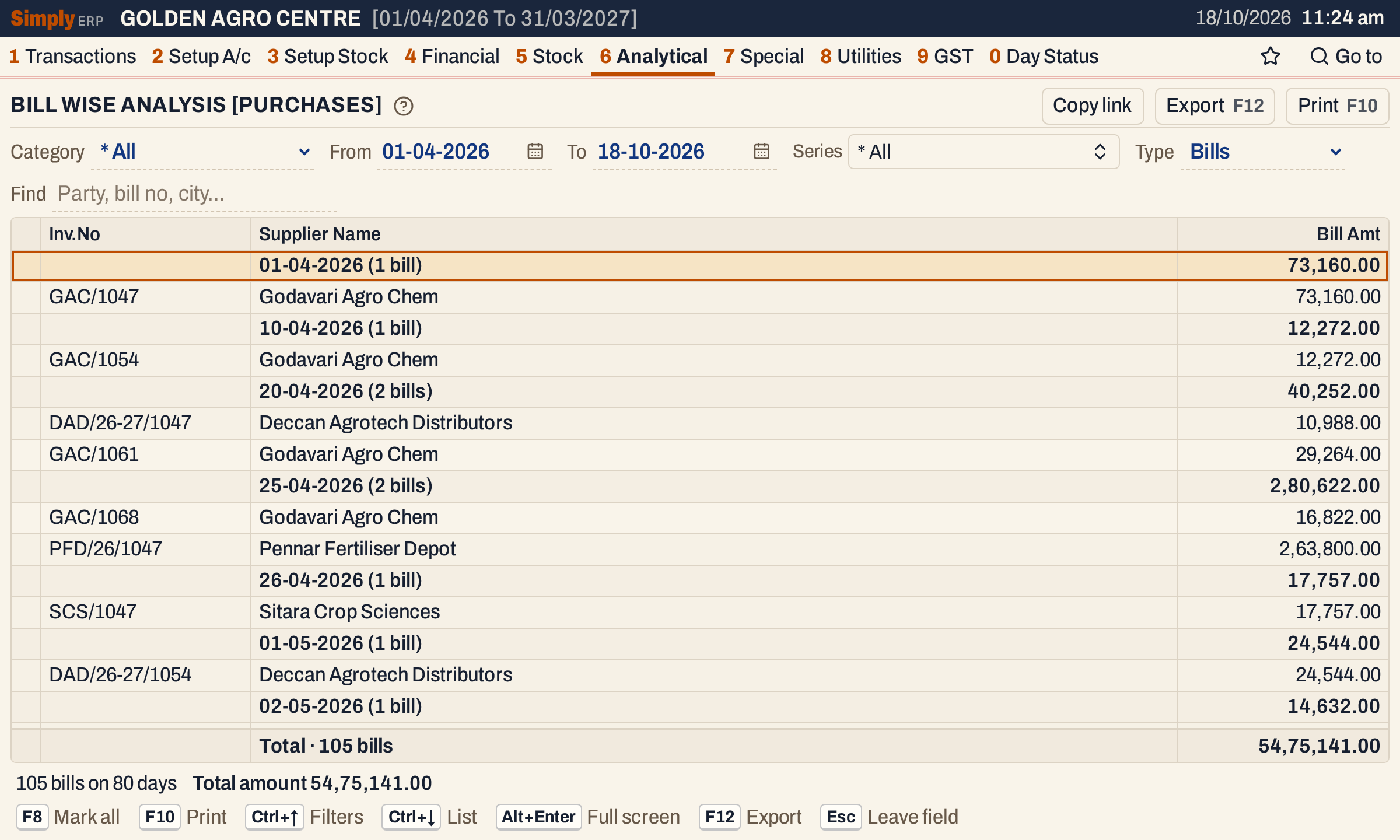 Each day is a line with its total. On 01-04-2026, one bill from Godavari Agro Chem, GAC/1047, comes to 73,160.00.
What it lists
One line for each purchase bill in the period. The report reads:
- purchase bills of every payment mode, each under the day it was received (the Recd. date on the bill), as in Day to Day Purchases;
- with the Type choice set to Returns, the purchase returns of the period, each under its own date.
Sale bills, receipts, payments and goods received but not yet billed are not counted. A day with no bills is left out.
Columns
| Column | What it shows |
|---|---|
| Inv.No | The supplier’s bill number as entered on the purchase bill, such as GAC/1047. A return shows its own number, such as PR/1. |
| Supplier Name | The supplier on the bill. A bill with no supplier name shows Cash / Counter Party. On a day line, the date with the number of bills in brackets. |
| Bill Amt | The bill’s total as saved, as worked out below. On a day line, the total of that day. |
The totals line under the grid adds up the Bill Amt of every bill, and the status line gives the number of bills, the number of days and the total amount.
Choices
| Choice | What it does |
|---|---|
| Category | Only the bills with an item of this category. The default is * All. A bill counts in full, with its whole total, not only the lines of that category. |
| From, To | The period, both days included. Both dates must fall in the financial year. |
| Series | The series of your own purchase book to show, such as PUR/. The default is * All. Choose one or more: the picker lists the series of the period, each selection updates the report at once, and Done closes it. F2 on the field opens the picker. Changing Type clears it. |
| Type | Bills (the default) or Returns, the purchase returns of the period. |
| Find | Shows only the bills whose supplier name, bill number, place, series, payment mode or day (typed as 2026-10-18) matches what you type. Every word must be found in one of these; a word of three or more letters also matches when its letters appear in that order close together. |
There is no Payment or GST choice on this report: every purchase bill of the period is counted.
Click the title of Inv.No or Supplier Name to sort the bills within each day, and click again to reverse. Click Bill Amt to put the largest first: the days then come in the order of their totals, largest first, and each day’s bills in the order of their amounts. Without a sort, a day’s bills come in bill number order.
 The choices of the report as it opens.
Category
Choose a category to see the bills with an item of it. Here FERTILIZERS has 31 bills on 30 days, totalling 34,48,783.00.
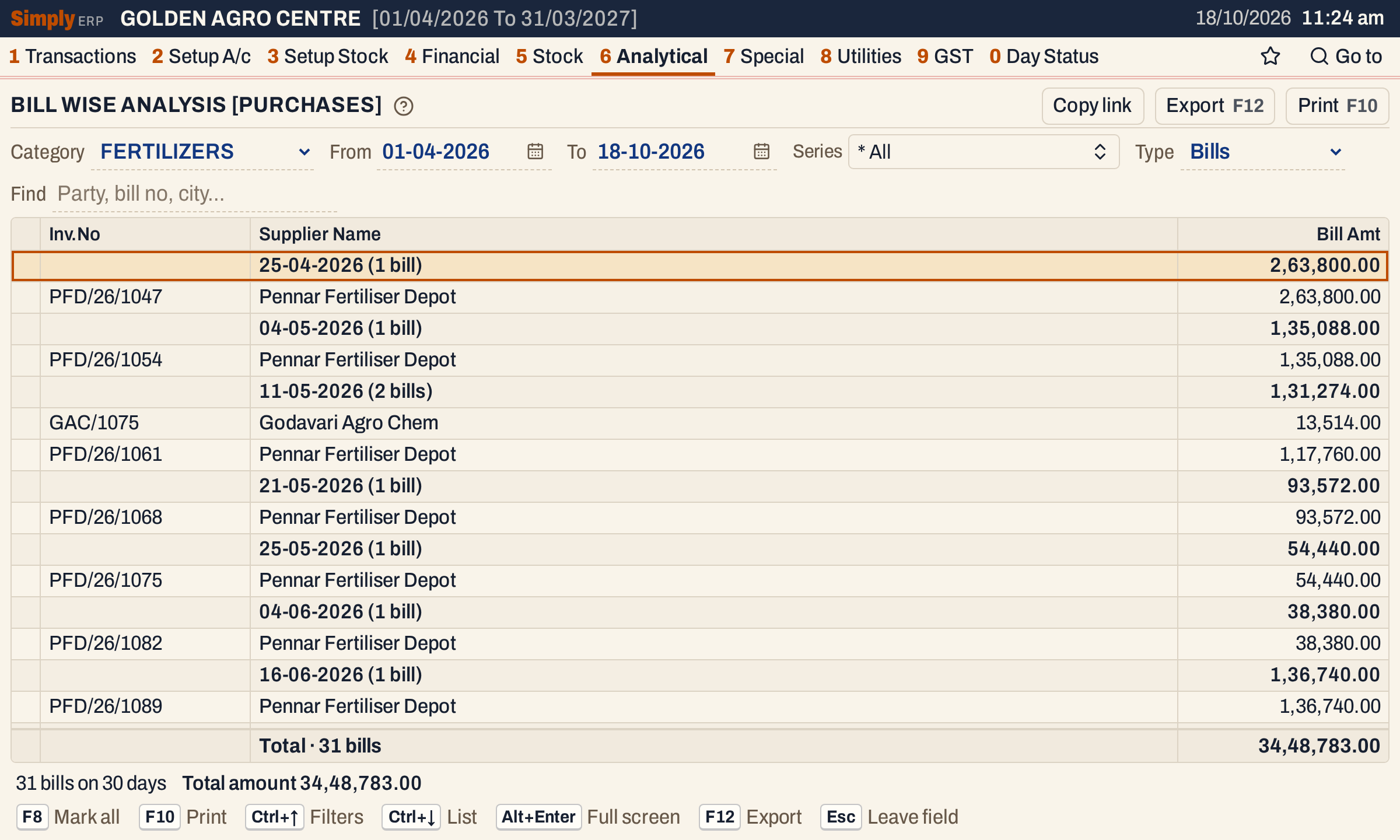 Bills with at least one FERTILIZERS item. Each counts in full.
Returns
Choose Returns in Type to see the purchase returns of the period, under their days. The title changes to Bill wise Purchase Returns. Here three returns dated 18-10-2026 total 5,141.26.
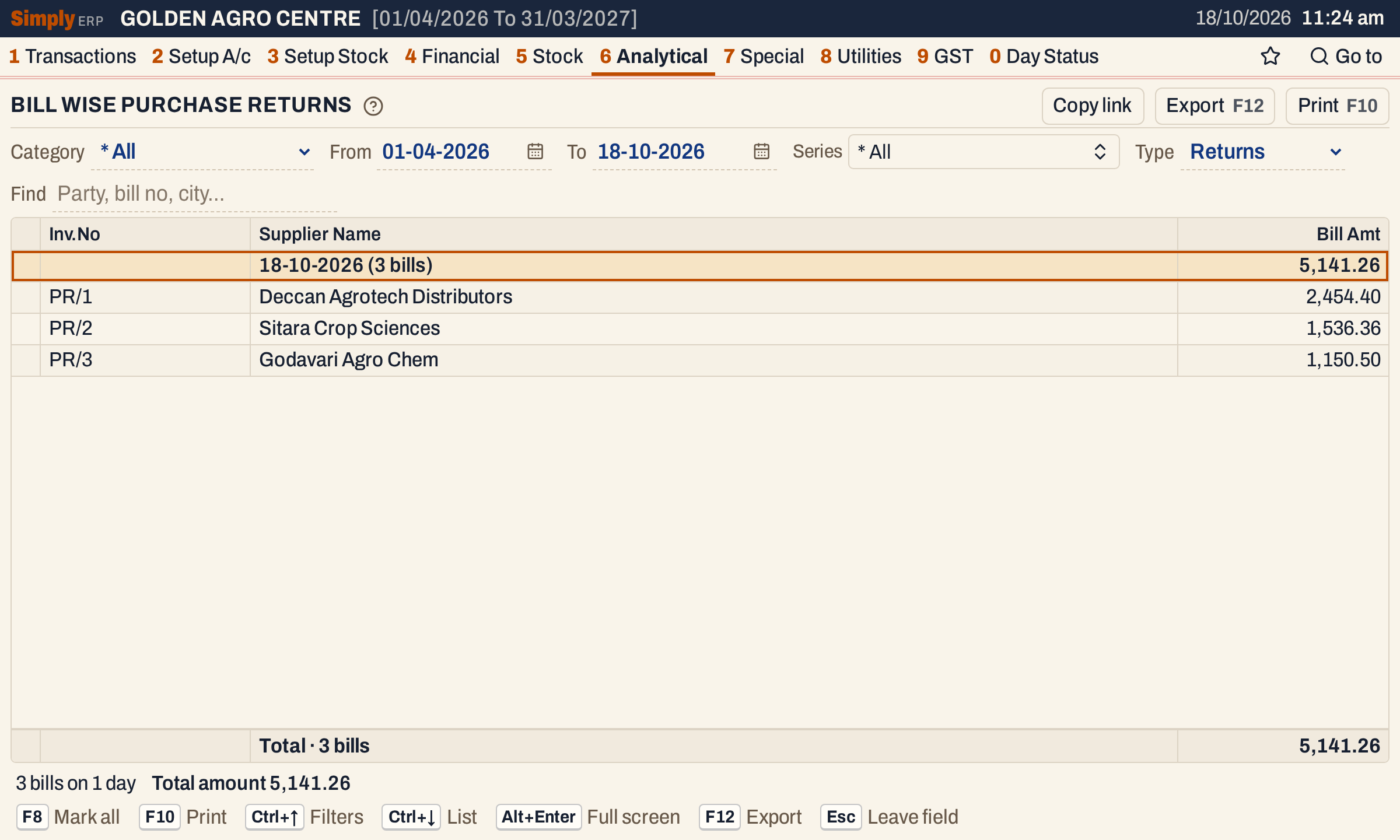 The three purchase returns of 18-10-2026. Their amounts are the return totals as saved.
Find
Type in Find to narrow the list. Here the word sitara leaves 23 bills on 23 days, totalling 3,67,668.00.
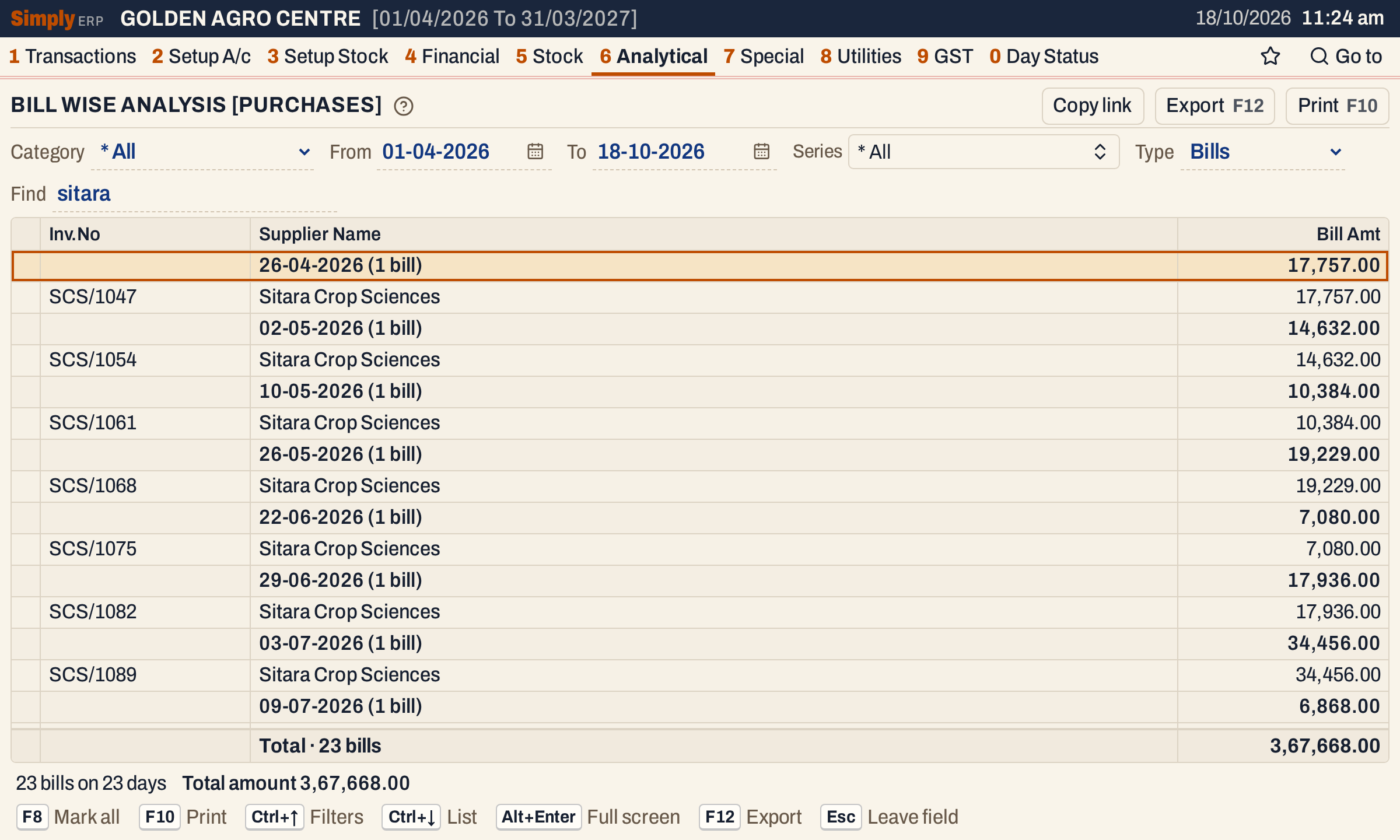 Find searches each bill’s supplier name, bill number, place, series, payment mode and day.
How the figures are worked out
For each purchase bill in the period, with the Category and Series choices applied, the Bill Amt is the bill’s total as saved: its item lines with their GST, plus the charges added to the bill (such as freight), less the amounts taken off, with the round off. The day total is the Bill Amt of its bills added up, and the Total line adds up the days.
With the Type choice set to Returns, a return’s Bill Amt is the return’s total as saved.
The total can differ from Day to Day Purchases with tax included. For the period in these pictures this report shows 54,75,141.00 and Day to Day Purchases 54,40,440.04. The difference, 34,700.96, is the freight on the bills (34,700.00) and their round off (0.96), which Day to Day Purchases leaves out.
 The totals line adds up every bill; the status line gives the number of bills, the days and the total amount.
Open, mark, print and export
- Enter on a bill opens that bill. Alt+← returns to the report, with the cursor on that bill; Esc on the bill goes to the bill list instead.
- F2 marks a bill and F8 marks every bill on the screen. When any are marked, F10 prints only those, and the print says Marked bills only.
- F10 prints the report as it is on the screen, under the title DAILY PURCHASE ANALYSIS (DAILY PURCHASE RETURNS ANALYSIS for returns). Each day prints with its bills and a Total Day Purchases line (Total Day Returns for returns). The columns are Inv.No., Supplier Name and Bill Value, and the heading gives the period, the category, and the Series and Find choices in words.
- F12 saves it as an Excel workbook.
- Alt+Enter gives the whole window to the list.
Updated 4 November 2026.