Set up new books
On this page
New books open with only the company’s name, its GSTIN and the financial year. They have no bill books, no accounts and no items, so nothing can be billed yet. The first step, Company Details, asks for the shop’s address and what the shop sells, and saving it sets up everything a bill needs. Four more steps, a customer, an item, a first bill and opening that bill, take you through the screens you will use every day. Between the item and the first bill you also enter the item’s opening stock, so the first sale has stock to take.
Start from Home
Until the first steps are done, Home lists them instead of your favourites. The next one is marked NEXT and already has the cursor, so Enter opens it. A letter opens a step directly: A to E. Steps B to D open once the books are set up, which is when step A is saved with something ticked under Sells; step E opens once there is a bill.
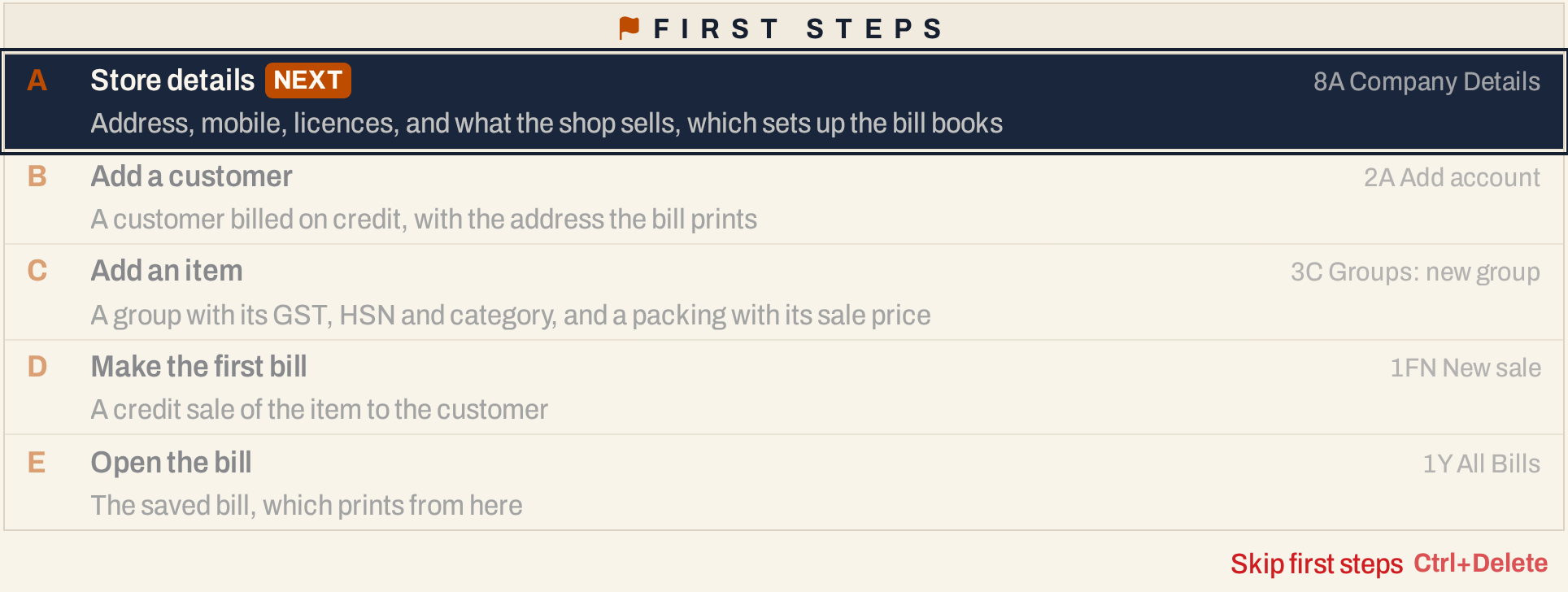 Each step names the screen it opens: 8A Company Details, 2A Add account, 3C Groups, 1FN New sale, 1Y All Bills.
You can leave the first steps and come back to them. Ctrl+Delete on Home asks “Skip the first steps?” and, if you agree, puts your favourites back. Every step stays on its menu: Company Details, accounts, groups and bills.
A band under the menu bar shows the steps on every other screen, with the direction for the step you are on. Alt+Shift+S opens the next step from anywhere.
Open Company Details
The first step opens the Company Details screen. You can also reach it any time from the menu: press Alt+8 for Utilities, then A.
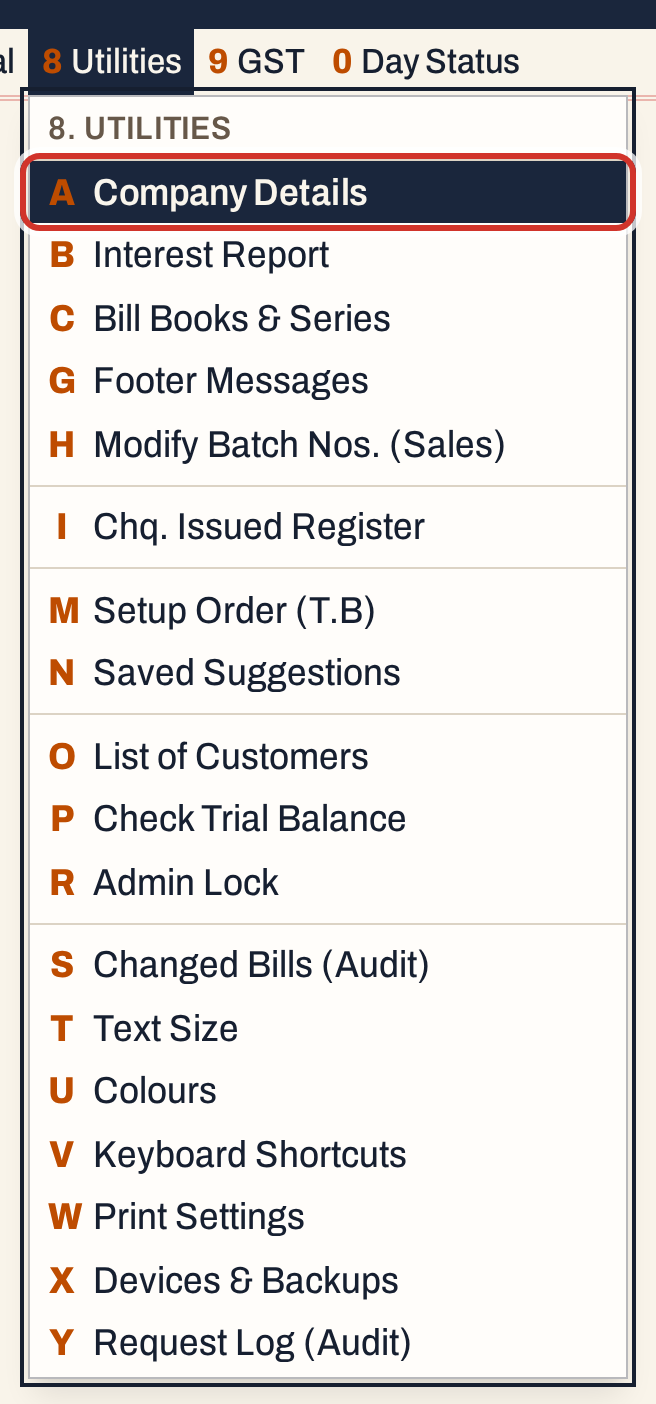 8 A: Utilities, Company Details.
Fill in the shop’s details
The screen is a form of ruled panels. Enter moves to the next field and the arrow keys move between fields. The company’s Name and GSTIN are shown but cannot be changed here, because they identify these books.
The first step needs four details that every bill prints. They are marked in red until they are filled:
| Field | What to type |
|---|---|
| Address | The street address, such as 14-2-87, Bus Stand Road |
| City | The town; it is added to your list of places |
| Pincode | Six digits |
| Mobile | Ten digits, starting with 6, 7, 8 or 9 |
Everything else is optional now and can be filled later; see Change company details. A value that does not fit its rule is refused when you save, with a line saying how it should look (for example “A pincode has 6 digits.”).
The state code is the first two digits of the GSTIN and shows as soon as the screen opens. You do not type the state: saving fills it in from the code.
Tick what the shop sells
While the books have no bill books, a Sells panel with four boxes appears among the panels: Pesticides, Fertilisers, Seeds and Bio products. Enter goes from one box to the next, and Space ticks or unticks the one you are on.
 Tick every kind of goods you sell. Here, Pesticides and Fertilisers.
The line under the form counts what will be saved: “5 changed, the books for Pesticides, Fertilisers to set up — F3 saves”. Until at least one box is ticked, it asks you to tick what the shop sells.
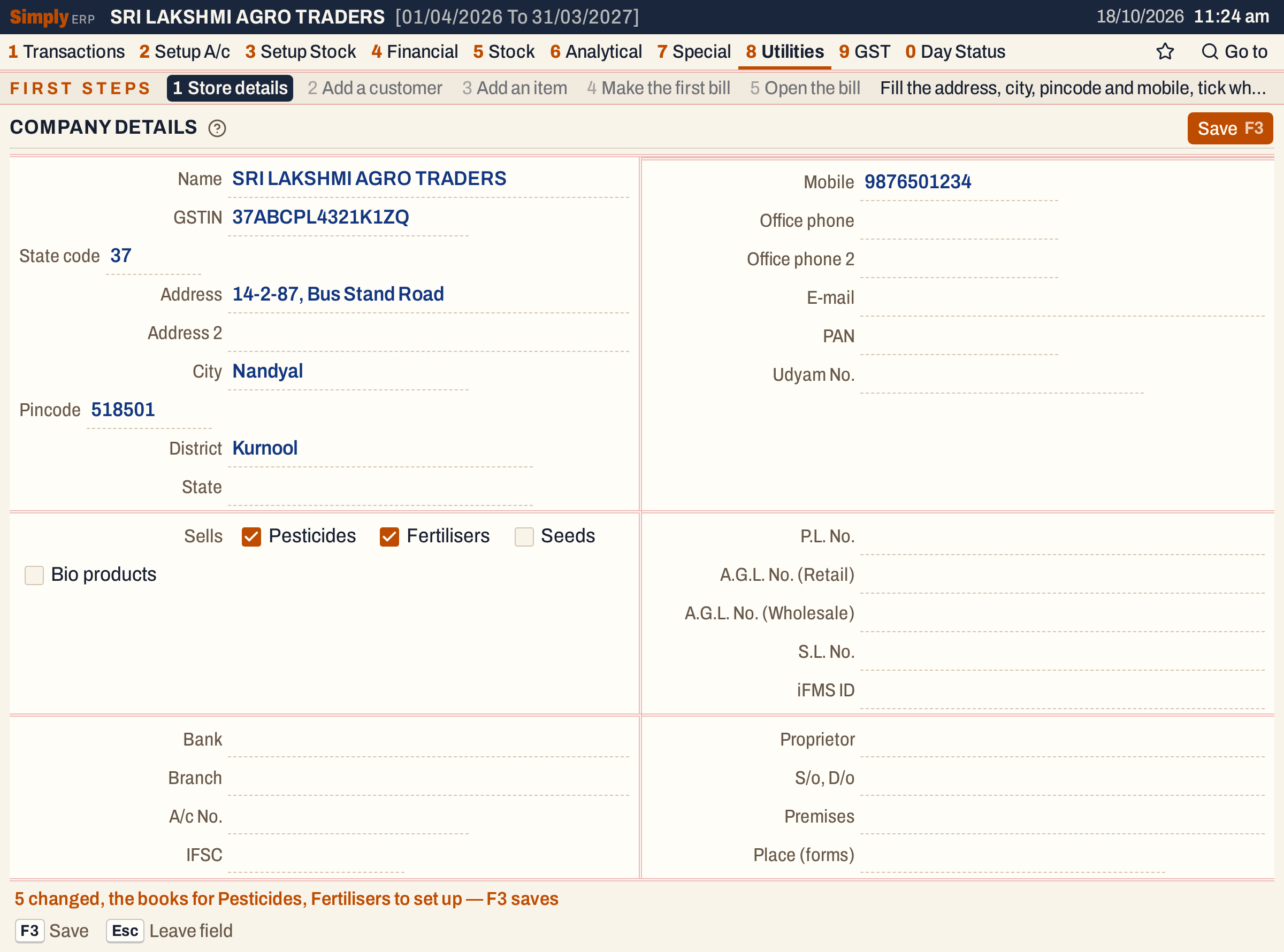 The details of this example shop, ready to save.
Press F3 to save.
What saving sets up
Saving does two things: it stores the shop’s details, and it sets up the books for the kinds of goods you ticked. The books are set up all together, so you never get half a set.
- Bill books. For each kind of goods, a sales book, a purchase book, a sales returns book and a purchase returns book, each with its own number series and its own account. For Pesticides they are PEST. SALES INV (series PS/), PEST. PURCHASE INV (PP/), PEST. SALES RETURNS (PSR/) and PEST. PURCHASE RETURNS (PPR/). Fertilisers get FS/, FP/, FSR/ and FPR/. Seeds (SS/, SP/, SSR/, SPR/) and Bio products (BS/, BP/, BSR/, BPR/) have the same four books. Each book sells only the items of its own kind.
- Note and purchase books. Credit notes issued and received (series CNI/ and CNR/), debit notes issued and received (DNI/ and DNR/) and Other purchases (OP/), open to all the kinds of goods you ticked.
- Voucher books. Receipt (RCT/), Payment (PMT/) and Journal (JV/).
- Accounts. A Cash account, the sales, purchases and returns accounts of each book, Discount Allowed, Discount Received and Other Purchases A/c, and the account types the reports group them by.
- GST. The rates 0, 5, 12, 18 and 28, with a CGST, SGST and IGST account for tax collected on sales and for tax paid on purchases at each rate above 0 (for example CGST Output @9% and IGST Input @18%).
- Packings. The common packings, from 50ML to 5LT, 50GM to 50KG and NOS, so the first item has a packing to choose.
- Places. The shop’s city is added to the list of places.
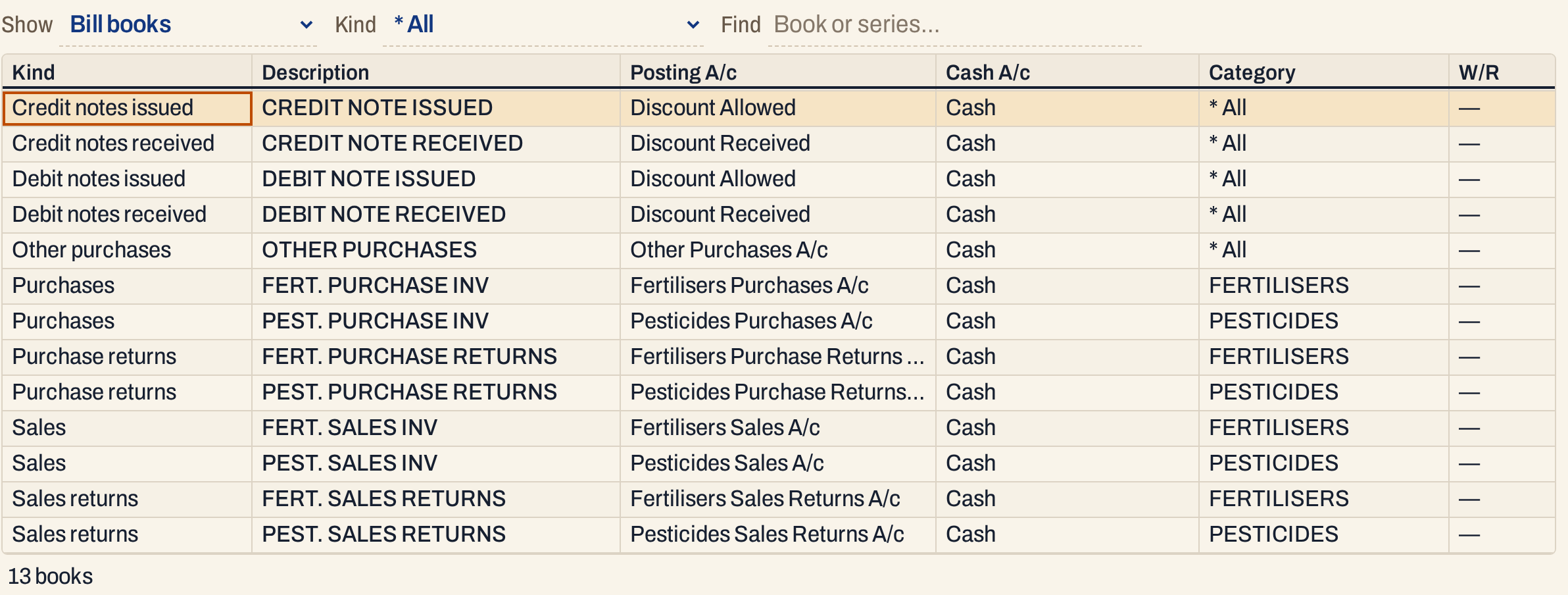 Bill Books & Series (8 C) afterwards: 13 books, each with its posting account, the Cash account and its category.
The Sells panel is shown only until the books are set up, so the kinds of goods are chosen once. Tick every kind the shop may sell. Bill books and series changes the books afterwards and adds books and series for the kinds you ticked, but it cannot add a kind of goods.
Saving goes on to step B by itself when step A is complete. If you saved the details without ticking anything, step A stays open until you tick what the shop sells and save again.
Add the first customer
Step B opens Add account with the account type already set to Customer. Type the Account name and the City / town; the place list suggests as you type, and Enter takes the highlighted place. The Ledger name, which bills, the ledger and every list show, is built from the name and the city as you type, and the Area follows the city. The address block below is included, and its state starts as the shop’s own state.
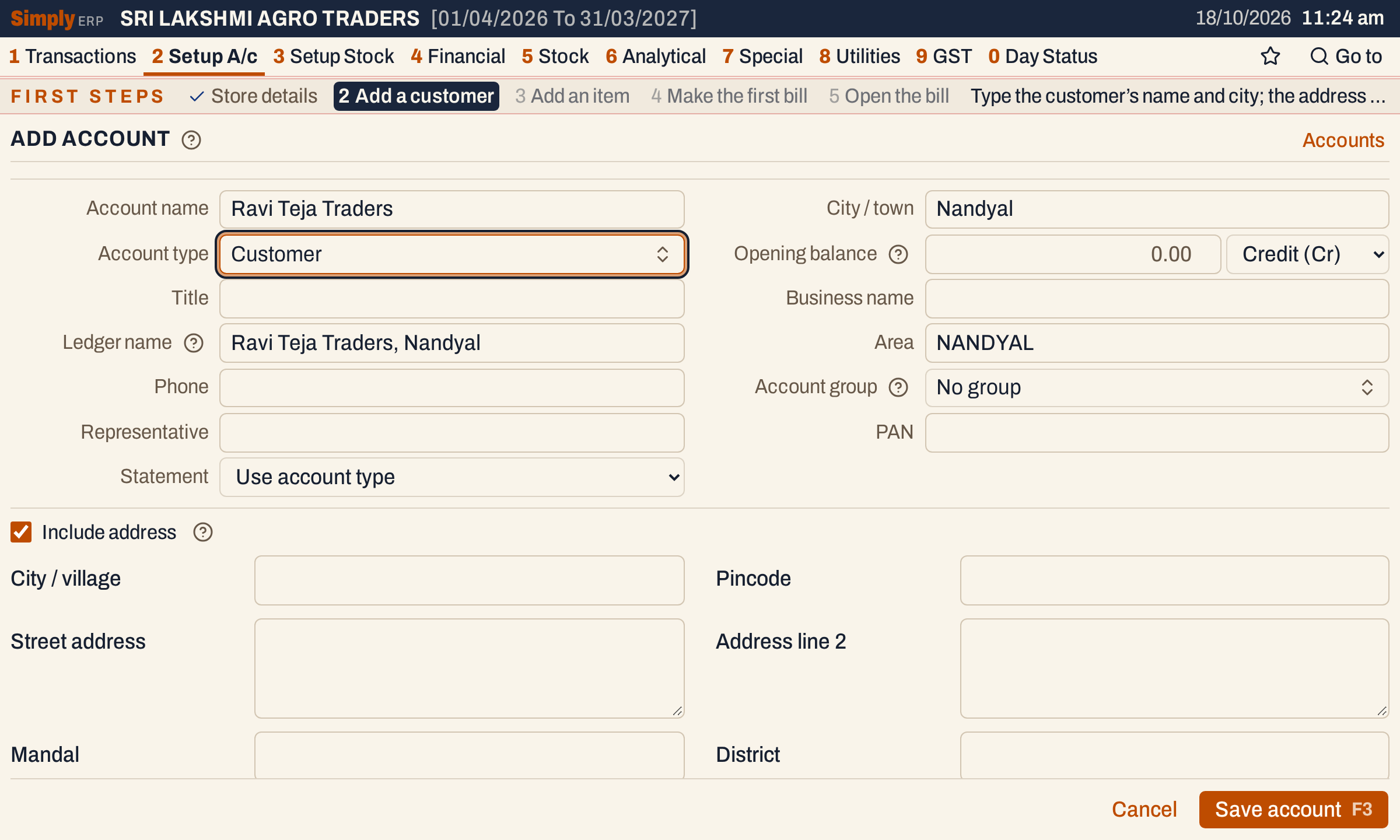 A credit customer. The opening balance stays 0.00.
Press F3 to save. The notice “Account added” appears and step C opens. More about the fields in Add an account.
Add the first item
Step C opens a new group. A group is one item in all its packings; what its packings share is typed once at the top, and each packing is a line below.
- Type the Group name, here Carbendazim 50 Wp.
- Choose the Category. It lists the kinds of goods you ticked, and takes the only one when you ticked one.
- Choose the GST %, here 18%, and type the HSN code, 38089340.
- In the packings grid, choose the Packing from the list set up for you (500GM), type the item’s Code (CBZ500) and, under S.Pr incl, the sale price including GST, 310.
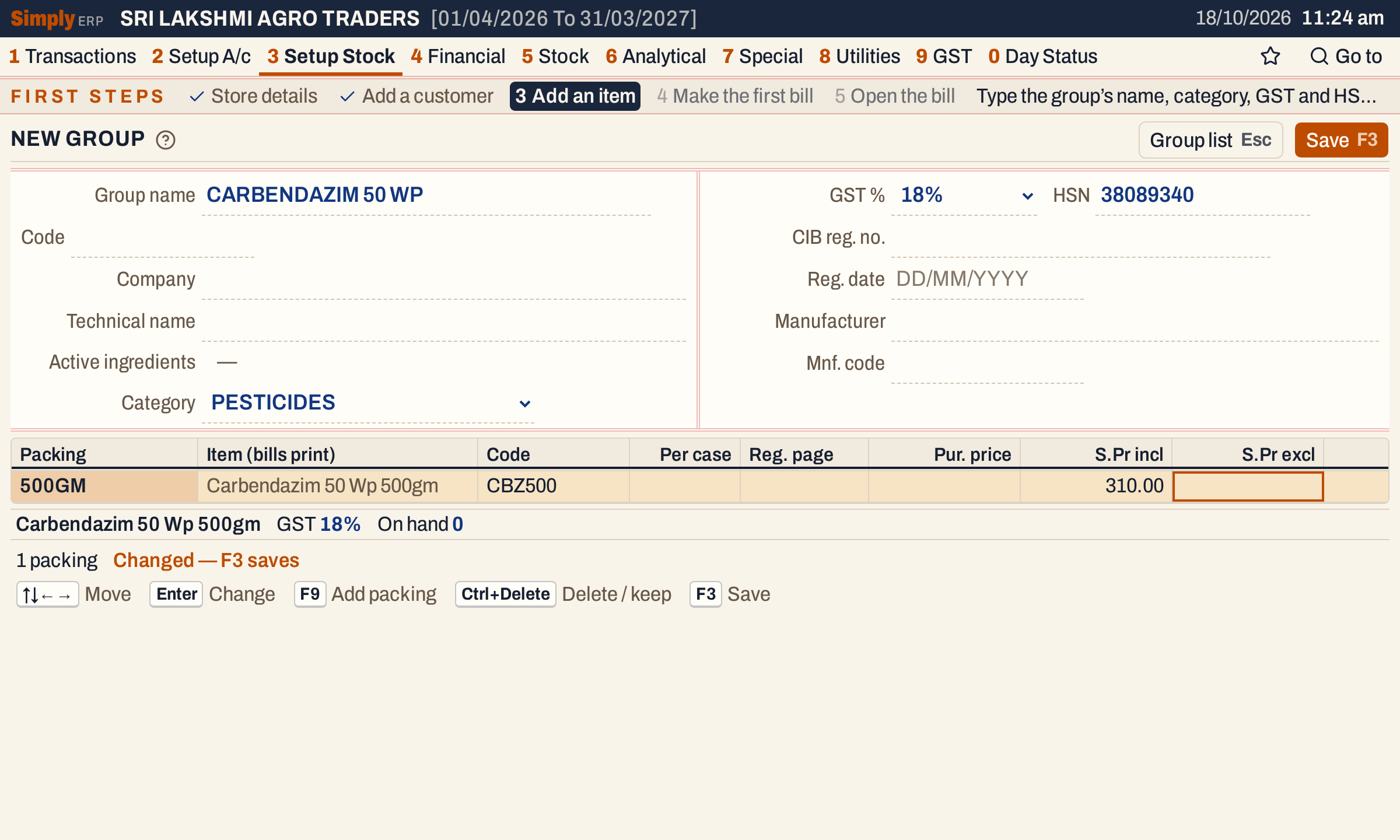 The item’s name on bills is the group’s name and its packing: Carbendazim 50 Wp 500gm.
Press F3 to save. The line under the grid reads “On hand 0”: a new item has no stock until you enter opening stock or bill a purchase. See Add a stock group for every field.
Enter the opening stock
Saving the group opens the first bill at once, but the new item has no stock, and a sale takes its units out of a batch. SimplyERP lets you bill past the stock on hand, and the item’s stock then goes below zero. Enter what the shop holds first, so the sale has a batch to take it from.
Press Alt+3 for Setup Stock and G for Opening Stock (3 G). On a packing line of a saved group, Alt+O opens the same screen.
- Choose the Item: type part of its name and press Enter.
- Press ↓ to go into the batches and F9 to add one.
- Type the Batch number, its Mfg and Exp dates as DD/MM/YYYY (both can stay empty) and the Quantity. Enter moves along. Here the batch is CB-2608, made 05/08/2026, expiring 04/08/2028, with 20 units.
 The line under the batches shows what saving will do: the item’s opening stock goes from 0 to 20.
Press F3 to save. The item’s stock changes by the difference, so it now holds 20 units. Opening stock posts nothing to your accounts. See Opening stock for batches already on bills and for several batches of one item.
Then press Alt+Shift+S, which the First steps band shows on this screen, to go on to the first bill.
Make the first bill
Step D opens a new sale, the same screen as Make a sale bill, and the first field is the bill type.
- Choose the bill type, PEST. SALES INV. The book, PS/, is chosen for you because the type has one book; the next number, PS/1, shows beside the heading.
- Set Payment to Credit, so the sale goes on the customer’s account.
- Type part of the customer’s name (“ravi”) and press Enter to take Ravi Teja Traders, Nandyal.
- Type part of the item’s name (“carbendazim”), press Enter, and type the units, 2. The rate, 310.00, comes from the item’s sale price.
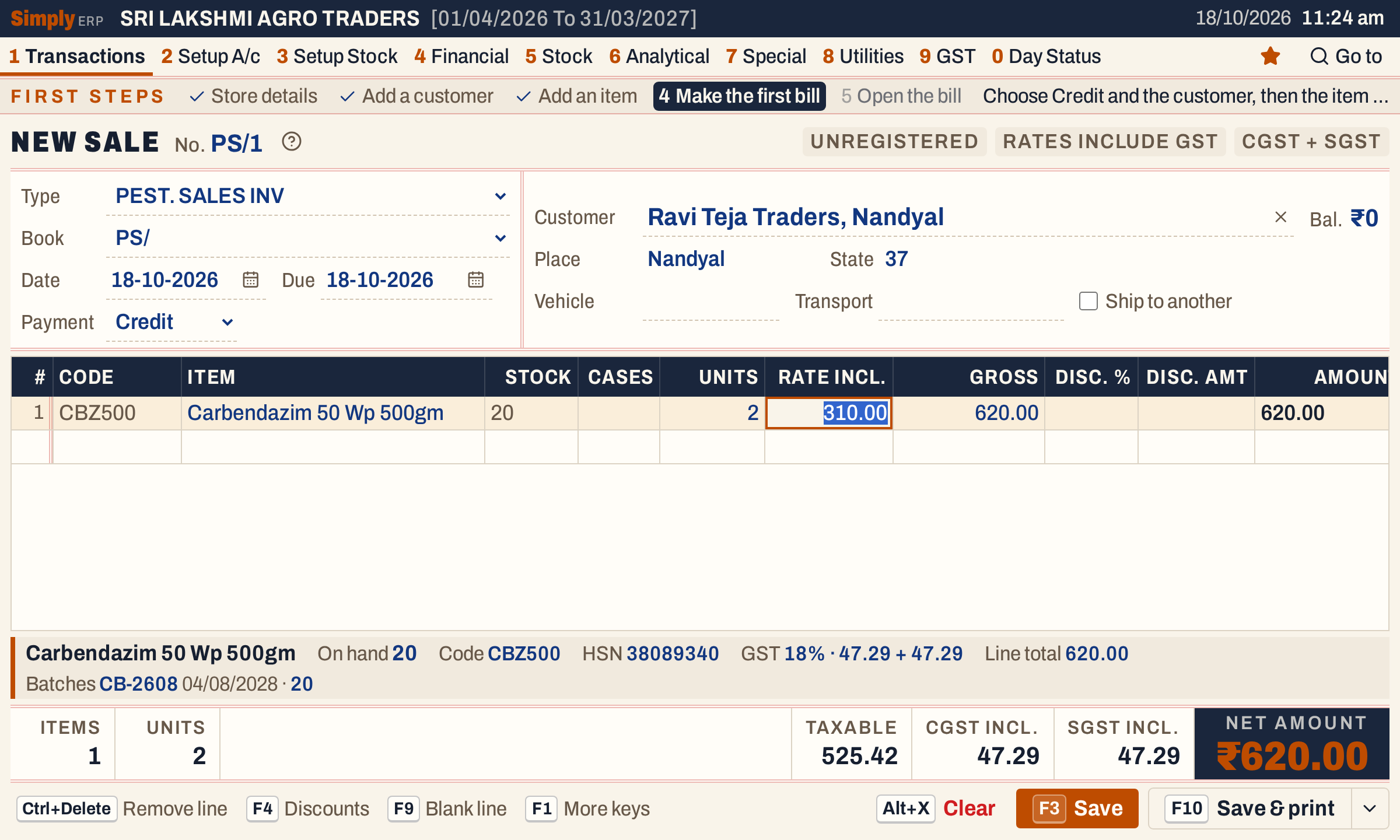 A customer without a GSTIN is billed at rates that include GST, so ₹620.00 is ₹525.42 taxable and ₹47.29 each of CGST and SGST.
The Stock column and the band under the grid show the 20 units you entered, and the band lists the batch, CB-2608 with its expiry date. The item has only one batch in stock, so the line takes it without asking.
Press F3 to save. Step E opens the saved bill.
Open the saved bill
The saved bill shows its date, due date, customer with the balance now (₹620.00 Dr), the line with its HSN and tax, and the totals. F10 prints it, F4 edits it and Esc goes back to the bill list.
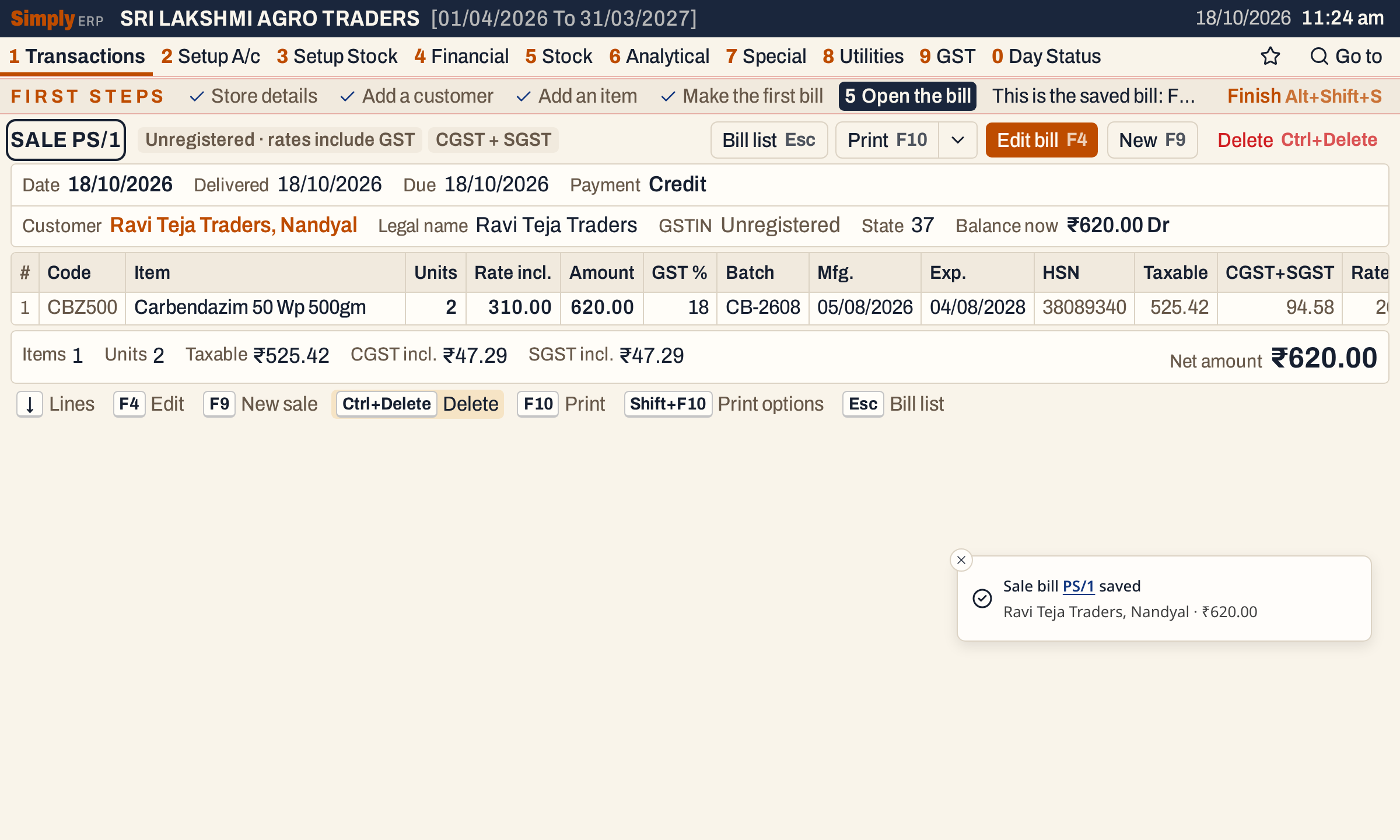 A notice names the bill just saved. The band offers Finish with Alt+Shift+S.
When you have looked at the bill, press Alt+Shift+S to finish the first steps. Home then shows your favourites, New Bill (1 F N) and View Bills (1 Y).
 The first steps are done. A and B open a new bill and the bill list.
What the first bill did to your books
Saving the sale made these postings, dated on the bill date, 18/10/2026:
| Account | Debit | Credit |
|---|---|---|
| Ravi Teja Traders, Nandyal | 620.00 | |
| Pesticides Sales A/c | 525.42 | |
| CGST Output @9% | 47.29 | |
| SGST Output @9% | 47.29 |
The 2 units left batch CB-2608, so the item’s stock fell from 20 to 18. The bill is in All Bills (1 Y), and Ravi Teja Traders now owes ₹620.00.
Keys on these screens
| Key | What it does |
|---|---|
| A to E | On Home, open a first step |
| Enter | Open the next step on Home; next field on a form |
| Space | Tick or untick a box under Sells |
| F3 | Save, then go on to the next step |
| Alt+Shift+S | Open the next first step from any screen; finish them on the saved bill |
| Ctrl+Delete | On Home, skip the first steps (asks first) |
| F1 | Every key on the screen |
On a Mac, ⌥ stands for Alt, ⇧ for Shift and ⌘ for Ctrl.
Common questions
I do not see the first steps. Why? They appear only on books that start empty, and only until you finish or skip them. Books that already have a bill book or any bill or voucher never show them. You can reach every screen from the menu.
Can I add a kind of goods later? No. The Sells boxes are shown only while the books have no bill books, and no other screen adds a kind of goods. Bill books and series can add books and series for the kinds you ticked. So tick every kind you may sell.
Can I skip a step? Yes. Each step is an ordinary screen, so you can use the menu instead. The first step marks the four details every bill prints (address, city, pincode and mobile), and Home lists any still to fill under Store details.
Where did the state come from? From the first two digits of the GSTIN, which are the state code.
Updated 4 November 2026.