Keep the list of places
On this page
Places is the list of towns and villages that bills and accounts pick from. A bill’s Place and an account’s City / town are chosen from it, so a clerk types a few letters and takes the listed name instead of spelling the place a new way each time. Keep it up to date when you start serving a new village.
Open Places
Press Alt+2 for Setup Accounts, then D for Places (Area / City).
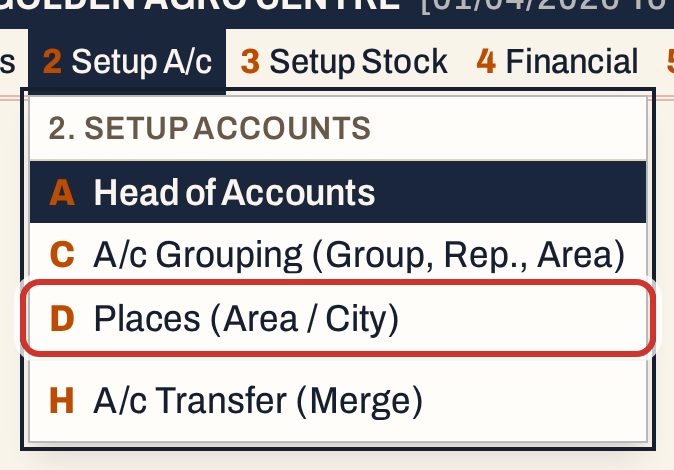 2 D: Setup Accounts, Places.
The list opens with the cursor on its first place. There is one column, Place (area / city), and the status line counts the places.
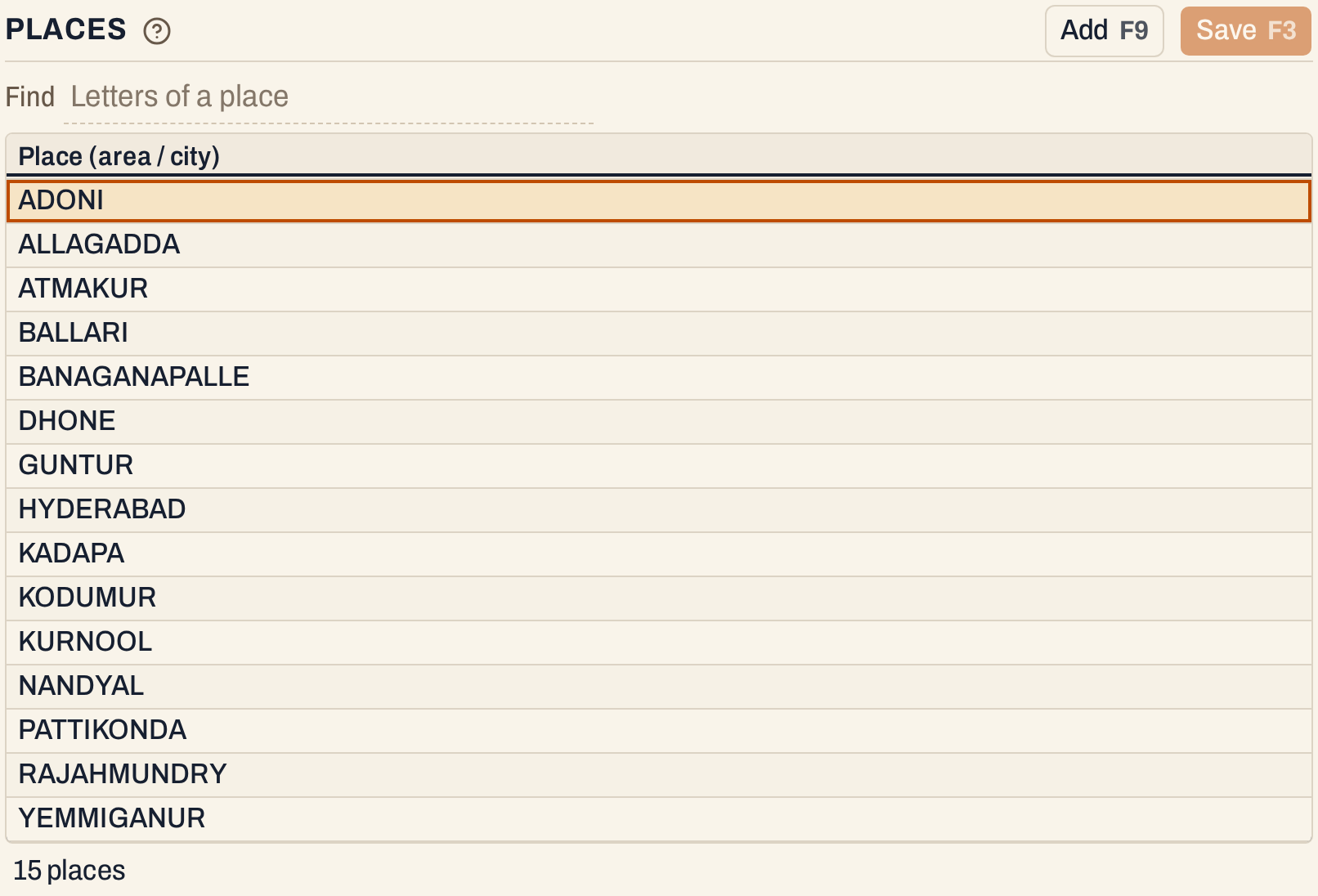 The places of the showcase books, in alphabetical order.
Places are kept in capitals with single spaces, whatever you type: “gooty” is saved as GOOTY. A place can have up to 60 characters.
Find a place
Click the Find box (or press Ctrl+↑ to go to the filters) and type some letters. The list shows the places that contain what you typed. From three letters on, the letters may also come in order with a few others between them, so “kur” finds Atmakur, Kodumur and Kurnool. A place you have added or changed stays in view while you work.
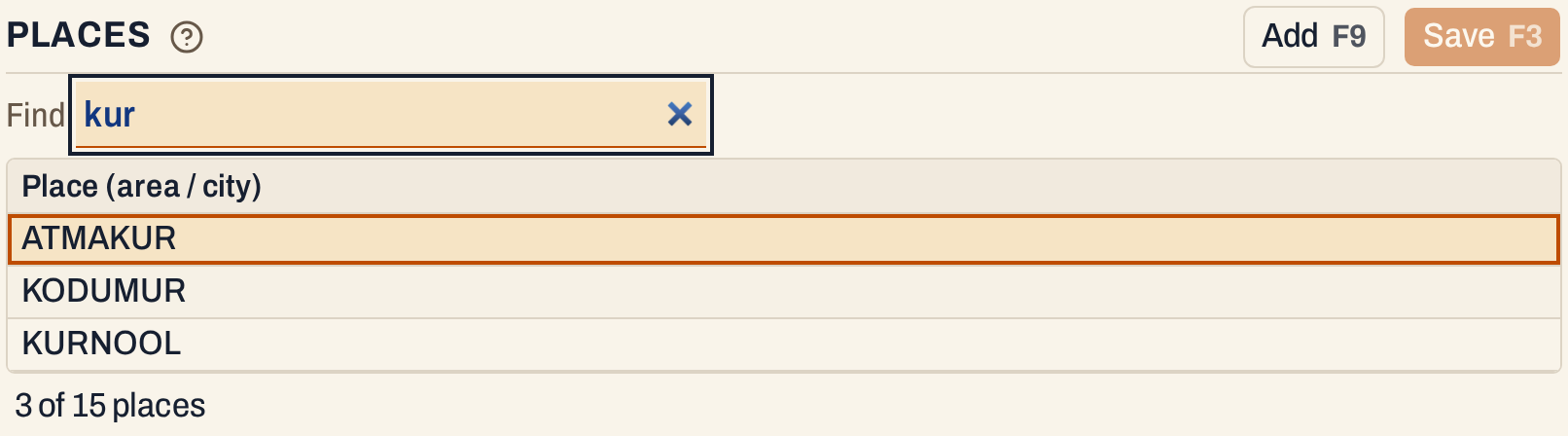 Find narrows the list. Clear it to see every place.
Add a place
Press F9 (or click Add). A new line opens at the end of the list. Type the name and press Enter to keep it. Add as many as you need.
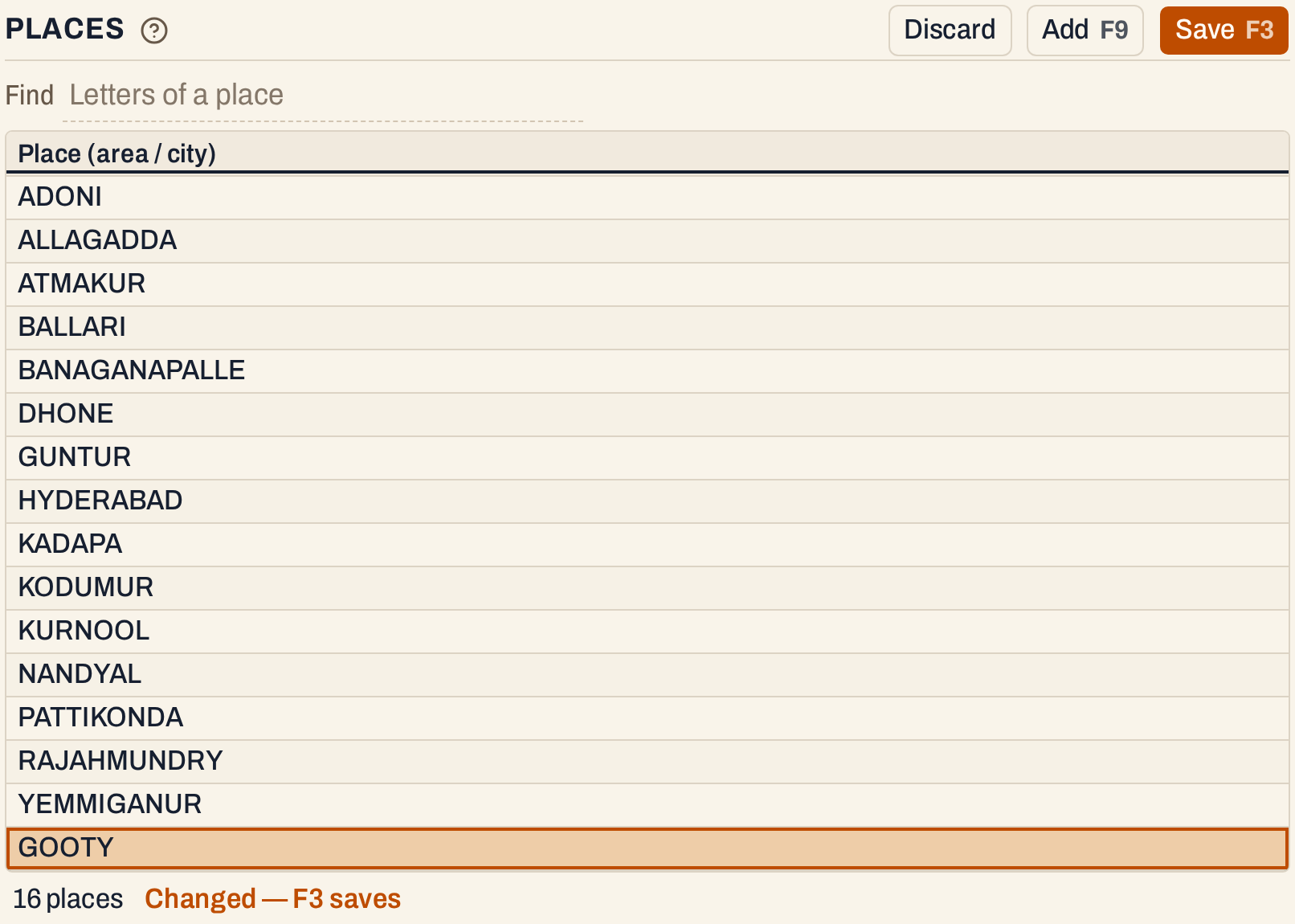 A new place, not yet saved. Changed lines are shaded until you save.
Change or delete a place
To rename a place, move to it with the arrow keys and type the new name, or press Enter to edit the old one. Enter keeps the change and Esc drops it. A name that is already in the list is refused.
To delete a place, move to it and press Ctrl+Delete. The line is struck through, the status line counts it (“1 to delete”) and the cursor moves down a line. To keep the place after all, move back up to it and press the same key again. On a line you added and have not saved, the key removes the line.
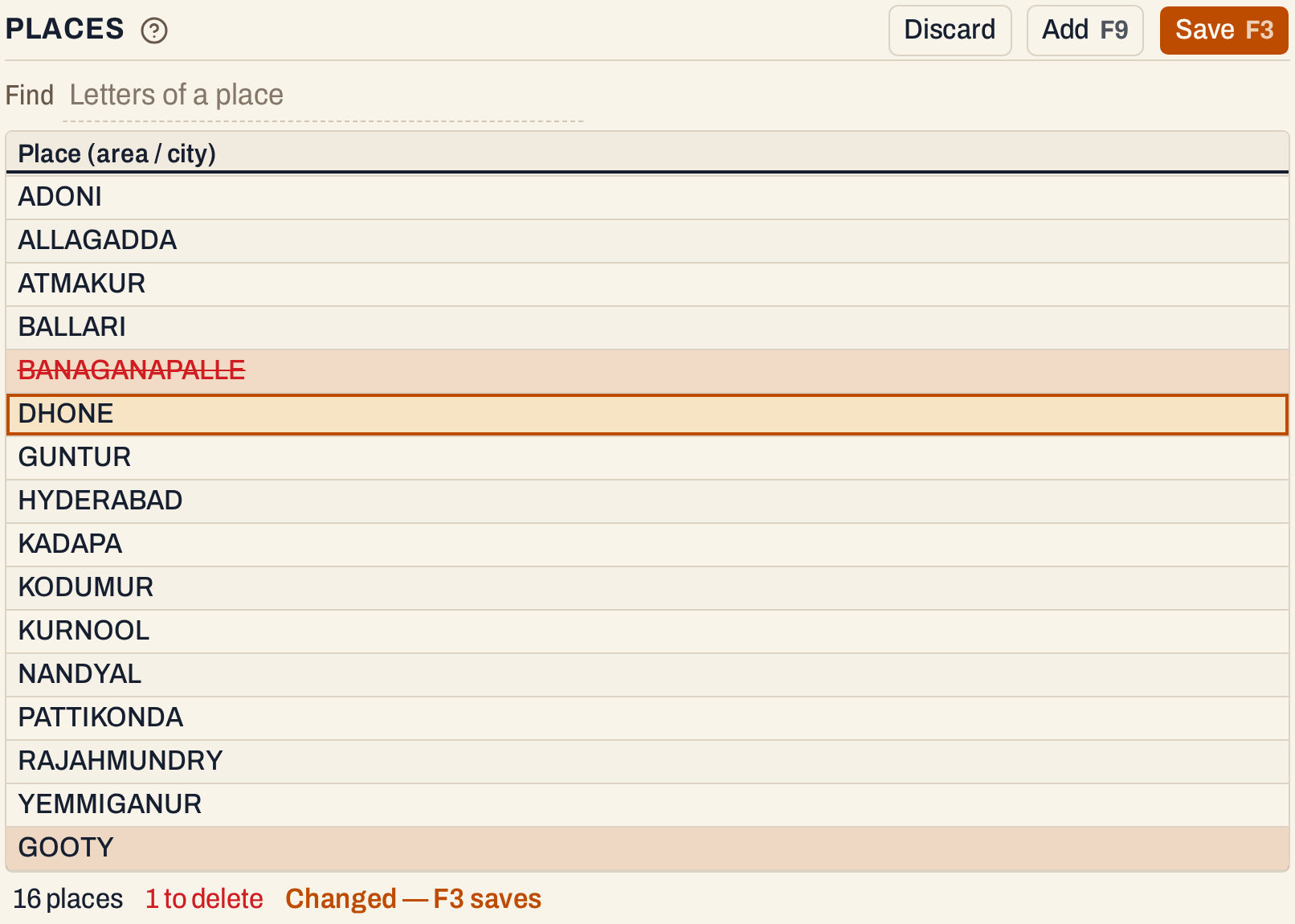 A place marked for deletion. Nothing is deleted until you save.
Discard throws away every change you have not saved.
Renaming or deleting a place does not change the bills and accounts that already have it. Nothing refers to the list by name: a bill keeps the place it was made with, and an account keeps its city. Renaming a place is the same as deleting the old name and adding a new one.
Save
Press F3 (or click Save). The whole list is saved, a notice says “Places saved.” and the list is shown in alphabetical order again, with GOOTY between DHONE and GUNTUR. An empty line is dropped, and a name that is already in the list is refused with a message that names it.
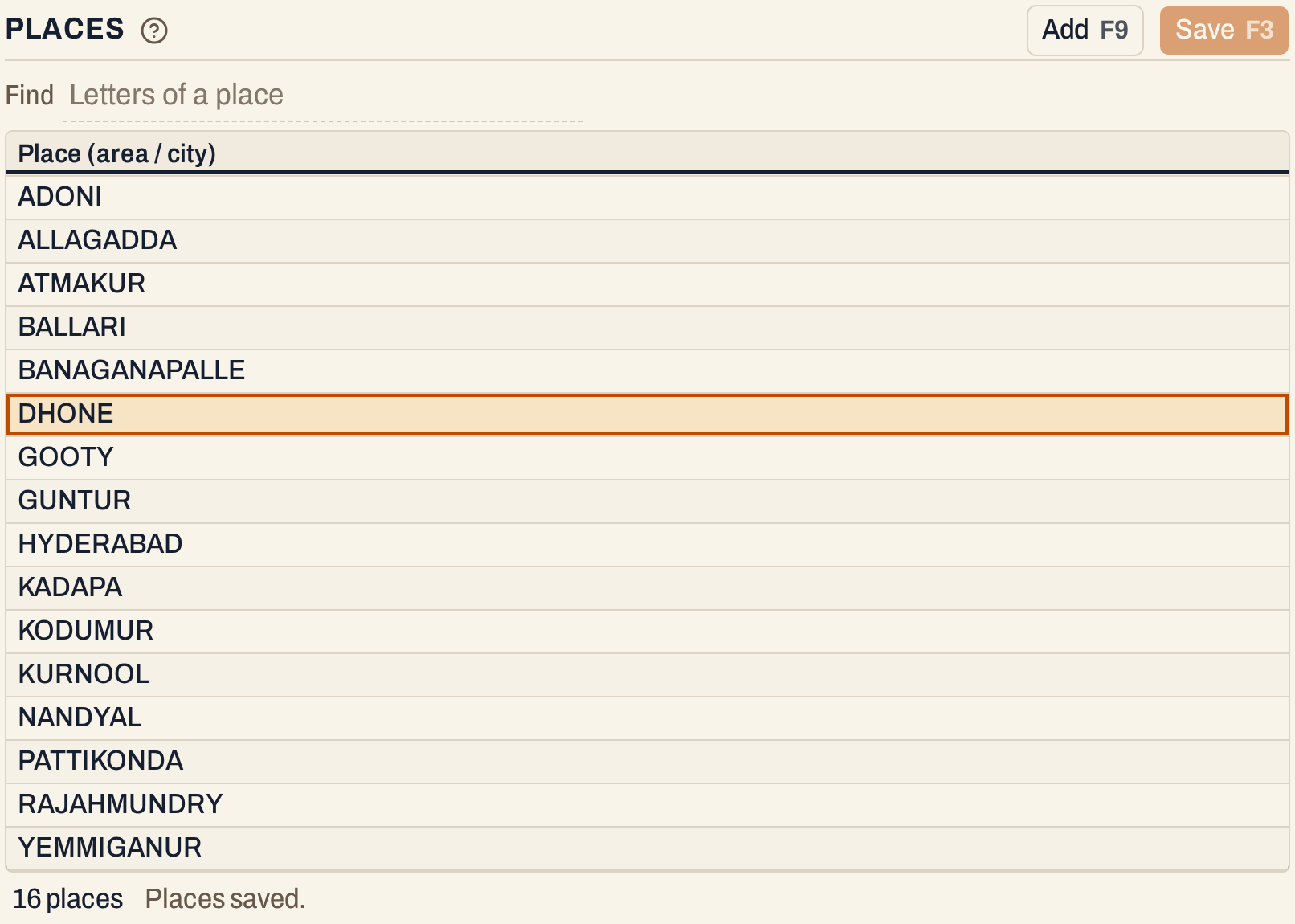 Saved. The new place is in its place.
Where the list is used
- On a cash bill, the Place of the customer you type, and the place of a ship-to party, are chosen from the list. Typing a few letters, a short form or a near spelling highlights the listed place, and Enter takes it. A place that is not listed can still be typed. On a credit bill the place comes from the customer’s account.
- In an account’s City / town the list works the same way.
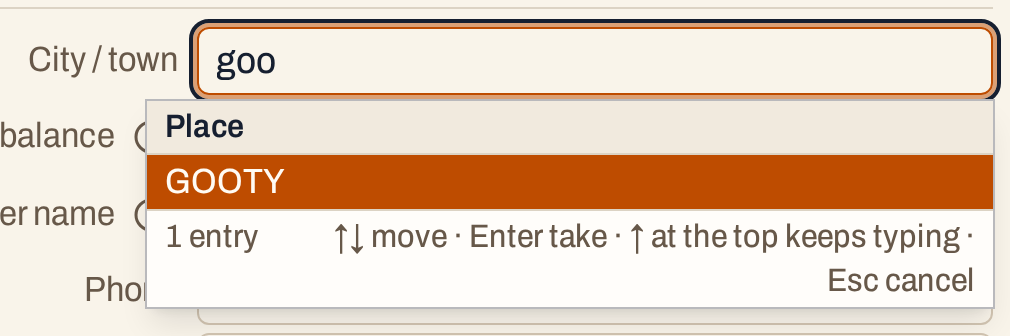 A new account’s City / town now offers GOOTY.
A city typed on an account that is not in the list is added to it when the account is saved, so the list also grows as accounts are added. See Add an account.
Keys on this screen
| Key | What it does |
|---|---|
| ↑ ↓ | Move between places |
| Enter | Edit the place; again to keep it |
| Esc | Drop the change in the cell |
| F9 | Add a place |
| Ctrl+Delete | Mark the place to delete, or keep it again |
| F3 | Save the list |
On a Mac, ⌘ stands for Ctrl.
Updated 4 November 2026.